Configuring Deposits
Configuration activities that are available regarding Deposits
For more information about deposits, see Deposits. For information about managing deposit profiles, see Managing Deposit Profiles. For an overview of working with digital resources, see Working with Digital Resources - Overview.
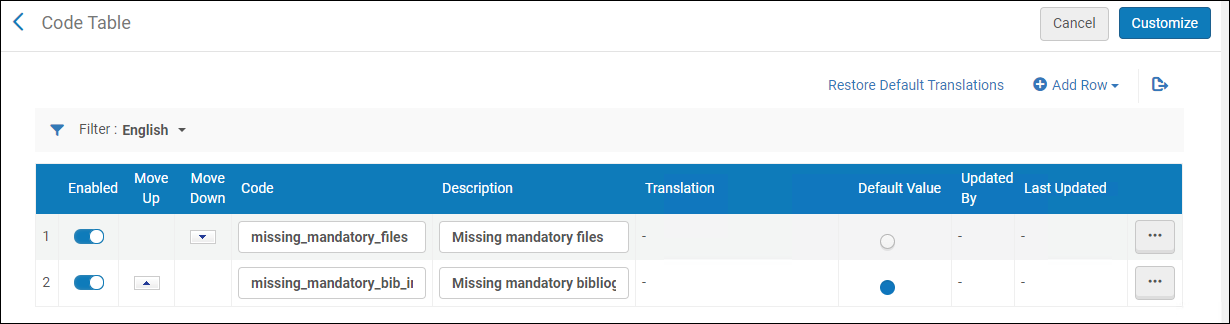
Configuring Deposit Return Reasons
- Deposit Manager
- General System Administrator
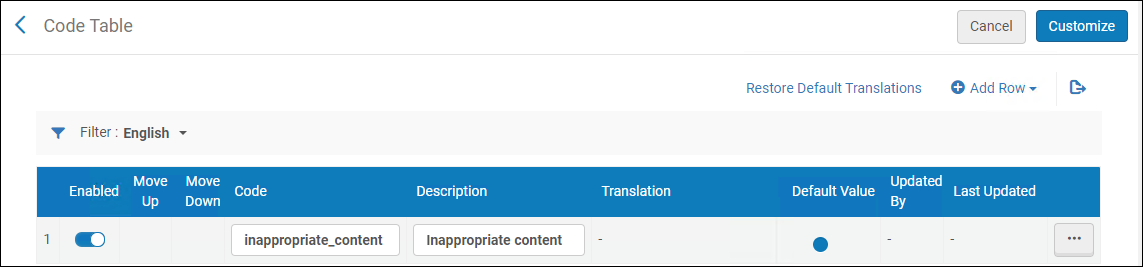
Configuring Deposit Decline Reasons
- Deposit Manager
- General System Administrator
Configuring Patron Deposit Templates
- Deposit Manager
- General System Administrator
Configuring Terms and Conditions
- Deposit Manager
- General System Administrator
You can configure terms and conditions for patron deposits. These statements can be displayed to patrons before they can make deposits to the Alma repository.

- On the Terms and Conditions Files page, select Customize for a terms and conditions. The following, for example, appears:
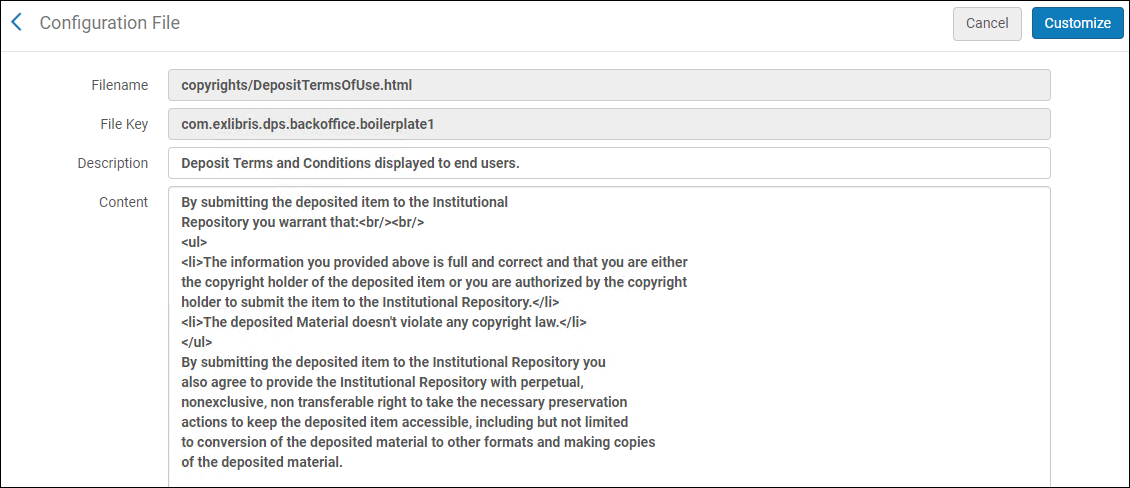
Configure Terms and Conditions - Edit the terms and conditions, and select Customize.After you edit a terms and conditions, the following actions are available:
- Edit – Edit the terms and conditions
- Restore – Restore the terms and conditions to the default
- View Default – View the default terms and conditions
Configuring Patron Deposit Labels
- Deposit Manager
- General System Administrator
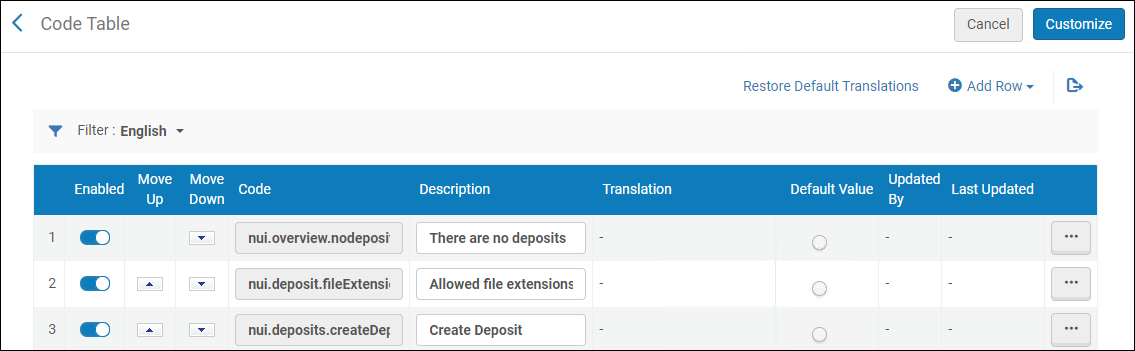
You can configure how labels appear in the patron deposit interface for multiple languages. See Deposits.
You configure patron deposit labels on the Patron Deposit Labels code table (Configuration > Resources > Deposit > Patron Deposit Labels). Select the language from the Filter drop-down list for the language whose labels you want to configure. For more information about code tables, see Code Tables.
Configuring Patron Deposit Customizations
- Deposit Manager
- General System Administrator
You can use Primo Studio to configure the Patron Deposit interface.
- Select Patron Deposit Customization(Configuration > Resources > Deposit > Patron Deposit Customization).
- Select a Primo view.
- Select Generate Link. The Open Primo Studio link appears.
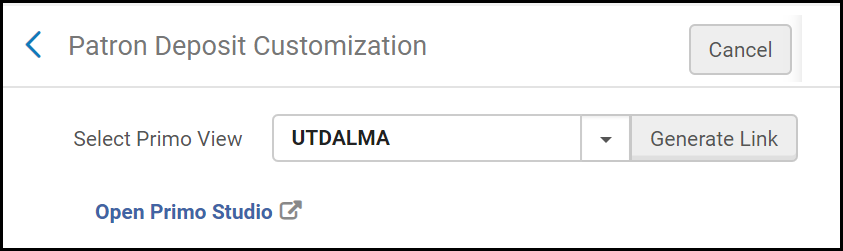 Patron Deposit Customization
 - Click the Open Primo Studio link.
Primo Studio opens, allowing you to customize the Deposit Interface.
For more information on using Primo Studio, see Using Primo Studio.
Page tags: article:topicproduct:almacontent:Documentationlang:englishConfiguring DepositsAdd Deposit ProfileDeposit Return ReasonsDeposit Decline ReasonsPatron Deposit Templates
