
Technical Analysis Workbench
The Technical Issues List
You can review and manage the errors that the Preservation Services detect from the Technical Issues page. The errors for each workflow for which the checks are performed are accessed from the tab of that workflow so that:
- For Submissions – Submissions > Technical Analysis > Technical Issues
- For Data Management – Data Management > Technical Analysis > Technical Issues
- For Migration – Preservation > Technical Analysis > Technical Issues
You can move from one list to the other using the tabs on the Technical Issues page.
From the Technical Issues page, you review and manage digital files submitted to Specto Preservation or maintained in the repository. To display the Technical Issues page, select Preservation > Technical Analysis > Technical Issues. This page is the center of preservation activities, and it is from here that the primary functions of Specto Preservation are performed.
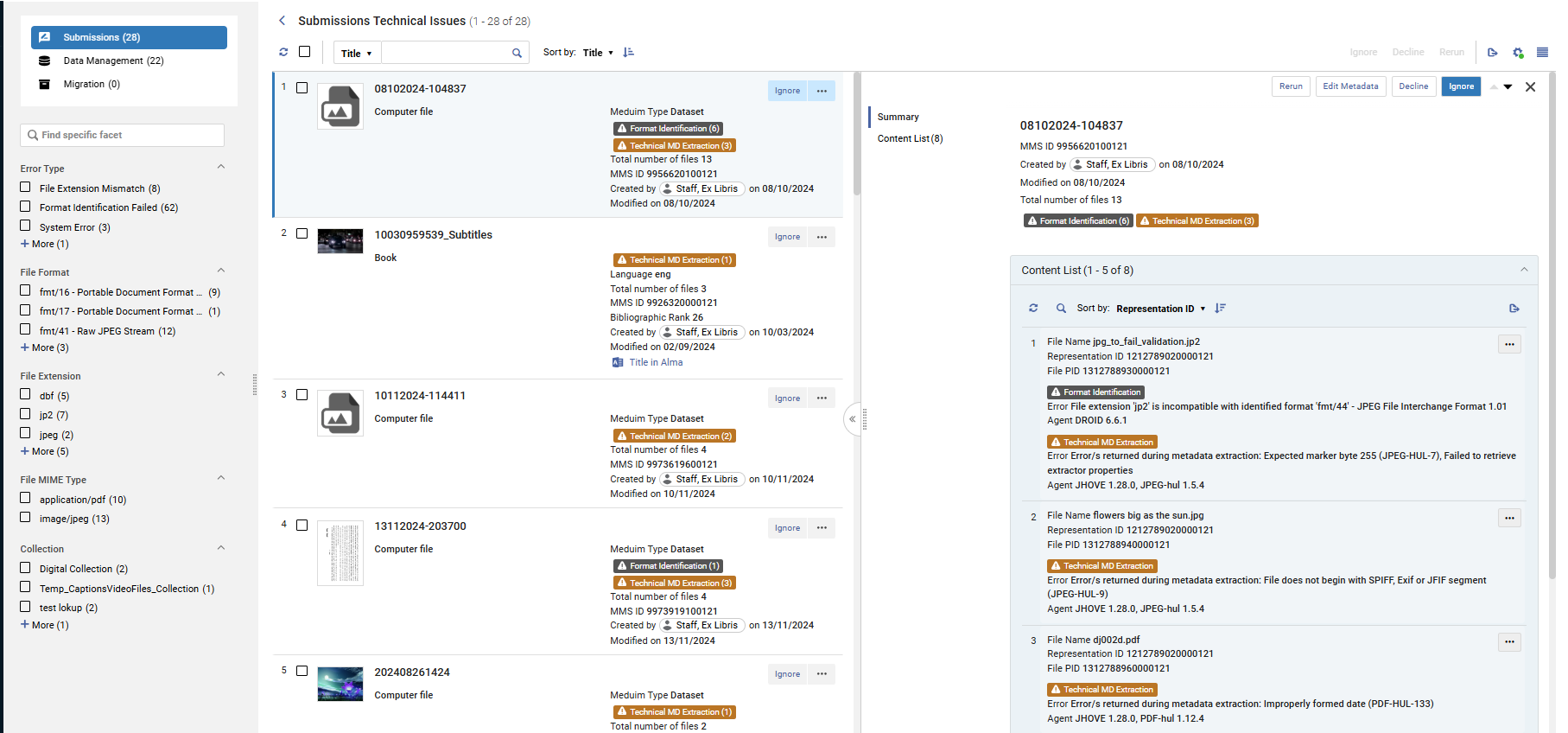
When opening the Technical Issues page in Split-Screen view, the titles containing the errors are on the left, and the files within the titles containing the errors are on the right. The layout and elements of this page are similar to those of the repository search results page in Alma. (For more information, see Repository Search Results.) This page describes the elements unique to Specto Preservation.
List of Titles with Technical Issues
In Split-Screen view, the left pane displays a list of titles that have one or more titles with a technical issue. The information in this pane is similar to the repository search results page in Alma, with the following additional information and options:
- Error Tags – errors that resulted from Preservation Service checks. The tag indicates the number of files in the representation with the error. Possible values are:
- Format Identification
- Fixity Check
- Technical MD Extraction
- Virus Check
- System Error
- Total number of files – the total number of files in the representation, including those without errors.
The following actions are available:
- Ignore – ignore the error and remove it from the list. The title is preserved in Rosetta as is. This option is not available for Virus Check errors and System Errors.
- Decline – the effect of this action depends on how the file with the error was added to Specto Preservation:
- If the file is part of a title recently submitted, the title is removed from Specto Preservation. If the title exists in Alma, it is removed from Alma, as well. However, if the title in Alma contains physical content, only the digital content is removed. The title is retained with the physical content.
- If the error was caused by adding a file to an existing title in Specto Preservation, only the new file is removed.
- If the error was caused by adding a representation that contained the file to an existing title, the representation and all of its files are removed.
- Edit Metadata – edit the metadata of the title. This option is available only for titles not located in Alma. For titles located in Alma, the metadata can be edited only in Alma.
- Rerun – rerun the Preservation Services checks if you corrected the error.
File Information and Content List
Selecting a title from the left pane opens the right pane with detailed information about the title and its files. From the Content List tab, you can view file-level information. For example:
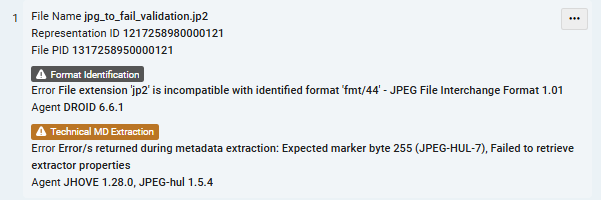
In this example, the file has two errors. The first is a Format Identification error. Under the tag, the specific reason for the error is detailed. In this case,Error File extension "jp2" is incompatible with identified format "fmt/44" - JPEG File Interchange Format 1.01. This means that the file extension of jp2 does not match the actual file format of fmt/44. Under the error details, the third-party tool used to identify the error is displayed. In this case, it is DROID 6.6.1.
The second error for the file is Technical MD Extraction. Under the tag, the reason for the error is displayed. In this case,Error Error/s returned during metadata extraction: Expected marker byte 255 (JPEG-HUL-7), Failed to retrieve extractor properties. This means that the service failed to extract metadata information from the file.
Select the More Actions icon to display additional actions. The following are available:
- Deliver – display the file in the viewer
- Download – download the file
- Ignore – ignore the error
- Details – opens the details page that displays more granular information on the file and the results of the Preservation Services checks. For more information, see File Details.
- Replace – replace the file with a different one. Preservation Services run on the new file.
- Rerun – rerun Preservation Services on the file
File Details
Selecting Details from the options list of a file in the Content List tab displays the File Details page. It contains the following tabs:
- Summary – basic information, such as the file name
- Quick View – a display of the file
- General Information – general information such as creation date and MMS ID
- Technical Information – technical information on the file, such as the file format, extension, and size
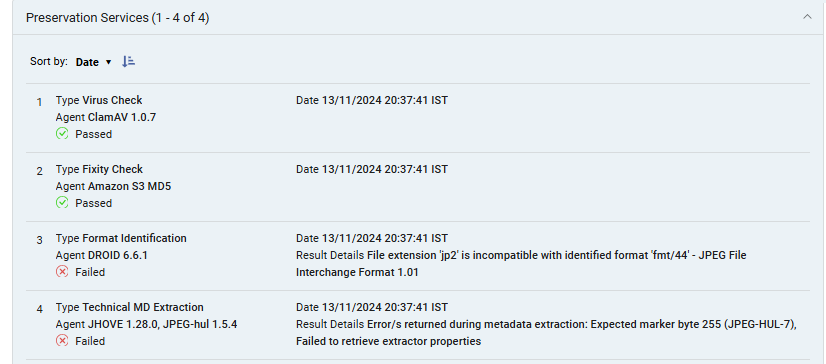
- Preservation Services – a list of the Preservation Services that ran and their status. For example:
 Preservation Services
For each service, the following information is displayed:
- Type – the type of check
- Agent – the third-party tool used to preform the check
- Pass/Failed – indicates if the file passed or failed the check
- Date – the date and time the check finished
- Result Details – the reason the file failed the check
Page tags: article:topic content:Documentation product:rosetta lang:english
