Creating PO Lines with Real-Time Ordering
This page describes how to setup and work with real-time using APIs. For a list of links to pages with instructions for purchasing in Alma including renewals, working with vendors, etc., see Purchasing. For the overall purchasing workflow, including the steps required for creating orders (whether using EOD, creating them manually, etc.), see Purchasing Workflow. For an overview of working with acquisitions in Alma, including links to relevant sections such as Invoicing, Renewals, Configuration, etc., see Introduction to Acquisitions.
Alma supports real-time ordering by enabling vendors to integrate their ordering systems with Alma's repository and ordering features. This means that Alma operators can purchase items directly in the vendor's system, and the order data is sent automatically to Alma from the vendor's system using Alma's APIs. Alma then automatically creates a PO line for each item purchased.
Real-time ordering speeds up the availability of resources, increases the efficiency of integrating records, reduces the complications of manually overlaying or merging records, and enhances data enrichment in Alma.
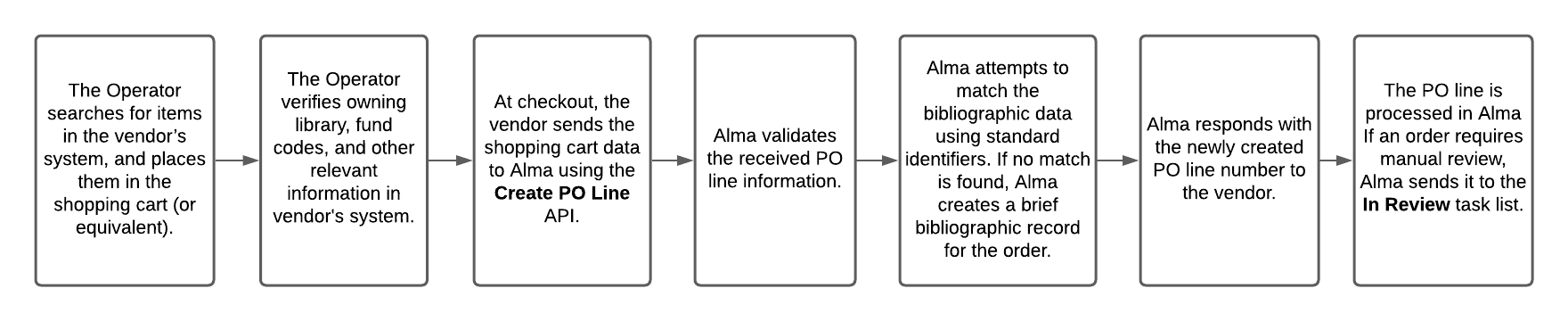
The following diagram provides an overview of the real-time purchasing workflow:
Setting Up a Real-time Ordering Workflow with Participating Vendors
This section provides general information about setting up the real-time ordering workflow with vendors. Set-up must take place both in Alma and in the vendor's system.
For specific instructions for working with ProQuest Coutts OASIS, see Setting up a real-time acquisitions workflow with ProQuest Coutts OASIS. See also Manually Creating a PO Line.
Required Configurations in Alma
The simple setup includes the following steps:
- Default Metadata template: Ensure that a default metadata template is configured. (Open the Metadata Editor>Template> choose the template you want to define as a default > right-click and select Properties> check as default).
- New Order API integration profile: This API is used for creating a PO line in Alma for an order that was done in a vendor system. As part of the PO line details, the relevant metadata is sent to Alma. Alma will try to match it with existing bibliographic records. If a matching bibliographic record exists - the new PO line will be related to that record. If not – a new bibliographic record will be created with the supplied metadata. You need to decide on the matching rules that you want to apply (see How the bibliographic record is determined). Validations for fund-related issues can also be configured (as documented here(docx)).When a match is found, the New Order API integration profile does not make any changes to the management tags of existing records. When no match is found, the integration profile creates a new Bib with the management tags according to the defaults/profile settings.
- Ex Libris recommends to define an API Restriction profile(see here).
- Vendor-specific Alma configuration for GOBI: The vendor account representing GOBI should be defined with 0% discount.
Sending Setup Information to the Vendor
Setup for real-time ordering must happen on the vendor side as well. For information for vendors, see Setting up a real-time ordering workflow with ExLibris Alma.
- Provide the vendor the necessary Alma information for setup, as detailed below:
| Send to vendor | Description |
|---|---|
| API key |
Generate an API key and supply it to the vendor. If several vendors are part of the real-time ordering, supply each vendor a unique separate API key. In this way, if and when the institution wants to discontinue working with a specific vendor, that specific API key can be disabled via the Developers Network. Other API keys will continue functioning as usual. To generate your API key:
You can define the API within your Sandbox or within Production environments.
For more details regarding API key generation and working with Alma APIs, see Alma APIs. |
| Vendor code and Vendor account code |
Find the information regarding the vendor record in Alma under Acquisitions > Acquisitions Infrastructure > Vendors. The PO lines created as part of the real-time ordering will be related to that vendor and vendor account:
Make sure that this vendor in Alma is configured not to send outgoing EDI messages for POs. Other EDI messages (e.g. for invoices) can be sent, if it is part of your workflow. |
| Owning Library code(s) |
The library to which the PO line created as part of Real-time ordering will be assigned to. Supply a list of possible owning library codes to the vendor. The implementation on the vendor side might be to provide a dropdown on the ordering form, from which to choose the relevant owning library. Other implementation might be to associate an account to a single owning library. In this case, the Operator will have to be logged in with the relevant account. Note that the vendor can use the Retrieve libraries API in order to get a full list of libraries, or use the Get library API to check a code of specific library. |
| Fund code(s) | The fund from which the payment will be done. Note that the vendor can use the Retrieve funds API. |


Access Model Considerations
When the New Order API runs, Alma uses the vendor identifier number, or the ISBN/ISSN, to match the incoming order to an existing portfolio in an electronic collection. This functionality is currently available for OASIS and GOBI.
- If a match is found, the PO line is associated with the portfolio. The access model description, as defined in the Access Model table, is then added to the Public Access Model field (within the Acquisition tab of the Portfolio Editor) for display in Primo.
- If a match is not found, the Community Zone is searched within the relevant Community Zone collection, using the access provider's collection code, which is transferred into Alma as part of the order information. Once a match is found in the Community Zone, the portfolio is activated in the institution linked to the Community Zone. The access model is stored in the Access Model field of the PO line for electronic orders, and within the portfolio's Public Access Model field for display in Primo.
Portfolios that are activated from the Community Zone as a result of orders coming into Alma from OASIS/GOBI via API enter Alma as not'Available'. For the portfolio to appear in the discovery system, the institution must make the portfolio available (once it was made available on the vendor side).
If your institution would like orders coming from OASIS/GOBI via API to create all resources that are matched to Alma Community Zone as 'Available', set the acq_activate_portfolio_from_API parameter (Configuration menu > Acquisitions > Other settings) to 'true'. If the parameter was set to true and the resource did not have a Community Zone match, a local portfolio will be created. This local portfolio will not be set as "Available" (an Electronic Activation Task List will be created) because local, non CZ-linked portfolios, have no URL information. See more information in January release notes and Configuring Other Settings (Acquisitions) page.
Note that the portfolio's Public Access Model description will only be presented in the discovery system if the Enable Display of AccessModel checkbox is selected on the Other Settings page (Configuration > Fulfillment > Discovery Interface Display Logic > Other Settings). See Configuring Other Settings.
In case a PO line of type 'License Upgrade' was added to the portfolio as an additional PO line, the Public Access Model field on the portfolio displays the access model associated with the license-upgrade order.
Additional Information
For additional information, see below:
- Lists of vendors supported for orders originating from OASIS/GOBI:Vendor Lists.
- Detailed overview of Real-time purchasing:https://developers.exlibrisgroup.com/blog/Real-time-Acquisitions
- PO Line API (how the bib record is determined):https://developers.exlibrisgroup.com/blog/Create-PO-line-API-how-the-bibliographic-record-is-determined
- Create PO Line API:https://developers.exlibrisgroup.com/alma/apis/acq/POST/gwPcGly021rXkIgBNjmJH6pSL6v0plPz/d5b14609-b590-470e-baba-9944682f8c7e
- New Order API for Electronic Portfolios that are Part of a Collection
Vendor Lists
For a list of participating vendors, see below.
-
If you would like a vendor to enable this feature, or if you are a vendor who would like to enable this feature, contact VendorIntegration@exlibrisgroup.com.
-
By default, CZ electronic collections are used as specified below. If you want to use a local electronic collection from the vendors below, or from other vendors, you can open a support case and specify the local collection ID that you would like to use.
OASIS Vendor List
The list of vendors currently supported for orders originating from OASIS is:
| Provider name | Collection name | Collection ID |
|---|---|---|
| Bloomsbury Collection | Bloomsbury Collections All Titles | 614950000000000416 |
| Brill Online | Brill Online Books | 613170000000000148 |
| Cairn Ebooks | CAIRN eBooks General | 613170000000000198 |
| Cambridge University | Cambridge Core all books | 613820000000000020 |
| De Gruyter | De Gruyter eBooks Complete | 611000000000002268 |
| EBSCO | EBSCOhost Ebooks | 61111000211069000 |
| Elsevier | Elsevier ScienceDirect Books Complete | 613840000000000009 |
| Gale GVRL | Gale eBooks | 611000000000000731 |
| IGI Global Online | IGI Global InfoSci-Books | 611000000000002255 |
| John Benjamins | John Benjamins Books | 613820000000000062 |
| JSTOR | JSTOR Books | 613170000000000272 |
| Karger | Karger eBooks Collection | 613810000000000333 |
| Manchester University Press | Manchester Hive | 615490000000000250 |
| Oxford Scholarly Editions Online | Oxford Scholarly Editions Online | 613840000000000106 |
| Project MUSE | Project MUSE - EBA All Single Title Collection | 615410000000000517 |
| ProQuest Ebook Central | EBook Central Perpetual and DDATitles | 614330000000000002 |
| Rittenhouse R2 | R2 Digital Library PDA Discoverable Titles | 614900000000001202 |
| SAGE | SAGE Knowledge A-Z (All Titles) | 613790000000000598 |
| Taylor & Francis | Taylor & Francis eBooks Complete | 611000000000000660 |
| Wiley Online Library (eBooks) | Wiley Online Library Online Books | 611000000000000499 |
| World Scientific Publishing | World Scientific eBooks | 612490000000000003 |
GOBI Vendor List
Electronic collections should be activated in the Institution Zone before the API can push and link portfolios to the CZ.
The list of vendors currently supported for orders originating from GOBI is:
| Provider name | Collection name | Collection ID |
|---|---|---|
| Al Manhal | Al Manhal eBook Collection | 614910000000001498 |
| Bloomsbury | Bloomsbury Collections All Titles | 614950000000000416 |
| Brill Online | Brill Online Books | 613170000000000148 |
| CAIRN | CAIRN eBooks General | 613170000000000198 |
| Cambridge University Press | Cambridge Core All Books | 613820000000000020 |
| De Gruyter | de Gruyter eBooks Complete | 611000000000002268 |
| Digitalia Hispanica Digitalia | Digitalia Hispanica | 613840000000000287 |
| Duke University Press | e-Duke All Books | 615410000000000518 |
| EBSCOhost | EBSCOhost Ebooks | 61111000211069000 |
| Edward Elgar Books | Edward Elgar Books | 613170000000000299 |
| Elsevier ScienceDirect | Elsevier ScienceDirect Books Complete | 613840000000000009 |
| Gale GVRL | Gale eBooks | 611000000000000731 |
| IGI Global Online | IGI Global InfoSci-Books | 611000000000002255 |
| John Benjamins | John Benjamins Books | 613820000000000062 |
| JSTOR | JSTOR Books | 613170000000000272 |
| Karger | Karger eBooks Collection | 613810000000000333 |
| Manchester University Press | Manchester Hive | 615490000000000250 |
| Project MUSE | Project MUSE - EBA All Single Title Collection | 615410000000000517 |
| Oxford Bibliographies Online Oxford University Press | Oxford Bibliographies | 613170000000000296 |
| Oxford Clinical Psychology Online Oxford University Press | Oxford Clinical Psychology | 613790000000001102 |
| Oxford Handbooks Online | Oxford Handbooks Online Complete | 611000000000002626 |
| Oxford Medicine Online | Oxford Medicine Online | 613410000000000010 |
| Oxford Scholarly Editions Online | Oxford Scholarly Editions Online | 613840000000000106 |
| Oxford Reference Online | Oxford Reference Library | 613170000000000188 |
| ProQuest Ebook Central | EBook Central Perpetual and DDATitles | 614330000000000002 |
| Rittenhouse R2 Digital Library Rittenhouse Book Distributors, Inc. | R2 Digital Library PDA Discoverable Titles | 614900000000001202 |
| SAGE Online Content | SAGE Knowledge A-Z (All Titles) | 613790000000000598 |
| SpringerLink | SpringerLink Books Complete | 611000000000001381 |
| Taylor & Francis eBooks | Taylor & Francis eBooks Complete | 611000000000000660 |
| University Press Scholarship | University Press Scholarship Online Complete | 613450000000000059 |
| Wiley Online Library (eBooks) | Wiley Online Library Online Books | 611000000000000499 |
| Wolters Kluwer | Books@Ovid Purchase | 612430000000000018 |
| World Scientific | World Scientific eBooks | 612490000000000003 |
Real-Time Ordering for ATO, STL, and EBA Purchase Models
| Purchase Model | Description |
|---|---|
| Access to Own (ATO) |
ATO is a unique usage-based acquisition model for eBooks, where all spending contributes towards ownership, thus allowing customers to control the budget while potentially providing access to a wider pool of titles. This model is relevant for libraries that:
This model is available via ProQuest's Ebook Central platform. |
| Short-Term Loan (STL) |
|
|
Evidence Based Acquisition (EBA) |
How EBA works, in 4 steps
|
STL/ATO and Alma
Alma receives the order via API and associates it with the relevant resource. If an additional order is sent to Alma via API as part of the STL/ATO, the new order is associated with the existing resource as the "main order," while the initial order becomes an "additional order." Both the main and the additional orders have the resource associated with them. The main PO line is the primary and active PO line, and all its relevant attributes are passed to the portfolio (Access model).
Example: This use case describes the chain of events when STL/ATO orders are sent to Alma:
- The library has a DDA program with ProQuest. As part of the DDA program, the electronic resource,AI-Powered IoT for COVID-19, is made available via ProQuest Ebook Central.
- ProQuest identifies the accessing of the resource, which triggers an STL real-time order.
- ProQuest identifies an additional, second accessing of the resource, which triggers an additional STL real-time order.
- Both PO lines that were created as part of the STL process are associated with the resource.
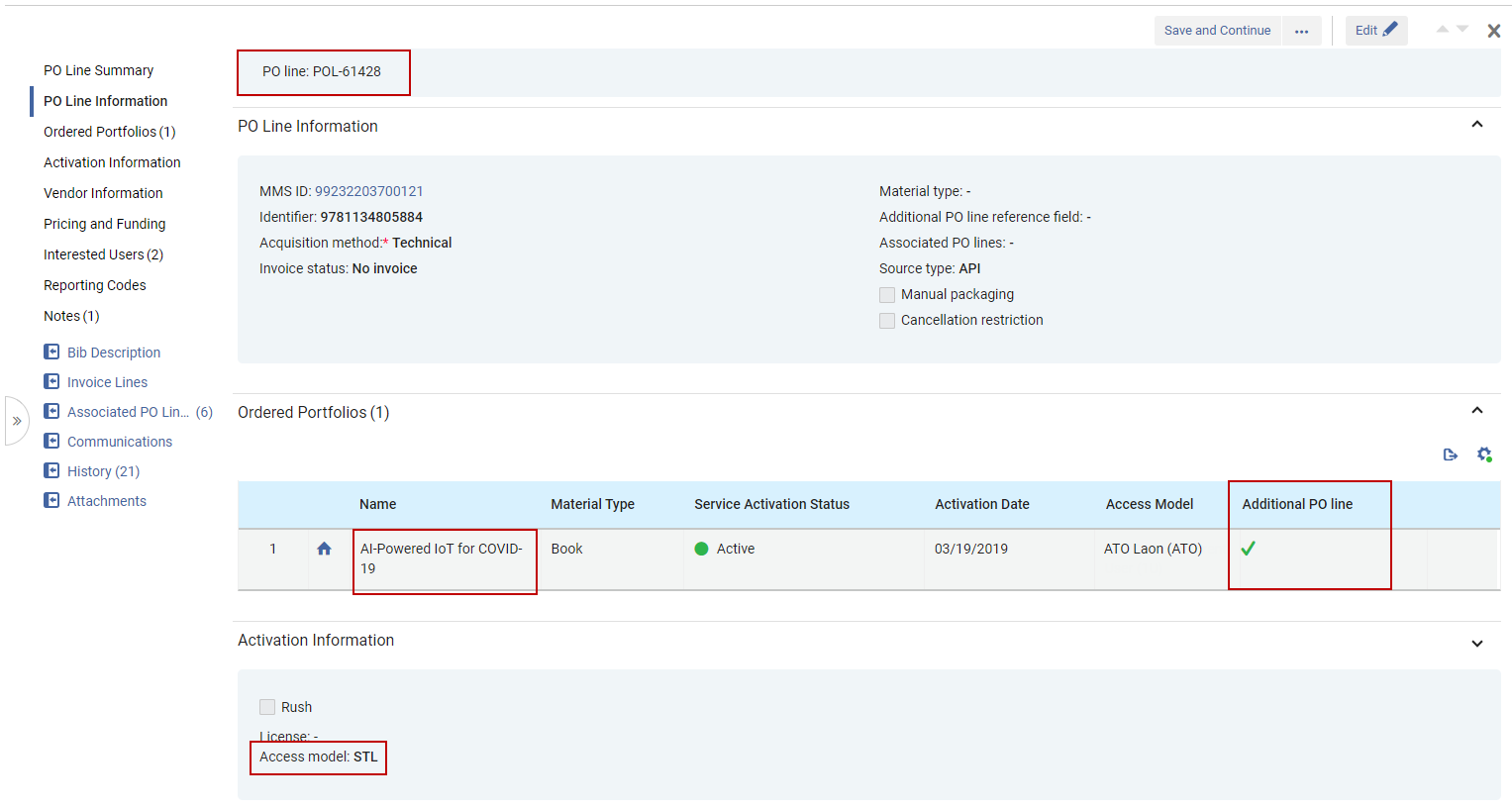 Original (first) PO Line is associated with the portfolio as an Additional PO Line
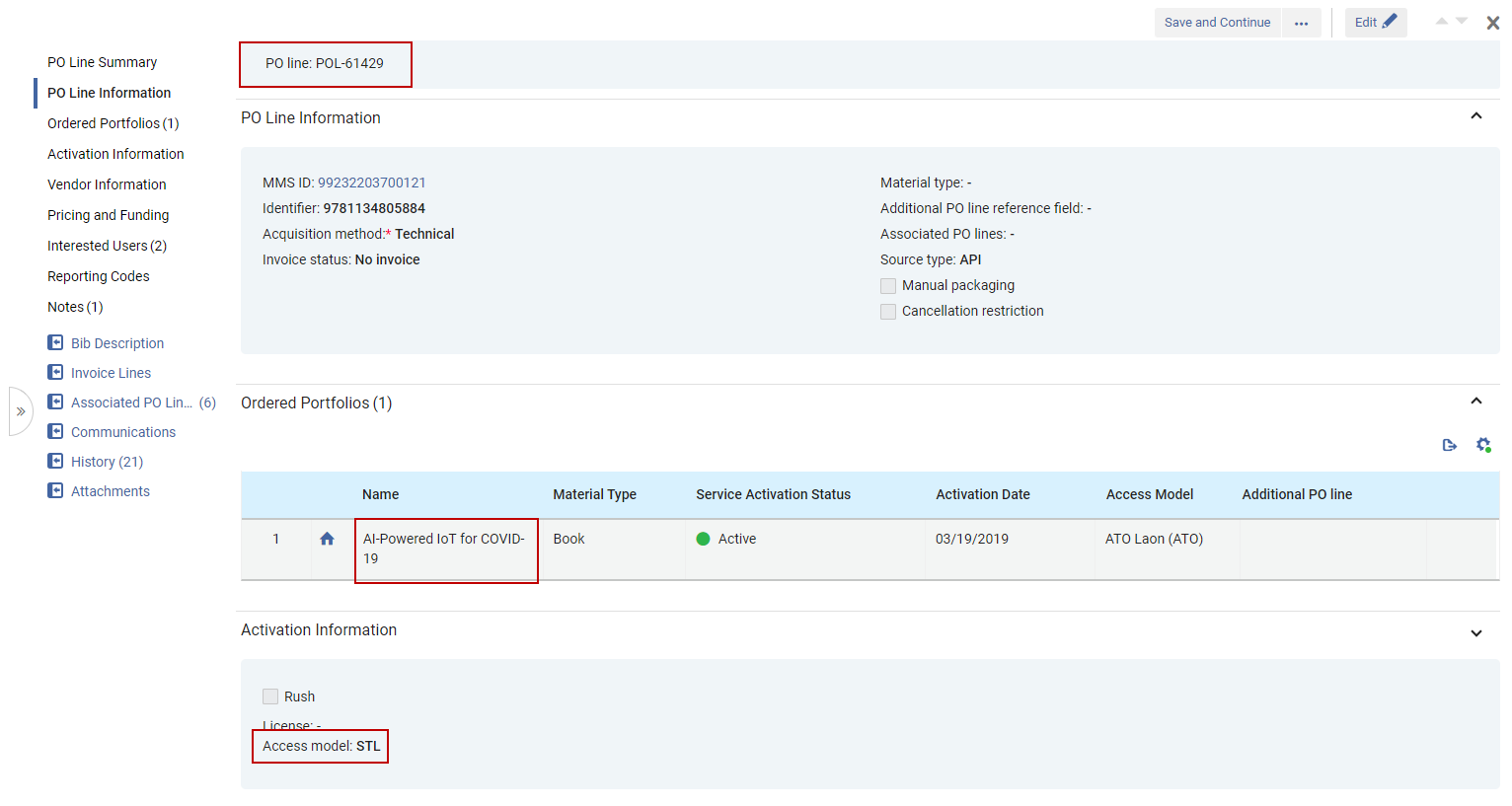 The second PO line is associated with the portfolio as well
EBA and Alma
EBA (Evidence Based Acquisition) is a purchasing model in which a onetime deposit is passed to the vendor at the beginning of the subscription period, but the actual payment takes place only at the end of the period. The following are the suggested steps for handling an EBA purchase in Alma:
- Create a dedicated EBA fund for the entire amount deposited by the library with the vendor (amount for the duration of the subscription).
- At the end of the period, when the library uses its EBA credit to purchase perpetual access for selected portfolios, create an order (PO line) associated with the collection that will have the owned portfolios.
The PO line will not be associated with all the relevant owned portfolios - only the collection.
- Optional: Add an attachment to the POL with a list of portfolios that were purchased at the conclusion of this EBA's subscription period.
- For the next subscription period with the same vendor, either create a new fund or add an additional allocation to the existing fund (rollover is another option when applicable), and repeat the previous steps.
EBA can also be managed through Rialto. For additional information, see Working with Evidence Based Acquisition (EBA).
Page tags: article:topicproduct:almacontent:Documentationlang:englishreal-time orderingreal-time acquisitions
