Searching for Invoices
This page describes how to search for invoices in Alma, including searching by invoice status, filtering search results (with facets) and a description of the columns and various options that appear in the search results. For an overview of the end to end invoice workflow with links to relevant sections for details see Invoicing Workflow.
- Invoice Manager
- Invoice Operator
- Invoice Operator Extended
- Purchasing Manager
- Purchasing Operator
You search for invoices using the persistent search box (see Searching in Alma). You can see only invoices associated with the scope assigned to your role.
When performing an Invoice>All searchfrom the persistent search box, only Status, Library, Invoice number, Invoice reference number, Invoice unique ID, Vendor name, and Vendor code are searchable fields. The PO line title, the PO line number, and the PO number are not indexed in the All search. However, if you select one of these fields, instead of All, you can search for specific values of that field.
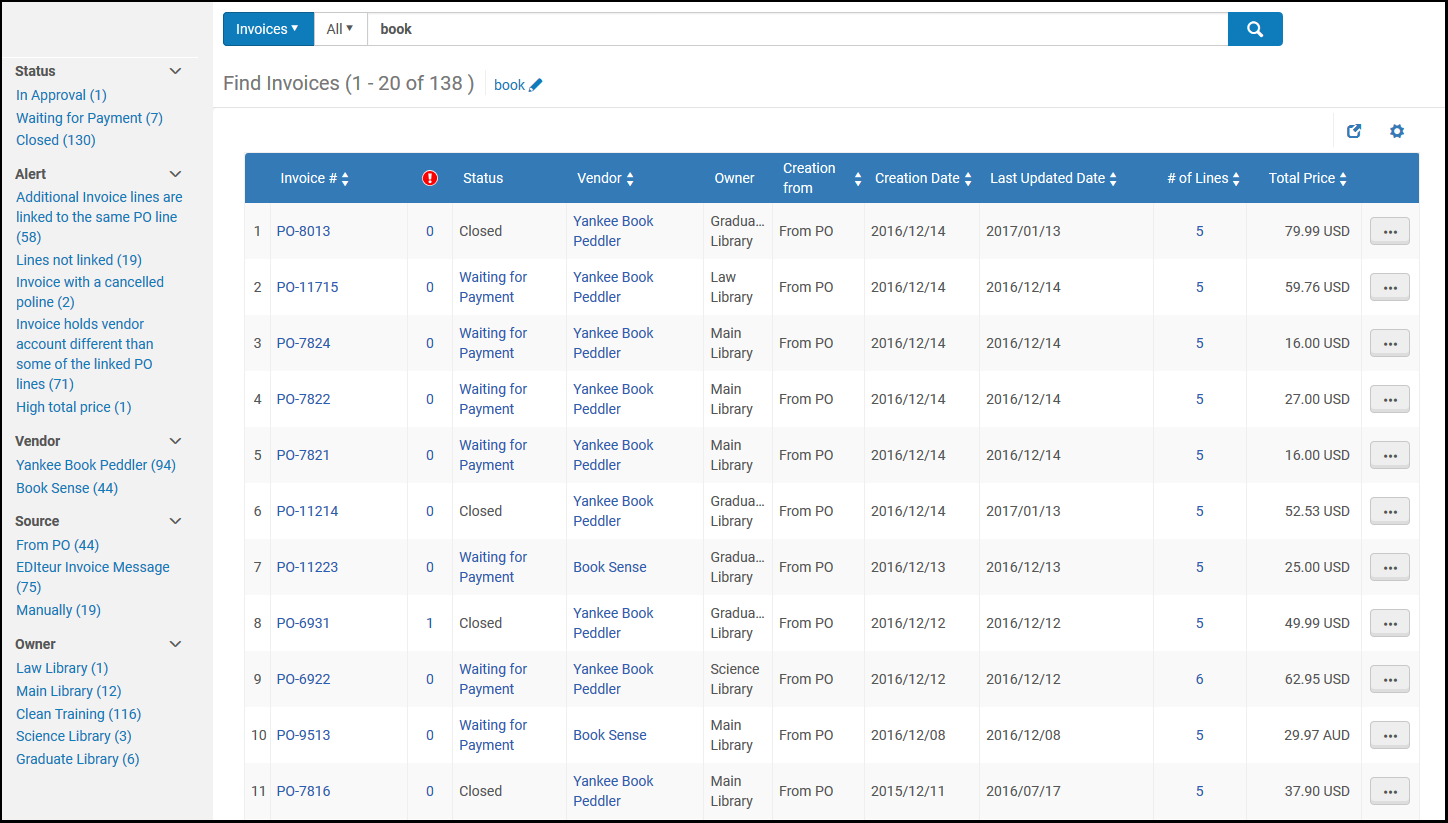
Search results for invoices (see Searching in Alma) appear on a results page.
Searching for Invoices by Status
You can search for invoices with a specific status using the following search strings:
- Closed – Search for closedInvoices whose status is "Closed" are displayed as "Approved" when opening the invoice. This is because the status in "Invoice details" refers to the Approval Status and not the Status of the Invoice.
- In Approval – Search for inapproval
- In Review – Search for inreview
- Ready to be paid – Search for ready to be paidThese invoices will be processed by the next ERP Export job. For more information, see Financial Systems.
- Waiting for Payment – Search for waiting to be sentThese invoices were processed by the ERP Export job and are now waiting for the payment step to be handled.
Using Facets to Filter Search Results
You can use the Facets on the left side of the page to help you locate specific invoices by filtering the results to only show those that meet the selected criteria.
The following facets are available:
- Status – The status of the invoice
- Alert – The type of alert for the invoice—for example,Additional invoice lines are Linked to the same PO line, Currency different from PO, and Invoice with the same number exists
- Vendor – The vendor to which the invoice must be paid
- Source – The mode by which the invoice was created (from a file, from an EDI, from a PO, or manually)
- Owner – The institution or the library associated with the invoice
Columns and Options in the Search Results
The Find Invoices page displays the following columns for each invoice.
| Column | Description |
|---|---|
| Invoice # | The number of the invoice |

|
The number of alerts for the invoice
Select the value to open the Invoice Details page and view the alerts for the invoice. |
| Status | The status of the invoice |
| Vendor | The vendor to which the invoice is to be sent |
| Owner | The institution or the library associated with the invoice |
| Creation From | The method by which the invoice was created |
| Creation Date | The date on which the invoice was created |
| Last Updated Date | The date of the invoice's most recent update |
| Total Price | The total price of the invoice |
| # of lines | The number of PO lines to be included in the invoice |
To view an invoice, select View in the row actions list. The Invoice Details page opens. The fields on this page cannot be edited.
To navigate to the list of invoices that are in review, select Go to task list in the row actions list. The In Review Invoices page opens (see Reviewing Invoices).
Page tags: article:topicproduct:almacontent:Documentationlang:englishfind invoicesearch for invoice
