Printouts Queue
To access the printouts queue, you must have one of the following roles:
- Printouts Queue Manager
- Printouts Queue Operator
To configure printouts queue, you must have one of the following roles:
- General System Administrator
- Fulfillment Administrator
Alma provides options to allow printouts, slips, and letters to be aggregated in a print queue and printed from your browser. This is in addition to the option to send printouts via email to a printer. This provides the flexibility to choose automated printing via email or online printing via the browser.
Using this option, instead of sending printouts to an email address assigned to the printer, the printouts will be saved in the printouts queue, which can be accessed at any time by authorized staff to review and send the relevant printouts to a printer via the browser. This is the preferred method when printing to a physical printer. For more information, see  Letters - The Printout Queue and Quick Printing in Alma.
This option is defined on an individual printer. A printer must be defined as 'Printout Queue' on the Printer Details page.
For information on printing in Alma and the printout queue, watch Printing (3:22).
To set up printouts queue:
- Open the Printer Details page (Configuration Menu > Fulfillment > General > Printers).
- When adding or editing a printer, select the option for Printouts Queue.
NOTE: It is possible to have a printer defined both as an email-based printer and a printouts queue printer. In these cases, the automated sending of the printout via email will take place, and a copy of the printout will also be saved in the printouts queue.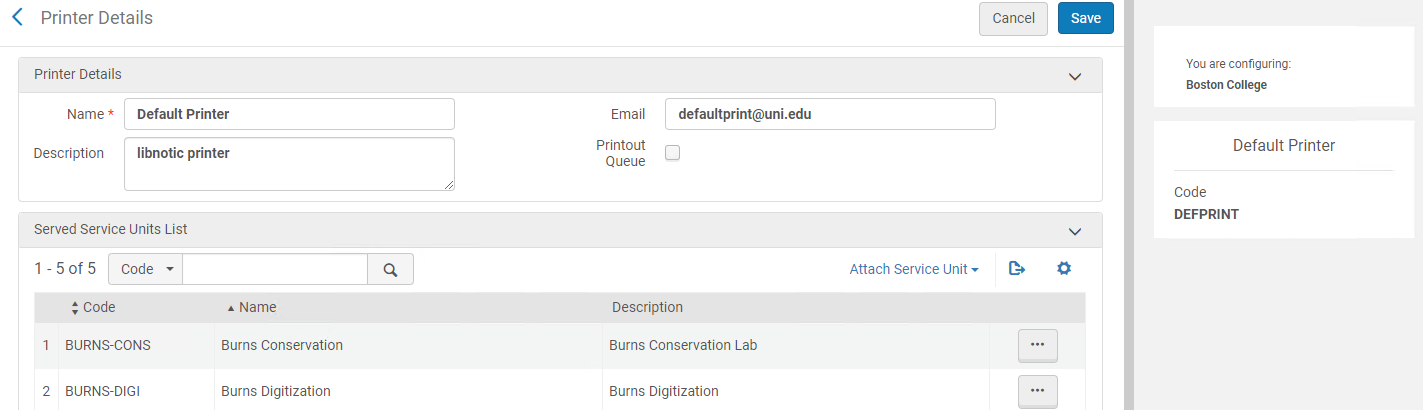
When more than one printouts queue printer is available for a selected location, the available options appear on the Currently At drop-down box from the main menu:
Select a printouts queue printer. This selection is retained for the next time you select this location.
Printout Queue Statuses
Based on the selected printer, the print status will be as follows:
| Printer setup | Outcome | Printout status |
|---|---|---|
| Only email printer | Printouts are sent to the email printer | Not applicable |
| Only printouts queue printer | Printouts are sent to the printout-queue printer | Pending |
| Both email and printout queue | Printouts are sent to the email printer. In addition, they are accumulated in the printout queue for re-printing. | Printed |
Letters You Can Send to Print Queue
Any letter that can be sent to a circulation desk printer can also be routed to the print queue. Letters designed to be emailed cannot be routed to the print queue. For example:
- You can send the letter “Resource Request Slip Letter” to the printouts queue, because this letter is designed to be printed on paper and then attached to the resource while the resource waits on the hold shelf.
- You cannot send the letter “Order Claim Letter” to the printouts queue, because this letter is designed to be sent to a vendor by email, and not by paper.
Managing the Printout Queue
To access the Printed By menu, you must have the following role:
- Printout Queue Manager
When a letter is printed to a printer that is defined as a printout queue, it goes to the printout queue (Admin > Printing > Printout Queue) and displays a Pending status.
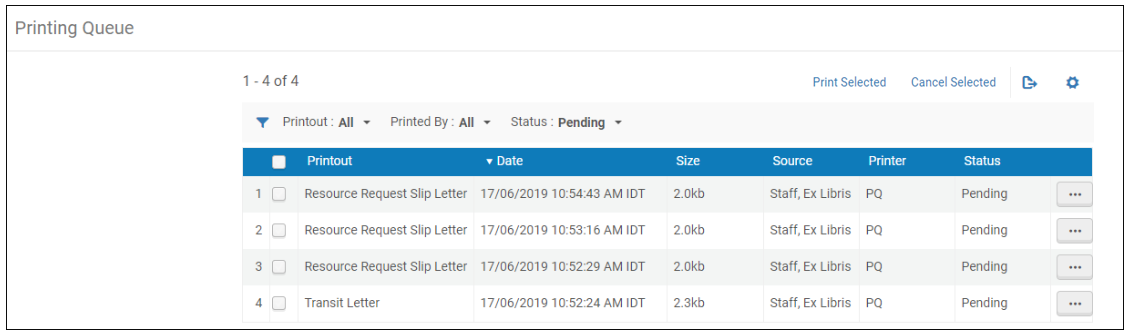
The row actions available for each printout are:
- Preview- An HTML rendering of the letter is displayed. You may select Print from the Preview pane.
- Print- The print option allows for printing from the browser printing capabilities only. 3rd party print options are not accessible.
- Cancel
When selecting Preview and then Print or Print as a row action, the status of the printout changes to Printed as soon as the print option is selected (even if the letter is not ultimately printed).
You can aggregate multiple printouts into a single PDF file by selecting multiple printouts and selecting Print Selected.
You can cancel multiple printouts by selecting all the printouts you want to cancel and selecting Cancel Selected.
Printouts are retained in the Printout Queue for 30 days, after which the Alma cleaning job deletes them from the Queue. Customers cannot control this retention period.
Automated Quick Printing
Quick Printing allows you to set that all printouts that are created as part of a workflow via the user interface (e.g. printing a slip via an action in a list) going to a specific printer should automatically print. When using quick printing, the printing window immediately displays when the letter is generated.
If you want all letters to use the quick printing option, select Enable Quick Printing on the Currently At drop-down box.
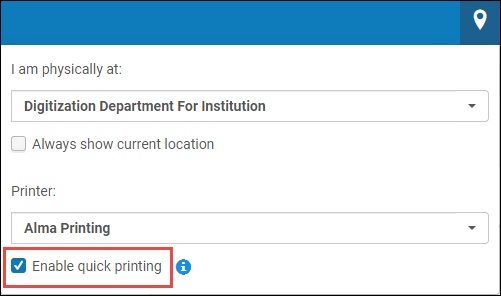
If a user selects multiple records from a list and chooses Print Slip,only the first slip is printed.
Selective Quick Printing
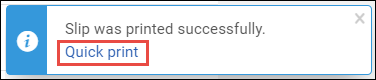
Even when the automated quick printing is not defined, it is possible for staff users to choose to quick print a printout, which is being sent to the printout queue. This is done by clicking on the Quick Print link that displays on the pop-up message.