
Configuring Course Reserves in Primo
Instructions used to configure Primo to utilize course reserve information published by Alma.
If you are working with Primo VE, see Configuring Course Reserves for Primo VE for more details.
Introduction
Course reserve information is not published to Primo unless Alma is configured to publish course enrichment information (see the Course information enrichment parameter in Exporting Alma Records to Primo), which is stored in the MARC CNO field. (see The Format of Published Data).
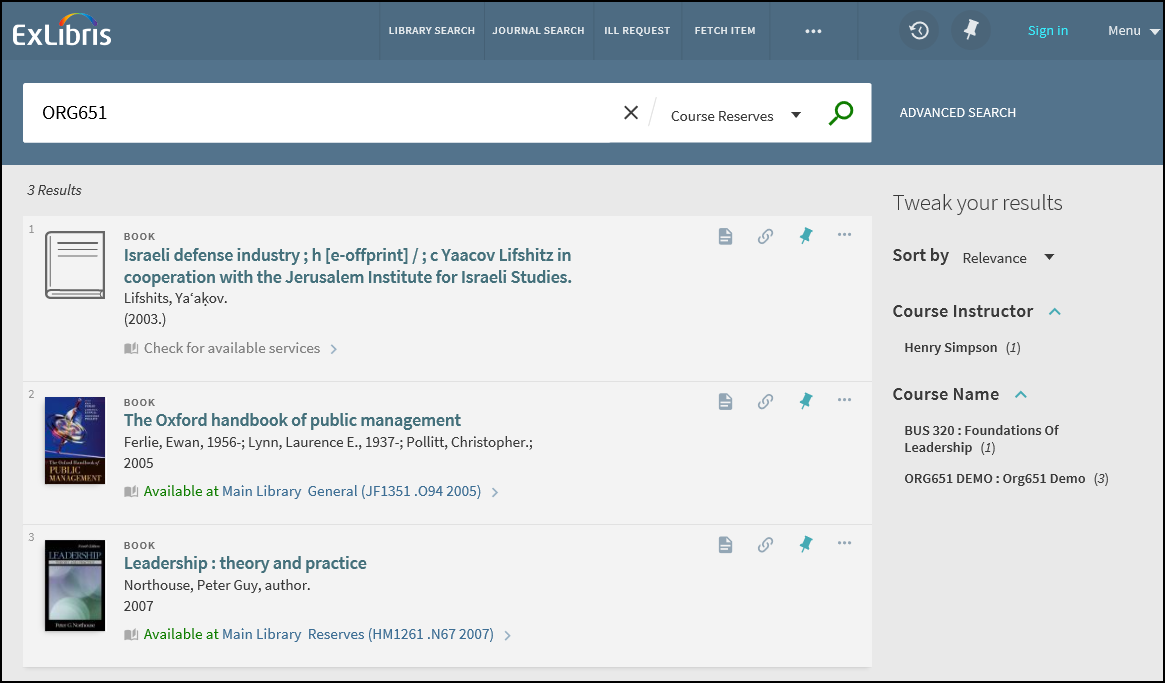
Primo's normalization rules map the course information from Alma to provide the following functionality in the Primo Front End:
-
Display course information in the brief and full display of an item
-
Create a search scope for course reserves
-
Create search indexes for course reserves
-
Create facets for course reserves
The remaining sections describe related functionality and configuration.
More from the Same Course
The More from the same Course section on the Full Display page allows users to expand the search of the current title to other items in the course and in additional courses that also contain the current title.
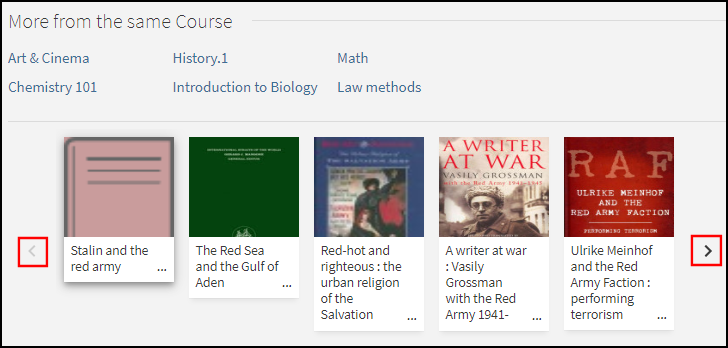
The top half of this section lists all courses to which this titles belongs. A maximum of six courses display initially. Users can select the View all courses icon to view the remaining courses. If the course is associated with Leganto, users can select the course to view its reading list in Leganto.
The bottom half of this section allows users to browse items that belong to the item's related courses. Users can select any of the following:
-
the Previous/Next arrows to scroll through the list of items
-
an item in the list to open its Full Display.
Configuration Options
The following table lists the settings used to configure this functionality.
| Element | Description |
|---|---|
|
Views Wizard |
To enable this functionality in the new Primo UI, select the following field in the General section of the Views Wizard: More from the same Course. |
|
Aria Labels |
The following code was added to support accessibility for this functionality:
|
|
GetIT! Tab1 code table |
The following codes were added to support this functionality:
|
|
Normalization Rules |
In the Alma MARC Template and Alma UNIMARC Template normalization rule templates, the course information is now mapped to following subfields in the display/crsinfo field, but it will not display in the Primo UI:
To include the correct linking information on the Full Display page, make sure that you map the following search fields instead of using local search fields for course information: crsinfo, crsname, crsinstrc, crsid and crsdept. |
Linking to Leganto
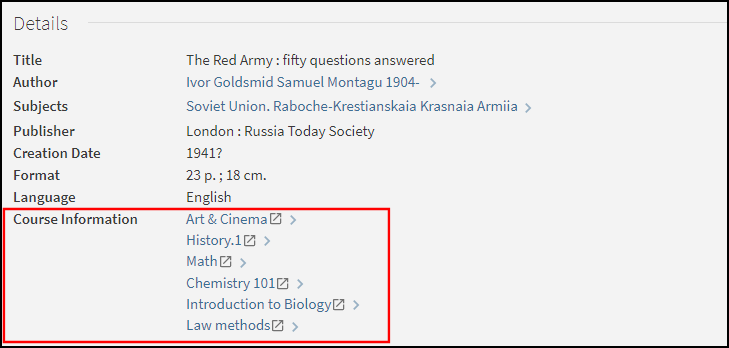
When enabled this functionality improves the integration between Primo and Leganto by allowing users to select a course link from a record's full display and view the relevant reading list in Leganto.
Configuration Options
This feature is disabled by default. The following table lists the configuration options associated with this functionality.
| Element | Description |
|---|---|
|
Views Wizard |
The following field on the Edit Full Details Attributes page in the Views Wizard enables the linking from the Course Information field in the record's full details: Enable Linking the Course Information to Leganto. |
|
Templates mapping table |
The following code creates the links to Leganto for Alma customers:
|
|
Normalization Rules |
In the Alma MARC Template and Alma UNIMARC Template normalization rule templates, the course information is now mapped to following subfields in the display/crsinfo field, but it will not display in the Primo UI:
|
Primo Back Office Configuration
The PNX and normalization rules are available out of the box with Primo, but you will need to make sure that you have included the course reserve rules to your local normalization rules.
PNX Configuration
The following table lists the fields that are used to map course reserve data from Alma. For details on how this information is mapped from Alma to the CNO field, see Publishing to Primo.
| Section | Field | Code |
|---|---|---|
| Display | Course info – The crsinfo field is created by merging the following Alma CNO subfields into a single line:
|
crsinfo |
| Facets | Course name Course instructor Course_ID (contains the course code from Alma) Course department (contains the course section from Alma) |
crsname crsinstrc crsid crsdept |
| Search | Course name (contains the course name and course code from Alma) Course instructor Course_ID (contains the course code from Alma) Course department (contains the course section from Alma) |
crsname crsinstrc crsid crsdept |
If you want the display fields to appear in your search results, you must modify your view in the Views Wizard.
Code Table Configuration
The following table lists the codes that are defined in the code tables under the Front End subsystem to support course reserve information:
| Code Table | Code | Description |
|---|---|---|
| Facet Labels |
facets.facet.facet_crsname facets.search-box.facet_crsname |
Course name |
|
facets.facet.facet_crsinstrc facets.search-box.facet_crsinstrc |
Course instructor | |
|
facets.facet.facet_crsid facets.search-box.facet_crsid |
Course_ID | |
|
facets.facet.facet_crsdept facets.search-box.facet_crsdept |
Course department | |
| Facets Code Fields | facet_crsname | Course name |
| facet_crsinstrc | Course instructor | |
| facet_crsid | Course_ID | |
| facet_crsdept | Course department | |
| Advanced Index Fields and Basic Index Fields |
crsname |
Course name |
| crsinstrc | Course instructor | |
| crsid | Course_ID | |
| crsdept | Course department | |
| FrontEnd Display Fields | crsinfo | Course Information |
| Full Display Labels | fulldisplay.crsinfo | Course Information |
Normalization Rules
The following rules are included in the Alma MARC normalization rules template to allow the mapping of course reserve information. For additional normalization rules, see Alma MARC 21 Template.
-
Display Section:
A rule concatenates the crsid, crsname, crsdept, and crsinstrc fields into the crsinfo field using the following format:
<Course_ID> : <course name> ; <course department> ; <course instructors>For example:
PSYCH 101 : Introduction to Psychology ; 01 ; Bube, Kenneth P. -
Facets Section:
The following tables lists the rules that map course reserve information to the Facets section of the PNX:
New Facet Normalization Rules Field Rule facet/Course name
Retrieve data from MARC CNO field subfield j
Transformation: Copy as is
facet/Course instructor
Retrieve data from MARC CNO field subfield g
Transformation: Copy as is
facet/Course_ID
Retrieve data from MARC CNO field subfield k
Transformation: Copy as is
facet/Course department
Retrieve data from MARC CNO field subfield l
Transformation: Copy as is
-
Search Section:
The following tables lists the rules that map course reserve information to the Search section of the PNX:
New Search Normalization Rules Field Rule search/Course name
-
Retrieve data from MARC CNO field subfield j
Transformation: Copy as is
-
Retrieve data from MARC CNO field subfield j
Transformations: Delete spaces + Remove Punctuation + Copy as is
-
Retrieve data from MARC CNO field subfield k
Transformation: Copy as is
-
Retrieve data from MARC CNO field subfield k
Transformations: Delete spaces + Remove Punctuation + Copy as is
-
Retrieve data from MARC CNO field subfield k
Transformations: Delete spaces
-
Retrieve data from MARC CNO field subfield k
Transformations: Remove Punctuation
search/Course instructor
Retrieve data from MARC CNO field subfield g
Transformation: Copy as is
search/Course_ID
-
Retrieve data from MARC CNO field subfield k
Transformation: Copy as is
-
Retrieve data from MARC CNO field subfield k
Transformation: Delete spaces
-
Retrieve data from MARC CNO field subfield k
Transformation: Remove punctuation
-
Retrieve data from MARC CNO field subfield k
p>Transformations: Delete spaces + Remove Punctuation
search/Course department
Retrieve data from MARC CNO field subfield l
Transformation: Copy as is
search/searchscope
Retrieve data from MARC CNO field subfield a
Transformations:
Use Mapping table: Alma Institution Codes
Add to end of string: _CR
-
The new search scope will be <institution>_CR.
-
Records will be added to search scope when MARC CNO field data exists.
-
Page tags: article:topic Course Reserves product:alma content:Documentation lang:english course information enrichment CNO field
