Centrally Managing Configurations in a Network Zone
For links to online help pages related to collaborative networks, see Collaborative Networks.
The roles that allow you to perform configurations for the various functional areas can access this feature.
You can manage configurations in the Network Zone and distribute them to member institutions. For cases where a given configuration is the same for multiple or perhaps all member institutions within a network, it is more efficient to create, maintain, and distribute a single version of the configuration. This applies, in some cases, to entire tables that are configured and distributed from the Network Zone. In other cases, certain rows within a table can be configured and distributed from the Network Zone. This capability is only available for certain configuration rows and tables. See Centrally Managing Configuration Tables at the Row Level and Centrally Managing Configuration Tables at the Table Level for more information. The workflow is different for the table-level versus the row-level centrally managed configurations.
As part of the workflow, you distribute configurations to member institutions using special jobs intended for this purpose. See Jobs for Centrally Managing Configurations and Profiles in the Network Zone for more information.
By default, local changes are not overwritten by the Network Zone. As a result, if a member institution configures a table or row (within a table) that is centrally managed by the Network Zone, the centrally managed copy is not distributed to that member institution. Optionally, the member institution can select Restore(to the original out-of-the-box value) for the locally configured table or row; and when the Network Zone runs the next distribution job (see Jobs for Centrally Managing Configurations and Profiles in the Network Zone), the centrally managed configuration from the Network Zone is distributed to the member institution. Note that if there is a case that requires the Network Zone to force an override of a local configuration at multiple member institutions, contact Ex Libris Support for assistance.
If for some reason a Network Zone administrator turns off a distribution job, configurations on the member institutions are not restored to their out-of-the-box values.
Distributes policies, Terms of Use, and fulfillment units configured in a Network Zone to all of the network's member institutions.
The policies and Terms of Use defined at the Network Zone can be viewed at the member institutions. These policies appear on the Policy Management page with a Policy Owner value of Network(see Configuring Item Policies).
The fulfillment units defined at the Network Zone can be viewed at the member institutions. They appear on the Fulfillment Units List. See Configuring Fulfillment Units.
Distribute network zone configuration table changes to member institutions
Distributes changes made to the Network Zone to the member institutions. The job is accessed from configuration tables that can be managed on network level and customized on institution level. For more information, see Centrally Managing Configuration Tables at the Row Level and Centrally Managing Configuration Tables at the Table Level below. For information on the job report, see Viewing Completed Jobs.
Distribute network letter templates changes to members
Distributes the following among all institutions in a Network Zone:
Resource sharing partners (Partner notes from the Network Zone are not copied)
Rota templates
Rota assignment rules
Locate profiles
Workflow profiles
Sending borrowing request rules.
The options for the scheduled job are 12 hours apart. By default, one job is active, and the other is inactive. To activate the second job, please contact Ex Libris support.
Distribute network user management changes to members
Distributes changes made in the Network Zone for role profiles and role assignment rules to the member institutions. The job is accessed from Admin >Distribute User Management Configuration.
When the job completes successfully, the run date updates the distribute_user_management_changes_last_run parameter with the date for use the next time the job runs. The network_user_profiles_and_assignment_rules_distribution_members_behavior parameter controls how the members' user profiles and assignment rules are handled when the Network Zone's records are distributed. For information on the parameters, see Configuring Other Settings (User Management). For information on the job report, see Viewing Completed Jobs.
Distribute network administration changes to members
Distributes changes made in the Network Zone for the profiles listed below to member institutions, unless the member institution already has a profile of the same type configured locally. This job is accessed from Admin > Advanced Tools > Distribute Administration Network Configuration. See Distribute Network Administration Changes to Members Job Report for more information.
SAML (see SAML-Based Single Sign-On/Sign-Off for more information) - If the SAML profile is marked as Manage in Network in the Network Zone, the copy distributed to the member is set to view-only access.
S/FTP (see Configuring S/FTP Connections for more information)
When the SRU profile is distributed to members, the content of the General and Actions tabs (not the Contact Info tab) are copied to the member institutions.
After the member institution receives the distributed profile contents, the General tab is editable and the Actions tab is view only. With the Unlink from Network row action (see SRU/SRW Search for more information), the member institution can disconnect from the Network Zone version of the integration profile and modify it for local use.
When the Z39.50 profile is distributed to members, the content of the General and Actions tabs (not the Contact Info tab) are copied to the member institutions.
After the member institution receives the distributed profile contents, the General tab is editable and the Actions tab is view only. With the Unlink from Network row action (see Z39.50 Search for more information), the member institution can disconnect from the Network Zone version of the integration profile and modify it for local use.
These profiles are centrally managed in configuration tables at the row level. See Centrally Managing Configuration Tables at the Row Level for more information.
Centrally Managing Configuration Tables at the Row Level
To centrally manage configuration tables configured at the row level:
In the Network Zone, select a configuration table that is configured at the row level.
Select Customize from the row actions list for the row that you want to manage in the Network Zone and select Manage in Network.Row Configuration TableA green check mark appears in the Managed in Network column of the row, indicating that the row is managed by the Network Zone.Managed in Network
Perform any customizations that you want to distribute to member institutions.
Select Save to save the configuration changes without distributing them to member institutions or select Save and Distribute and Confirm in the confirmation dialog box to save the configuration changes and immediately run the distribution job.
The configuration changes are distributed to the member institutions when the distribution job runs. After the job runs, the Updated By column in the table has the value Network.
To stop centralized management of this table row, select Stop Network Management for the row, and then select Save and Distribute and Confirm in the confirmation dialog box.Stop Network ManagementConfiguration changes performed in the Network Zone are no longer distributed to member institutions.
Centrally Managing Configuration Tables at the Table Level
To centrally manage configuration tables configured at the table level:
From the Network Zone, select a configuration table that is configured at the table level.
Table Configuration
Select Manage Table in Network.
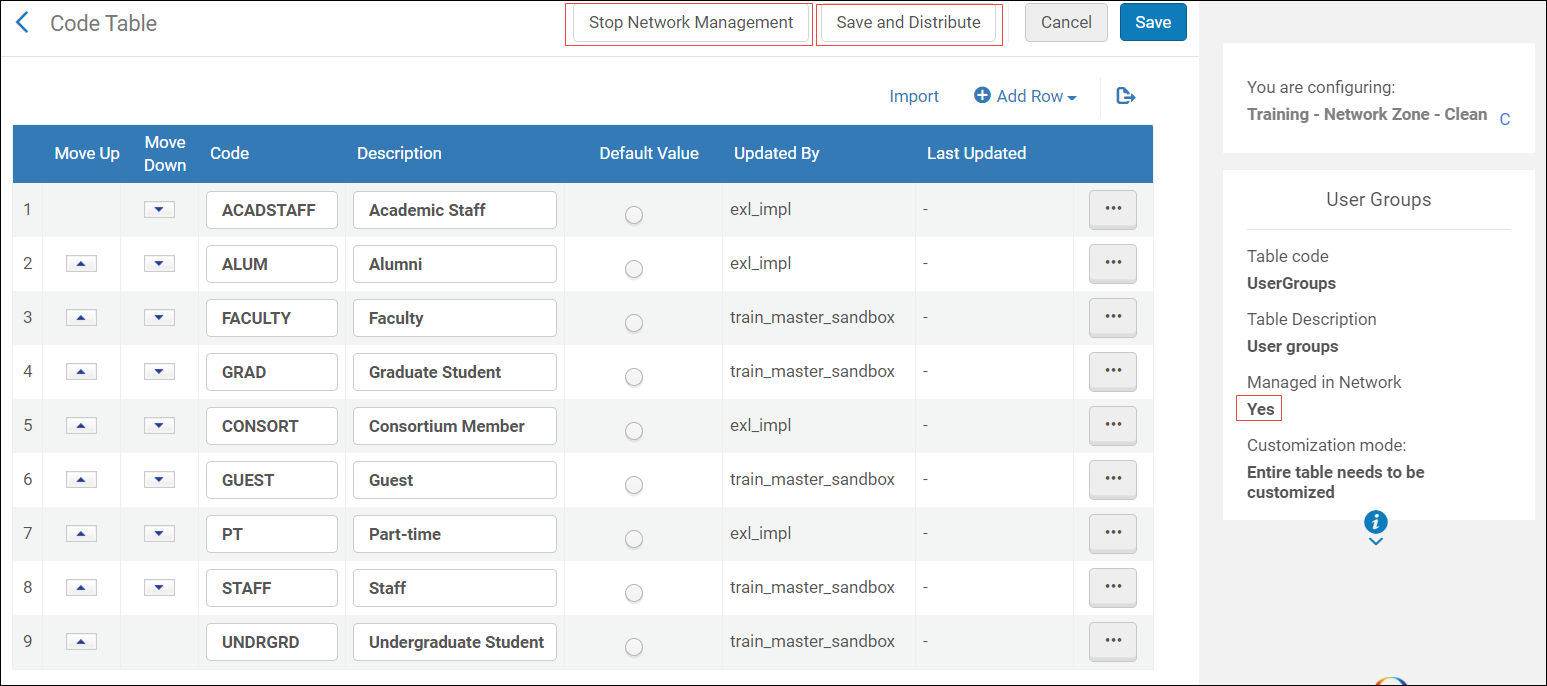
The value for the Managed in Network field for the table changes to Yes and the Stop Network Management link and Save and Distribute button appear.
Managed in Network
Perform any customizations that you want to distribute to the member institutions.
Select Save to save your changes without distributing them to member institutions or select Save and Distribute to save the configuration changes and distribute them. If you select Save and Distribute, a confirmation dialog box appears.Distribute Table to Network Members Confirmation Dialog Box
In Distribution Mode, optionally select Override Member Institution Customization to overwrite any local changes on member institutions.
Select Confirm to run the distribution job. The configuration changes are distributed to the member institutions when the distribution job runs. After the job runs, the value for Managed in Network changes to Yes and the value in the Updated By column changes to Network in the member institutions.
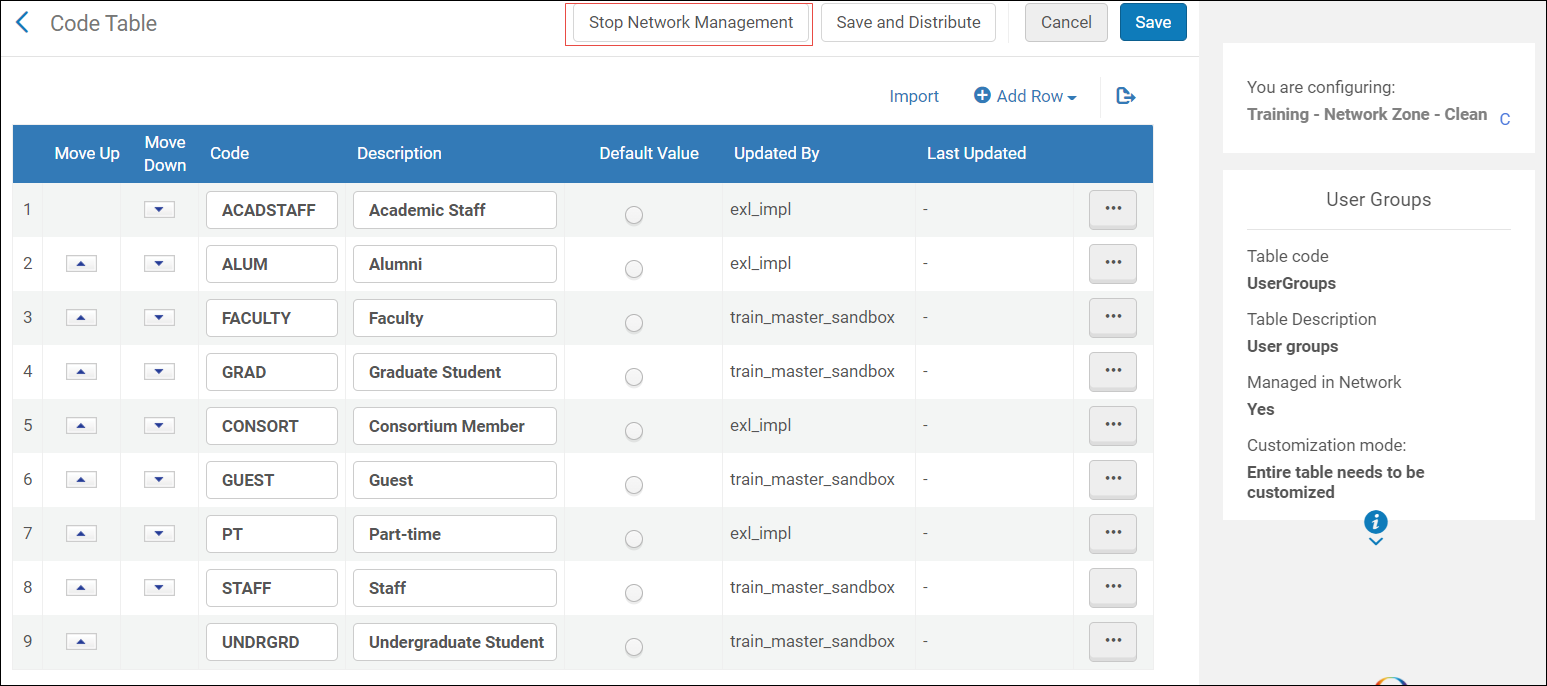
To stop centralized management of this table, select Stop Network Management, and then select Save and Distribute and Confirm in the confirmation dialog box:
Stop Network Management
Configuration changes performed in the Network Zone are no longer distributed to member institutions.
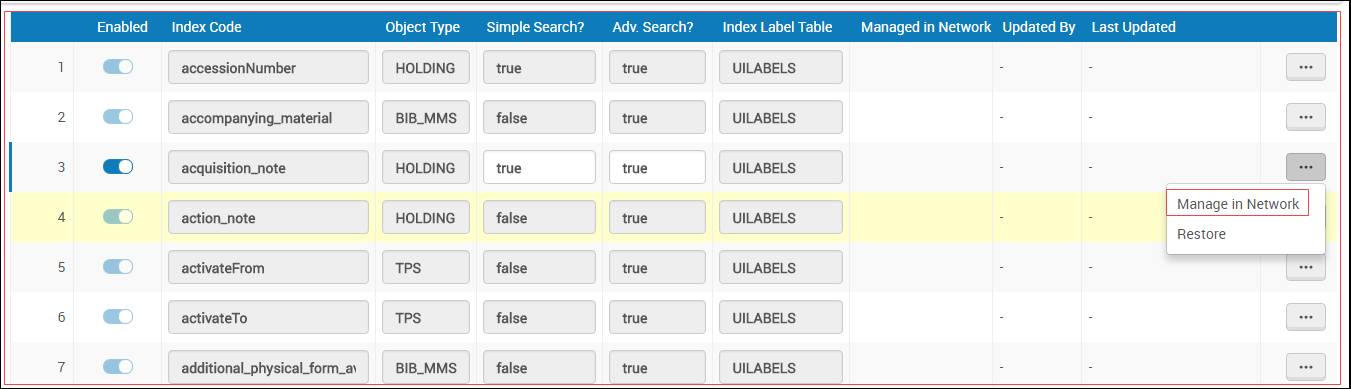
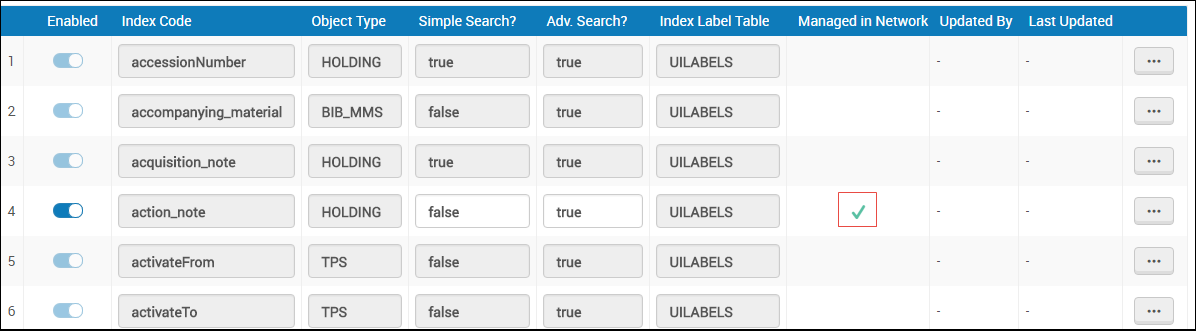
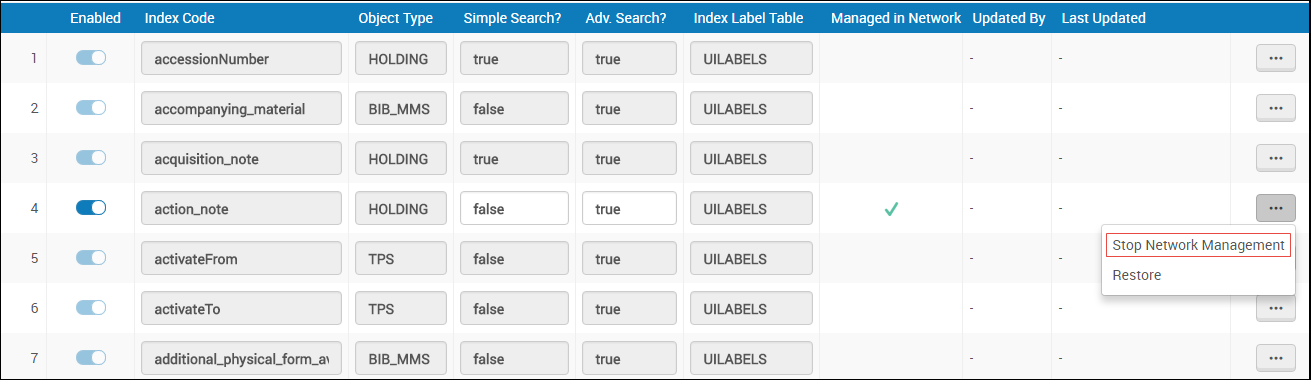
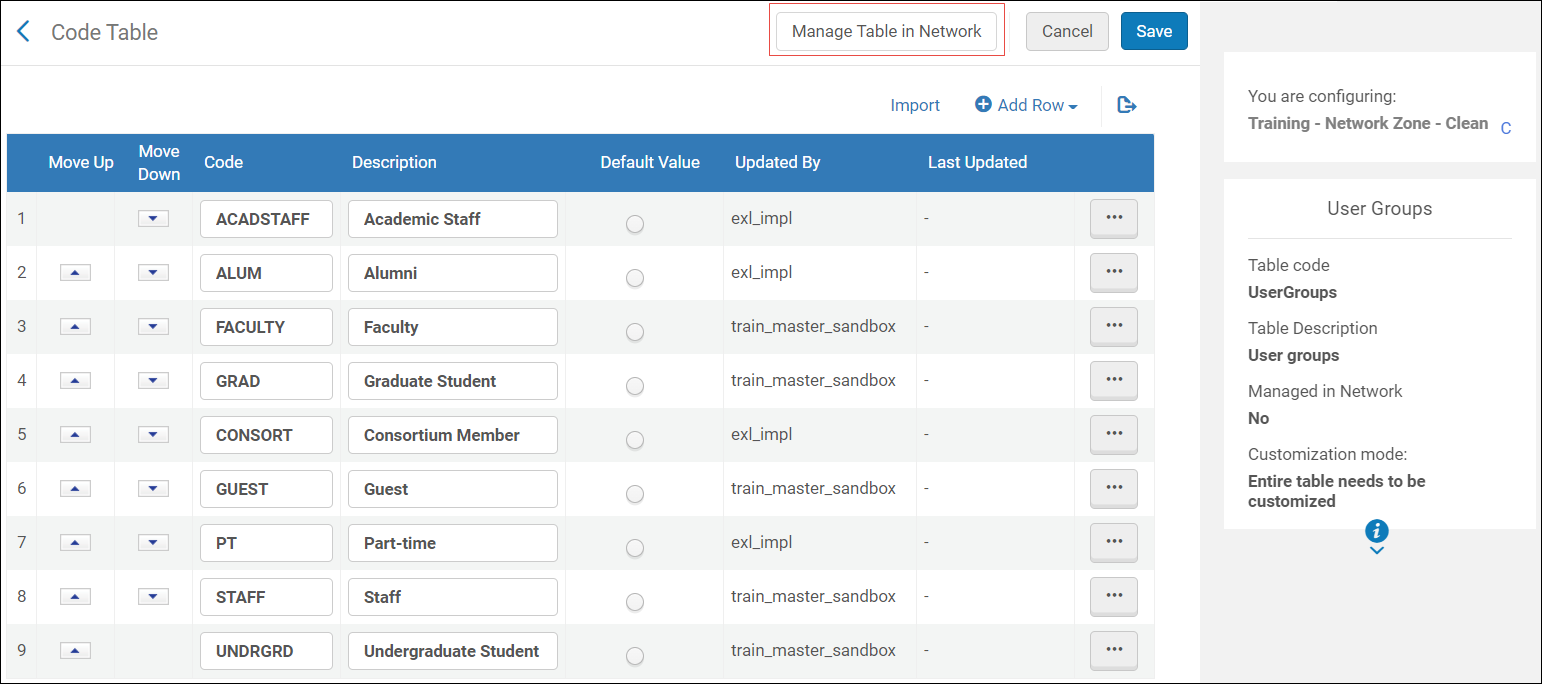 Table Configuration
 Managed in Network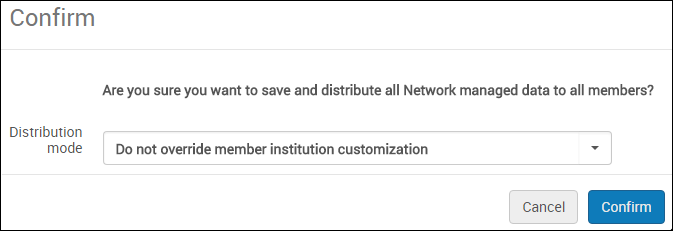
 Stop Network ManagementConfiguration changes performed in the Network Zone are no longer distributed to member institutions.