Working with Electronic Collection Bibliographic Records and URLs Added to the Community Zone
Overview and instructions for working with electronic collection bibliographic records and URLs added to the Community Zone.
function uiToggle() {

  var x = document.getElementById("button");

  if (x.innerHTML == "View old UI") {
    x.innerHTML = "View new UI";
  } else {
    x.innerHTML = "View old UI";
  }

   var element2 = document.getElementsByClassName("oldui");

   for (var i = 0; i < element2.length; i++) {
      element2[i].classList.toggle("showElement");
   }

   var element = document.getElementsByClassName("newui");
   for (var i = 0; i < element.length; i++) {
      element[i].classList.toggle("hideElement");
   }

}
Bibliographic records (descriptive records) for electronic collections and URLs are available in the Community Zone. You can expose and provide access to these bibliographic records and URLs to patrons via the discovery system. The bibliographic records and URLs are updated in the Community Zone as part of the CKB update process.
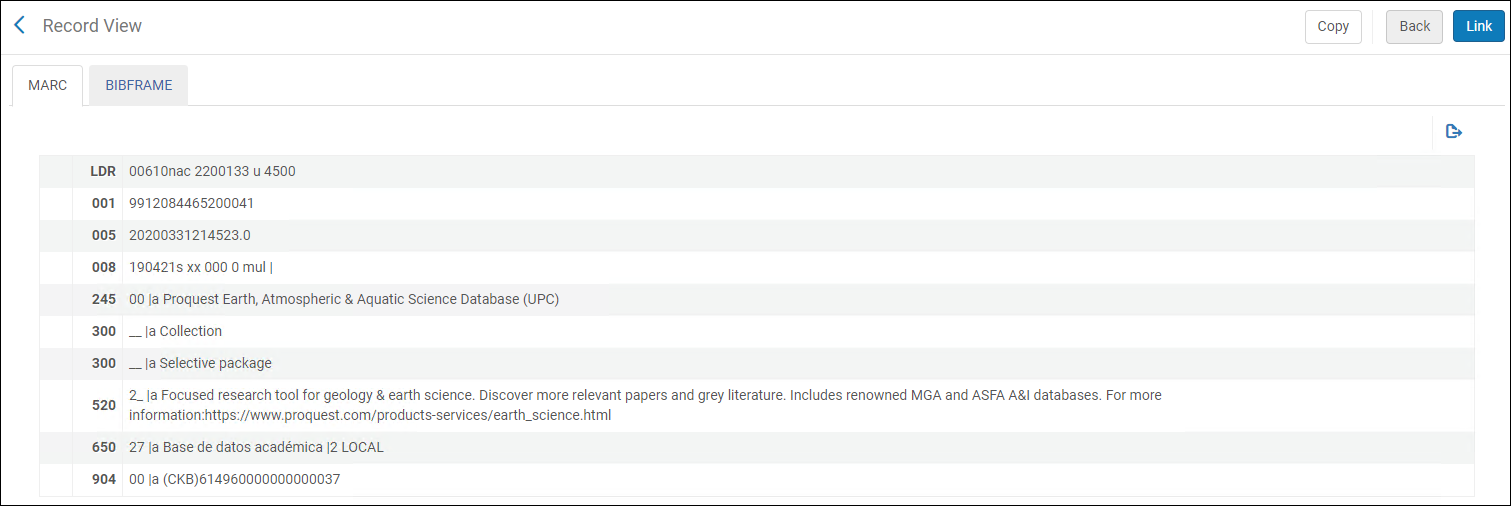
MARC fields in "Descriptive Collection" record that can always be overridden by Alma's system update are:
- Collection description | 520
- Collection public name | 245
- Collection &Content type | 300 (that is repetitive field, and it will appear separately for Collection type and for Content type)
- Target ID | 904
Users are able to add/edit fields in the Collection descriptive record but 520,245,300, and 904 are always overridden byAlma's system update.
The Community Zone electronic collections usually include collection level URLs. The Level URL usually links to the vendor's home page, or the electronic collection home page on the vendor's website. Once an electronic collection has a Level URL populated and its bibliographic record is not suppressed, it is published to Primo and thus, discoverable. Also, see Inactive Electronic Collection published to Primo to prevent this from happening.
- Search for an electronic collection and select the Community tab. Select the Descriptive Record action.
See Performing Actions on the Repository Search Results Page for more information.
From the simple Record View (see Viewing Metadata Read-Only in the Simple Record View Page), you can copy the bibliographic record or link to it.
In a Network environment, there is an additional Copy to Network option/button on the Record View page.
When you activate an electronic collection from the Community Zone (see Activating an Electronic Collection Using the Activation Wizard for more information), the URL stored in the Community Zone for the electronic collection appears in the Electronic Collection Information section on the Activation Wizard page. To override this URL, enter a new URL in the Electronic Collection Level URL parameter.
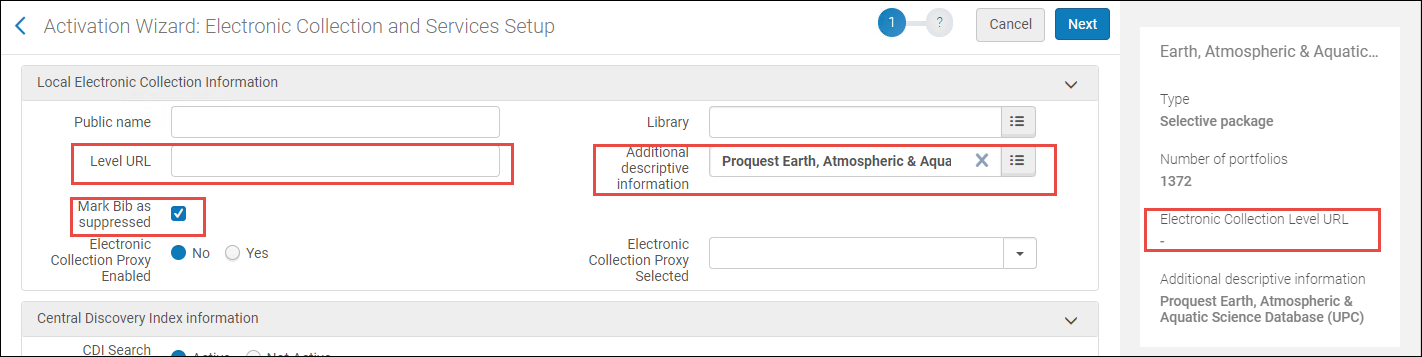
As part of the activation process (see Activating Electronic Resources), you can also select a new bibliographic record for the Additional descriptive information parameter. The Mark Bib as suppressed is selected by default. If you choose not to mark the bibliographic record as suppressed, the bibliographic record is published to the discovery system and access to the electronic collection is available through the Alma Link Resolver by directing the user to the electronic collection level URL.
If you need to override an electronic collection URL for an electronic collection that you have activated, you can do that using the Electronic Collection Editor and specifying a new URL for the Electronic Collection Level URL (override) parameter. For a local electronic collection, you can create and edit both parameters. See step 11 in Adding a Local Electronic Collection.
