
Electronic Data Interchange (EDI)
This page describes how to configure and manage EDI communication with vendors. For the overall purchasing workflow including the steps required for creating orders (whether using EOD, ordering manually, etc.), see Purchasing Workflow. For a general overview see also Best Practice Toolkit: EDI.
- Vendor Manager
Electronic Data Interchange (EDI) is an automated method of communication between an institution and its vendors.
File data should be in EDI format. If it is not, the file will fail to load, but it will still be attached to the vendor record. In addition, it is strongly recommended to use the "Standard" naming convention as this has the PO number and Milliseconds in the file name to assure uniqueness.
EDI requires files to be placed in a certain directory. Files to be sent to an EDI-enabled vendor are automatically exported by Alma to an FTP location where they are fetched by a vendor system. Files placed at the FTP location by an EDI-enabled vendor are automatically loaded and parsed by Alma. For more information, see Configuring S/FTP Connections
The following acquisition activities are supported for EDI-enabled vendors:
- Sent from Alma to the vendor:
- Purchase orders (POs)
- Claims – Claims sent to the vendor regarding missing items. For vendors that support this feature, claims are sent using EDI instead of by email. EDI claims can be used for both one-time and continuous orders. Unlike POs, each EDI claim message contains a claim for a single PO line.
- Order cancellations – For vendors that support this feature, cancellations are sent using EDI instead of by email. Unlike POs, each EDI cancellation message contains a cancellation for a single PO line.
- Sent from the vendor to Alma:
- Invoices
- Order Responses: Shelf-Ready – These responses contain barcodes and other item information for delivered items. After receiving the Order Response, Alma updates the relevant PO lines.For more details about shelf-ready processing and Order Response EDI files, refer to the Shelf-Ready Processing using EDI video (1:49 mins).
- Order Responses: Order Report – These responses contain status information about orders: whether they were sent, backordered, or canceled, any fulfillment issues, if the delivery date changed, and so forth. Typically, Order Reports are sent daily from the vendor. The vendor and institution can arrange for some other frequency, such as weekly, or only if there are problems with the order.When an Order Report is received, the summary in the report is added as a note to the relevant PO lines. The status of items in the report may indicate that a PO line requires additional attention from the user.
- Order Responses: Claim Responses – These responses are sent in response to claims sent from Alma. They appear in the Order Response Journal Claim section of the job report and the Notes tab of the relevant PO line.
The Manage EDI Tasks page contains a task list with order responses that require attention. See Managing EDI Order Responses.
The EDI files that are created for EDI communication are based on the international standards for EDI transmission and should be agreed upon with each vendor prior to entering information in Alma. For a description of the EDI standards with which Alma operates, refer to https://developers.exlibrisgroup.com/alma/integrations/edi.
Configuring EDI for a Vendor
When configuring EDI communication with a vendor, in addition to the vendor EDI code and EDI type, you must also enter the EDI code and EDI type that the vendor uses for communication with your institution. When an EOD is received after an EDI has been loaded, you can reload the EDI.
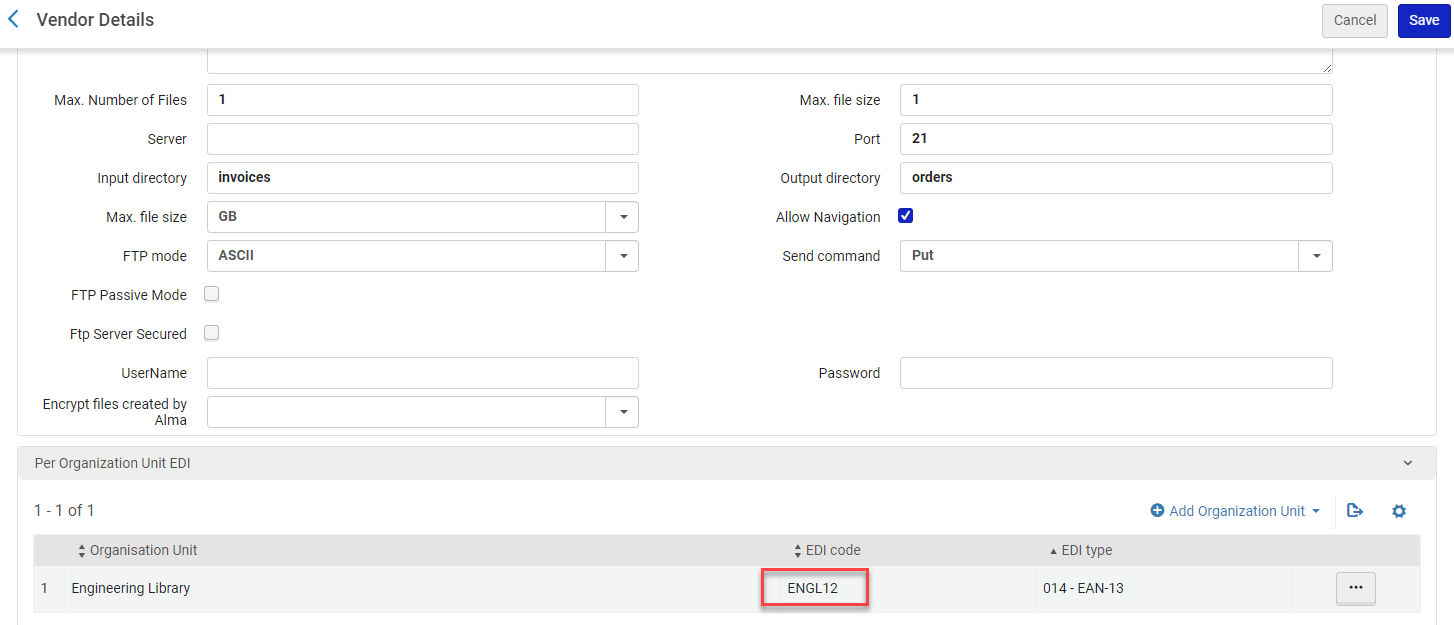
It is also possible to add multiple distinct organizational units (the institution and/or individual libraries within it) to the EDI configuration of a single vendor. In order to do this, you specify distinct EDI codes for each organizational unit in the institution, that interacts directly with the vendor through EDI. When you do this, the same vendor can be used for EDI transactions that are linked to different libraries. The same FTP folders and connection settings are used, but different EDI codes are used for the various libraries (see Per Organization Unit EDI below).
If a vendor is defined as an EDI vendor for outgoing messages, all POs for all of that vendor's accounts are sent via EDI.POLs should have acquisition method "purchase" in order to be sent via EDI. If you want to use the same vendor to send non-EDI messages, you must define another, non-EDI vendor for them, and add the relevant accounts to the additional vendor.
- On the Search Vendors page (Acquisitions > Acquisitions Infrastructure > Vendors) select a vendor. The Vendor Details page appears.
- Select the EDI Information tab.
- Enter the EDI information as required. A description of the fields is provided in the following table.
EDI Information Tab Fields Section Field Description Vendor EDI Attributes EDI code A unique code for the vendor, per institution. When an EDI code is entered, the mandatory fields in this tab are indicated with a red asterisk and must be completed before saving this page.EDI type The list is predefined by Ex Libris. You can choose from: - 014 – EAN-13
- 091 – ID assigned by supplier
- 092 – ID assigned by customer
- 31B – US-SAN
EDI naming convention The list is predefined by Ex Libris. You can choose Alma's standard file naming convention (Standard, which is the default), or one of the following vendor naming conventions:Ebsco,Ingram,Harrassowitz,Brodart.This selection defines output file name.- Standard creates the file name as edi.aaaaaa.YYYYMMDD.HHMMSS.MS.N.XXXXXX where aaaaaa is the normalized PO Number ("/" removed), N is a counter and XXXXXX is taken from the first six characters of the vendor account code.
- The vendor account code should not contain any slashes or dots in the first six character as this will cause problems with the file name.
- Proquest and YBP use the standard naming convention.
- EBSCO creates the file name as CLAIMS.FIL.
- Ingram creates the file name as HHmmSSSSXXX where the first 8 digits are taken from the computer's clock. The remaining three characters refer to the message type:
- epo - Orders
- epc - OSTENQ (order status enquiry)
- eph - ORDCHG (order change)
- Harrassowitz creates the file name as YYYYMMDDHHMMSS.EDI_VENDOR_CODE_edi.XXXXXX. EDI_VENDOR_CODE is the edi vendor code, Z70-EDI-VENDOR_CODE, and XXXXXX is the message type:
- ORDERS
- OSTENQ - order status enquiry
- ORDCHG - order change
- Brodart creates the file name as YYYYMMDDHHMMSS.XXX.edi.orders with the date and time being taken from the computer's clock. As an example, if you sent a file on September 13, 2011 at 15:31:33 from vendor account SWT_EDI the file name would be 20110913153133.SWT.edi.orders - SWT are the first three characters in the vendor EDI code.
EDI vendor format Select: - Harrassowitz – Removes line feeds so that all information is provided on a single line. Can also be selected for Harrassowitz-like vendors.
- Baker & Taylor enriched – Includes enriched data that is customized for Baker & Taylor. The GIR segment includes library and location information in two separate fields, even though the PO line may not include this data.
- Baker & Taylor not enriched – Does not include GIR segments.
- ProQuest
- Chinese Japanese Korean (CJK)- The CJK format of an EDI will create a "one line" EDI file (the regular EDI file has an EOL character at the end of each segment in addition to the "'" sign).
- Yankee Book Peddler
- EBSCO – If the PO Line is of type Physical Standing order, the location ID is fetched from the PO Line and the quantity is set per location. In all other cases, the location and quantity are not sent for Standing Order (SO) POL.
If you are not working with one of these vendors, select Other..Incoming Whether the vendor submits EDI files, such as invoices or order responses. Both invoice and Order Response files are processed by Alma after being placed in the directory specified in the Input directory field. Both types of files are fetched by the same Alma service. Shelf Ready Parameters If the vendor submits Order Responses, you may configure additional parameters to control the handling of the Order Responses. When this check box is selected, the fields Receive Items, Keep in Department, and Next Step appear. If there are changes in the item information, such as the barcode or policy, these are changed in Alma. Receive Items Sets the items specified by an Order Response as received. This updates the item's arrival date to the current date. Keep in Department If you selected Receive Item, select to indicate that further work is required before the material can be made available in a library. The step specified in Next Step is then applied to the item. For more information, see Receiving Physical Material. Next Step The step to apply to items that you keep in the department (see above). For the available options, see Receiving Physical Material. OutgoingPOs Whether to enable EDI POs for the vendor. Claims Whether to enable EDI claims for the vendor. When set, Alma does not send claims by email. Order Cancellation Whether to enable EDI cancellations for the vendor. When set, Alma does not send cancellations by email. EDI Vendor Note Fields When POs is selected in the Outgoing section, this list offers the following options that can be added to the Note To Vendor field of the ORDERS and CLAIMS EDI file:
- Access Model
- Fund Description
- PO Line Type
- Receiving Note
- Rush
- Reporting Code
- Secondary Reporting Code
- Tertiary Reporting Code
Input Job Parameters – Job Scheduling Status Whether the EDI communication is active or non-active. By default, Active is selected. Schedule The time at which the EDI job runs. This is relevant only for invoices and not for POs.To run the EDI job immediately (as soon as the Alma system can accommodate it), select Run Now to the right of the Schedule box.Run Now Select to run the EDI job immediately. Email Notification Configure who receives notification after the EDI jobs. Opens the Email Notifications for Scheduled Jobs page. For more information, see Configuring Email Notifications for Scheduled Jobs. Input Job Parameters – Job Parameters Upload EDI The EDI file to upload. To upload the file, select Add and Execute. VAT expended from fund Whether to have VAT specified at the invoice level in EDI invoices expended from funds. The field Expended from Fund on the Invoice Details page remains selected. The field is selected by default. Clear to leave Expended from Fund on the Invoice Details page unselected. A proportional amount of VAT is added in the Adjustment line for each invoice item.Use VAT Code Select this to import the VAT code when using EDI. If your institution does not have the VAT Codes table populated (see Configuring VAT Codes), the field is disabled (see ). Note that this checkbox is also used by the invoice creation process from Excel. Default VAT (New for February 2026) Appears when Use VAT Code is set to true. The VAT default will be used (and set for the invoice) when there is no value in the input file for the VAT code, or when there is a value that does not match the VAT Codes table. Note that Default VAT only applies to the invoice level. Even if the VAT In Invoice Line Level field is set to true, the default VAT is ignored. VAT Type Select Inclusive, Exclusive, Line Exclusive. - Exclusive- The total price of the invoice excludes the VAT. The VAT calculation is the Total line amount = Total price + VAT. So, for example, if the total invoice price is 100 USD and the VAT is 10% exclusive, the price is 100 USD and the VAT is 10 USD. The total line amount is 110 USD.
- Line Exclusive- The Total price of the invoice includes the VAT while the total line amount does not. Alma calculates the VAT for each invoice line and adds the amount to the lines.
- Inclusive- The total price of the invoice includes the VAT. The VAT calculation is Total Amount - (Total Amount / (1 + VAT Percentage) ). So, for example, if the total price is 100 USD, and the VAT is 10%, VAT = 100 - (100 /(1.1) ) = 9.9. The price is 90.1 and the VAT amount is 9.9.
Do not prorate Whether, when an invoice is loaded from an EDI file, overhead and discount amounts are charged to their own invoice lines instead of being prorated among all invoice lines. Fund The fund from which overhead and discount amounts are charged. This field appears only when Do not prorate is selected. Internal copy (New for February 2026) When true, the created invoice for this vendor will have the Internal copy field checked (meaning it will not be sent to ERP). S/FTP Connection These settings should match the settings in the FTP server.The S/FTP connection requires full read and write permissions on the vendor's FTP server, or the test (and process) will fail.Description An optional description of the EDI submission details. Max. number of files Not in use. Accept the default value. Max. file size Not in use. Accept the default value. Server The IP address of the FTP server receiving the EDI files. User name The user name for the FTP server. Port The port to use on the FTP server, if the connection is not secure. This is generally port 21. Password The password for the FTP server. Input directory The name of the subdirectory in which the incoming EDI files are stored. If you enter / (a forward slash), Alma searches for incoming files in the root directory. The default is /. The vendor must define one input directory per institution. The input directory must be different to the output directory. Alma does not validate this. In addition, "/" is not a supported character for this field.The maximum length for the full path to the file, including the path from FTP root directory + the filename, is 100 characters.Output directory The name of the subdirectory in which outgoing EDI files are stored. By default, Alma displays orders in this field. The maximum length for the full path to the file, including the path from FTP root directory + the filename, is 100 characters.The output directory must be different to the input directory.
When using a non-secure FTP, if you enter the “/” character, Alma places the EDI files in the root directory. When using a non-secure FTP, a directory name must be used, and it cannot start with “/”. For example, use directory_name/sub_directory_name rather than /directory_name/sub_directory_name.
Max. file size Not in use. Accept the default value. Allow Navigation Whether to enable access to other areas of the FTP site. The default is to allow navigation (check box selected). FTP Server Secured Select if the FTP server is secured. The Authentication Method option appears when this option is selected. Authentication Method Appears if FTP Server Secured is enabled. Select one of:- Username/password authentication- Use a user name and password.
- Key authentication(public key encryption) - When you select this, a public key appears. The public key is used to authenticate files received from Alma. When this option is selected, the password field is removed.
FTP mode The mode used for sending the outgoing EDI files, from a list predefined by Ex Libris: - ASCII – Each EDI file includes many lines, one for each segment (default).
- Binary – Each EDI file includes one long line.
Send command The send command: - Append – Does not overwrite a file on the FTP server if the existing file has the same name as the new file (default).
- Put – Overwrites a file on the FTP server if the existing file has the same name as the new file.
FTP passive mode Whether the client IP works in passive mode. Test FTP Select to verify that the S/FTP parameters entered are valid. In the event of invalid data, an error message displays at the top of the page. Per Organization Unit EDI In this section, you must specify the EDI code the vendor uses for EDI transactions with the institution. Optionally, you can specify separate EDI codes that the vendor uses for EDI transactions with individual libraries within the institution. Select Add Organization Unit, fill in the fields as explained below, and select Add to add the EDI details for the institution and/or each library.Organization unit The institution or one of its libraries. EDI code The code the vendor uses for the organization unit. EDI type EDI type: - 014 – EAN-13
- 091 – ID assigned by supplier
- 092 – ID assigned by customer
- 31B – US-SAN
EAN per Account code This section maps the EAN (Envelope Address Node) code to the vendor account. Select Add EAN and fill in the fields. This affects outgoing purchase orders sent to the vendor and are populated in Alma's incoming invoices for the vendor account, if the input field in the incoming EDI invoice, RFF+API, is not empty. Account code Vendor accounts code. EAN code The EAN code to be mapped to the previously selected account code. Select Add EAN to add the code. An FTP process tries to connect to an external system for one minute before retrying. The process tries five times, in increments of one minute each, before failing. Any files remain where they are to be processed at the next time scheduled. - Select Save to store the information you entered.
See the Acquisitions customer parameter invoice_split_additional_charges for information on how additional charges are handled in EDI invoices.
Monitoring EDI Jobs
- Vendor Manager
On the Search Vendors page, locate the vendor whose EDI jobs you want to monitor and select View history in the row actions list (available only for EDI-enabled vendors). The Monitor Jobs page appears.
For more information, see EDI Job Reports.
Working with EDI Files
- On the Search Vendors page, locate the vendor whose EDI incoming files you want to edit, delete, download, or reload, or for which you want to view a report, and select View EDI files in the row actions list (available only for EDI-enabled vendors).
- On the Attachments page, select one of the following actions:
- Edit – Add a file with a URL as an attachment to the EDI file.
- Delete – Delete the EDI file from the list of files.
- Download – Download the EDI file.
- Reload – Reload the EDI file after confirming that the EOD was loaded. You must ensure that the EDI file was received before the EOD was processed and the EDI file did not find any incoming matches. When reloading an invoice EDI file, you receive a message that the invoice will be deleted. Select Yes to delete, or No to continue without deleting.
- Report – View a report for the EDI file.
Managing EDI Order Responses
- Purchasing Manager
- Purchasing Operator
You can manage EDI order responses of types Claim Responses or Order Report on the Manage EDI Tasks page (Acquisitions > Purchase Order Lines > Manage EDI Tasks). For Shelf-Ready order responses, see EDI Job Reports.
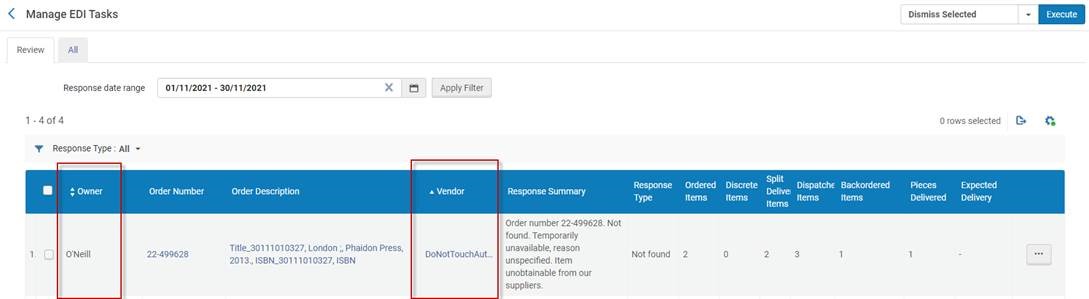
The page contains the list PO lines for which order responses were received in the last day. There are two tabs:
- Review – PO lines which require attention. For a list of the response types in this tab, see Response Types for Review.
- All – All PO lines for which order responses were received.
You can filter the list of PO lines by:
- Response type – The status of the order at the vendor.
- Response date – The message date from the response. Typically, this is the date that the response was created, but it may be a future or past date.
The fields that appear for each PO line are:
- Owner- This column, which is sortable, displays the owning library for each PO line. See also the note regarding owners for EDI.
- Order Number – The PO line number; select to view the PO Line page.
- Order Description – The PO line description; select to view the MARC Record Simple View page
- Vendor – (Sortable column) Select to view the Vendor Details page.
- Response Summary – A free text summary of the order status
- Response Type – The status of the order at the vendor
- Ordered Items – The number of ordered items
- Discrete Items – The number of ordered items, excluding multiple copies of the same items
- Split Delivery Items – The number of items that were split into multiple deliveries
- Dispatched Items – The number of dispatched items
- Backordered Items – The number of backordered items
- Pieces Delivered – The number of physical objects sent; for example, an encyclopedia might contain 30 physical books.
- Expected Delivery – The expected delivery date
In the Review tab, you can perform the following tasks.
Select Edit PO Line in the row actions list.
The PO Line Summary page appears.
- Select Update Expected Receipt Date in the row actions list.
This is a shortcut that saves you from having to edit the entire PO line. A dialog box appears.
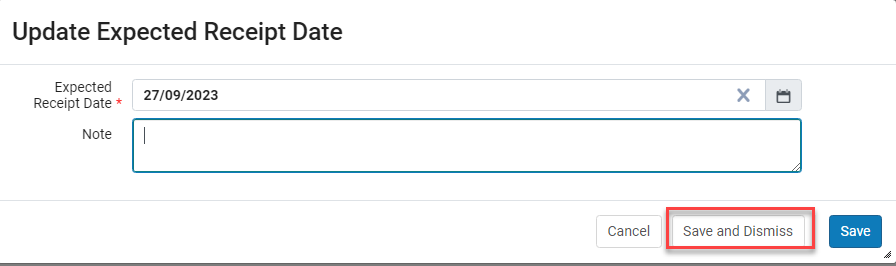
- Enter a new expected release date, enter an optional note, and select Save and Dismiss to dismiss the task or Save to change the date but keep the task. The expected receive date is changed in the PO line and the item.
Select Cancel PO Line in the row actions list.
Select Defer PO Line in the row actions list.
- To dismiss a single line, select Dismiss in the row actions list.
- To dismiss several notifications at once, select the items, select Dismiss Selected from the drop-down list near the Execute button, and select Execute.
- To dismiss all alerts, select Dismiss All from the drop-down list near the Execute button, and select Execute.
Select Edit Resource in the row actions list.
This takes you to the relevant editor page. For example, for physical items, this takes you to the Physical Items Editor page.
Response Types for Review
The following table describes the response types in the Review tab.
| Code | Description |
|---|---|
| 04 | Premature claim, claim again after |
| 07 | Never published |
| 08 | No such issue |
| 09 | Discontinued publication |
| 10 | Publication suspended, resumption unknown |
| 11 | Not available, subscription extended |
| 16 | Partially filled |
| 17 | Shipped, please re-check |
| 18 | Out of stock, on backorder |
| 19 | Beyond acceptable claim period, issue can be purchased |
| 20 | Beyond acceptable claim period, can be purchased as part of a volume |
| 200 | Order line not accepted |
| 201 | Price query: order line not accepted |
| 202 | Discount query: order line not accepted |
| 203 | Minimum order value not reached: order line not accepted |
| 21 | Issue never published due to a frequency change |
| 22 | Item not included in subscription package |
| 220 | Outstanding order line cancelled: reason unspecified - report on outstanding order line |
| 221 | Outstanding order line cancelled: past order expiry date |
| 222 | Outstanding order line cancelled by customer request - response to order cancellation, report on outstanding order line |
| 223 | Outstanding order line cancelled unable to supply |
| 23 | Issue not included in subscription period |
| 26 | No record of payment, supply order number and proof of payment |
| 27 | No record of an order, supply order information |
| 28 | Not our publication |
| 29 | No longer our publication |
| 30 | Quantity claimed exceeds quantity ordered |
| 31 | Discontinued delivery, additional payment required |
| 32 | Claim under review, response will follow manually |
| 406 | Our supplier sent short, re ordered |
| 407 | Our supplier sent damaged item(s), re ordered |
| 408 | Our supplier sent imperfect item(s), re ordered |
| 409 | Our supplier cannot trace order, re ordered |
| 900 | Cannot trace order line |
| AB | Publication abandoned (cancelled by publisher) |
| AD | Apply direct: item not available to trade |
| AU | Publisher's address unknown |
| CS | Status uncertain: check with customer service |
| HK | Paperback out of print: hardback available |
| NN | We do not supply this item |
| NP | Not yet published - with expected availability date in DTM segment 44 |
| NQ | Not stocked |
| NS | Not sold separately |
| OB | Temporarily out of stock (at wholesaler or bookseller) - with expected availability date in DTM segment 44 |
| OP | Out of print |
| PK | Hardback out of print: paperback available |
| PN | Publisher no longer in business |
| RE | Awaiting reissue - with expected availability date in DTM segment 44 |
| RP | Reprinting - with expected availability date in DTM segment 44 |
| RR | Rights restricted (cannot supply in this market) |
| SD | Sold (for unique copies of secondhand/antiquarian items) |
| SN | Our supplier cannot trace |
| SO | Pack/set not available: available as single items only |
| ST | Stocktaking: temporarily unavailable |
| TU | Temporarily unavailable, reason unspecified - with expected availability date in DTM segment 44 |
| UB | Item unobtainable from our suppliers |
| UC | Unavailable; may or may not become available again (“reprint under consideration”) |
Page tags: article:topic Edi product:alma content:Documentation lang:english electronic data interchange configure EDI monitor EDI jobs EDI job EDI file upload EDI file add EDI to vendor EDI code EDI type shelf-ready EDI vendor format EDI file directory EDI directory order response order report claim response
