
Viewing Import Job EventsMonitor and View Import Jobs
Explanation of working with the Monitor and View Imports page that provides information about a job as it runs and after it finishes.
function uiToggle() {

  var x = document.getElementById("button");

  if (x.innerHTML == "View old UI") {
    x.innerHTML = "View new UI";
  } else {
    x.innerHTML = "View old UI";
  }

   var element2 = document.getElementsByClassName("oldui");

   for (var i = 0; i < element2.length; i++) {
      element2[i].classList.toggle("showElement");
   }

   var element = document.getElementsByClassName("newui");
   for (var i = 0; i < element.length; i++) {
      element[i].classList.toggle("hideElement");
   }

}
This chapter includes:
- Import Profile Types
- Managing Import Profiles
- Importing Records Using an Import Profile
- Monitor and View Import Jobs (You are here)
- Resolving Import Issues
- Importing Records with CSV or Excel Files
Monitor and View Import Jobs
You can monitor the progress of an import job as it runs and view the results of the job after it finishes running. For information on running the job, see Importing Records Using an Import Profile.
You can monitor import jobs on any of the following pages:
| Path | Profile Types | Roles |
|---|---|---|
|
Acquisitions > Import > Monitor and View Imports
The Monitor and View Imports page.
|
New Import (embedded order data (EOD)), Update Inventory | Purchasing Operator/Manager |
|
Resources > Import > Monitor and View Imports
The Monitor and View Imports page.
|
Repository, Authority, Initial Authority, Digital | Catalog Manager/Administrator, Repository Administrator |
|
Resources > Import > Manage Import Profiles
Acquisitions > Import > Manage Import Profiles
Select History in the row actions list for a profile line to view the Job History page with the job history of that profile, or select the Monitor Imports button.
|
All (if you select Job History in the row actions list for a profile line, you monitor only that profile) | Catalog Administrator |
|
Admin > Manage Jobs > Monitor Jobs
The Monitor Jobs page. Select the Running tab to view running jobs or the History tab to view completed jobs. Select Import in the Job Category filter.
For more information, see Viewing Running Jobs and Viewing Completed Jobs. For more information about jobs in general, see Managing Jobs. |
All | General System Administrator |
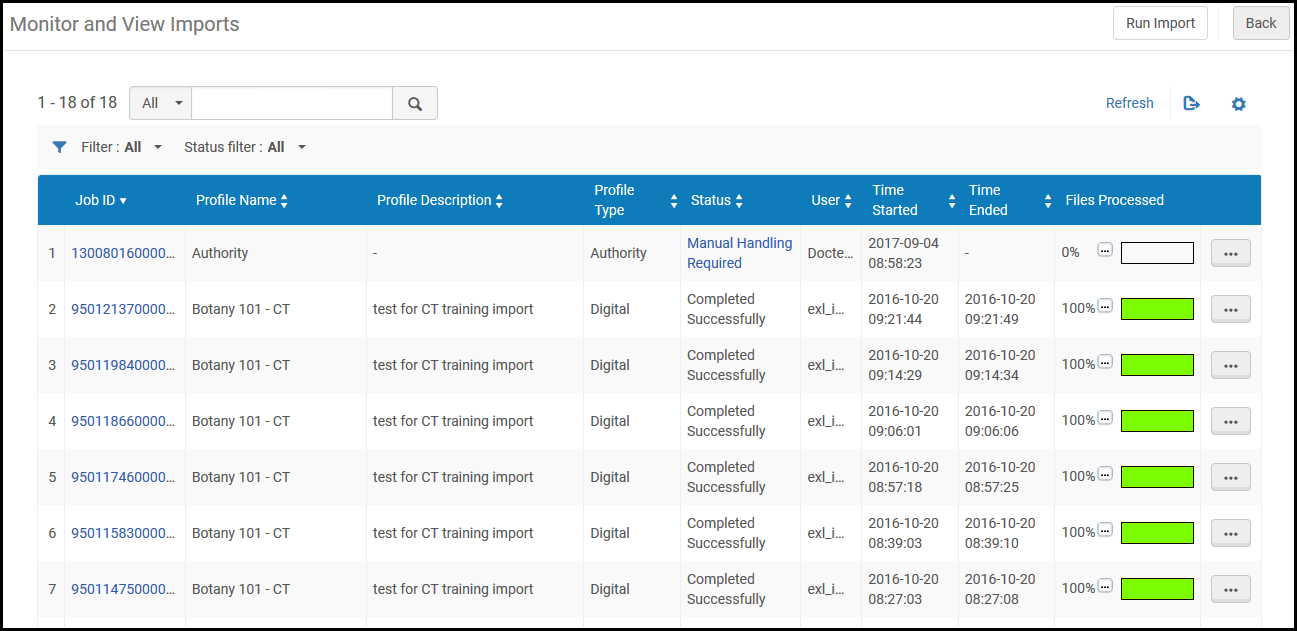
The Monitor and View Imports page lists all import jobs of the relevant type. The Job History page lists all jobs run using a specific profile, and includes a short section with the profile details at the top of the page.
For the explanation of the naming convention of job history for Import Profiles configured with Import Protocol FTP, see naming convention of job history for import profiles with import protocol FTP.
Columns on the Monitor and View Imports page:
- Job ID - Select to view file details (see Viewing File Details).
- Status - One of the following:
- Pending – The import job is waiting to run
- Initializing – The import job is starting to run
- Running – The import job is running
- Finalizing – The import job is nearly complete
- Completed Successfully –The import job completed successfully
- Completed with Errors –The import job completed, but errors occurred while running
- Completed with No Bulks – The import job completed, but no files were found to process
- Manual Handling Required – There is a problem with the import job that requires manual handling; select to open the relevant import issues page (see Resolving Import Issues).
- User - The user who ran the job
- Time Started
- Time Ended
- Files Processed - A progress bar indicating the percentage of the file that has been processed. Select the three dots to view more information.
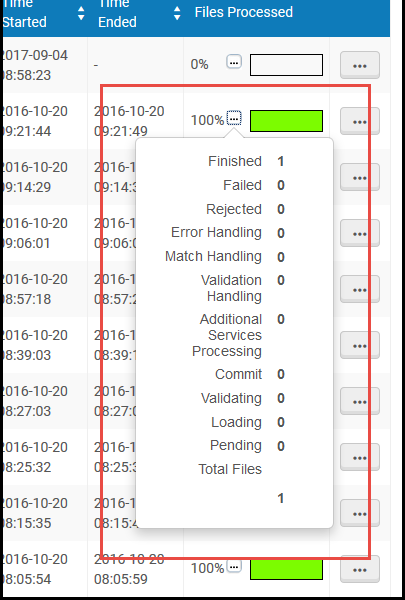
Row actions on the Monitor and View Imports page:
Depending on the job's status, you can use the row actions to view:
- Report(Viewing an Import Profile Job Report)
- File Details(Viewing File Details)
- Events(Viewing Import Job Events)
- Imported Records(Viewing Imported Records)
- Imported PO Lines (Viewing PO Lines Associated with an Import Job)
Note that for import profiles configured for the FTP import protocol, the import job has two parts / jobs (first to fetch the records, and second to load the files), and only the second job appears in the import profile history. In cases where there are no files on the FTP or the connection to the FTP server fails, the second job does not run and no import profile history is presented. To view the import history in these cases, use Admin > Manage Jobs and Sets > Monitor Jobs and select the History tab. The two FTP job names are: 1)Metadata Import w/FTP: <profile name> and 2)Metadata Import: <profile_name> (FTP).
Viewing an Import Profile Job Report
For more information about job reports, see Viewing Completed Jobs.
The (Import Profile) Job Report page provides the following summary information for an import job:
- Records processed, imported, and deleted
- Records not imported or deleted
- PO lines processed and imported
- Physical/digital items and electronic portfolios processed and imported
- Holdings records processed and importedFor more information, see the Holdings Records Section in the Import Job Report video (1:04 min.).
- The Total electronic portfolios imported count does not take into account the portfolios imported in the first file that is imported when the import is split into several files.
- Total electronic portfolios activated refers to the portfolios activated from the Community Zone / linked to the Community zone. "Activation" refers to Community Zone. Import can be local, not linked to the Community Zone.
The report includes information organized into collapsible headings.
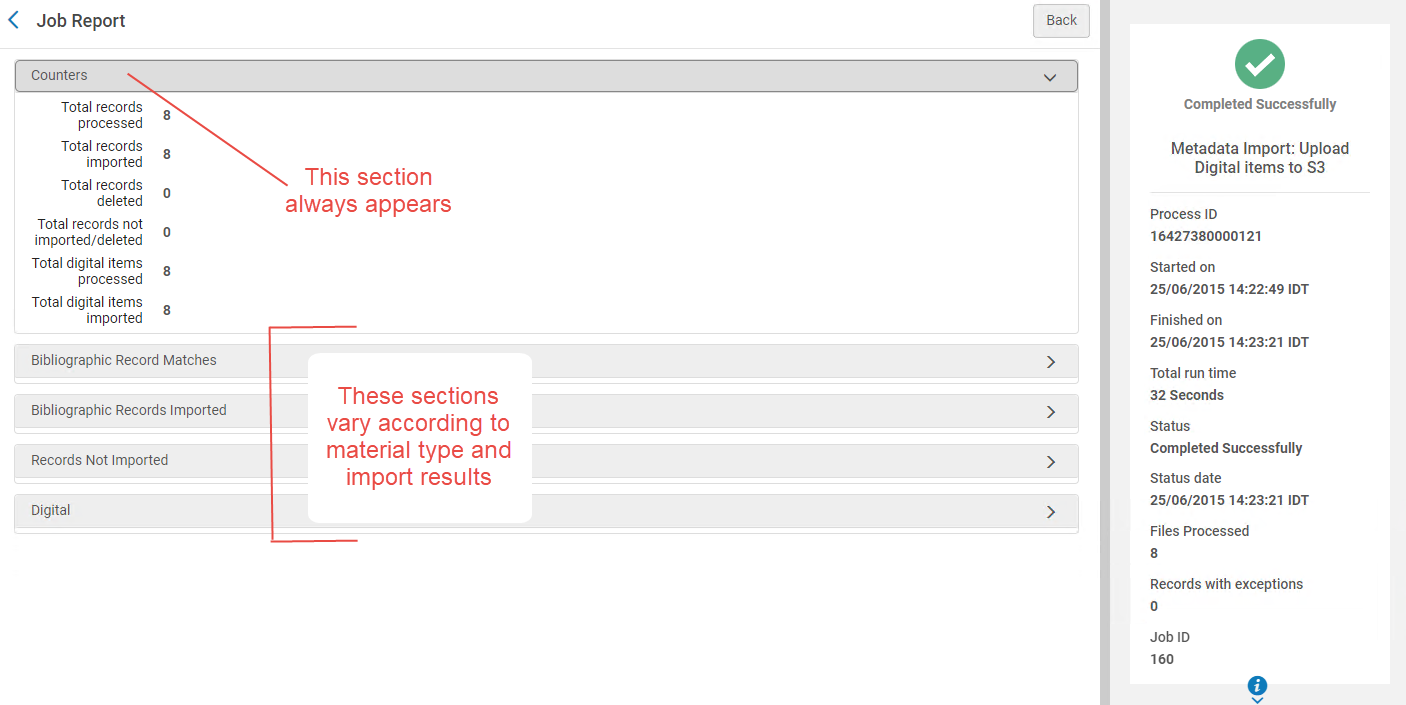
Open each section to see the specific types of imported records and their count.
The table below describes the less obvious information available in each of these sections:
| Report Element | Description |
|---|---|
| Bibliographic record matches | |
| Matches found | |
| Single-matches found | The number of imported records that matched only on a single existing record. |
| Multi-matches found | The number of imported records that matched multiple existing records. Other fields in this area are subsets of this count. |
| Multi-matches resolved automatically |
Displays the total number of multi matches that were resolved automatically, by all the 'Multi-matches resolved automatically' options below. If you manually intervene during the import process to resolve a matching issue that results in more than a single match remaining, the other additional matching records that are automatically handled are not counted in the total number that appears in the Count column. |
| Multi-matches resolved automatically, Disregard CZ records |
Displays the number of multi matches that were resolved by selecting the option "Disregard matches for CZ-linked records". If you manually intervene during the import process to resolve a matching issue that results in more than a single match remaining, the other additional matching records that are automatically handled are not counted in the total number that appears in the Count column. |
| Multi-matches resolved automatically, Disregard invalid/canceled system |
Displays the number of multi matches that were resolved by selecting the option "Disregard invalid/canceled system control number identifiers". If you manually intervene during the import process to resolve a matching issue that results in more than a single match remaining, the other additional matching records that are automatically handled are not counted in the total number that appears in the Count column. |
| Multi-matches resolved automatically, Prefer record with the same inventory type |
Displays the number of multi matches that were resolved by selecting the option "Prefer record with the same inventory type". If you manually intervene during the import process to resolve a matching issue that results in more than a single match remaining, the other additional matching records that are automatically handled are not counted in the total number that appears in the Count column. |
| Multi-matches resolved automatically, use latest created record |
Displays the number of multi matches that were resolved by selecting the option "Use record with latest created date". If you manually intervene during the import process to resolve a matching issue that results in more than a single match remaining, the other additional matching records that are automatically handled are not counted in the total number that appears in the Count column. |
| Multi-matches skipped | If records were skipped, see Resolving Import Issues for information on how to resolve this. |
| Multi-matches, too many results were found | If Alma identifies more than 150 matches for a record being imported, Alma does not import that record and marks it as "Multi-matches, too many results were found" and "Records not imported, too many multi-matches results". |
| Bibliographic Records Imported | |
| Total records imported | |
| Imported records upon no match | |
| Unlinked from CZ | The number of imported records unlinked from the Community Zone. |
| Merged records | |
| Merged records (manually) | |
| Overlaid records | |
| Overlaid records (manually) | |
| Newly added records | The number of newly imported records with at least one match (that for some reason were not overlaid/merged, if these options were selected). |
| Newly added records (manually) | |
| Headings calculated | See Holdings Records Report Details. |
|
Records Not Imported See also Other Reasons for Records not Imported. Records Not Imported can contain up to 1000 files. |
|
| Total records not imported/deleted | |
| Records not imported upon no match | |
| Records not imported, too many multi-matches results | |
| Records not added (manual match) | |
| Records not added (manual validation) | |
| Records not added (automatic match) | |
| Records not added (automatic multi-match) | |
| Total records matched and skipped |
Includes as part of the count the records counted in the Records with newer version in repository row. See Records Not Imported Due to Version Prevention in a Job Report.
|
| Records locked by user/process | It may happen that you are seeing records in this counter, but the records have been imported. This happens when the not-imported records are related to the Network Zone, since the record already exists there. In such a case, the import mechanism creates a cache version in the Institution Zone to add to its inventory. |
|
Records linked to CZ |
The number of Community Zone records that were found as a match but skipped (due to the 'Skip record' option selected in the "Community Zone linked records handling" option of the import report, see Managing Import Profiles.) If no match is found in the Institution Zone, Alma makes no attempt to match with the Community Zone. |
| Records duplicated in Job | |
| Records not deleted since profile not allowing | |
| Records with newer version in repository | Shows the number of records that were not overlaid or merged as a result of the prevent option being selected in the import profile. See Records Not Imported Due to Version Prevention in a Job Report. |
| Records with brief/non brief conflict | |
| Records failed | |
| Records rejected | |
| Records skipped by filter | |
In the row actions of the sections, you can do the following:
- To preview the records, select Preview Records in the row actions list. Alma displays a record list of up to 50 bibliographic records to which the row refers (if there are more than 50 records and you want to see all of them, see Viewing Imported Records).
When previewing records, it may happen that the number of records shown by selecting Preview Records is lower than the number in the counter, for example: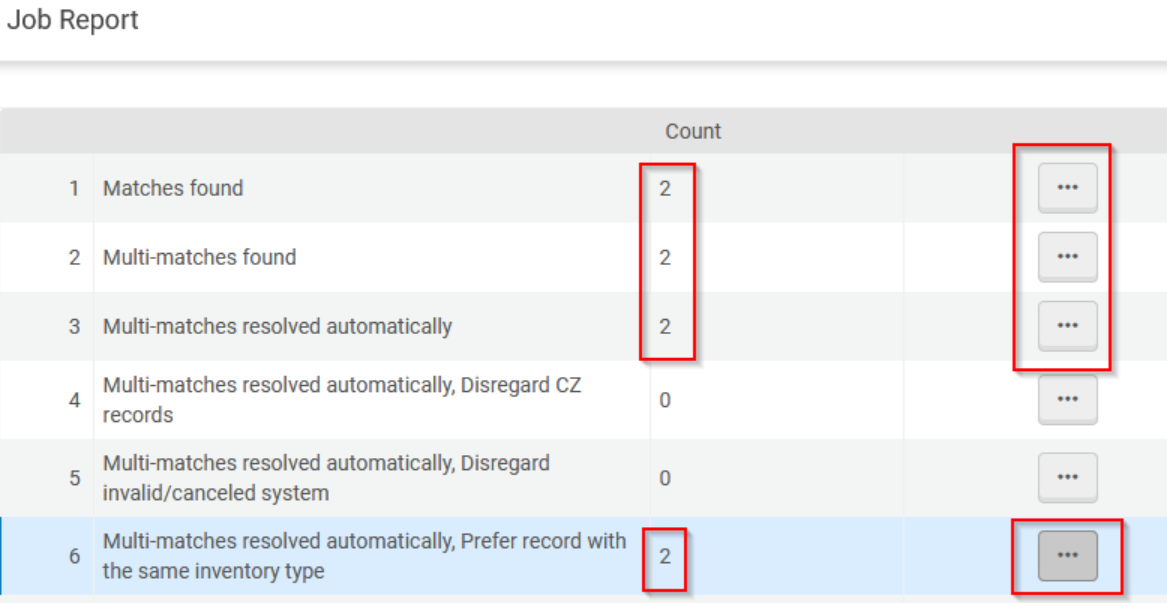 This means that the other records are of a different inventory type. This happens when the option "Single match - match only records with the same inventory type (electronic/physical)" is selected in the import profile (see Managing Import Profiles). When this option is selected, the import job report provides additional information on an additional row "Match skipped - different inventory type" in the Bibliographic Record Matches section. This row shows a count of skipped matches due to a different inventory type.
- To create an itemized set, select Create itemized title set in the row actions list. Complete the fields as you would for any itemized set (see Creating Itemized Sets).
- To download an XML or binary file containing the records, select Download sources (XML) or Download courses (binary) in the row actions list. The records are downloaded as a compressed file. To view or edit, unzip the file and open it in an XML or plain text editor or the program you use to work with binary files.
Records Not Imported Due to Version Prevention in a Job Report
Expand the Records Not Imported section to view records prevented from overlaying or merging when a match was found during an import that utilized the Consider Originating System or Ignore Originating System options for the Do not override/merge record with an older version parameter in the import profile (see Do not override/merge record with an older version in Creating/Editing an Import Profile - Set Management Tags for more information).
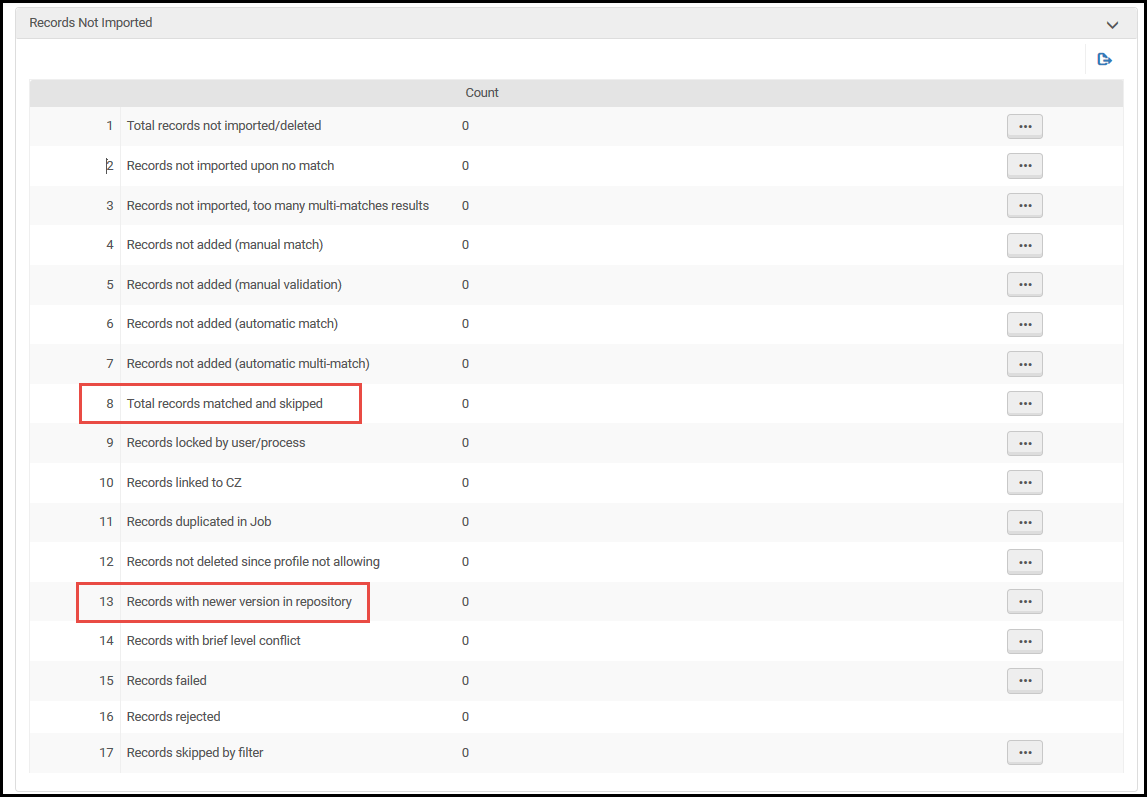
- The Total records matched and skipped row includes as part of that number the records counted in the Records with newer version in repository row.
- The Records with newer version in repository row shows the number of records that were not overlaid or merged as a result of the prevent option being selected in the import profile.
Other Reasons for Records not Imported
The number of reasons for records not being imported is large. The below is not an exhaustive list:
- The XML file is not structured properly.
- Record size. The maximum size of a record is 1MB. The maximum size of an individual field in the record is 32KB (even if the record to which this field belongs is below 1MB). Records that exceed this size are not imported.
Holdings Records Report Details
When an import profile is configured to import holdings records, the import job report provides details regarding imported holdings.
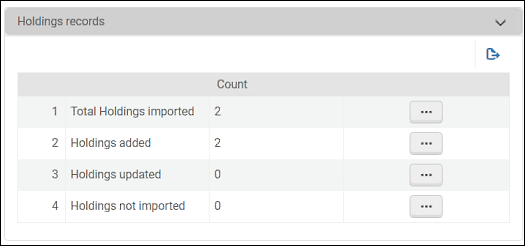
This section provides the following information:
- Total Holdings imported – This counter identifies the total number of holdings records that were imported. This number matches the Total Holdings imported counter in the Counters section of the import job report.
- Holdings added – This counter reports the number of new holdings records that were added as a result of the import job.
- Holdings updated – This counter reports the number of existing holdings records that were updated by imported holdings information.
- Holdings not imported – This counter reports the number of holdings records that were identified to be imported but were not imported for some particular reason.
Viewing File Details
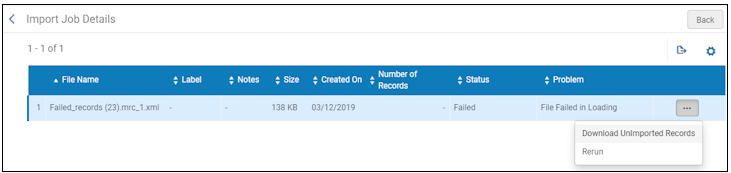
The Import (Profile) Job Details page (on the Monitor and View Imports page, select View file details in the row actions list) displays details of the import job, including its status, the times at which the job run started and ended, the number of processed files, and the number of files rejected.

This page also shows details of each file included in the import job, including the file's size, creation date, the number of records it includes, its import status, and details of any problems that occurred during the import. Select Back to return to the Monitor and View Imports or Job History page.
When available, you can download the file to view it or to make corrections in order to re-upload / re-import the file. See Download Unimported Records for more information.
For situations where an import job failed (such as Failed in Commit after calling NZ) that is not due to a data error, you can select Rerun to easily run the import again with the file in the row from which you selected Rerun. See Rerun for more information.
Download Unimported Records
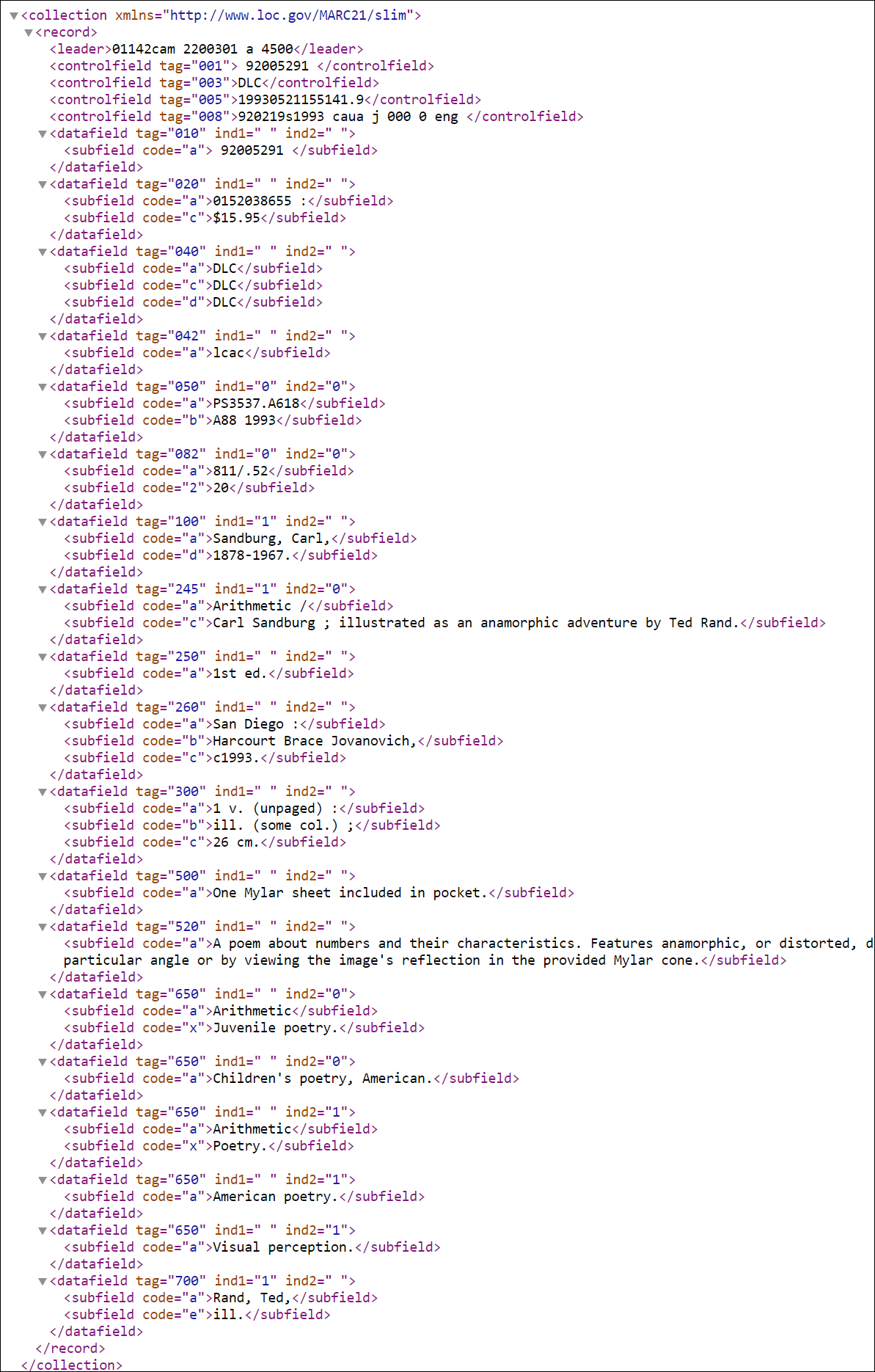
To download the unimported records, on the Import (Profile) Job Details page select Download unimported records in the row actions list. The file is opened or downloaded to your computer. Edit the file to correct the invalid records and then re-import the file, as described in Importing Records Using an Import Profile.
Rerun
When an import job fails, use the Rerun action to run the import job again with the import file that is specified in the row from which you select the Rerun action. This action is available for Repository, New Order, and Update Inventory profile type import jobs that use the Upload file or FTP import protocol, and specify XML or Binary for the physical source format.
Failed in Commit after calling NZ
The "Failed in Commit after calling NZ" error appears in the import job reports, because the import job runs simultaneously in different consortia members and uses the same Network Zone bibliographic records (Resources > Manage Import Profiles > Edit/add an import profile > Profile Details > Use Network Zone = Yes). The Use Network Zone checkbox can be edited in the Import Profile Details section when creating a new import profile (see Selecting Where to Create New Bibliographic Records).
The general recommendation is that all jobs that touch network records should be synchronized across members so they do not run at the same time across multiple institutions. This is relevant to import jobs and jobs that work on record normalization.
Viewing Import Job Events
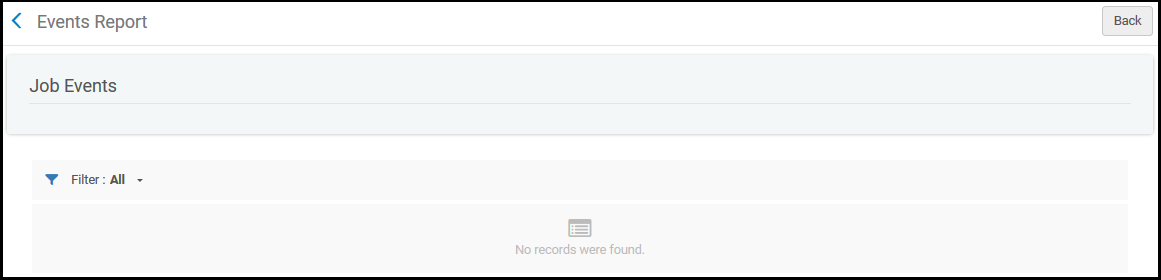
You can view information for each event generated when an import job was run on the (Import Profile) Events Report page (on the Monitor and View Imports page, select Events in the row actions list), including:
- Event Description
- Status
- Event Date
- Severity
- Module
- Creator
Select Back to return to the Monitor and View Imports page.
Viewing Imported Records
You can view the imported records on the Repository Search page (on the Monitor and View Imports page, select Imported Records in the row actions list), filtered by the import job ID (see Searching in Alma).
Viewing PO Lines Associated with an Import Job
To view the PO lines created by the import: On the Monitor and View Imports page, select Imported PO Lines in the row actions list. A record list of PO lines appears, filtered by the import job ID (see Searching for PO Lines and Using Facets to Refine Results).
System Job Notification Report
When an automatic import is carried out, the system job generates a notification that is sent to the emails of relevant users. This notification contains summary information only (whereas when a manual import is run, a comprehensive report is generated, detailing Counters, Bibliographic Record Matches, Bibliographic Records Imported, Records Not Imported, PO Lines, and Electronic Portfolios). This is because in case of a scheduled job, a single job downloads the files from STP and triggers a MDImport job to handle the files. For this reason, reports for system jobs run automatically cannot be configured to display additional information.
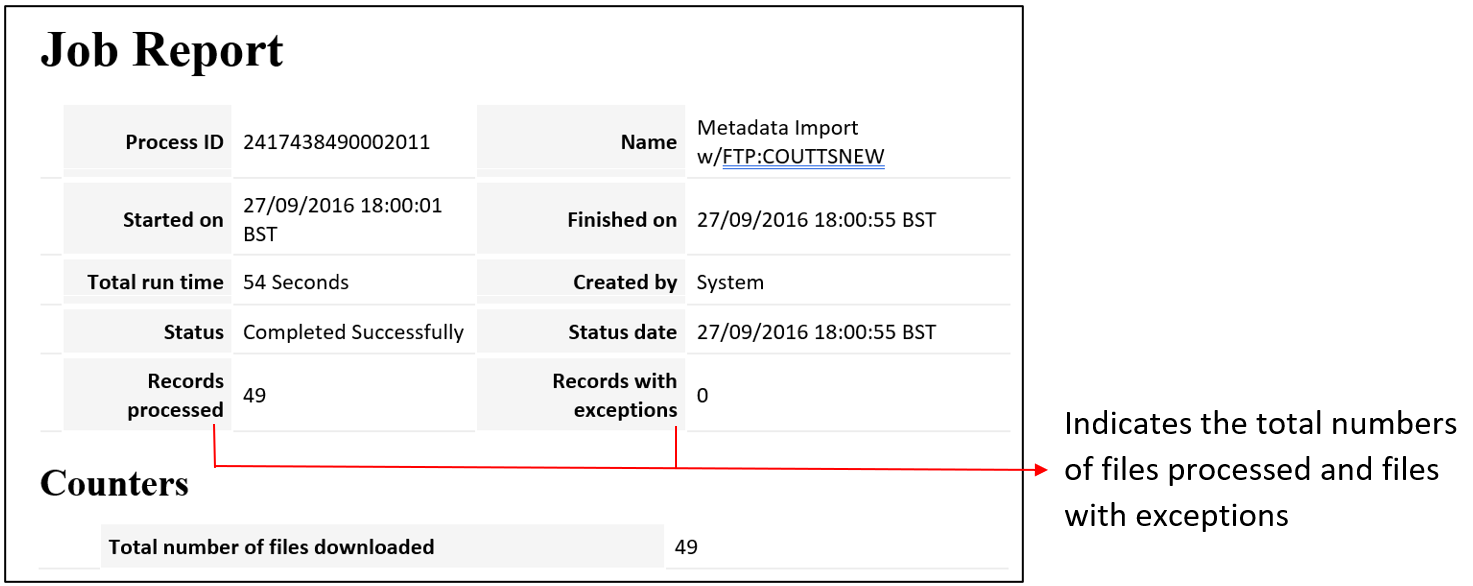
To view the detailed report, you can find the MD Import job report that correspond to the scheduled job.
Page tags: article:topicproduct:almacontent:Documentationlang:englishimport jobmonitor and view import jobimport reportevent
