-
PO Line Templates
To create and manage PO lines templates, you must have one of the following roles:- Purchasing Operator
- Purchasing Operator Extended
- Purchasing Manager
For further details on permissions for working with PO Line templates, see Roles and Privileges.
PO line templates are saved sets of PO line values that you can apply to a new PO line. This saves time when creating the PO line, since you don't have to enter these values each time. You can create a new template from scratch or save an existing PO Line as a template. You can also duplicate a PO Line template to use the existing information as the basis for a new template.
Templates can be saved as either public or private. When loading templates, you can choose from your private templates and all public templates.
Accessing the PO Line Templates Page
PO line templates are managed from the PO Line Templates page (Acquisitions > PO Line Templates). The templates on this page are available during PO Line creation by using the Load from template field (if they are set to Active as described in Availability and Visibility). The list includes private templates created by the current user, as well as all public templates.
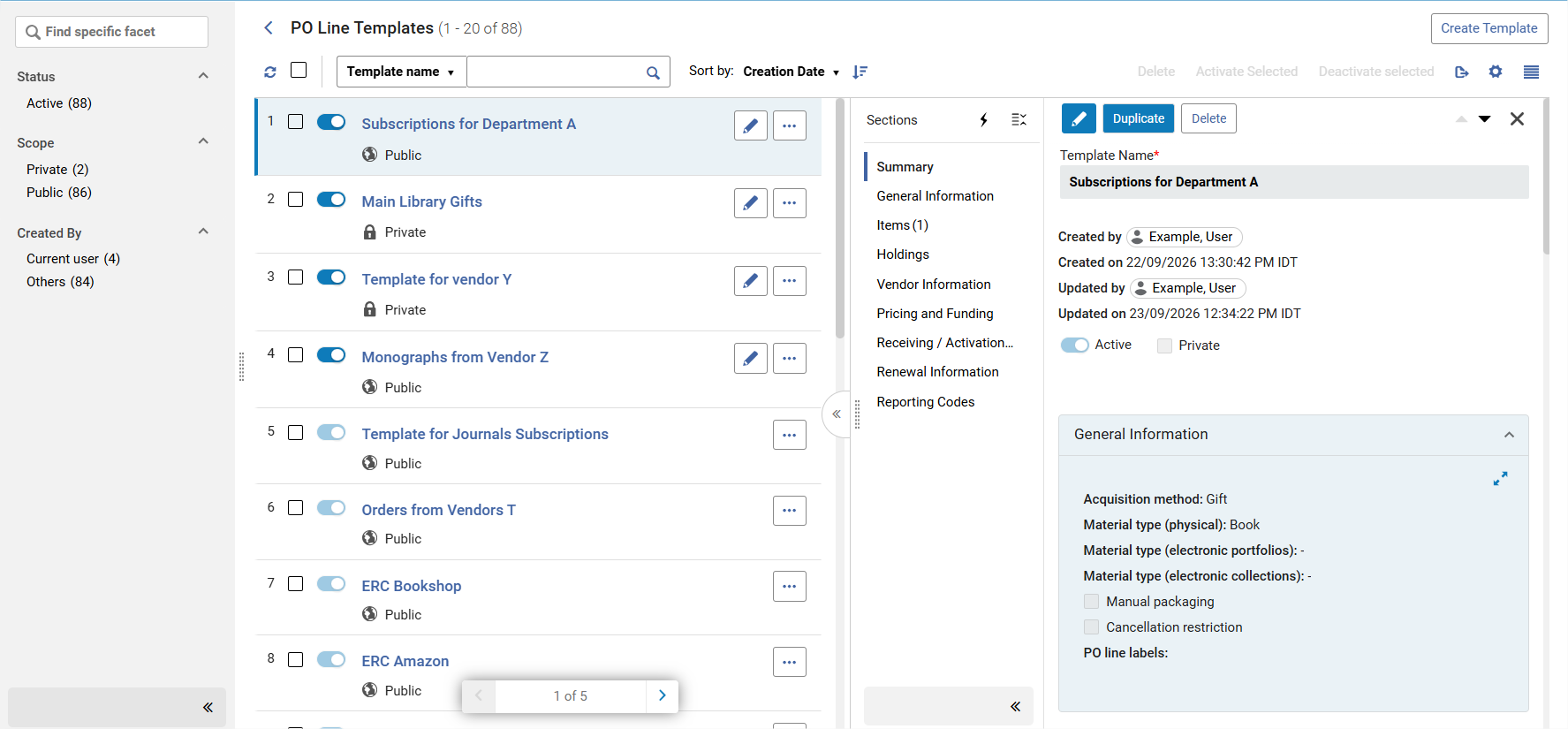
New for PO Line Templates – Highlights
Until the dedicated page was introduced in November 2026, it was possible to create a template based on a PO line in the PO lines list, but it was not possible to view the created template. It was also not possible to edit an existing template i.e., users could only override the template entirely.
The dedicated page for managing PO line templates was introduced to make it easier and more reliable for users to work with the templates. It enables institutions to review the available templates they have and more easily manage them.
Features in the PO Line Templates Management Page
- View templates values: View the field values in each template, and edit them as needed.
- Update a private template to be public.
- Update a template name.
- Template creation: Create templates from scratch, from an existing PO line, or by duplicating another template.
- Activate/Deactivate: Deactivate a template, while it is being worked on. Deactivated templates will not appear when creating PO lines.
- Flexible role definitions: See Roles and Privileges.
- Additional fields: See the full list of fields in PO Line Template Sections and Fields.
Adding a PO Line Template
PO line templates can be added either from the PO lines list or from the PO Line Templates management page.
To add a PO line template from the PO Lines list:
You can save any PO line as a template. It will be populated with the current PO line's field information.
- In the row actions of the PO line (in either its row in the task list, or in the Details pane, if the PO line is open there), select Save as Template. The Save as Template dialog box opens.
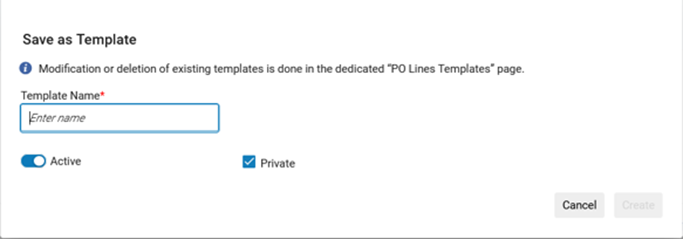
- Enter a name for the template. Note that template names must be unique for each template scope (private and public).
- Set a scope for the template. If you are creating a new template and you want to share the template with other users in your institution, un-check the Private field to set the template as public. A public template can be used by everyone.
- Active templates are shown in the Load from template drop down when creating a PO line. To hide a template from this list (for example while it is being worked on), un-check the Active toggle so it will be set to Inactive.
- Select Create.
To add a PO line template from PO Lines Templates management page:
On the PO Lines Templates page, you can either create an empty template or a pre-filled template from a selected PO line.
- Select the Create Template action at the top of the page.
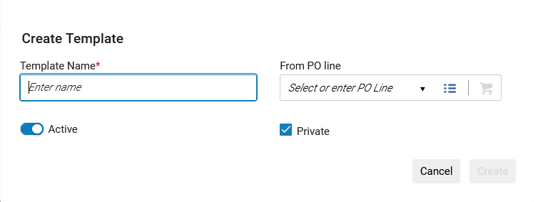
A new template can be created from: A selected PO line. Use the From PO line field to search for a relevant PO line for selection. When creating a template from a PO line, the PO line fields will pre-fill the template. - Set the name and scope, and select Create in the same way as when adding a template from the PO Lines list as described above.
Once a template has been created, it is open for editing. See the table below for an explanation of the PO Lines Template sections and fields.PO Line Template Sections and Fields
Summary Section
- Template name — This field is mandatory.
- Created by/on — This field is filled automatically.
- Updated by/on — This field is filled automatically.
- Status — Toggle bar that sets the template to Activated/Deactivated. The default is Activated (enabled). When deactivated, the template will not be available for selection upon PO line creation.
- Scope — A checkbox that sets the scope of the template to be Private/Not Private (public). The default is Private (checked). Only the creator of a template can change it from public to private.
PO Line Fields Saved in the Template
The available fields that can be saved as part of the templates are relevant to physical, electronic, digital, one time, continuous and standing order PO lines. Each template can be applied to any PO line type; only relevant fields will be part of the created PO line.
All fields are displayed, even when empty. No fields are mandatory at the template level. To edit them, you need to be in Edit mode. The following sections list the fields saved as part of the template.General Information Acquisition method The type of acquisition method for the PO line. Material type — physical The type of physical material that the item represents (relevant to physical PO lines). Material type — electronic portfolios
(New for November 2026)The type of portfolio (relevant to electronic portfolio PO lines). Material type — electronic collection
(New for November 2026)The type of electronic collection (relevant to electronic collection PO lines). Manual packaging Whether to enable manual packaging of the PO line into a PO. Cancellation restriction
(New for November 2026)Whether to display a cancellation restriction note containing a warning upon the cancellation of a PO line. Cancellation restriction note The text of the warning to be displayed when cancelling a PO line that has a cancellation restriction. PO line labels You can select existing PO line labels in the template and create new ones. The labels refer to the PO line entity and not to the template. Items Number of item rows Each row represents an item copy. Library The library for which the item is being ordered. Note that all of the available libraries for the user role are displayed in the list. Location The location in the library in which the item is intended to be placed. Item policy The conditions under which patrons can access or borrow the item. For more information, see Updating Item-Level Information. When Items weren’t saved as part of the template, Alma uses the library and location from the Holdings information saved in the template for both physical one time and continuous PO lines. If Holdings were also not saved, Alma uses the default for the Ordered Items/Ordered Holdings section. Multiple Items and multiple Holdings can be saved in a template.
Holdings Library The library for which the item is being ordered. Several identical holdings can be added to a template. Upon save, they will be narrowed to only one occurrence of this holdings. All of the available libraries for the user role are displayed in the list. Location The location in the library in which the item is intended to be placed. Vendor Information Material supplier The vendor supplying the material being ordered; select from the quick pick list. As when editing PO lines, you see vendors that match the Purchasing Operator Manager library scope. When creating a PO line from the template, with a PO line owner that is not available for the selected vendor, the vendor field will be empty in the created PO line. Access provider
(New for November 2026)The vendor interface of the material being ordered; select from the quick pick list. See Editing Vendor Interface Information. Expected activation — Days after ordering The expected activation date will be calculated as a number of days after the order is sent to the vendor. Enter the number of days. Expected activation — Date The date when the order is expected to be received activated (for electronic items). Either enter the date manually, or select the calendar icon and choose the date in the calendar. Expected receipt — Days after ordering (New for November 2026) The expected receipt date will be calculated as a number of days after the order is sent to the vendor. Enter the number of days. Expected receipt — Date
(New for November 2026)The date when the order is expected to be received (for physical items). Either enter the date manually, or select the calendar icon and choose the date in the calendar. For Expected activation / receipt (Days and Date), if no vendor is part of the template, when selecting a vendor with defaults after the PO line was created with templates values, the template values are overridden by the vendor defaults (if exists). Activation due after ordering — Days (New for November 2026) The number of days after ordering that the activation task is due. When the due date passes, the Notify E-Activation Due letter is sent to the user that is assigned the e-resource activation task and an alert is displayed in the user’s list of tasks. Vendor reference number type (New for November 2026) A reference number for the PO line in Alma, as provided by the vendor. Serves as a matching point for identifying a PO line in Alma. Claiming grace period — Days
(New for November 2026)A grace period (in days) after the expected receipt/activation date, after which the PO line is sent to the claims task list (see Processing Claims). Reclaim interval — Days
(New for November 2026)When populated, Alma will send reclaim letters at the defined interval after the initial claim letter is sent. If the field is not populated, a reclaim letter will not be sent. Subscription interval
(New for November 2026)The receipt interval, in days, of the continuous order (such as 30 for monthly, 90 for quarterly, and so forth). Note to vendor Enter any notes you may want to pass on to the vendor along with the PO line. When a material supplier is saved as part of the template, and it has defaults for the following fields, the template values are taken:
- Expected activation - Days after ordering or Date
- Expected receipt - Days after ordering or Date
- Activation due after ordering (days)
- Claiming grace period (days)
- Reclaim interval (days)
- Subscription Interval
Pricing and Funding Quantity for pricing The number of items to be paid for. When editing a template this field can be modified, but it will not reflect the number of items/holdings when Update Net Price according to item quantity is checked. It will reflect this number in the created PO line. Add fund Select this link to add a fund to the PO line template. A Fund name field is opened. Select your fund and click Add. The selected fund is added under Funds. When saving a fund as part of a template, Alma saves the fund code. When creating a PO line from a template, Alma always loads the fund from the current fiscal period. When the same fund was added more than one time, upon save the selected funds list will be narrowed to only one occurrence of this fund. Update Net Price according to item quantity This affects the number of ordered items in the Quantity for pricing field. When the checkbox is selected, the Quantity for pricing amount is updated automatically when the user adds or removes items, and as a result, the Net Price field is also updated. The default for this field in PO lines template is false (not checked). Receiving/Activation Information Rush Select this option if you want to rush the order of this item. Binding during receiving If selected, a confirmation message appears when receiving the PO line, informing the librarian that the order is marked for binding and must be sent for binding. Routing during receiving If selected, a confirmation message appears when receiving the PO line, informing the librarian that the order is marked for routing and the librarian must print the list of interested users. License Select a license from the quick pick list to associate with the resource, displayed in the inventory list. Receiving/activation note Enter any information that the person receiving (for physical PO lines) or activating (for electronic PO lines) the item/resource should be aware of. Access model
(New for November 2026)The access model specifies how many concurrent end-users can access the electronic resource. Select the correct access model for the resource from the dropdown list. Reporting Codes 1st reporting code 2nd reporting code 3rd reporting code 4th reporting code 5th reporting code For additional information, see Configuring Reporting Codes.
Availability and Visibility
You can set PO Line templates to be public/private using the checkbox in the Summary section.
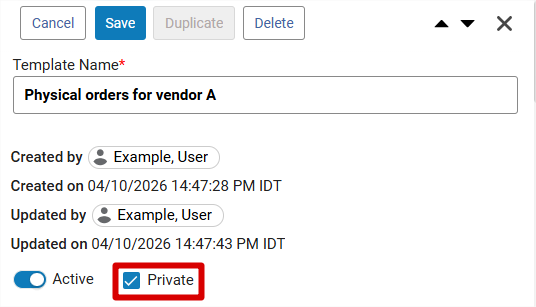
You can set PO Line templates to be active/inactive using the toggle in the Summary section.
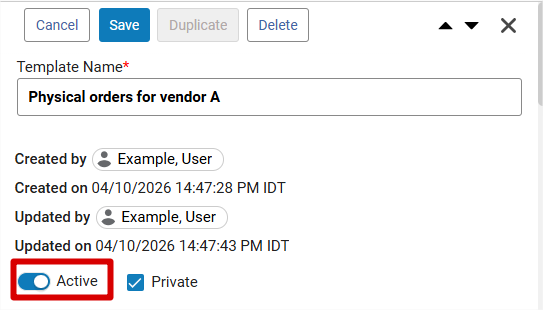
You can also set PO Line templates to be active/inactive in the templates list.
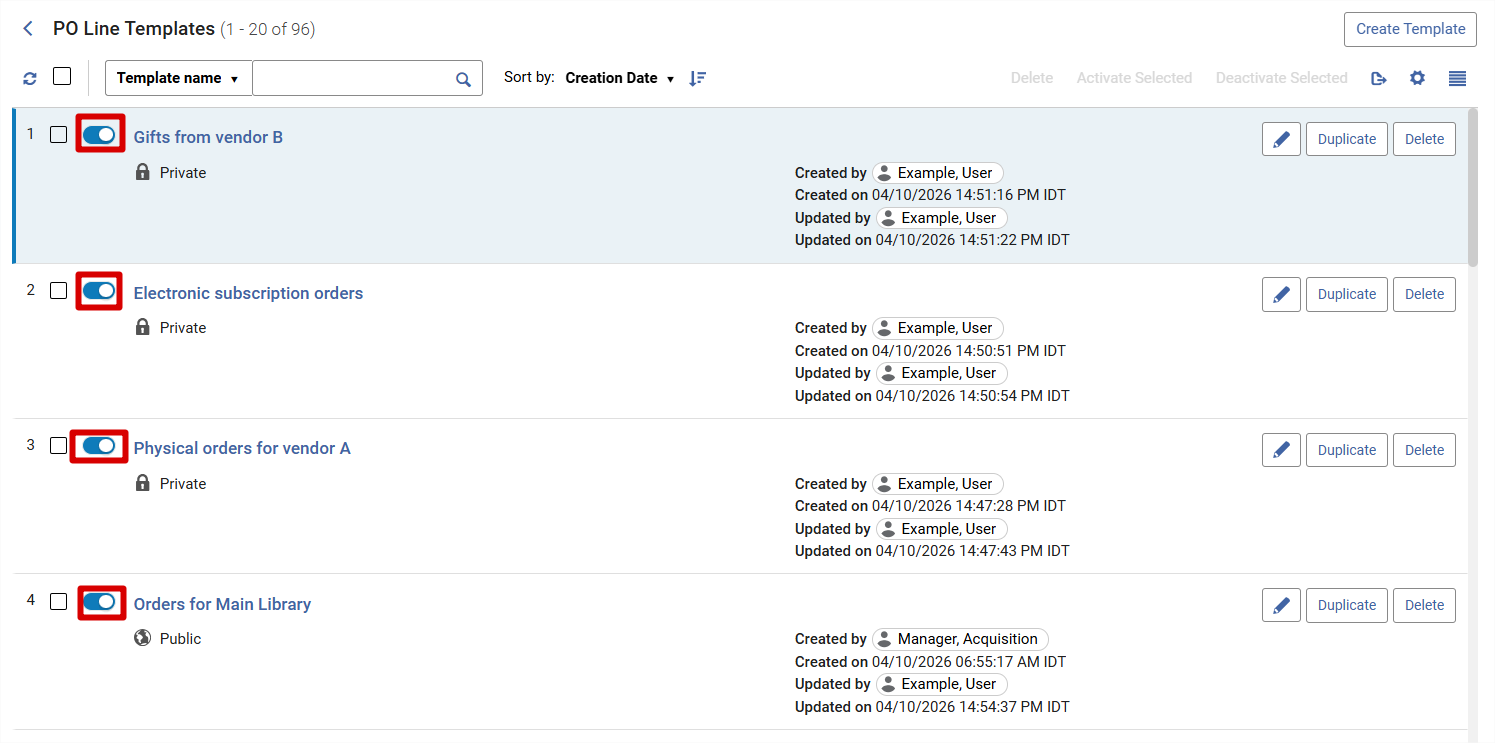
You can set multiple templates to be active/inactive by selecting the relevant templates (or the Select All checkbox at the top of the list) and then selecting Activate Selected or Deactivate Selected.
- Private template — Can be viewed and edited/deleted only by the user who created the template.
- Public template — Can be viewed and edited/deleted by everyone by default. Separate privileges handle the following and can be removed (by asking Clarivate support) — see Roles and Privileges.
- Active — Can be used (visible) during PO line creation.
- Inactive — Cannot be used (not visible) during PO line creation.
Duplicating a PO Line Template
This action duplicates the PO line template. You can duplicate any template you see in the list, even if you are not the template creator. To duplicate a PO line template, the PO line template must be in view mode. The Duplicate button is not available in edit mode, i.e., you cannot duplicate a PO line template when editing it.
To duplicate a PO line template:
- Navigate to the PO Lines Templates page (Acquisitions > Purchase Order Lines > PO Lines Templates).
- For the relevant template, select Duplicate in the row actions list or the right pane actions.
- In the pop up you can change the suggested name, and modify the status and scope of the template.
- Select Confirm in the confirmation message dialog box. The new duplicated template is created and displays in edit mode.
Deleting a PO Line Template
This action permanently deletes the PO line template. If you do not want to permanently delete the template, see Availability and Visibility.
To delete a PO line template:
- Navigate to the PO Lines Templates page (Acquisitions > Purchase Order Lines > PO Lines Templates).
- For the relevant template, select Delete in the row actions list or the right pane actions.
- Select Confirm in the confirmation message dialog box. The PO line template is permanently removed from the list.
Roles and privileges
With the new dedicated page, separate privileges handle the following and can be removed (by asking the Clarivate Support Team):
- Ability to create and manage templates: Create, edit, deactivate and delete templates created by the user, see Save as Template in the PO line actions, and access the PO Line Templates page. This is included in the following roles: Purchasing Operator, Purchasing Operator Extended, Purchasing Manager. Institutions can decide to remove this from Purchasing roles. To remove it, contact Clarivate Support and ask them to remove the PO_LINES_TEMPLATES_MANAGEMENT privilege from the relevant role. This will hide the Save as template action in the PO lines page, and will also hide the PO line templates link in the Acquisitions section of the Alma menu.
- Ability to edit all public templates: Edit, deactivate and delete public templates created by other users. This is included in the following roles: Acquisitions Administrator, General System Administrator, Purchasing Operator, Purchasing Operator Extended, Purchasing Manager. Institutions can decide to remove this from all of the above roles. To remove it, contact Clarivate Support and ask to remove the EDIT_PUBLIC_PO_LINES_TEMPLATES privilege from the relevant role. Public templates created by others will still appear in the templates list; however they will be in "view" mode only, without the ability to edit or delete them.
Note that this privilege is also part of the Acquisition Administrator and General System Administrator user roles. However, it also requires purchasing roles to be enabled (since access to the PO line Templates page depends on the purchasing roles). If the user does not have purchasing role/s, the privilege has no impact and does not enable any template capability.
Page tags: article:topicproduct:almacontent:Documentationlang:english
Alma

Feedback
×
*Your email will be kept private and used only for the intended purpose
Submit
Thank you!