
Viewing Running Jobs
This page describes how to view running jobs in Alma. For a page with links to information about managing jobs in Alma including scheduled and manual, see Managing Jobs in Alma.
You can view all jobs that are currently running on the Running tab of the Monitor Jobs page (Admin > Manage Jobs and Sets > Monitor Jobs). In addition, Alma includes dedicated pages that list running and completed jobs of specific types. For the list of job types with their own Alma pages, see Job Types with Their Own Management Pages.
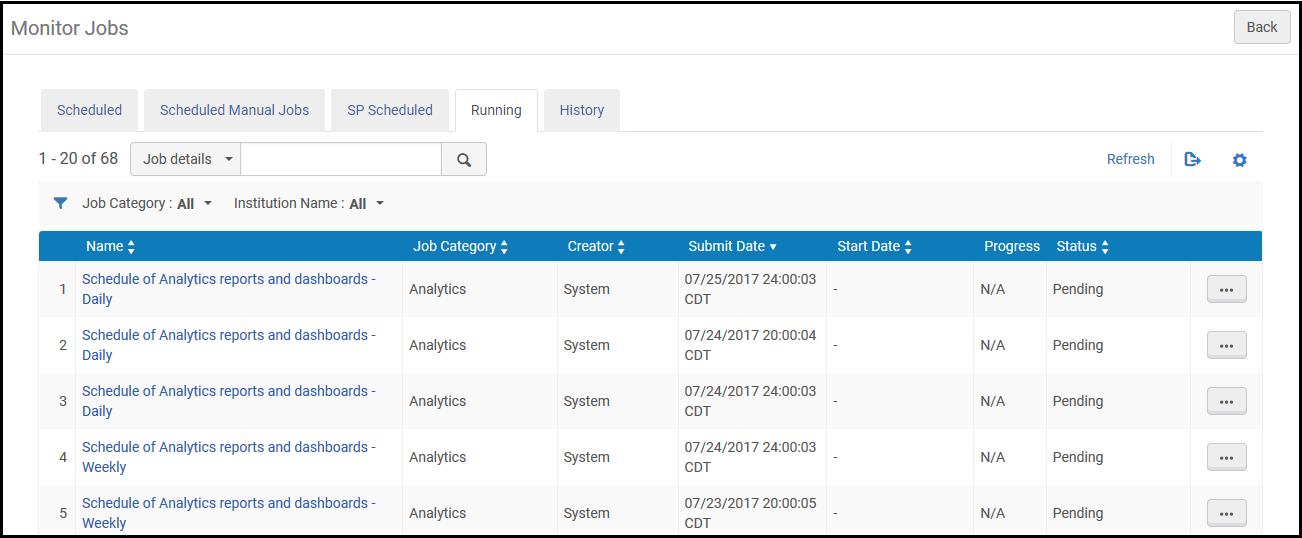
The Running tab of the Monitor Jobs page lists all running jobs. You can filter the list by job category and search using the quick-search Find field.
When using the search, note that selecting Name searches the Name column, which can be seen on the page. Selecting Job details searches the Description column, which cannot be seen on the page. The Description column sometimes provides more information about the job.
In the Network Zone in a collaborative network, you can also filter by Institution Name to view jobs run on a specific institution. An administrator in the Network Zone cannot abort a job run by a member institution.
Alma jobs run either single- or multi-threaded. The difference between these is:
- Single-threaded – These jobs are processed in one run, within a relatively short time period (up to 30 minutes). The progress of the job is not shown in the Running tab. An example of a single-threaded job is the fiscal period rollover job.
- Multi-threaded – These jobs are processed in small bulks, using parallel threads. The Running tab shows the job's progress as it is run. Examples of a multi-threaded job are indexing, publishing, and SIS imports/synchronization.
Each job in the Running tab includes the following information:
| Column Name | Description |
|---|---|
| Name | The job name. |
| Job Category | A category defined by the library component and user role associated with the job. |
| Creator | The user who ran the job. For user-submitted jobs, the name is the user's user name. For system jobs, the name is System. |
| Submit Date | The date and time when the job was submitted. |
| Start Date | The date and time when the job started. |
| Progress | The percentage of progress in the execution of the job. |
| Status | The current progress of the job. The following statuses are available:
|
To refresh the page view as the job progresses, select Refresh.
Job Types with their Own Management Pages
Alma includes pages that list running and completed jobs of specific types. Job types with their own Alma pages include:
- Acquisitions:
- Delete POs – See Deleting POs
- Roll over ledgers – see Rolling Over Ledgers
- Roll over encumbered PO lines – see Rolling Over PO Lines
- Roll over resource sharing requests – See Rolling Over Resource Sharing Requests
- Import an embedded order data or inventory using an import profile – Monitor and View Import Jobs
- EDI communication – see Monitoring EDI Jobs
- Administration:
- Purge users – see Purging Users
- Waive fines – see Waiving Fines in Bulk
- Manage circulation desk operators – see Managing Circulation Desk Operators
- Health check –HealthCheck Tool
- Integration profile – Many of these jobs have their own running/history pages. For more information, see Configuring Integration Profiles.
- Fulfillment:
- Change due dates – see Changing Loan Due Dates in Bulk
- Restore temporarily shelved items – Viewing Restore Request Jobs
- Upload loans and transactions created off-line – see Offline Circulation
- Mark items requiring action – see Items Requiring Action
- Run transfer requests – see Transferring All Requests to a Different Circulation Desk
- Create a fines and fees report – see Creating Fines and Fees Reports
- Match citations to inventory in bulk – see Matching Citations to Inventory in Bulk
- Lost Loans – see Viewing Overdue and Lost Loan Jobs
- Suggest alternate editions for citations – see Finding Alternate Resource Suggestions for Citations
- RENEW_PPU_LICENSE – see Renewing PPU Licenses After a Course Rollover
- Integration and Publishing Profiles:
- Export/import invoice information from financial systems – see Financial Systems
- Send/receive EDI communication with vendors – see Monitoring EDI Jobs
- Publish inventories – see Publishing and Inventory Enrichment
- Import resource sharing borrowing requests – see Importing Resource Sharing Borrowing Requests From an External System
- Send requests to remote storage – see Requests to Remote Storage Facilities
- Import/export users from/to Student Information System (SIS) – see Student Information Systems
- Publish fines to a bursar system – see Bursar Systems
- Aleph Central Catalog – see Integrating an Aleph Central Catalog
- SBN – see SBN Job Report for Bibliographic and Authority Alignment
- Resource Management:
- Import a file using an import profile – see Monitor and View Import Jobs
- Overlap and Collection Analysis – see Working with Overlap and Collection Analysis
- Export records using a publishing profile – see Publishing Profiles
