
SMS Communications
- General System Administrator
As part of a library's processes, Alma produces various notifications for the library's users. The notifications may be sent to a user by email, or printed. Some of the notifications may also be sent as SMS messages to the user's mobile phone. Using SMS messages as the notification channel is now quite popular, as this has become an efficient and effective way in which to contact users.
For details on configuring SMS communications, see https://developers.exlibrisgroup.com/alma/integrations/sms
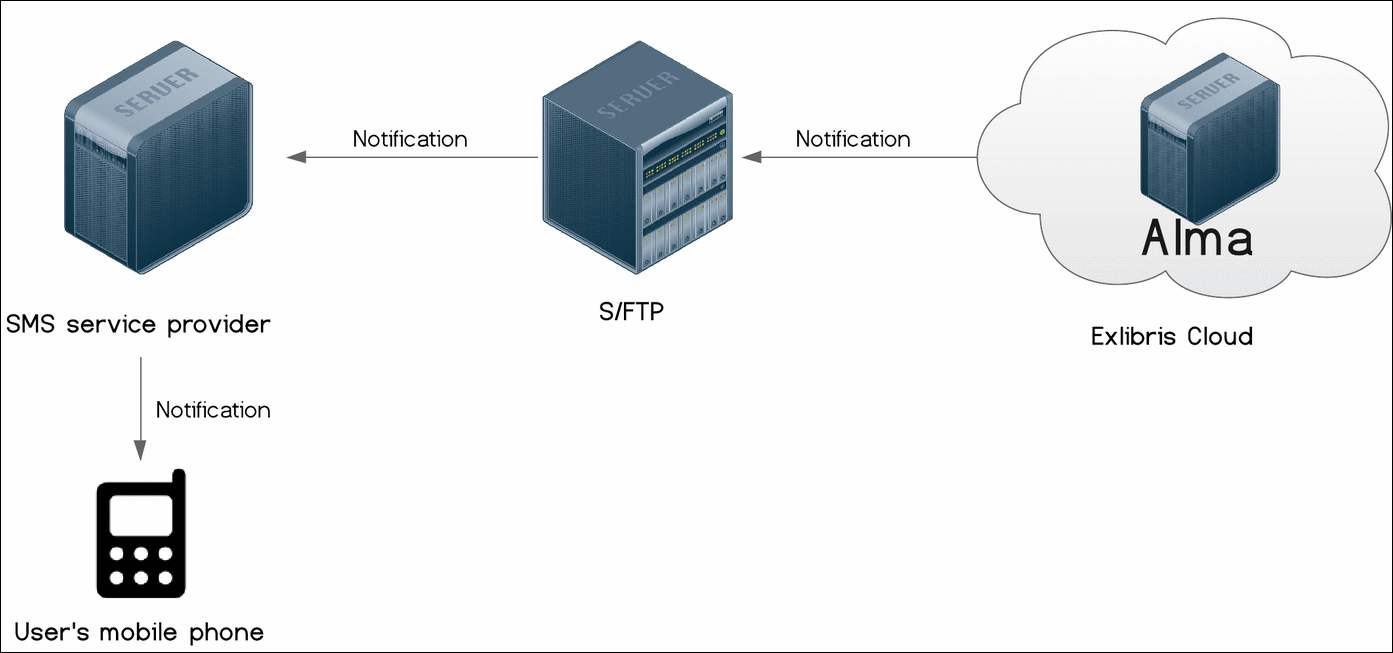
SMS communication is enabled for the following notification types:
-
Automatic Loans Renew Notice (Sms Automatic Loans Renew Notice)
-
Cancel Request Letter (Sms Cancel Request)
-
Courtesy Letter (Sms Courtesy Notice)
-
Delivery Registration Status Letter (SMS Delivery Registration Status Letter)
-
Ful Fines/Fees Notification Letter (SMS Fines\Fees Notification Letter)
-
Ful Lost Loan Letter (Sms Lost Loan Letter)
-
Ful Lost Loan Notification Letter (Sms Lost Loan Notification Letter)
-
Ful Overdue And Lost Loan Letter (Sms Overdue And Lost Loan Letter)
-
Ful Overdue And Lost Loan Notification Letter (Sms Overdue And Lost Loan Notification Letter)
-
Ful User Borrowing Activity Letter (Sms User Borrowing Activity)
-
Hold Shelf Expiry Date Update Letter (Sms Hold Shelf Expiry Update Letter)
-
Item Change Due Date Letter (Sms Change Due Date)
-
On Hold Shelf Letter (Sms On Hold Shelf Letter)
-
Overdue Notice Letter (Sms Due Items)
-
Shortened Due Date Letter (Sms Shortened Due Date)
SMS messages are sent to users only if preferred SMS numbers are indicated. For more information about the letters, see Configuring Alma Letters.
To configure SMS communication with patrons, you must perform the following actions:
- Configure an S/FTP connection to be used by Alma and the SMS service provider (see Configuring S/FTP Connections).The SMS service provider is chosen by the institution; dealing with issues or questions associated with them should first go through their IT departments. It is also recommended that you test your S/FTP connection by selecting Test FTP. You should receive messages indicating that the FTP upload, download, and delete were successful. If you did not receive such messages, resolve your S/FTP connection issues before continuing.
- Configure an SMS type of integration profile (see below).
- Ensure that the SMS channel of notification is activated (see below).
- Define the format of the notification (see https://developers.exlibrisgroup.com/alma/integrations/sms).
- On the Integration Profile List page (Configuration Menu > General > External Systems > Integration Profiles), select Add Integration Profile. The first page of the integration profile wizard opens.
- Perform the following actions on this page:
- From the Integration type drop-down list, select SMS Communication.
- From the S/FTP connection type drop-down list, select the name of the FTP connection that you previously defined.
- Optionally, enter a description of the integration you are configuring.
The name and code are defined for you by the system (both as SMS). - Select Next. The second page of the wizard opens.
- In the Export section:
- Select whether you want the profile to be active. Note that only active profiles can be run.
- In the Sub-directory field, enter a subdirectory of the path specified when creating the S/FTP connection. For example, if you specified Alma in the Sub-directory field during S/FTP connection configuration and you enter SMS in this Sub-directory field, the invoices are exported to the Alma/SMS directory.
- Select Save. The profile you configured appears in the Integration Profile List.
On the Letter Configuration table (Configuration Menu > General > Letters > Letters Configuration), ensure that the desired letter with the SMS channel is enabled.

If it is not enabled, select the Customize button, select the slider so that it becomes blue, and then select Save.
