BIG BIBFRAME Validation Rules
BIG BIBFRAME Validation Rules Configurations
- Catalog Administrator
Alma validates BIBFRAME Work and Instance records against PCC BIBFRAME Interoperability Group (BIG) rules, ensuring your linked data meets community standards at the point of creation.
The BIG validation configuration table is available to Admin users under Configuration > Resources > Cataloging > Metadata Configuration > Linked Data Active Profiles > LC BIBFRAME Instance OR Configuration > Resources > Cataloging > Metadata Configuration > Linked Data Active Profiles > LC BIBFRAME Work Profiles.
Alma validates BIBFRAME Work and Instance records against rules defined by the PCC BIBFRAME Interoperability Group (BIG). These rules ensure structurally consistent, community-aligned BIBFRAME data by checking mandatory fields, repeatability, and structural requirements based on DC TAP (Dublin Core Tabular Application Profile) rules for monographs and serials.
BIG validation complements Alma's existing Field Configuration validation. When BIG validation rules are active for a given property, they take priority. When they are not applicable or are deactivated, the standard Field Configuration rules apply as a fallback.
The validations are maintained by BIG on GitHub: https://github.com/bf-interop/DCTap.
Shape ID
A Shape ID represents a structured set of validation rules for a specific type of BIBFRAME resource. Each Shape ID defines:
-
Target — The BIBFRAME class (and subclass) the shape applies to. For example, big:Monograph:Instance:Print targets resources of type bf:Print and bf:Monograph.
-
Properties — The fields that must or may appear on that resource, along with constraints (mandatory, repeatable, severity).
-
Value Shape — When a property points to another node (e.g., Instance - Title), the Value Shape specifies which shape to apply recursively to validate the linked resource.
Shape IDs are organized by Profile:
-
Work profiles — Define validation for Work records (e.g., big:Monograph:Work, big:Serial:Work)
-
Instance profiles — Define validation for Instance records (e.g., big:Monograph:Instance:Print, big:Serial:Instance:Electronic)
Validation Process
Validation is triggered on save — both when saving a record in the LOD Editor and when importing records via the API. The process follows these steps:
-
Identify the record's class and subclass — Alma examines the record to determine its BIBFRAME type (e.g., Text + Monograph, or Text + Serial).
-
Find a matching Profile — Alma checks the BIG Validation configuration table for a profile whose target matches the record's class and subclass. Both values in the target must match (e.g., bf:Text AND bf:Monograph).
-
Determine which validation applies:
-
If a matching profile is found > BIG validation rules are applied to all active properties within that profile.
-
If no matching profile is found > The standard Field Configuration validation applies instead.
-
If a specific property within a matched profile is inactive > That individual property falls back to Field Configuration rules.
-
-
Validate properties — For each active property in the matching shape:
-
Check mandatory constraints (is the field present?)
-
Check repeatability constraints (is the field repeated when it shouldn't be?)
-
Check Value Shape constraints (is a linked section present in the record?)
-
-
Return results — Display appropriate error messages based on severity.
Fallback to Field Configuration
BIG validation and Field Configuration work together in a priority hierarchy:
-
Scenario
-
Validation Applied
-
Profile match found AND property is active in BIG table
-
BIG Validation rules
-
Profile match found BUT specific property is inactive
-
Field Configuration rules for that property
-
No profile match found for the record's class/subclass
-
Field Configuration rules for all properties
-
Property has no Shape ID in the BIG table
-
Field Configuration rules for that property
This means institutions can selectively override BIG rules for specific properties while keeping the rest of the BIG validation active.
-
Validation Configuration
-
Accessing the Configuration Page
-
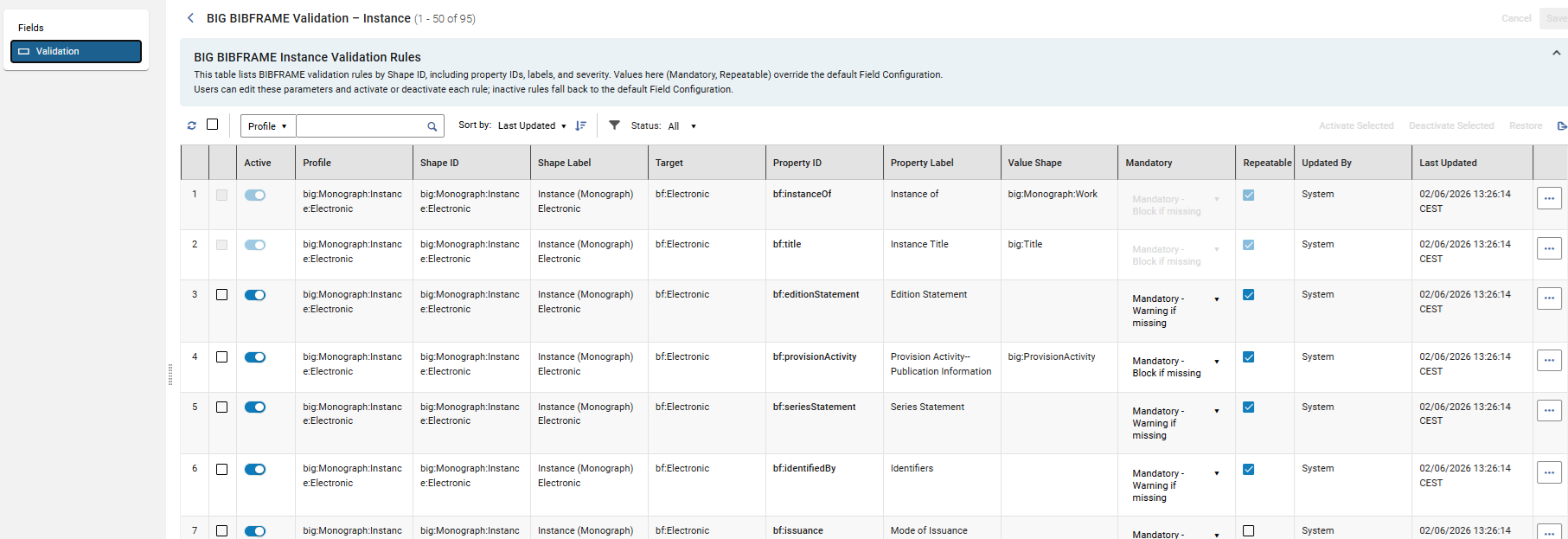
Configuration Table Structure
Each row in the table represents a validation rule with the following columns:
| Column | Description |
|---|---|
| Profile | The profile grouping (e.g., Monograph, Serial) |
| Shape ID | The identifier for the validation shape |
| Target | The BIBFRAME class(es) the rule applies to |
| Property ID | The BIBFRAME property being validated |
| Property Label | Human-readable label for the property |
| Mandatory | Severity setting: Not mandatory, Mandatory – Warn if missing, or Mandatory – Block if missing |
| Repeatable | Whether the property may appear more than once (Yes/No) |
| Active/Inactive | Toggle to enable or disable the rule |
| Updated By | Who last modified the rule |
| Last Updated | Timestamp of the last change |
Editable Fields
- Mandatory — Change the severity level for a property (Not mandatory / Warn / Block)
- Repeatable — Set whether a property can be repeated
- Active/Inactive — Enable or disable individual rules
The following fields cannot be edited and are always active with their default parameters: bf:title, bf:mainTitle, and bf:instanceOf.
Bulk Actions:
- Activate/Deactivate Selected — Enable or disable multiple rules at once
- Restore — Reset selected rules to the original BIG default values (this restores to the initial system setup, not to a previous user change)
- Export — Export the validation table
Value Shape and Parent/Child Behavior
When you activate or deactivate a rule that has a Value Shape (i.e., it is a parent of nested properties):
- Deactivating the parent automatically deactivates all its child properties
- If the parent is inactive, child properties cannot be individually activated
- If the parent is active, child properties can be individually activated or deactivated
Error Messages
Alma produces the following types of validation messages:
- Warning
- Block
| Type | When It Appears | Behavior |
|---|---|---|
| Warning | A non-repeatable field is repeated, OR a mandatory-warn field is missing, OR a Value Shape field is not part of a section | A pop-up alert appears. The cataloger can override the warning and save the record. |
| Block | A mandatory-block field or section is missing | A red snack bar alert appears. The record cannot be saved until the issue is resolved. |
If both Block and Warning messages occur on the same save attempt, only the Block error is displayed. Resolve the blocking issue first; warnings appear on the next save attempt.
Error Messages for Administrators vs. Catalogers
Catalogers see a general error message describing the issue (e.g., "Mandatory field is missing").
Administrators (with Cataloging Configuration or Catalog Admin role) see enhanced error messages that include the source of the validation rule:
- Mandatory field Language Information is missing (set in: Field Configuration)
- The field Original place cannot be repeated (set in: BIG BIBFRAME Validation page. Shape ID: big:Monograph:Work)
This helps administrators quickly identify whether to adjust the BIG Validation table or the Field Configuration.
Value Shape Errors
If a property has a Value Shape defined (meaning it should exist within a section/node), but it appears as a standalone field instead, a warning is displayed:
[Property] should be part of a section
Conditional validation within Value Shapes: The rules inside a Value Shape only apply if the parent property is present in the record. If the parent property is optional and absent, validation passes without checking the nested rules. However, if the parent property IS present, all mandatory rules within its Value Shape are enforced.
The default templates, provided by Ex Libris, include, among other fields, the mandatory fields defined by the PCC BIBFRAME Interoperability Group (BIG). Additional recommended (non-mandatory) BIG fields may not be included in the default templates
