
Mis recursos electrónicos por proveedor
- Operador de inventario electrónico
- Técnico del inventario electrónico extendido (obligatorio para borrar operaciones)
- Gerente del repositorio
- Gerente de compras
- Operador de compras
Mis recursos electrónicos por proveedor le da la capacidad de visualizar fácilmente sus suscripciones con proveedores y su estado de disponibilidad en Alma. With My Electronic Resources by Provider, you can activate any resources to which you access but have not activated.
My Electronic Resources by Provider initially provides your electronic collection status with the ProQuest Platform (including the Government Platform, History Vault and Statistical products excluding Book products). In the future, My Electronic Resources by Provider will be expanded to additional providers, based on their ability to provide the subscription information per customer.
The prerequisite for using this feature is having your provider account ID. Para un ID de la cuenta ProQuest, hay varios lugares donde puede encontrarla:
- Puede iniciar sesión en ProQuest como siempre y ejecutar una búsqueda. Your account ID is displayed as part of the URL in the format accountid=XXXX, where XXXX is your ProQuest account ID.
- Si ha configurado el envío automático de informes de uso en la Plataforma ProQuest, su ID de cuenta aparecerá de manera destacada en la parte superior del informe.
- Alternatively, get your ProQuest account ID by logging into the ProQuest Administrator Module. El ID de la cuenta aparece en el campo de Cuenta:
 Módulo de Administrador de ProQuest.
Mis recursos electrónicos por proveedor
The purpose of My Electronic Resources by Provider is to ensure that the resources acquired from the provider are activated in the institution. This feature is used to prevent situations where the institution has access to specific electronic collections but did not activate them. Con Mis recursos electrónicos por proveedor, se puede reducir la diferencia entre lo que se adquirió y lo que en realidad está activado.
With My Electronic Resources by Provider , you can enter your provider account ID and view the electronic collections for which you have subscriptions from that provider. In addition, in the Availability column the system highlights the electronic collections that you have activated, and the electronic collections that remain to be activated for your subscription.
To manage your electronic collection subscriptions, My Electronic Resources by Provider allows selectively activate electronic collections or activate all non-active electronic collections. To facilitate work with the list of subscriptions that appear on the My Electronic Resources by Provider page, you can search by individual electronic collection name or use filters to view a subset of the electronic collections subscription list. Puede filtrar la vista de la lista por:
- Disponibilidad (Todos, Activados, No Activados)
- Tipo de colección electrónica (las opciones están determinadas por los datos descargados del proveedor)
- Electronic Service Type (options determined by the data downloaded from the provider)
- Interface (options determined by the data downloaded from the provider)
- Open the My Electronic Resources by Provider page (Resources > Manage Inventory > My Electronic Resources by Provider).
-
Enter the account ID for your provider, and select Populate. Depending on the count for your subscriptions, it may take up to a few minutes to retrieve and to populate the My Electronic Resources by Provider page. After the first time that you entered your account ID and populate the table, the system remembers this ID and automatically populates the My Electronic Resources by Provider page when you select Resources > Manage Inventory > My Electronic Resources by Provider. Cada vez que abra esta página, el sistema accede a la información del proveedor para rellenar la página de Mis Recursos Electrónicos por Proveedor con la información más actual. Note that this list does not reflect any electronic collections to which you were subscribed previously, but not subscribed to now.
 ID de la Cuenta del Proveedor
-
Select the gear icon and note that you can set your preferred column display to include the Provider Collection ID.
- Revise la lista/tabla que aparece en la página Mis recursos electrónicos por proveedor y active las colecciones electrónicas inactivas con uno de los siguientes métodos:
- Activate row action – Use the Activate row action to activate a single electronic collection.
- Activate All – Use this option to activate all non-active electronic collections. This method includes activating non-active electronic collections across multiple pages when you have a long list that appears on one or more pages.
-
Activate Selected – Using the row checkboxes, select individual rows, or use the checkbox in the table header to select all the non-active electronic collections on that page. Para seleccionar todas las colecciones no activas en listas de páginas múltiples, seleccione la casilla de verificación en el encabezado de la tabla para cada página.Selecting the checkbox in the table header to select rows, selects the non-active collections. No selecciona colecciones activadas o colecciones electrónicas actualmente en proceso de activación.
Las colecciones Alexander Street están excluidas de la activación automática ("Activar todas") debido a sus restricciones regionales. Las colecciones Alexander Street solo se pueden activar manualmente (al seleccionar la colección y "Activar seleccionada").
Cuando los usuarios hacen clic en "Activar todas", se excluyen las colecciones Alexander Street. Los usuarios reciben una notificación sobre esto en la ventana emergente Activar colecciones.
-
Cuando activa colecciones electrónicas, aparece la ventana emergente Activar colecciones. Lea la información. Enter the information that will be applied to the electronic collection upon activation:
- CLIENTID: Introduzca su ID de cliente.
- Linking parameters – Depending on the electronic collections that you selected to activate, there may be linking parameters for electronic services that appear.
- Proxy enabled – Select Yes or No.
- Proxy selected – When you select Yes for Proxy enabled, the Proxy selected drop-down list presents the proxy options that you previously configured for your institution.
- Select Activate. A a confirmation message appears on the My Electronic Resources by Provider page regarding the submission of the activation job. Note that the icon in the Availability column changes to
 to reflect that an activation is in process for an electronic collection.
-
Seleccione el enlace de ID del proceso en el mensaje de confirmación para acceder a la pestaña Ejecutando en la página de Gestionar tareas, que contiene los datos de la tarea de procesamiento de cada colección electrónica.
 ID del proceso
Note that when you select the History tab, it displays a parent job (Provider Subscriptions Activation for <account ID>). This single job executes each job for each electronic collection being activated (shown on the Running tab).
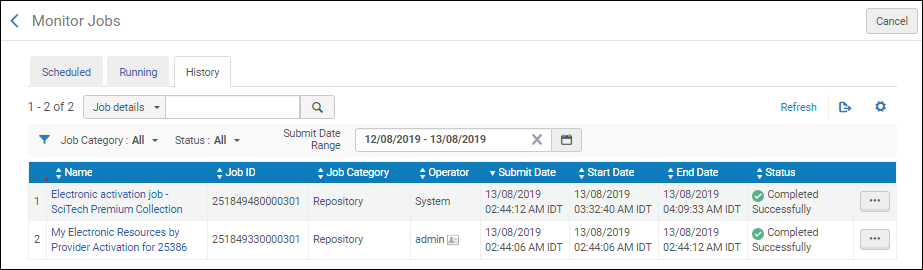 Pestaña de Historial
See My Electronic Resources by Provider Job Report for more information.
Buscar en Alma por nombre e ID de la colección del proveedor
Los usuarios pueden buscar una colección en Alma utilizando la información del proveedor, lo que resulta especialmente útil cuando el nombre de la colección de la Zona de la Comunidad difiere del nombre de la colección del proveedor. Las colecciones de la Zona de la Comunidad pueden incluir el nombre y el ID de la colección del proveedor, así como el nombre y el ID de la colección de Alma. Una vez definidos el nombre y el ID de un proveedor para una colección de la Zona de la Comunidad, se pueden realizar búsquedas en las pestañas Zona de la Comunidad, Institución y Red.
- Los clientes no pueden actualizar el Nombre/ID de la colección del proveedor.
- The data for the “Provider Collection Name” and “Provider Collection ID” are populated only for new collections added to the Community Zone (from the February 2025 release and going forward).
- El despliegue de los dos campos anteriores solo es visible si los datos existen.
- The data which is presented in the two fields above are displayed exactly as passed to Ex Libris by the provider (Provider Collection ID will not be displayed if it was not provided to Ex Libris by the provider).

Exportar la lista Mis Recursos Electrónicos por Proveedor
Con la herramienta de exportación, puede exportar la lista de colecciones electrónicas en la página Mis Recursos Electrónicos por Proveedor a una hoja de cálculo de Excel.
Tarea de Informe de Mis Recursos Electrónicos por Proveedor
Con Mis recursos electrónicos por proveedor, hay dos tipos de informes que se producen cuando se ejecuta la tarea de activación.
Un informe es para la tarea principal que ejecuta y activa una tarea de activación para cada colección electrónica que haya enviado para su activación.

El otro tipo de informe es similar a lo que suele ver con la activación de una colección electrónica. Hay un informe para cada colección electrónica que se activa cuando emplee Mis Recursos Electrónicos por Proveedor.

Page tags: article:topicproduct:almacontent:Documentationlang:english
