
Le mie Risorse elettroniche per Provider
- Operatore inventario elettronico
- Operatore Inventario Elettronico Esteso (necessario per le operazioni di eliminazione)
- Gestore dell’archivio
- Gestore Acquisti
- Operatore Acquisti
My Electronic Resources di fornitore Le dà la possibilità di visualizzare facilmente i Suoi abbonamenti con fornitore e il loro stato di disponibilità in Alma. With My Electronic Resources by Provider, you can activate any resources to which you access but have not activated.
My Electronic Resources by Provider initially provides your electronic collection status with the ProQuest Platform (including the Government Platform, History Vault and Statistical products excluding Book products). In the future, My Electronic Resources by Provider will be expanded to additional providers, based on their ability to provide the subscription information per customer.
The prerequisite for using this feature is having your provider account ID. Può trovare l'ID account ProQuest in diversi posti:
- Può accedere a ProQuest come di consueto ed eseguire una ricerca. Your account ID is displayed as part of the URL in the format accountid=XXXX, where XXXX is your ProQuest account ID.
- Se ha impostato l'accesso automatico al report di utilizzo sulla piattaforma ProQuest, l'ID del Suo account sarà visualizzato in primo piano nella parte superiore del report.
- Alternatively, get your ProQuest account ID by logging into the ProQuest Administrator Module. L'ID dell'account appare nel campo Account:
 Modulo Amministratore ProQuest
Le mie Risorse elettroniche per Provider
The purpose of My Electronic Resources by Provider is to ensure that the resources acquired from the provider are activated in the institution. This feature is used to prevent situations where the institution has access to specific electronic collections but did not activate them. Con Le mie Risorse elettroniche di fornitore, è possibile colmare il divario tra quanto acquisito e quanto effettivamente attivato.
With My Electronic Resources by Provider , you can enter your provider account ID and view the electronic collections for which you have subscriptions from that provider. In addition, in the Availability column the system highlights the electronic collections that you have activated, and the electronic collections that remain to be activated for your subscription.
To manage your electronic collection subscriptions, My Electronic Resources by Provider allows selectively activate electronic collections or activate all non-active electronic collections. To facilitate work with the list of subscriptions that appear on the My Electronic Resources by Provider page, you can search by individual electronic collection name or use filters to view a subset of the electronic collections subscription list. Può filtrare la visualizzazione della Lista per:
- disponibilità (Tutti, Attivato, Non Attivato)
- collezione elettronica Tipo (opzioni determinate dai dati scaricati dal fornitore)
- Electronic Service Type (options determined by the data downloaded from the provider)
- Interface (options determined by the data downloaded from the provider)
- Open the My Electronic Resources by Provider page (Resources > Manage Inventory > My Electronic Resources by Provider).
-
Inserisca l'ID account del Suo fornitore e selezioni Popola. Depending on the count for your subscriptions, it may take up to a few minutes to retrieve and to populate the My Electronic Resources by Provider page. After the first time that you entered your account ID and populate the table, the system remembers this ID and automatically populates the My Electronic Resources by Provider page when you select Resources > Manage Inventory > My Electronic Resources by Provider. Ogni volta che si apre questa pagina, il sistema accede alle informazioni del fornitore per popolare la pagina Le mie risorse elettroniche per fornitore con le informazioni più aggiornate. Note that this list does not reflect any electronic collections to which you were subscribed previously, but not subscribed to now.
 ID account fornitore
-
Select the gear icon and note that you can set your preferred column display to include the Provider Collection ID.
- Rivedere la lista/tabella che appare nella pagina Le mie risorse elettroniche per fornitore e attivare la collezione elettronica non attiva utilizzando uno dei seguenti metodi:
- Activate row action – Use the Activate row action to activate a single electronic collection.
- Activate All – Use this option to activate all non-active electronic collections. This method includes activating non-active electronic collections across multiple pages when you have a long list that appears on one or more pages.
-
Activate Selected – Using the row checkboxes, select individual rows, or use the checkbox in the table header to select all the non-active electronic collections on that page. Per selezionare tutte le collezioni non attive in Lista multipagina, selezioni la casella di controllo nell'intestazione della tabella per ogni pagina.Selecting the checkbox in the table header to select rows, selects the non-active collections. Non seleziona collezioni attivate o collezioni elettroniche attualmente in fase di attivazione.
Le collezioni di Alexander Street sono escluse dall'attivazione automatica ("Attiva tutto") a causa delle loro restrizioni regionali. Le collezioni di Alexander Street possono essere attivate solo manualmente (selezionando la collezione e selezionando "Attiva selezionati").
Quando l'Utente clicca su "Attiva tutto", le raccolte di Alexander Street sono escluse. Gli utenti vengono notificati di questo nel popup Attiva Raccolte.
-
Quando si attiva la collezione elettronica, appare il popup Attiva collezioni. Legga le informazioni. Enter the information that will be applied to the electronic collection upon activation:
- CLIENTID – Immetta il Suo ID cliente.
- Linking parameters – Depending on the electronic collections that you selected to activate, there may be linking parameters for electronic services that appear.
- Proxy enabled – Select Yes or No.
- Proxy selected – When you select Yes for Proxy enabled, the Proxy selected drop-down list presents the proxy options that you previously configured for your institution.
- Selezionare Attiva. A a confirmation message appears on the My Electronic Resources by Provider page regarding the submission of the activation job. Note that the icon in the Availability column changes to
 to reflect that an activation is in process for an electronic collection.
-
Selezionare il link ID processo nel messaggio di conferma per accedere alla scheda nella pagina Monitora processi tab che contiene i dettagli del lavoro di elaborazione di ciascuna collezione elettronica.
 ID processo
Note that when you select the History tab, it displays a parent job (Provider Subscriptions Activation for <account ID>). This single job executes each job for each electronic collection being activated (shown on the Running tab).
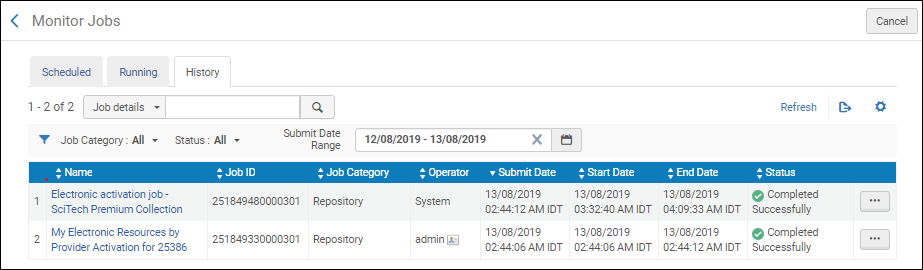 scheda Storico
See My Electronic Resources by Provider Job Report for more information.
Cerca in Alma per nome e ID della raccolta del fornitore
L'utente può cercare una raccolta in Alma utilizzando le informazioni del fornitore, il che è particolarmente utile quando il nome della raccolta Community Zone differisce dal nome della raccolta del fornitore. Le raccolte della Community Zone possono includere il nome e l'ID della raccolta del fornitore, così come il nome e l'ID della raccolta Alma. Once a provider name and ID are defined for a Community Zone collection, they become searchable in the Community Zone, Institution, and Network tabs.
- Individuate le risorse elettroniche che hanno copertura locale.
- The data for the “Provider Collection Name” and “Provider Collection ID” are populated only for new collections added to the Community Zone (from the February 2025 release and going forward).
- La visualizzazione dei due campi sopra è visibile solo se i dati esistono.
- The data which is presented in the two fields above are displayed exactly as passed to Ex Libris by the provider (Provider Collection ID will not be displayed if it was not provided to Ex Libris by the provider).

Esportazione delle mie risorse elettroniche per fornitore Lista
Utilizzando lo strumento di esportazione, è possibile esportare l'elenco delle collezioni di elettronica nella pagina Le mie risorse elettroniche per fornitore in un foglio di calcolo Excel.
Le mie risorse elettroniche del fornitore Job Report
Con My Electronic Resources di fornitore, vengono generati due tipi di report quando viene eseguito il job di attivazione.
Un report è destinato al processo principale che esegue e avvia un processo di Attivazione per ogni collezione elettronica che avete inviato per l'Attivazione.

L'altro tipo di report è simile a quello che normalmente si vede quando si attiva una collezione elettronica. Esiste un report per ogni collezione elettronica che viene attivato quando si utilizza Le Mie Risorse Elettroniche dal fornitore.

Page tags: article:topicproduct:almacontent:Documentationlang:english
