
プロバイダ別マイ電子リソース
- 電子目録オペレータ
- 拡張電子目録オペレータ (削除操作に必要)
- リポジトリマネージャー
- 購入マネージャー
- 購入オペレータ
プロバイダ別マイ電子リソースを使用すると、プロバイダからの購読物および利用可否ステータスを簡単にAlmaに表示できます。With My Electronic Resources by Provider, you can activate any resources to which you access but have not activated.
My Electronic Resources by Provider initially provides your electronic collection status with the ProQuest Platform (including the Government Platform, History Vault and Statistical products excluding Book products).In the future, My Electronic Resources by Provider will be expanded to additional providers, based on their ability to provide the subscription information per customer.
The prerequisite for using this feature is having your provider account ID.ProQuestアカウントIDの場合、それを見つけることができる場所は複数あります:
- You can log into ProQuest as usual and run a search.Your account ID is displayed as part of the URL in the format accountid=XXXX, where XXXX is your ProQuest account ID.
- ProQuestプラットフォームで使用状況リポートの自動配送をセットしている場合、アカウントIDはリポートの上部に目立つように表示されます。
- Alternatively, get your ProQuest account ID by logging into the ProQuest Administrator Module.以下に示すように、アカウントIDがアカウントフィールドに表示されます:
 ProQuest管理者モジュール
プロバイダ別マイ電子リソース
The purpose of My Electronic Resources by Provider is to ensure that the resources acquired from the provider are activated in the institution.This feature is used to prevent situations where the institution has access to specific electronic collections but did not activate them.この機能により、受入たものと実際に有効化されたものの間のギャップを埋めることができます。
With My Electronic Resources by Provider , you can enter your provider account ID and view the electronic collections for which you have subscriptions from that provider.In addition, in the Availability column the system highlights the electronic collections that you have activated, and the electronic collections that remain to be activated for your subscription.
To manage your electronic collection subscriptions, My Electronic Resources by Provider allows selectively activate electronic collections or activate all non-active electronic collections.To facilitate work with the list of subscriptions that appear on the My Electronic Resources by Provider page, you can search by individual electronic collection name or use filters to view a subset of the electronic collections subscription list.You can filter your view of the list by:
- 利用可否(すべて、有効化、非有効化)
- 電子コレクションタイプ(プロバイダからダウンロードしたデータによって決定されるオプション)
- Electronic Service Type (options determined by the data downloaded from the provider)
- Interface (options determined by the data downloaded from the provider)
- [プロバイダ別マイ電子リソース]ページを開きます ([リソース > 在庫の管理 > プロバイダ別マイ電子リソース])。
-
プロバイダのアカウントIDを入力し、[表示]を選択します。Depending on the count for your subscriptions, it may take up to a few minutes to retrieve and to populate the My Electronic Resources by Provider page.After the first time that you entered your account ID and populate the table, the system remembers this ID and automatically populates the My Electronic Resources by Provider page when you select Resources > Manage Inventory > My Electronic Resources by Provider.このページを開くたびに、システムはプロバイダ情報にアクセスして、[プロバイダ別マイ電子リソース]ページに最新の情報を入力します。Note that this list does not reflect any electronic collections to which you were subscribed previously, but not subscribed to now.
 プロバイダーアカウントID
-
Select the gear icon and note that you can set your preferred column display to include the Provider Collection ID.
- [プロバイダ別マイ電子リソース]ページに表示されるリスト/テーブルをレビューし、有効化されていない電子コレクションを有効化するには、次のいずれかの方法を使用します:
- Activate row action – Use the Activate row action to activate a single electronic collection.
- Activate All – Use this option to activate all non-active electronic collections.This method includes activating non-active electronic collections across multiple pages when you have a long list that appears on one or more pages.
-
Activate Selected – Using the row checkboxes, select individual rows, or use the checkbox in the table header to select all the non-active electronic collections on that page.複数ページのリストで非アクティブなコレクションをすべて選択するには、各ページのテーブルヘッダーのチェックボックスを選択します。Selecting the checkbox in the table header to select rows, selects the non-active collections.現在有効化中の有効化されたコレクションまたは電子コレクションは選択されません。
Alexander Streetコレクションは、地域の制限により、自動有効化(「すべて有効化」)から除外されます。Alexander Streetコレクションは、(コレクションを選択し、[選択を有効化]を選択することにより)手動でのみ有効化できます。
When users click "Activate All", Alexander Street collections are excluded.Users are notified about this in the Activate Collections popup.
-
電子コレクションを有効化すると、[コレクションの有効化]ポップアップが表示されます。情報を読んでください。Enter the information that will be applied to the electronic collection upon activation:
- CLIENTID – クライアントIDを入力してください。
- Linking parameters – Depending on the electronic collections that you selected to activate, there may be linking parameters for electronic services that appear.
- Proxy enabled – Select Yes or No.
- Proxy selected – When you select Yes for Proxy enabled, the Proxy selected drop-down list presents the proxy options that you previously configured for your institution.
- [有効化]を選択します。A a confirmation message appears on the My Electronic Resources by Provider page regarding the submission of the activation job.Note that the icon in the Availability column changes to
 to reflect that an activation is in process for an electronic collection.
-
確認メッセージのプロセスIDリンクを選択すると、各電子コレクションの処理ジョブの詳細を含む[作業の監視]ページの[実行中]タブにアクセスできます。
 プロセスID
Note that when you select the History tab, it displays a parent job (Provider Subscriptions Activation for <account ID>).This single job executes each job for each electronic collection being activated (shown on the Running tab).
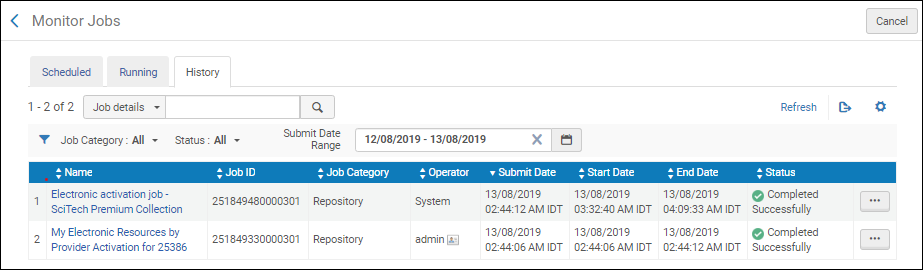 履歴タブ
See My Electronic Resources by Provider Job Report for more information.
プロバイダーコレクション名とIDでAlmaを検索
プロバイダー情報を使用してAlmaでコレクションを検索します。これは、コミュニティ ゾーンのコレクション名がプロバイダーのコレクション名と異なる場合に特に役立ちます。コミュニティ ゾーン コレクションには、プロバイダー コレクション名と ID、および Alma コレクション名と ID が含まれる場合があります。コミュニティ ゾーン コレクションのプロバイダー名と ID が定義されると、コミュニティ ゾーン、機関、およびネットワーク タブで検索できるようになります。
- プロバイダー コレクションの名前/ID は顧客によって更新できません。
- The data for the “Provider Collection Name” and “Provider Collection ID” are populated only for new collections added to the Community Zone (from the February 2025 release and going forward).
- 上記の 2 つのフィールドの表示は、データが存在する場合にのみ確認できます。
- The data which is presented in the two fields above are displayed exactly as passed to Ex Libris by the provider (Provider Collection ID will not be displayed if it was not provided to Ex Libris by the provider).

プロバイダリスト別マイ電子リソースをエクスポートする
エクスポートツールを使用すると、[プロバイダ別マイ電子リソース]ページの電子コレクションのリストをExcelスプレッドシートにエクスポートできます。
プロバイダ別電子リソースジョブリポート
プロバイダ別マイ電子リソースでは、有効化ジョブの実行時に生成されるリポートは2種類あります。
1つは、有効化の際に送信した各電子コレクションに対して有効化ジョブを実行およびトリガーするための親ジョブ用のリポートです。

The other type of report is similar to what you normally see with activating an electronic collection.There is a report for each electronic collection that is activated when you use My Electronic Resources by Provider.

Page tags: article:topicproduct:almacontent:Documentationlang:english
