Navigating campusM Analytics
This page describes the actions that you can perform with the new Analytics Layout that is available by default from August 2023.
This page describes the menu options available under the Analytics link from the Main Menu and some of the menu options available when creating new reports. To access the Analytics interface and features, select Analytics from the Main Menu. The options that appear depend on your user roles.
Analytics Consumers
For an analytics consumer, without administration privileges, the following options are available:
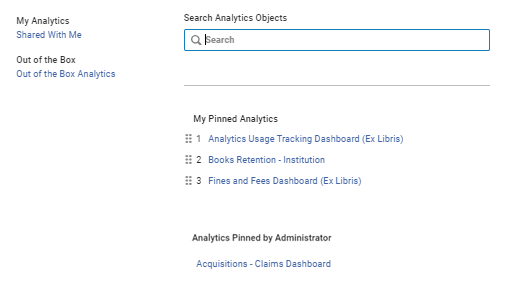
- Shared with Me
- Out of the Box Analytics
- Search Analytics Objects
- My Pinned Analytics
- Analytics Pinned by Administrator
Analytics Administrators
For users with the Analytics Administrator role, the following options are available:
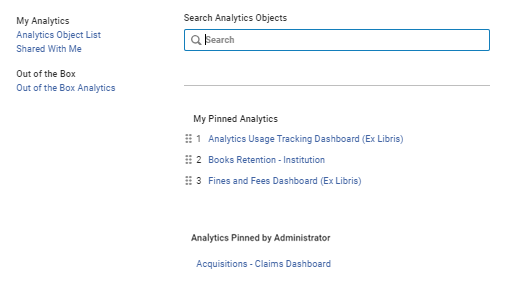
The following options are available for this role:
- From the My Analytics area:
- Access the Analytics Object list. For more information, see Working with Analytics Objects.
- Access the Shared with Me page where you can view the reports created by your institution that were shared with you. These reports are located in your institution folder. (Out-of-the-box dashboards and DV reports and dashboards that were shared with you are displayed under the Out of the Box Analytics link.) You can pin reports to have them appear in the My Pinned Analytics area by selecting Pin to Analytics Menu from the row actions in the Full View or by selecting the Pin to Analytics Menu button in the Split-View.
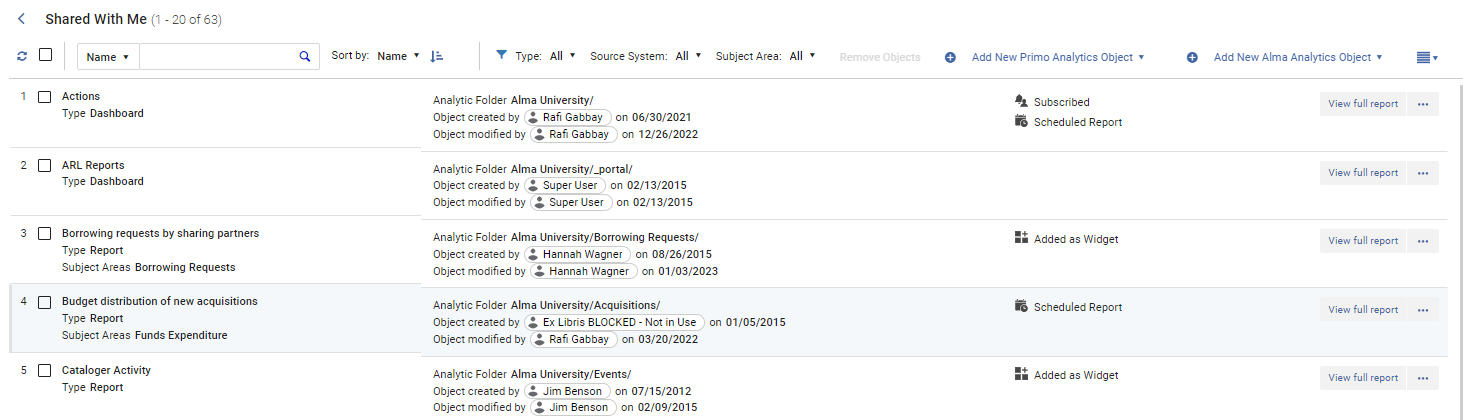
- From the Out of the Box area, you can access a list of the out-of-the box dashboards and DV reports and dashboards for which you shared analytics objects. These reports and dashboards are located in the Alma folder. (Shared reports that you created are displayed under the Shared with Me link.)
Users with limited analytics design roles see all reports shared with them in the Shared with Me area, but only ones in the subject areas to which they have access run successfully. For more information, see Design Analytics Roles.
- From the Search Analytics Objects area, enter the name of an analytics object to display a list of your analytics objects. The upper section contains the objects created by your institution while the lower section contains objects that are available out-of-the-box.
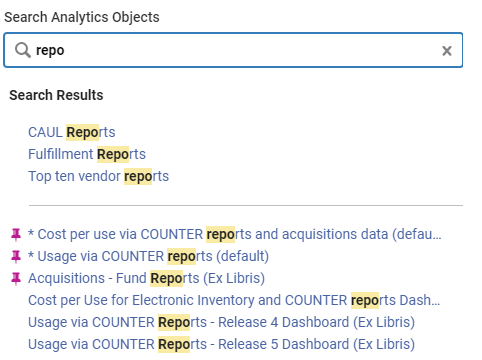
Pinned objects appear with a pin icon.
- In the My Pinned Analytics area, a list of the objects you pinned is displayed.
- In the Analytics Pinned by Administrator area, the analytics objects that were pinned for you by an Administrator are displayed. Select the pin icon next to the object to move it to the My Pinned Analytics area.
Analytics Designers
For users with the Designs Analytics role, the following options are available:
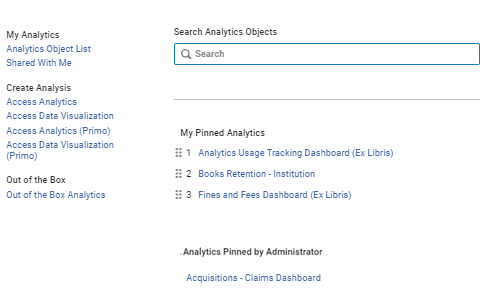
The following options are available for this role:
- From the My Analytics area, access the Shared with Me page where you can view the reports created by your institution that were shared with you. These reports are located in your institution folder. (Out-of-the-box dashboards and DV reports and dashboards that were shared with you are displayed under the Out of the Box Analytics link.)
- From the Create Analysis area, the following options are available, depending on your user role:
- Access Analytics – create reports and access out-of-the-box reports and dashboards. For more information, see The Basics of Working with Analytics.
- Access Data Visualization – for more information, see OAS (Oracle Analytics Server) and DV (Data Visualization).
- Access Analytics (Primo) – for more information, see Analytics.
- Access Data Visualization (Primo) – for more information, see OAS (Oracle Analytics Server) and DV (Data Visualization).
- From the Out of the Box area, you can access a list of the out-of-the box dashboards and DV reports and dashboards for which you shared analytics objects. These reports and dashboards are located in the Alma folder. (Shared reports that you created are displayed under the Shared with Me link.)
Users with limited analytics design roles see all reports shared with them in the Shared with Me area, but only ones in the subject areas to which they have access run successfully. For more information, see Design Analytics Roles.
- From the Search Analytics Objects area, enter the name of an analytics object to display a list of your analytics objects. The upper section contains the objects created by your institution while the lower section contains objects that are available out-of-the-box.
Pinned objects appear with a pin icon.
- From the My Pinned Analytics area, a list of the objects you pinned is displayed.
- In the Analytics Pinned by Administrator area, the analytics objects that were pinned for you by an Administrator are displayed. Select the pin icon next to the object to move it to the My Pinned Analytics area.
Access Analytics
To create analytics reports you require a Design Analytics role. For more information, see Design Analytics Roles.
To open the Analytics Home page:
- Select Analytics > Access Analytics. The personal dashboard appears.
- Select Home. The Home page is a task-oriented, centralized workspace combined with a global header allowing access to Analytics objects, their respective editors, help documentation, and other features.
For more information, see the following section, Global Header.
Global Header
The global header includes the following components:
- DV – open the DV homepage in a new browser tab.
- Home – open the Analytics home page. For more information, see Access Analytics.
- Catalog – all reports, including personal and shared reports.
- Favorites – manage your favorite dashboards and reports.
- Dashboards – all available dashboards that are saved in the dedicated dashboard subfolders.
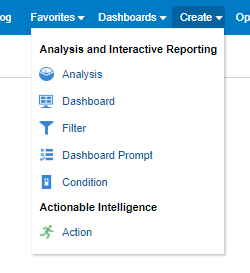
- Create – a list of the objects that you can create. To create an object, select it from the list. The first option – Analysis – is used to create a new report. For a description of the various options, see the Oracle documentation at http://docs.oracle.com/cd/E21764_01/bi.1111/e10544/toc.htm
- Open:
- Open – select an object with which you want to work.
- Recent Objects – a list of the objects that you have recently viewed, created, or updated. Select one to work with it.
- Most Popular Objects – a list of the objects that are accessed the most often by the users that are assigned to the groups to which you belong. Select one to work with it.
- My Profile:
- Help – open the Oracle Analytics Server Help Center.
- My Account – Set preferences, such as time zone, delivery devices, and delivery profile.
- Sign Out – sign out of Analytics.
Throughout Analytics, some of the most commonly used object icons in this guide are as follows: