
Organizing Elements Using the Elements Tree
This page describes how to use the elements tree to traverse across the page structure.
The elements tree enables you to review the page structure, navigate to a specific element, move an element to a different position in the page, and hide an element from view.
Using the Elements Tree
To view the elements tree:
Select the elements icon from the tools menu.

The elements tree appears.
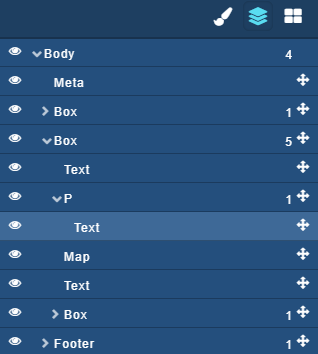
The number on each line indicates the number of child elements of that element.
When you select an element in the WYSIWYG area, the elements tree opens to the selected element with that element highlighted. The actions in the tree are as follows:
| Expand/Collapse |
  |
Show or hide all child elements in the elements tree. |
| Show/Hide |

|
Display or hide the element in the page. |
| Move |

|
Move an element to a different position in the page. |
Use Cases
Example use cases for the element tree include:
- Navigate to a specific element in the page, for example a small icon in the footer.
- Remove rows from a table. This can be done in the page itself, but may be safer to do in the tree.
- Move a top-level element with many child elements to a different position in the page.
