
Configuring Tile Containers
Container Types
Tile containers are a special type of tile used for grouping other tiles together. Tiles inside a container are called subtiles. You can fully customize the appearance of both the container and the subtiles to create a more organized home page for your end-users.
There are two types of Tile Containers: Admin-Configured Tile Containers and Favorites Containers.
Admin-Configured Tile Containers
Tiles can be linked to one or more tile containers. For example, an email tile can be linked to a "Useful tools" container for the student role, and to the "Administration" container for the staff role. The availability of the tiles depends on the user's role- and tag- based permissions:
-
If a user can see several containers that are linked to the same tile, the tile may appear in several containers.
-
If a user hides a tile from a certain container, it only hides the tile from that container, and the tile may still appear in another container.
-
If a user can see a tile, but cannot see any container to which it belongs, it will appear outside a container as a normal tile.
Tile containers themselves are not included in search results, while the subtiles are searchable like any other campusM tile. campusM administrators can configure the contents of tile containers, and users can only reorder and hide tiles within containers using the Arrange functionality.
Favorites Containers
campusM also supports a special type of tile containers called Favorites Container. Each App Profile has one Favorites Container that may be enabled or disabled as part of the Personalization Enabled option (App Settings > App Profile). The contents of a Favorites Container are entirely selected by users. Favorites Containers are configured in a similar way to the regular tile containers, with minor differences (see below).
As with the other services and menu options, you can configure tile containers and the Favorites Containers in App Builder in the App Manager.
User Interface
The following is a description of the unique UI of Tile Containers and the Favorites Container:
Container
Scrolling in the Container
If there are more subtiles than can be shown at once in a container, subtiles are divided across pages, enabling users to scroll horizontally between these pages to see more.
-
In the web app, campusM displays scrolling arrows on both sides of the tile as required. Users can select or tap on the scroll arrows to go to the next/previous page.
-
In the mobile app, campusM displays pagination dots at the bottom of the container to indicate scrolling. Users can swipe left and right to show the next page of subtiles.
Arrange Functionality
The container can be arranged (if enabled in the profile) like any other tile, and can be moved and hidden.
The subtiles may be moved inside the container, or hidden - but the end-user cannot take them out of the container.
From the Grid view:
-
The subtiles may not be arranged inside the container directly through the Grid view.
-
To arrange the subtiles, the user needs to tap the Edit button which appears next to the Hide button on the container. Tapping the Edit button opens the List view, scrolls down to the appropriate container and opens it.
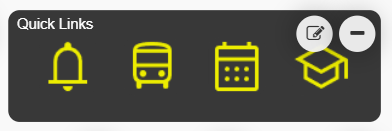 Tile Container in the Grid view
-
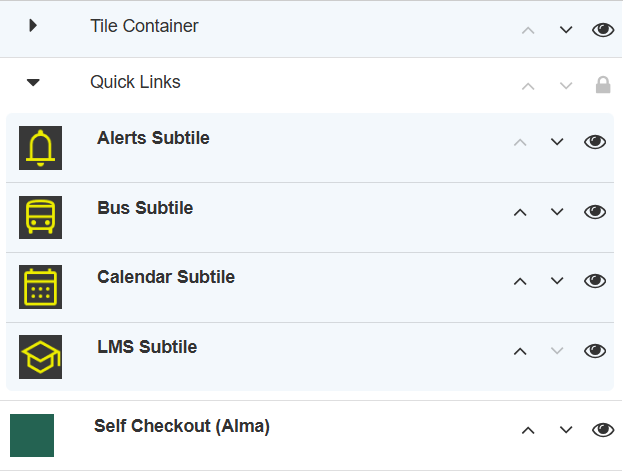
Containers have a closed and opened state, which can be toggled by tapping the container in the list.
-
Once expanded, end-users can move subtiles and/or hide them within the container using the existing Arrange functionality.
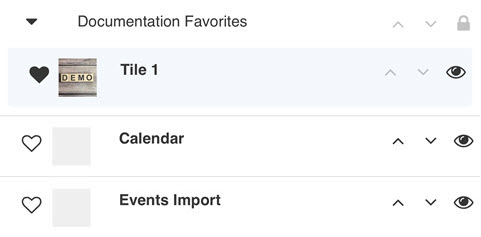
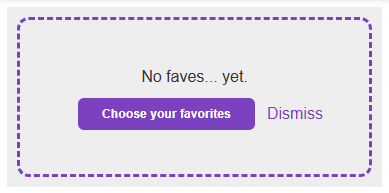
Empty Favorites Container
If no favorites are selected, the Favorites Container is displayed as empty.
Subtiles
Width and Height
All subtiles appear as 1x1 icons. If the tile is not originally configured as 1x1, it is resized as such.
Counter Badge
Counter badge color and settings are taken from the original tile.
If the subtile is a live tile that otherwise displays several widgets (for example, PrimoVE tile), the badge on the subtile shows the sum of the counters that appear outside the container.
Show Subtile Text
Show Subtile Text is defined only at the container level. If the subtile text is shown, it displays centered below the icon in up to two lines (see note below for exception). If the subtile text is hidden, no text displays.
The subtile text is displayed by default.
In order to keep all text over a minimum accessible font size on all platforms, as required by WCAG 2.2 AA standards, only one line of subtile text will appear instead of 2 when ALL the following criteria are met:
- A container is 1 tile high
- Subtile text is showing
- A certain subtile's text is long enough to take up 2 lines
- The title of the container isn’t hidden
- Pagination dots display
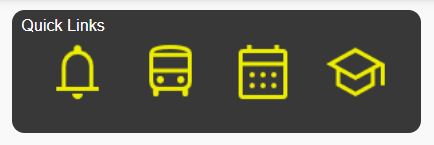
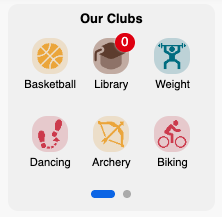
Configure How Tile Containers Appear
You configure the Tile Container and Favorites Container appearance in the App Builder in the Tile Container service tab that appears in the Configuration tabs when you select the tile container service.
| Name | Description | Default value |
|---|---|---|
|
Background Color |
Background color. |
From Profile Config, same as normal tiles. |
|
Corner Radius |
Roundness of tile corners. |
From Profile Config, same as normal tiles. |
|
Hide |
Hide the tile. |
"Don't hide" |
|
Font Weight Text Align Text Color |
Formatting of the container title only. This does not affect the text of the subtiles. |
From Profile Config, same as normal tiles. |
|
Hide Label |
Hide the container title. |
From Profile Config, same as normal tiles. |
|
Tile Height |
The height of the tile. |
1 |
|
Tile Width |
The width of the tile. Minimum of 2. |
3 |
|
Border Size Border Color |
Border of the container. |
From Profile Config, same as normal tiles. |
|
Overrides |
Override configurations according to device/screen. |
null |
|
Show Subtile Text |
Whether the subtiles appear with their titles underneath them or not. Available options are: True or False |
True. |
|
Subtile Color |
The color of the subtile text. |
The same color as the container title text. |
|
Subtile Corner Radius |
The Corner Radius of the subtiles. |
From Profile Config, same as normal tiles. |
|
Subtiles |
The list and properties of subtiles inside the container. Define the following:
In the Favorites Container, subtiles are selected by end users. The above list of tile types cannot be favorited.
|
Subtiles configuration is mandatory for Tile Containers to work.. |
|
Pagination Dot Selected Color |
On mobile, pagination dots are displayed whenever the configured subtitles exceed the number that can be displayed simultaneously. This is the color of the active/selected dot, indicating the current "page". When configuring the Favorites Container, this setting defines the color of the dash outline and button that appear when there are no favorite tiles. |
The Subtile text color. |
|
Pagination Dot Unselected Color |
On mobile, pagination dots are displayed whenever the configured subtitles exceed the number that can be displayed simultaneously. This is the color of the inactive/unselected dot, indicating the "pages" not currently displayed. |
The app background color, taken from the Profile Config. |
campusM Tile Containers functionality prevents adding two identical subtiles to a single container by performing a normalization upon saving. This way, all instances of the repeating subtile are deleted, and only the first of those subtiles remains.
Live Tile Links Behavior
When products that display live tiles with multiple widgets linking to different places are placed in a tile container, their links lead to a single place.
| Live Tyle | Link Target in Tile Container |
|---|---|
|
ALL/normal |
ActionURL on the original tile |
|
Leganto |
As configured in the Landing Page field of the Product Integration |
|
Library |
|
|
Primo |
Home Page (as configured in the Product Integration) |
|
Primo VE |
As configured in the Landing Page field of the Product Integration |
|
Summon |
Home Page (as configured in the Product Integration) |
|
LMS |
|
|
Blackboard |
Home Page |
|
Canvas |
Canvas Course section |
|
D2L |
ActionURL on the original tile |
|
Moodle |
Courses page |
Analytics
campusM collects the analytics for usage of tile containers, and the data will be available in the platform starting in Q1 2026.
Page tags: article:topiccontent:Documentationproduct:campusmlang:english
