
Intota: Cost Data Upload
- Product: Intota
How can I import acquisitions and cost data, rather than entering them manually?
Overview: This process includes selecting a template that matches the "level" at which you want to add costs: Provider, Collection, Database, and Journal. Downloading the template fills in either the Collections, Providers and Databases you have set up in Intota along with match points which will ensure a match with your cost information. Once you have selected the appropriate template, you will then add the costs to the rest of the spreadsheet. You may have this information on a spreadsheet or may have mapped the costs over from your ILS. Save the spreadsheet as .txt, Choose the File, then Accept and Upload the file. Within minutes (Refresh Status) you will see the status of your upload on the grid below the upload box. Details on how to interpret upload results are explained below.If you have further questions that are not answered by this Answer, read the Cost Data Upload Tool FAQ.There are six sections to this Answer. Click the following links to jump to the section you want to read:- Upload Acquisitions and Cost Data
- Check the Upload Status
- Interpreting the Grid
- All or Nothing Processing
- Delete Multiple Payments
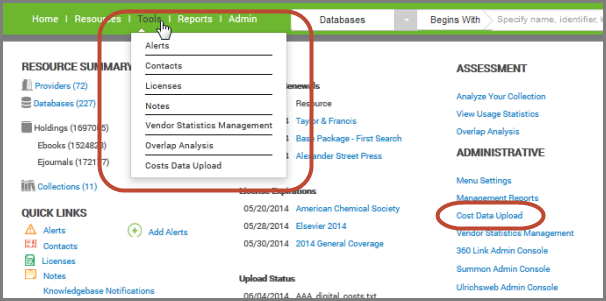
2. On the Cost Data Upload page, click the Download Template button to view the upload templates. 3. Choose one of the templates in the drop-down menu to upload your cost data.
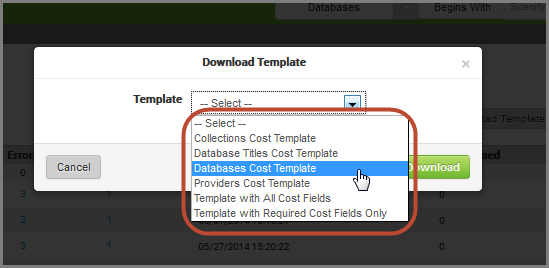
- Collections Cost Template
- Database (Journal) Titles Cost Template: Note - you will be asked to associate the title costs with a database within your Intota profile
- Databases Cost Template
- Providers Cost Template
- Template with All Cost Fields (complete template)
- Template with Required Cost Fields Only: Includes Collection ID/Provider Code/Database Code/Title ID/Fiscal Year/Payment ID/Payment Amount
- Fiscal Year: Required in order for the report to upload successfully.
- Database Code, Provider Code, or Collection Id: . Costs for databases, providers, and collections require a single match point:
- Payment Id is assigned by ProQuest. Leave the Payment Id unchanged if you want the new cost information for that payment to replace (overwrite) the current information. On the other hand, leave this field blank if you are making a template or you are uploading the costs for the first time. (In other words, if there is no Payment Id, the system will add the new payment to the resource. And if you upload the file again later and still don't have the Payment Id, that payment will be added twice to the resource.)
- Include in Total for Year: should be Yes if you want the payment included in the total for the year, and No if you do not want to include the payment. If you leave it blank, the system will change the entry to Yes after you upload the file.
- For your Counter Costs: Include in Total for year adds this cost to the total that will be used to factor “Cost per Use.†If you enter multiple costs such as a hosting fee or a tax that you don’t want to factor into the Counter cost, enter NO.
- Fund Name: If there is an entry in the field for a row, there must be an entry in the Fund Amount field for that row, even if it is just "0" (zero). Note that a "Fund Name" can be any term you wish - you have up to 500 fund options for each title or database. Think about using selector's names, subject headings - any way in which you wish to slice and dice your Counter data and see your management report.
- Use Itemized Total is required when adding individual title costs to the Database Titles Cost Template. If blank the system will assume "No".
- Note that after you have saved the spreadsheet and click Upload, you will be asked to choose a bulk Yes or No response regarding using itemized totals. Therefore when adding individual title costs to the Database Titles Cost Template you do not need to populate the Use Itemized Total column.
- The order of the columns is not important; only that each required field has information.
7. Add your cost and acquisition data to the spreadsheet. If you are a Voyager or Innovative ILS customer, please see documentation about how to map costs from your ILS. Save this file as a "tab-delimited" text file on your local machine.8. Return to the Cost Data Upload page and click on the green Upload File button.
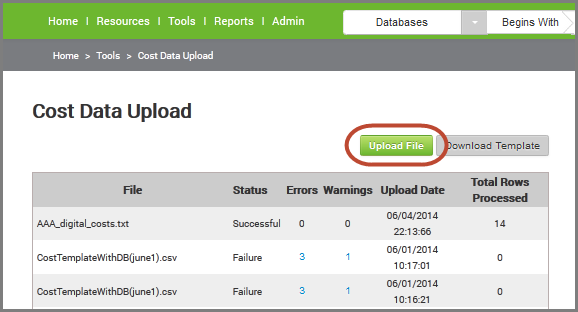
9. To upload the cost data spreadsheet, click the Browse button to locate the file you want to upload. Click the green Upload button. You may choose to bulk itemize totals after you click the Upload button. 10. A pop-up window indicating “Report successfully uploaded†will display.
Check the Upload StatusThe Cost Data Upload page shows the status of your upload. Your most recent file names and uploads are shown at the top of the table. The Status displays Successful or Failure. For a failed upload, click on the number to view specific errors and warnings.
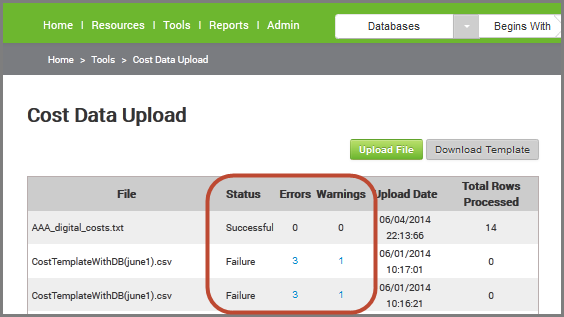
Note: An "all or nothing" processing of the data is enforced; all rows in the files must be free of errors in order to process the file. Warnings do not prevent a successful upload, but a single error will cause rejection of the entire file. Refer to All or Nothing Processing section below for more information.File Upload Status grid columns are:File - the name of the file uploadedStatus - the processing status of the file. Values are "Successful," *In Process," or "Failure."Errors - the number of errors that occurred during processing (hyperlinked to error list). Warnings - the number of warning that occurred during processing (hyperlinked to warning list). A warning means that the cost file was uploaded & processed, but some changes were made to the data. A warning does not prevent file processing and does not stop processing of other rows in the file.Upload Date - the date/time the file was uploadedTotal Rows Processed - the number of rows in the files that were processed.Rows in the grid can be sorted ascending or descending by any of the column headers. The default sort is Upload Date, descending. The most recently loaded file is at the top.The number displayed in the Errors or Warnings column is a hyperlink. Clicking on the number displays a pop-up with row-by-row details of the error or warning.Note: An "all or nothing" processing of the data is enforced; all rows in the files must be free of errors in order to process the file. Warnings do not prevent a successful upload, but a single error will cause rejection of the entire file. Refer to All or Nothing Processing section below for more information.Note: If you get the error "Not enough columns on this line", delete all of the empty columns to the right of the last column you have data in, and upload the report again. It should then upload successfully.
Interpreting the GridFile Upload Status grid columns are:
- File - the name of the file uploaded
- Status - the processing status of the file. Values are "Successful," *In Process," or "Failure."
- Errors - the number of errors that occurred during processing (hyperlinked to error list).
- Warnings - the number of warning that occurred during processing (hyperlinked to warning list). A warning means that the cost file was uploaded & processed, but some changes were made to the data. A warning does not prevent file processing and does not stop processing of other rows in the file.
- Upload Date - the date/time the file was uploaded
- Total Rows Processed - the number of rows in the files that were processed.
- Rows in the grid can be sorted ascending or descending by any of the column headers. The default sort is Upload Date, descending. The most recently loaded file is at the top.
- The number displayed in the Errors or Warnings column is a hyperlink. Clicking on the number displays a pop-up with row-by-row details of the error or warning.

4. Save the Excel spreadsheet in the .csv (comma separated value) format. 5. Go to the Cost Data Upload workspace.6. Click the "Browse" button to the right of File to Upload: and select your .csv file.7. Click Upload. Check the status by finding your .csv file in the Upload Status: menu and click Get Status.
- Date Created: 1-Jun-2014
- Last Edited Date: 7-Oct-2015
- Old Article Number: 10828
