Library Services
For more information, watch Requesting Library Services.
Discussing the List with the Library
When enabled by your institution, you can write messages to the library and read their replies from either the list level, item level, or both. The Discuss with library icon includes a number count of how many new messages there are in the discussion. Messages that you enter in the Library discussion pane create alerts for librarians in Alma, and you can view their responses in this pane.
- Select the Discuss with libraryicon.
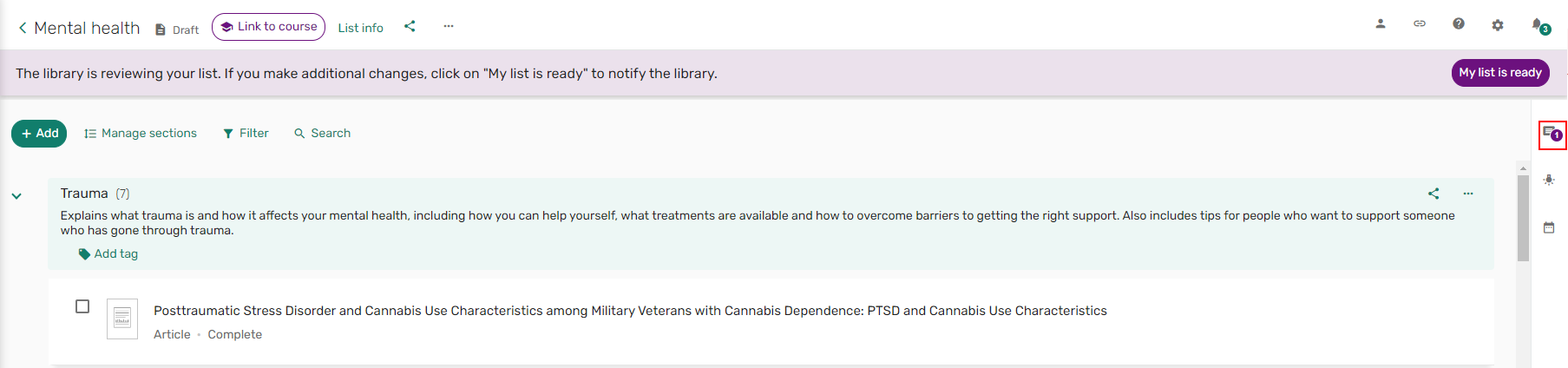 Library discussion icon
 - View any new message or Type your message to the library and select Send. An alert is sent to the librarians.
 List Library discussion
- From an item, select Full details. The item details window opens.
 Item Full details
 - From the item Library discussion tab, view any new message or Type your message to the library and select Send. An alert is sent to the librarians.
 Item Library discussion
Submitting Digitization/Copyright Clearance Requests to the Library
When a list is associated with a course, and when enabled by your institution, you can initiate digitization and/or copyright clearance requests for the items on the list.
A copyright request asks the library to clear copyrights for specific pages and/or chapters. Use this option when you upload a file or you plan to make copies of the material yourself (such as photocopies) or upload a file.
A digitization request asks the library to make copies of specific pages and/or chapters.
In quick edit mode, the digitization and copyright options do not appear when these options are not applicable. These options are still displayed as disabled in the full view.
Requesting Digitization
When enabled by your library, and when a list is associated with a course, you can initiate a specific digitization and/or copyright request with the library. (For a digitization request, there must not already be another open request and the citation must be a physical title with at least one item. For a copyright clearance request, the citation must be an uploaded file, and the copyright must not be already set as self-declared or marked as Creative Commons.) These requests are handled manually or automatically by the library, depending on the library's backend configurations.
- A copyright request asks the library to clear copies for specific pages and/or chapters. Use this option when you plan to initiate a digitization request or you plan to make copies of the material yourself (such as photocopies) or upload a file.
- A digitization request asks the library to make copies of specific pages and/or chapters.
A copyright approval may be relevant for a specific date range, and the library may require you to enter a date range when making the request. In this case, students cannot access the material before and after the range, regardless of the visibility settings of the material, citation, section, and/or reading list. A warning notice may appear when accessing the material and during the final days before the last date (according to your library's configuration).
When enabled by your library, an instructor can initiate a library physical or electronic digitization request, which includes a copyright clearance request, while an item is expanded or from the item Full details.
- Either expand an item and select Request digitization or select Full details to open the Item actions tab and select Request digitization.
 Expanded item - Request digitization
 Item actions - Request digitization
 - The Ask the library for a digital copy form opens. Select the Start date and End date for when you need the digitized item.
- If relevant, enter the Chapters or Pages you require, check Include images, or include a Note.
You can include up to three notes.
- Select Send. The digitization request is created and sent to the library for review.
You can request up to 10 page ranges.
 Request digitization form
Requesting Copyright Clearance
For items uploaded by the instructor, the instructor can initiate a copyright clearance request.
For a copyright clearance request, the citation must be an uploaded file, and the copyright must not already be set as self-declared or marked as Creative Commons. These requests are handled manually or automatically by the library, depending on the library's back-end configurations.
- Either expand an item and select Request copyright clearance or select Full details to open the Item actions tab and select Request copyright clearance. The Request for Copyright Clearance form opens.
- Select the Start date and End date for when you need the item.
- If relevant, enter the Chapters or Pages you require, check Include images, or include a Note.
You can include up to three notes.
You can request up to 10 page ranges.
- Select Send. The copyright clearance request is created and sent to the library for review.
 Request copyright form
Automatically Trigger Copyright Clearance Form
When configured by your institution, wou can automatically trigger the copyright clearance form when a file is added to a citation in Leganto. The copyright clearance form appears when the list is linked to a course and the user selects a copyright option that is mapped to a Copyright Status that is not set to Self Declared,Fair Use,Declined, or Approved. The status of the copyright request is viewable in the Item actions > Library services section.


Personal Copy
When configured by the library, instructors can mark items where they plan to lend their personal copy of an item to the library for circulation. Instructors can indicate that an item is a personal copy and enter the name of the person who owns the item. The instructor can drop the item off at the library, the library circulates it to students for the duration of the course, and the instructor can pick it up again at the end of the term. The library can configure which types of items can be used for personal copies.
For more information, see Contributing Instructor Resources to a Reading List.
- From an item select Full details to open the Item actions tab and select Personal copy. The Personal copy window opens.
 Personal copy
 - Check I will provide a personal copy to the library.
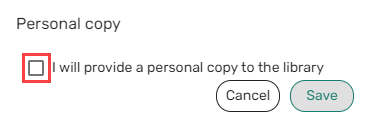 Personal copy
 - Select or enter the name of the owner in the Personal copy belongs to field and select Save.
If you enter the name of someone who is not an owner, a validation error generates.
 Personal copy owner
A message is displayed instructing the owner to bring the personal copy to the library.
 Bring personal copy to library message
Viewing CLA Permissions
In the UK, copyright clearance is ultimately handled by the UK's Digital Content Store (DCS) which in turn uses the Copyright Licensing Agency (CLA). When enabled by your library, and when available for the citation, CLA information appears on the item details page, indicating allowable procedures for the material. CLA information is available only if enough information is provided about the citation, such as ISBN. This information informs instructors of their rights for photocopying, scanning, or otherwise digitizing the citation's resource.
- Either expand an item and select CLA or select Full details to open the Item actions tab and select View CLA permissions. The CLA permissions are displayed indicating if an instructor has permission to use the item in any of the following ways:
- Photocopying
- Scanning
- Digital
 Expanded item - CLA permissions
 Item actions - View CLA permissions
Creating Purchase Requests for List Items
When configured by your institution, you can submit a purchase request for a list item directly from Leganto. You can find the Request purchase button in several locations across Leganto:
-
In the brief view when the item is selected
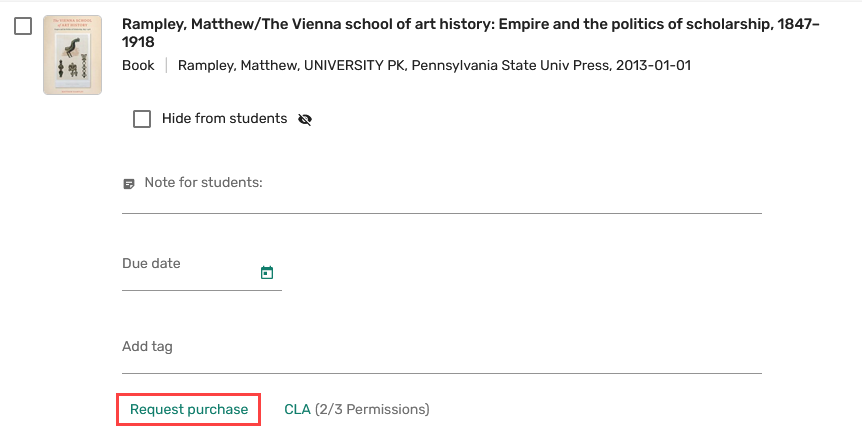
-
In the Item actions tab within full details (in the Library services section)
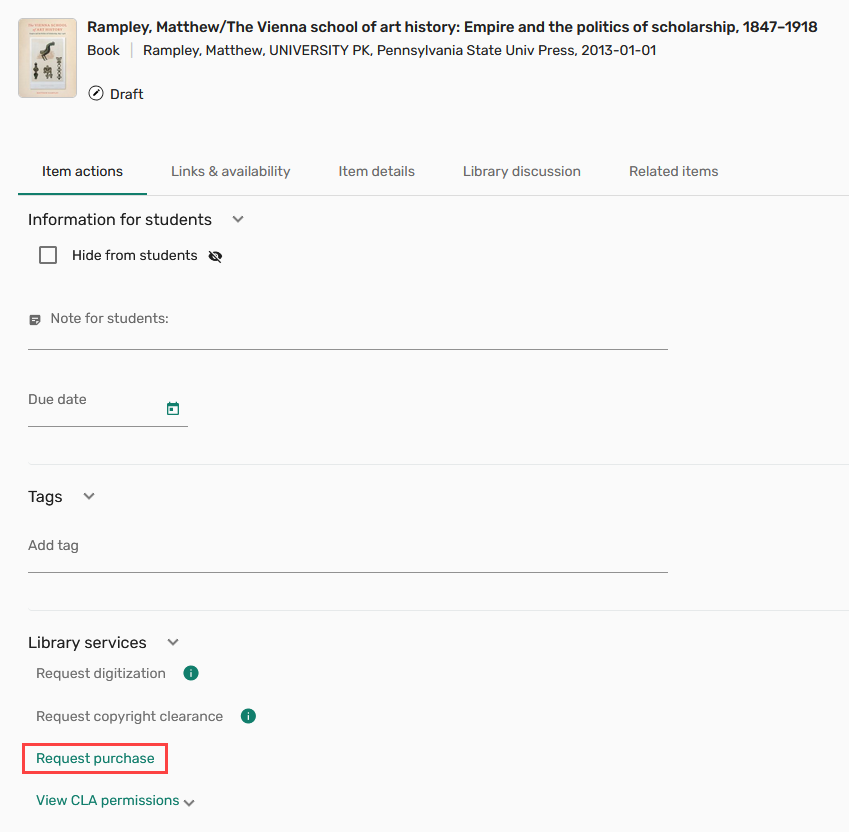
-
In the Links & availability tab (visible only when an item is not available)
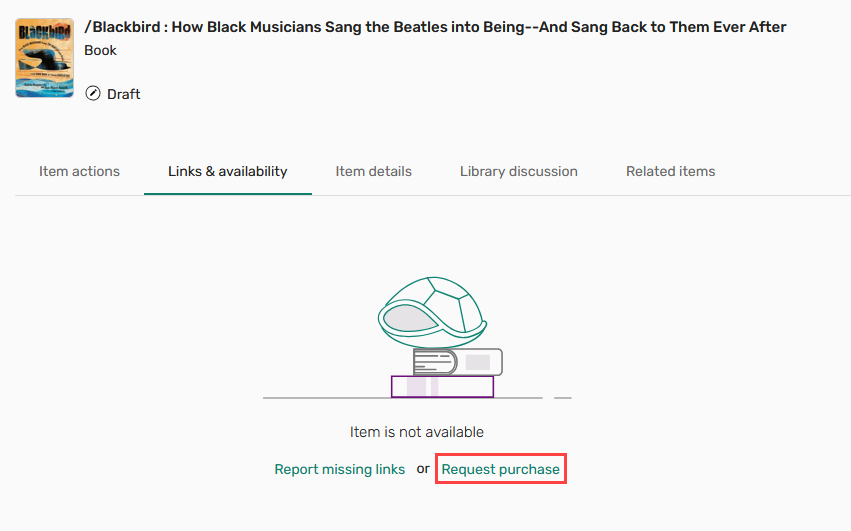
Selecting Request purchase prompts the user to choose a format (physical or online) and submit the request. Once submitted, the item is marked with a Purchase requested tag.

Users can track the status of their purchase request under Library services in the Item actions tab. The following statuses are supported:
-
Library processing – The request is being handled by the library.
-
Approved – The request has been fulfilled. The item is marked with the Purchase request approved tag.
-
Rejected – The request has been declined by the library. The item is marked with the Purchase request rejected tag.
When the PO line is closed, the purchase request tag is automatically removed from the item.
If a purchase request for an item already exists in Alma, Leganto displays the request's existing status in Library services and does not prompt you to select the desired format. Additionally, if requester notes are mandatory, purchase requests can only be submitted for items linked to a course.
Requesting New Editions for List Items
Leganto enables instructors to check for newer editions of books in lists through its integration with Rialto. When a newer edition is available for purchase, instructors can request it directly from within Leganto.
When configured by your institution, instructors can check for newer editions by opening an item’s full details and navigating to the Related items tab. If a newer edition is available, it appears in the New edition available for purchase section.

If configured by the institution, instructors can also see the Check for new edition option in the item’s row action menu. Selecting this option opens the item’s details directly to the Related items tab (if a new edition is available).

From the Related items tab, instructors can view More details for the newer edition of the book and select Request purchase to initiate a purchase request if they wish to add the new edition to the list.

After a purchase request is submitted, the new edition is marked with a Purchase requested badge in the Related items tab, and the original list item displays a New Edition – Purchase requested tag in the brief view.

Instructors can monitor the progress of the request in the Library services section under the Activity tab of the item's details. Requested purchases can have the following statuses:
- Library processing– The request is being handled by the library. During this stage, instructors can cancel the request with the Cancel button. The original item is marked with the New Edition - Purchase Requested system tag in the brief view.
- Purchase completed– The library has completed the purchase. The original item is marked with the New Edition Available tag in the brief view.
- Purchase request declined– The library has declined the request. The original item is marked with the Purchase Request Declined system tag in the brief view.

When the new edition becomes available, the new item displays a New Edition Available tag in Leganto as its status changes to Purchase completed, and a notification bar appears at the top of the relevant list with a Show editions option.

After selecting Show editions, instructors can:
- Review the original item using View original item
- Replace the original item with the new edition using Replace item
- Add the new edition to the list using Add to list, making both editions available to students
- Decline the new edition using Decline
Managing Accessible File Requests
Leganto provides a workflow that enables students to request accessible versions of list items.
When configured by your institution, eligible items display a Request accessible file option in the More options menu and the Links & availability tab in the item’s Full details view. Students use that button to submit a request for the accessible item.


When a student submits a request, an email notification is sent to all configured email addresses. The email includes all relevant details about the request, including:
- The requesting user’s name
- Citation and course details
- The student’s comment (if any)
- A direct link to the item in Leganto
- Email addresses to which the accessible file should be sent
The remainder of the workflow occurs outside of Leganto or Alma. The staff responsible for the request can send the accessible file directly via email.
Page tags: article:topiccontent:Documentationproduct:legantolang:english
