Search for and select the patron’s primary record.
The patron record opens.
Select REGISTRATION.
The registration view of the patron record appears.
Select MERGE.
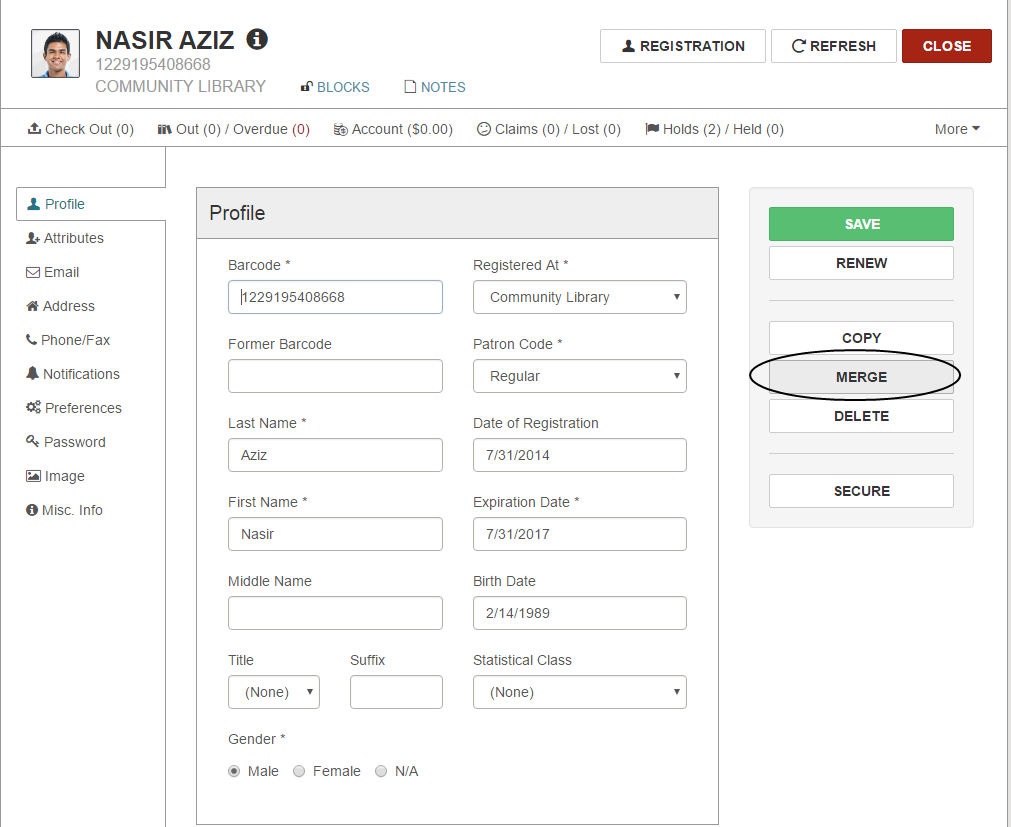
The Merge Patron Records dialog appears.
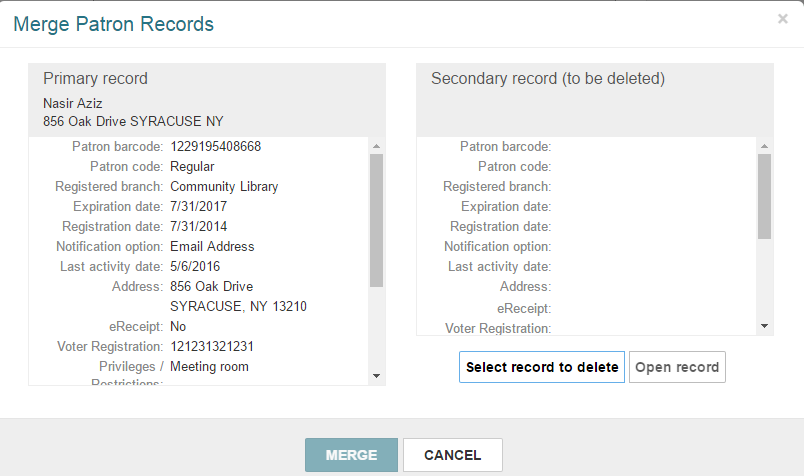
Select Select record to delete.
The Find Tool opens.
Use the Find Tool to search for and select the secondary record (the record you want to delete).
The Merge Patron Records dialog displays the primary patron's details on the left side and the secondary patron's details on the right side. The details that appear depend on the settings in the Patron Services Administration parameter Check Out: Optional Patron Data. If you want to review the secondary record before merging, select Open record.
Select MERGE to merge the records.
A message asks if you want to continue with the merge.
Select CONTINUE.
Leap saves all the information in the primary record, deletes the secondary record, and copies the following data from the deleted record into a single updated record:
- Barcode – Copied to the Former barcode field.
- Blocks – Copied to the Free Text and Library Assigned fields.
- Notification history – All previously-generated notices are copied.
- Items out – A list of the patron's checked out items.
- Hold requests – Active, Inactive, Pending, Located, Canceled, Not supplied, and Out to patron holds and ILL requests with a status of Held, Shipped, or Unclaimed.
- Claimed and lost items – The claimed and lost item counts are totaled in the saved record.
- Patron account – The charges and credits are totaled on the saved record. The YTD and Lifetime Circ as well as the new YTD and Lifetime You Saved amounts are also totaled on the saved record.
- Notes – The notes from the deleted record are appended to the notes on the saved record and separated by a blank line. A note indicates the record was merged and provides the barcode of the deleted record and the date/time that the merge occurred.
In addition, a new transaction: Modified via Leap merge is recorded for the saved record.