
Mixpanel Boards
Introduction
A Board contains various pieces of important information in graphical form, typically used to give an overview of your patrons' usage. It may include text, reports, and videos. You can create personal boards or project boards and share them with your team to help you and your colleagues understand and stay on top of your metrics. If enabled, you can share Boards across your organization, regardless of whether your teammates have a Mixpanel login. For more information about Boards, see Mixpanel's Boards.
Navigating Boards
Before creating a new Board, you may want to check whether anyone in your organization has already created one similar to the one you are looking to create.
-
Select the Discover tab.
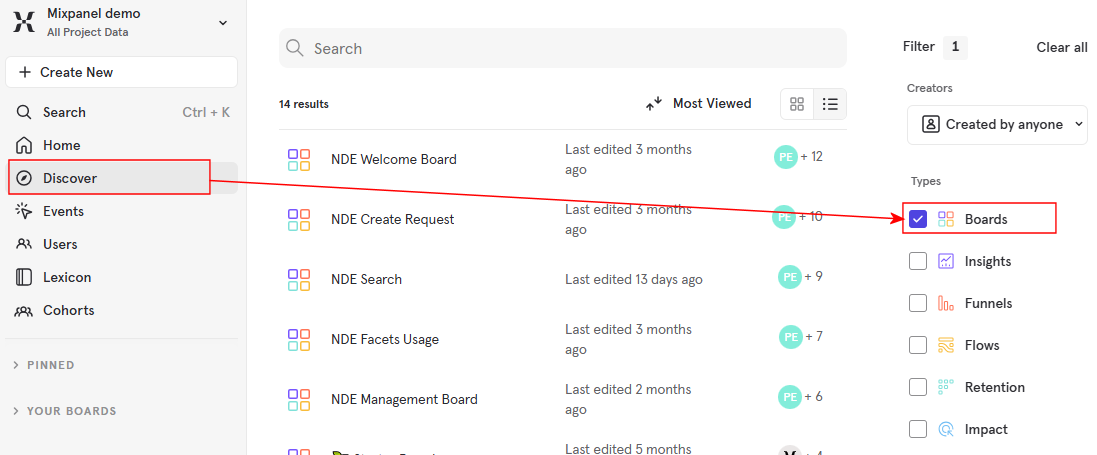 Discover Tab
 -
Select the Boards filter to display all the Boards for your organization.
-
Select any Board to see its contents.
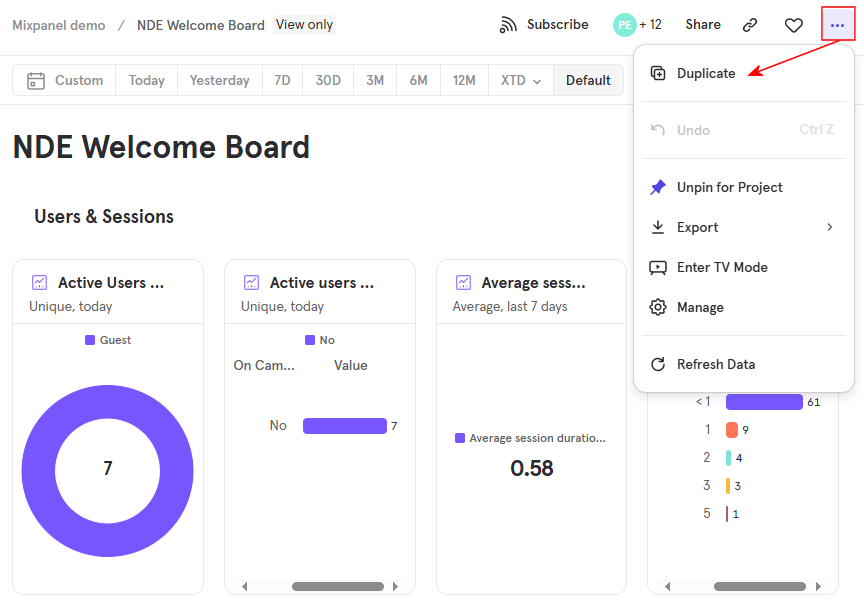 Example Board
 -
Select ellipsis > Duplicate to make a copy of a Board to edit.
Creating a Board
You can create new Boards in Mixpanel and include text, videos, and reports. New Boards are quickly accessible in the left panel under Your Boards.
-
Open the Board editor (Create New > Board).
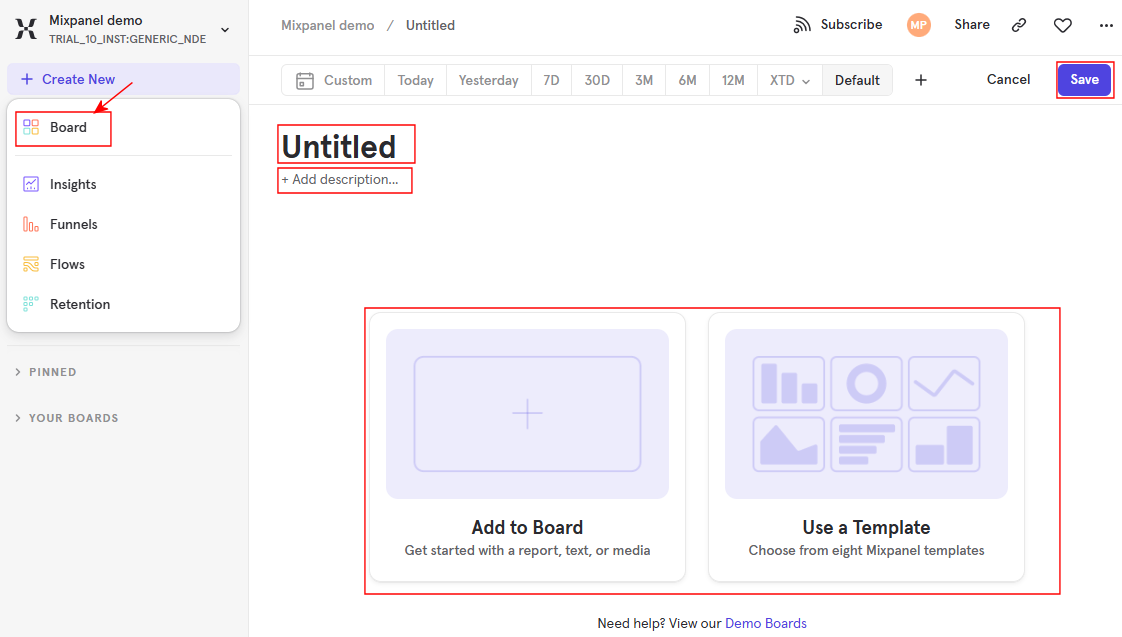 Create New Board
 -
Select Untitled and enter a title for the new Board.
-
(Optional) Select Add description and enter a description for the new Board.
-
Select one of the following options to get started:Add to Board or Use a Template.
-
Select Save to save changes to your new Board.
Page tags: article:topicproduct:primocontent:Documentationlang:english
