
Deploy All Configuration Settings
The Deploy All option centralizes the deploy functionality onto a single page, allowing you to deploy one, several, or all of your configuration settings from a single location. In addition, staff users can monitor the deployment queue by selecting the Log Monitoring button.
-
On the Primo Back Office home page, click Deploy All to open the Deploy List page.
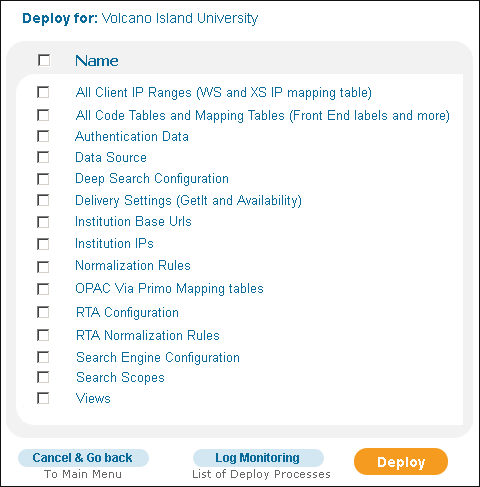 Deploy List PageInstitution-level staff users are not permitted to deploy the Adaptors Mapping Tables option.
 -
For installation-level staff users, select the institution in the Deploy for drop-down list if multiple institutions are available.
-
Select the configuration settings you want to deploy (see Deploy All List).
Deploy All List Field name Description Name
Selects deployment of all configurations settings with a single click.
Adaptors Mapping Tables (on-premises installations only)
Selects deployment of changes to the Adaptor mapping tables (RTA and PushTo).
All Client IP Ranges (WS and XS IP mapping table)
Selects deployment of changes to the WS and XS IP mapping table. For more information, see Mapping Table Reference.
All Code Tables and Mapping Tables
Selects deployment for configuration changes to the code and mapping tables.
Data Source
Selects deployment for configuration changes to data sources.
Deep Search Configuration
Selects deployment for configuration changes to the Deep Search Plugins and Deep Search Plugin Parameters mapping tables.
Delivery Settings
Selects deployment for configuration changes to the delivery settings.
Institution Base URLs
Selects deployment for configuration changes to the institution base URLs.
Institution IPs
Selects deployment for configuration changes to the institution base IPs.
Normalization Rules
Selects deployment for configuration changes to the normalization rules. For more in-depth information, refer to the Primo Technical Guide.
OPAC Via Primo Mapping tables
Selects deployment of changes to the mapping tables under the OPAC Via Primo subsystem.
Authentication Data
Selects deployment for configuration changes to the User Authentication Wizard.
RTA Configuration
Selects deployment of changes to the RTA configuration tables.
RTA Normalization Rules
Selects deployment of changes to the RTA (using normalization rules) mapping table.
Search Engine Configuration
Selects deployment for configuration changes to the SE Configuration parameters. In addition, this option deploys changes to the following files:
-
The language analysis files that are stored in the following directory:
./ng/jaguar/home/profile/analysis/langDB -
The sort configuration files that are stored in the following directory:
./ng/jaguar/home/profile/analysis/sort
System Configuration (on-premises installations only)
Selects deployment for configuration changes to the General Configuration parameters. In addition, this option deploys changes to the Dedup algorithm XML files that are stored under the following directory:
./ng/primo/home/profile/publish/publish/production/confThe system deploys the files that are defined in the primo.dedup parameters on the General Configuration > Publishing subsystem page.
Search Scopes
Selects deployment for configuration changes to the search scopes.
Views
Selects deployment for configuration changes to the front end's views.
-
-
Click Deploy.
The Deploy Log Details page opens. It displays information for each stage of the deploy. As a stage completes successfully, the window for that stage closes. You can reopen this window, by clicking the corresponding link in the Deploy Name column.This page automatically refreshes to display the status of each stage. If you want to stop the automatic refresh, click the Stop Refresh button.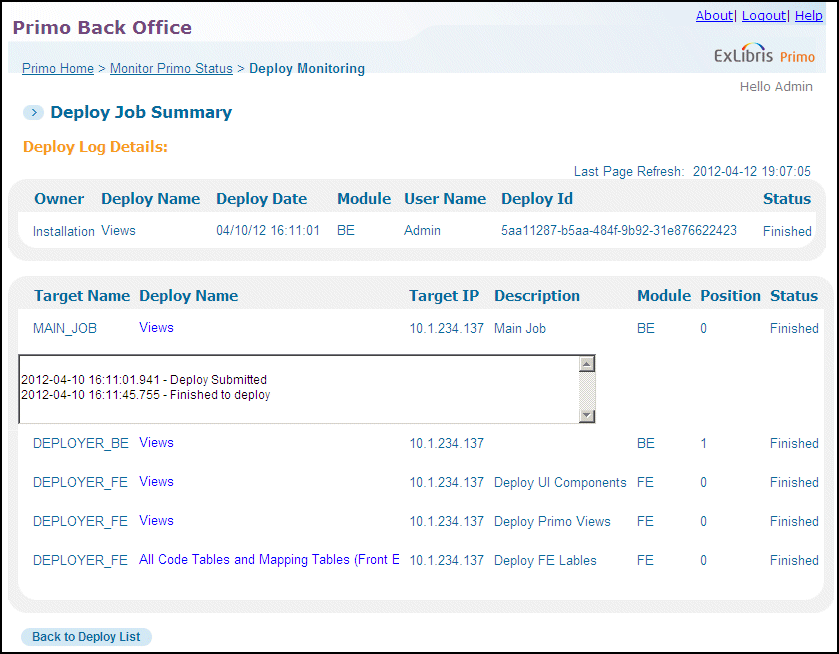 Deploy Log Details - All Stages Finished
 -
Click Back to Deploy List to mange all deployment jobs on the Deploy Job Summary page.
-
Click Go Back to Deploy All if you want to perform another deployment.
Page tags: article:topicProd:Primocontype:documBack Office GuideAdditional Primo Featuresproduct:primocontent:Documentationlang:english
