Primo August 2018 Highlights
Primo August 2018 Release Highlights Webinar
To download other formats of the presentation, click the following links:
Apply Actions to Bulk Requests and Loans in My Library Card (NERS 3441)
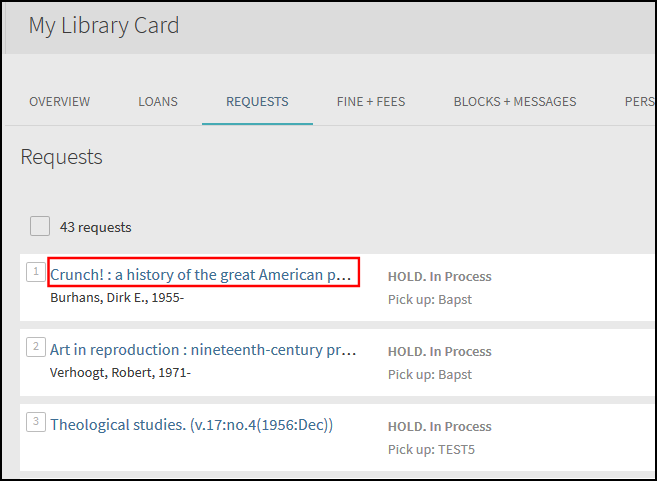
In Alma environments only, users can select one or more items on the Loans and Requests tabs in My Library Card and perform the following export to citation actions: Export BibTex, Export RIS, RefWorks, EndNote, and EasyBib.
The following export actions will be provided in an upcoming release: email, print, and add to My Favorites.
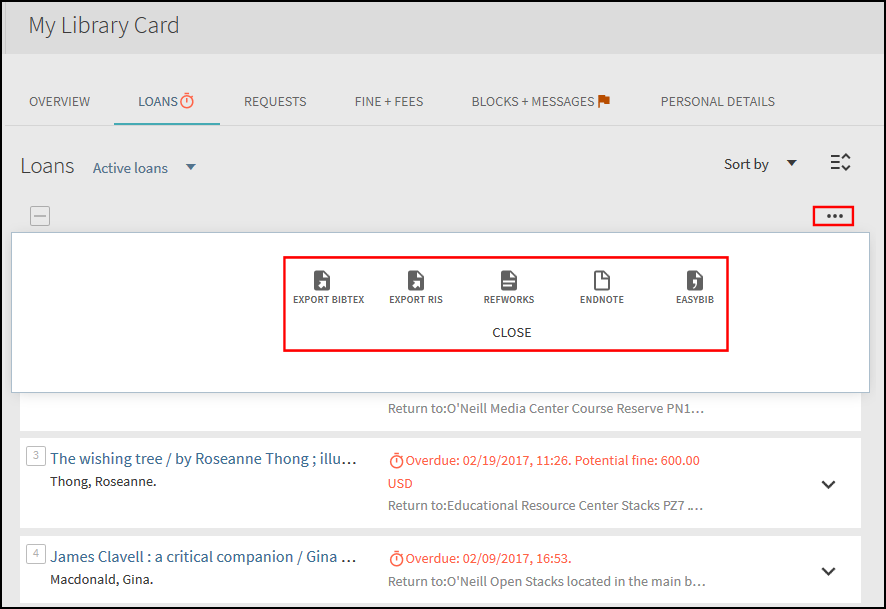
In addition, users can display the item's full details by clicking the item's title on the Loans and Requests tabs in My Library Card.
Back Office Configuration
For multicampus environments, it is necessary to check your normalization rules and make sure that all records are assigned all institution scopes that are part of your multi-campus configuration.
If the title links on the Requests and Loans tabs are not working in My Library Card, make sure that your normalization rules are correctly mapping the MMS ID from the source records to the search/addsrcrecordid field in the PNX.
Improvements to Date Functionality (NERS 5342)
This enhancement improves the accuracy of search results by making sure that locals resources that cover a range of dates are returned when using the Date facet. Previously, the value of the Date facet had to match either the start date or the end date of the resource's date range. Any resources with dates that fell within the date range were omitted from the search results.
To support this functionality, the following change was made to following field in the normalization rule templates:
Add Next/Previous Capability to Full Display
This enhancement allows users to navigate between items in the search results without returning to the Brief Results page. After performing a search (which includes simple, advanced, journal, database, and newspaper) and displaying an item's full details, users will be able to view the full details of the next or previous item in their search results by clicking the arrows.
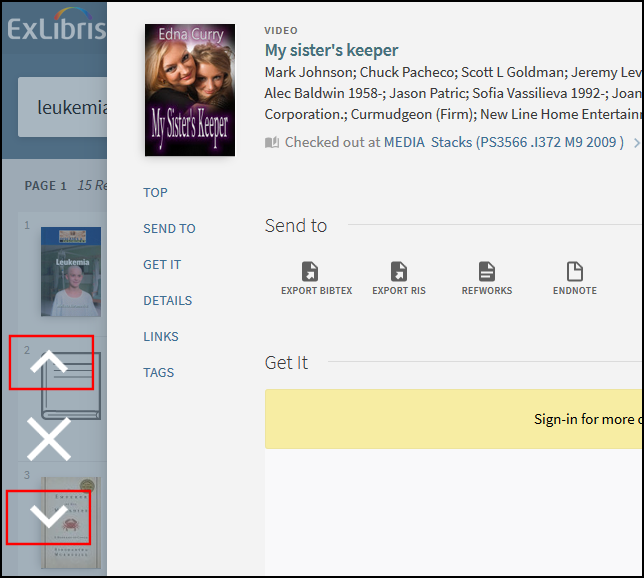
In addition, users can step through items saved in My Favorites in the same manner.
Improvements to the Sign-In and User Area Menu
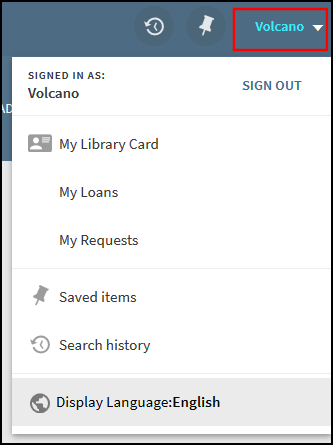
The sign-in area in the new UI has been improved to allow users to sign in with fewer actions and to access user area options more easily. Previously, users had to select the user/language selector area and then select Sign in. With this enhancement, users are provided with a new Sign in button and a Menu drop-down list.

For guest users, the new Menu drop-down list allows users to change the display language, sign in and access My Library Card, view their search history and saved searches.

After signing in, the Sign in and Menu options are replaced with the user's sign-in name, which serves as the Menu drop-down list and includes additional options relevant to signed-in users:Sign Out,My Loans, and My Requests.
Back Office Configuration
The following table lists the Back Office settings used to configure this functionality.
| Element | Description |
|---|---|
|
User Tile code table |
The following codes were added to support this functionality: default.eshelf.menu.displayLangNew:Display Language: default.eshelf.signin.menu:Menu default.eshelf.menu.searchHistory:Search history default.eshelf.menu.savedItems:Saved items default.eshelf.menu.myrequests:My Requests default.eshelf.menu.myloans:My Loans |
|
User Space Menu |
The following codes were added to support this functionality: default.nui.menu.librarycard:My Library Card |
|
CSS |
Customers who have customized the previous sign-in area can disable the new sign-in area by adding the following elements to their CSS file in their view's customization package: prm-user-area { display:block!important; } prm-user-area-expandable { display:none!important; } |
Visual Improvements to Collection Discovery
This enhancement improves the following aspects of the Collection Discovery interface:
-
Collection page:
-
The load more results label has been changed to load more items because this is considered a list (not a search).
-
The font for the following text in collection headings was decreased:(items from sub-collections are not included).
-
-
Collection folder: In some cases, the system displayed blank images for collections. If there is only one image, it will cover the entire folder.
Support for Additional Languages in Journal and Database A-Z Searches in New UI
This enhancement allows you to enable a language selector on the Journal Search and Database Search pages, which allows users to perform searches in the following languages: English, Hebrew, Chinese (Simplified and Traditional), and Norwegian. For each language the following symbols are supported:
-
English(en_US): A-Z, 0-9, and Others
-
Hebrew(iw_IL): only Hebrew letters א-ת
-
Simplified Chinese(zh_CN): Because Chinese simplified characters are converted to Pinyin, only English letters A-Z will appear.
-
Traditional Chinese(zh_TW): Chinese traditional characters will be converted to the number of strokes and will be categorized by the numbers 1-26+.
-
Norwegian(no_NO): A-Z, Å, Æ, Ø, 0-9, and Others
Selecting the Others option displays all data that is not mapped to one of the enabled languages letters.
Deep Links
To support additional languages, the deep links for Journal Search and Database Search allow you to specify the language code. For example:
If no language is specified, the system will default to en_US.
There is no change for the Others and 0-9 letter options, respectively:journals=letter,Others and journals=letter,0-9.
Back Office Configuration
The following table lists the Back Office settings used to configure this functionality.
| Element | Description |
|---|---|
|
A-Z Languages mapping table (new) |
This table enables the language options in the new Language drop-down list on the Journal Search and Database Search pages.
|
|
A to Z List code table |
The following codes have been added to support the new languages in the new UI:
|
|
A-Z Characters Transformation mapping table |
The Assign to AZ List transformation uses this mapping table to map records to a specific letter option on the Journal Search and Database Search pages. The following codes have been added to support Norwegian searches:
|
|
Assign to AZ List transformation |
This normalization transformation has been updated to map letters for the new languages. The system will only normalize active languages. For example, the first character (A) and the language (en_US) are added to the PNX record: <atoz>en_USA<atoz/>
|
Support Configuration of Main Menu Links on the Services Page in New UI
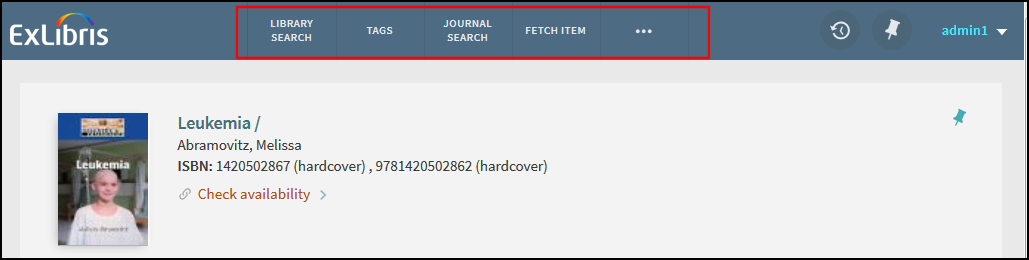
This enhancement allows you to configure and display the Main Menu links on the Primo Services page in the new UI. Previously, this functionality was disabled on the Primo Services page, which displays the details of an item discovered with an external discovery interface (such as Google Scholar).

Back Office Configuration
The following configuration is necessary to display Menu links on the Services page.
-
Edit your view's customization package (Primo Home > Primo Utilities > UI Customization Package Manager).
-
Add the following stanza to the custom1.css file under the css folder.
prm-topbar .isDeposit, prm-topbar .isServicePage, prm-topbar .isSummonOverAlma {
display: inline;
}
-
Upload your changes.
-
Select Deploy.
Create a Footer in New UI
A new AngularJS directive called <prm-explore-footer-after> has been added to allow you to configure the footer on the bottom of pages in the new Primo UI more easily. For example, you can add the following directive to the custom.js file in your customization package:
app.component('prmExploreFooterAfter', { bindings: { parentCtrl: '<' }, template: '<div id="customFooter">footer line1<br />footer line2<br />footer line3<br />footer line4</div>' });
The HTML footer may contain links, images, and styles defined in your CSS.
Decrease Ranking of Book Reviews in Primo Central Search Results
This enhancement decreases the weight of book reviews to increase the ranking of books in the search results unless users specifically search for a book review.
This will be gradually rolled out.
Support for the Differentiation of Author and Contributor Data in Ranking
This enhancement enables you to rank records based on contributors and authors separately, allowing you to give contributors less weight in the ranking algorithm, which determines the rank of records listed in Primo's search results. To support this functionality, the search/creatorcontrib field has been split into the following fields:search/creator and search/contributor. For more details on each of these fields, refer to the out-of-the-box normalization rule templates.
To enable this functionality:
-
Update your view's normalization rules, re-pipe, and then re-index.
-
In the Basic Search and Advanced Search tiles of the Views Wizard, make sure that you are using the new as contributor and as author/creator search fields.
Page tags: article:topicproduct:primocontent:Documentationlang:english
