
Primo May 2018 Highlights
Primo May 2018 Release Highlights Webinar
To download other formats of the presentation, click the following links:
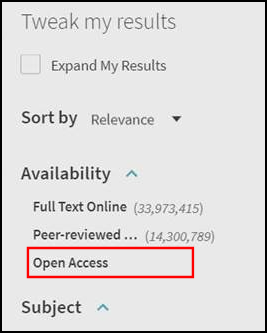
Open Access Indication and Facet
This enhancement increases the visibility and accessibility of open access articles by flagging them with an Open Access icon and text indication in the new Primo UI only. For more details, see Open Access Indication in Primo.

In addition, users can select the new Open Access top-level facet to display only open access records.
Back Office Configuration
This feature is enabled by default, but you may customize the display labels using the following code tables:
-
Display Constants – defines the labels shown in the results for open access records:
Code Description default.fulldisplay.constants.open_access_tooltip
Open Access
default.fulldisplay.constants.open_access_icon
OPEN ACCESS
-
Top Level Facet – defines the top-level facet that displays for open access records:
Code Description default.facets.facet.tlevel.open_access
Open Access
Enhanced Primo REST API Suite
The Primo REST API Suite provides access to Primo search capabilities and enriched results as used by new Primo interface and enables library developers to extend the search experience and functionalities. The following APIs have been added to support the new Primo UI:
-
User JWT (cloud customers only - using the API gateway) - This service returns the user JWT indicator, which is used to manage the session and to get the user's information (such as a list of favorite records when using the Favorites API).
-
Primo Search for signed user – Using the user JWT, this service exposes all Primo Search capabilities for a signed-in user.
-
Favorites – Using the user JWT, this service returns a user’s saved records.
API Documentation can be found in the Primo Developer Network with the option to use "Try it now" to call the API and get started using code samples.
Resource Recommender Enhancement
Previously, Resource Recommender returned suggested resources by performing an exact match to a searchable tag. This enhancement allows suggested resources to be returned through the enrichment of searchable tags by adding synonyms and inflections, removing stop words from tags and searches, accepting non-ordered search words, and allowing partial matches to search/tag words (up to 75%, without stop words).
| Type of Enrichment | Search Query | Searchable Tag |
|---|---|---|
|
Synonyms |
FDA |
food and drug administration |
|
Inflections |
history |
histories |
|
Remove stop words |
the history of the united states |
history united states |
|
Non-ordered search words |
harry potter |
potter harry |
|
Partial match |
a people history of the united states |
united states history |
Because this enrichment requires indexing, enrichment for new searchable tags will not be visible until after the next indexing and hot swap.
Support for General Data Protection Regulation (GDPR)
This enhancement provides support for the European Union's new privacy regulation that goes into effect on May 25, 2018. For more information, refer to the following article:
What You Need to Know About Addressing GDPR Data Subject Rights in Primo
Pre-Filter Search in the New UI
This enhancement allows you to display and configure the search pre-filters for the new Primo UI. Pre-filters allow users to specify the following parameters to filter their results prior to performing a basic search: resource type, search operator, and search target field. When switching to the advanced search, the system retains the pre-filters.

Back Office Configuration
In most part, the configuration of this functionality for the new UI is the same as the classic UI. The main difference is that a new field has been added to the Views Wizard to enable the pre-filters in the new UI.
To configure this functionality in the new UI, edit the Home > Basic Search tile in the Views Wizard and specify the following fields.
| Field | Description |
|---|---|
|
Enable pre-filters in new UI (new) |
When selected, the pre-filter parameters will also display in the new UI. |
|
Values for Resource type pre-filter drop-down (same as classic UI) |
Defines the first drop-down list, which allows users to limit the search results to a specific type of resource or all types of resources (All items). The Basic Media Type code table defines the labels for the resource type drop-down list. |
|
Search operators (same as classic UI) |
Defines the last drop-down list, which allows users to limit searches to a specific data field (such as the title or subject) in records or anywhere in the record. The Basic Index Fields code table defines the labels for the search operators drop-down list. |
|
Search target fields (same as classic UI) |
Defines whether the following precision operators display in the middle drop-down list:
The Basic Precision Operator code table defines the labels for the precision operators drop-down list. |
Newspaper Search Interface (New UI)
The Newspaper Search page (new UI only) has been added to allow users to search only for newspaper content from a separate index that contains various and more specialized newspaper collections. The results page shares the same configuration as the regular results page and contains the same pagination, navigation, and sort options and facets.
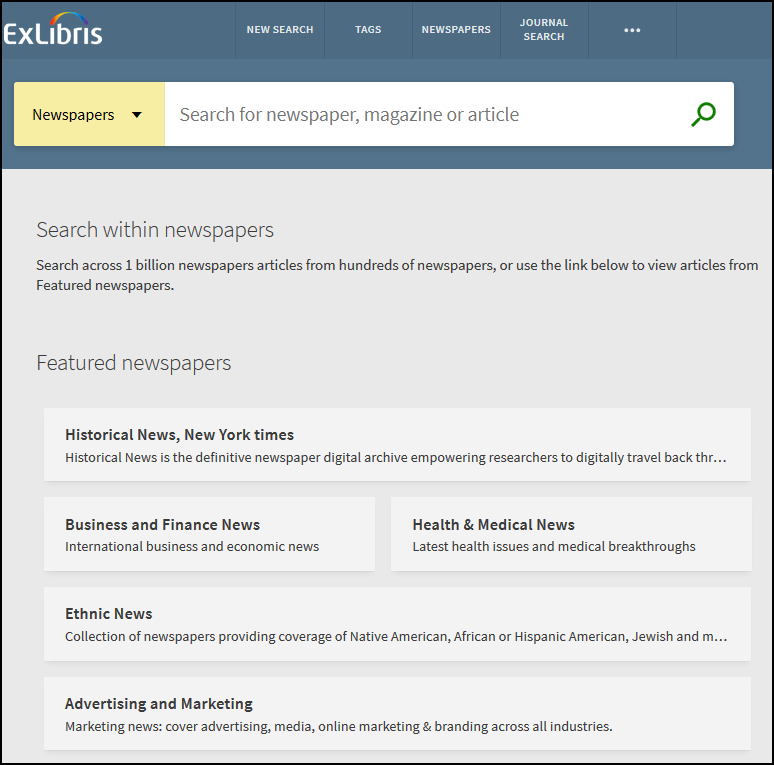
When the Newspaper Search feature is enabled in the Primo Back Office:
-
Searches using the Primo Central index will no longer return newspaper content, but it may include newspaper content from other indexes in blended searches.
-
Newspaper collections that were not provided by Primo Central previously will require activation in the Primo Central registration system to allow discovery with the new Newspaper Search interface.
Rollout of Feature
The initial release of this feature is considered a beta release and will be partially available at the beginning of July 2018. We will gradually release additional newspaper collections for activation in the Primo Central registration system, and a notification will be sent to customers when the newspaper content is fully loaded. In addition, we will provide additional training via a dedicated webinar to be scheduled soon. For more information, see Frequently Asked Questions for Newspaper Search. If you have additional questions or comments, please provide feedback.
Featured Newspapers
When Featured Newspapers functionality is enabled, users can also search from newspapers that you have selected and categorized using either of the following methods:
-
Click a link in the Featured Newspapers section to display all matching results for the selected category, From these results, users can then search within the selected category to narrow the search.
-
Select the Featured Newspapers option in the search box, specify a search string, and then select the category from an additional drop-down list that appears in the search box.
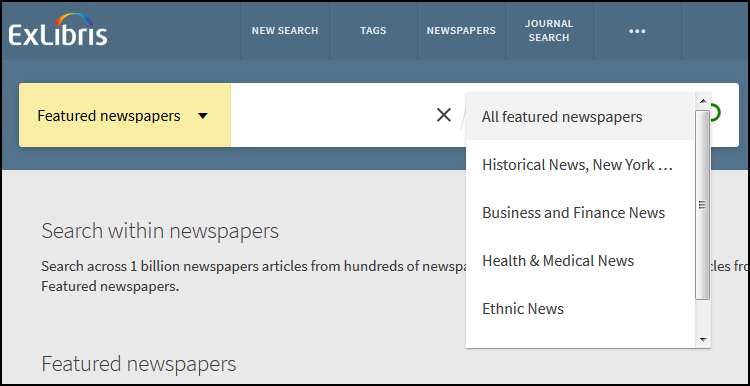 Featured Newspapers Search Option
Newspaper Search Link
When the Newspaper Search feature is enabled, the Newspapers search link appears in the following areas of Primo Central search results to allow users to access matching newspaper content in the Newspaper Search interface:
-
The bottom of Primo Central search results:
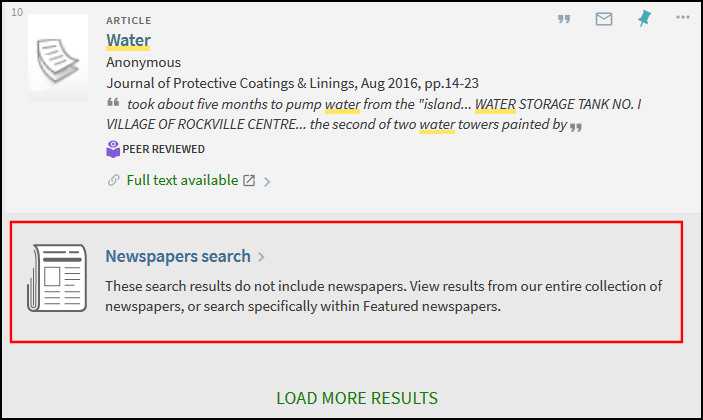 Newspapers Search Link
 -
The top of the Resource Type facet value list in the Tweak my results section:
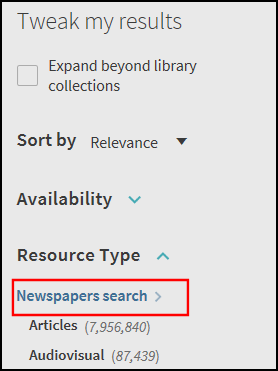 Newspapers Search from Tweak My Results Section
Back Office Configuration
The following table summarizes the configuration options for the Newspaper Search page.
| Element | Description | ||||||||||||||||||
|---|---|---|---|---|---|---|---|---|---|---|---|---|---|---|---|---|---|---|---|
|
Institution Wizard |
The Newspapers Search check box enables Newspapers Search for your entire institution, but you must also enable it per view (see Views Wizard). When enabled, newspaper content will no longer be provided by Primo Central scopes. |
||||||||||||||||||
|
Home Page > Main Menu tile in the Views Wizard |
Add the following row to define the link to the Newspaper Search page in the new UI's main menu:
|
||||||||||||||||||
|
General Section in the Views Wizard |
The following fields have been added to support the Newspaper Search page at the view level:
By default, the above options are selected for you. |
||||||||||||||||||
|
Featured newspapers mapping table (new) |
Specify the following fields to create a category of newspaper articles to display in the Featured Newspapers section of the Newspaper Search page:
You can define a maximum of five categories per view (including disabled categories). |
||||||||||||||||||
|
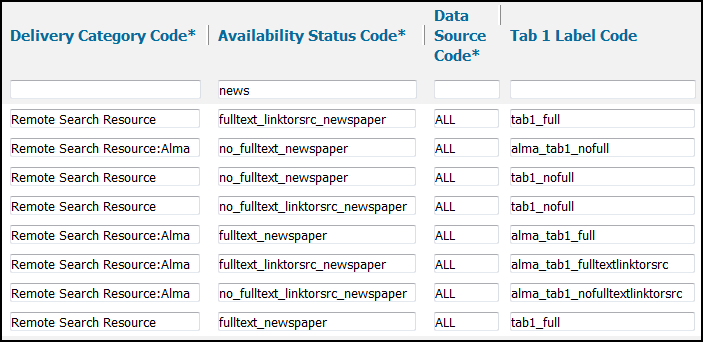
GetIT! Link 1 Configuration mapping table |
The following availability statuses were added to support this functionality:
|
||||||||||||||||||
|
GetIT! Tab 1 Text Configuration mapping table |
The following availability statuses were added to support this functionality:
|
||||||||||||||||||
|
Newspapers Search code table |
This code table defines all labels associated with the Newspaper Search page.
For each Name and DescriptionCode that you define in the Featured newspapers mapping table, an associated code table row is created to allow you specify the displays labels for the featured newspaper categories and their descriptions. |
||||||||||||||||||
|
Facet Labels code table |
This code table defines the facet labels that display in the UI.
|
||||||||||||||||||
|
Facet Resource Type code table |
This code table defines the facet labels that display in the UI for the resource type. This facet appears only on result pages in which the results no longer contain newspaper content.
|
||||||||||||||||||
|
Calculated Availability Text code table |
This code table defines the availability labels that display in the UI.
|
||||||||||||||||||
|
Results Tile code table |
This code table defines the labels that display on the Brief Results page.
|
||||||||||||||||||
|
Search Tile code table |
This code table defines the labels that appear in the search box for the Newspaper Search page.
|
||||||||||||||||||
|
View Labels code table |
This code table defines the labels associated with the view (such as the links that display in the main menu).
|

Feedback Message Improvements
In the Primo February release, we released feedback messages, which are designed to help users troubleshoot issues with their search queries. Based on further feedback from customers, we have added the following improvements:
-
Optimized the Show expanded results message so that it is not returned as often to users. In case a query is too long, the system will now return a snippet of the last words that were searched:
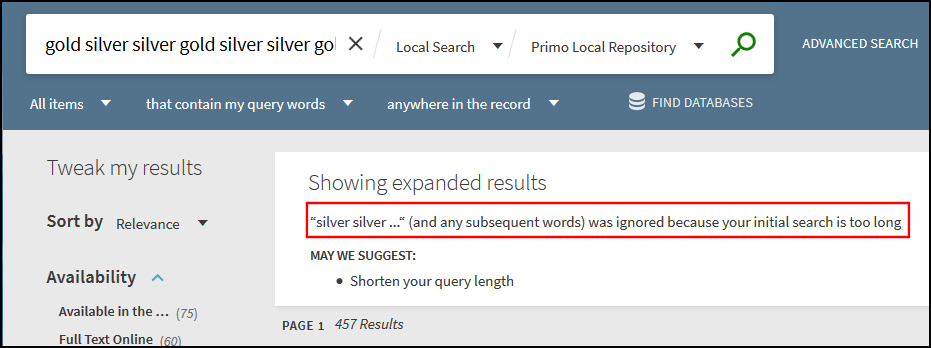 Showing Expanded Results Feedback Message
 -
Updated the No results found message regarding the entry of illegitimate characters. Searches cannot include empty parentheses ().
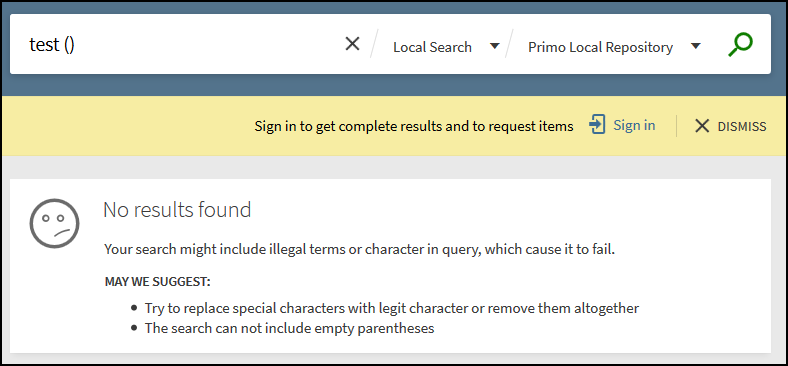 No Results Found Feedback Message
For more details and up to date information, see Feedback Messages in the New UI.
Making Library Catalog Visible on the Web
Library Records from the new Primo UI can now be made visible on the Web using the Primo Sitemap Tool, which generates (per given search scope) deep links to relevant records and creates robots.txt files for use by search engines crawlers. For more details, see Generate Sitemap Tool.
In addition, Primo will expose library records in common schemas for structured data markup on web pages, such as schema.org, to be indexed by Internet search engines. In the first phase of this enhancement, Primo will provide support for linked data by mapping PNX fields to the corresponding schema.org fields. In the next phase of linked data, we will create relationships between resources and link to external authorities, based on assumptions that resources with connections and availability should be ranked higher by the search engine.
Book Chapters Facet for Primo Central Records
In the June 2018 release of Primo Central, the Books facet value will be split into two Resource Type facet values:Books and Book Chapters. To support this change, you will need to add the following code to the Facet Resource Type code table:
| Code | Description |
|---|---|
|
default.facets.facet.facet_rtype.book_chapters |
Book Chapters |
Page tags: article:topicproduct:primocontent:Documentationlang:english
