
Primo VE 2018 Release Notes
Download PDFs for Release Notes
Features
No features match your criteria.
Silent Login Authentication
December 2018URM-80953 For CAS and SAML authentication methods, the Enable Silent Login option has been added to the User Authentication page (Configuration Menu > Authentication > User Authentication) to allow users who have already signed in to another library system to be automatically signed in to Primo VE when they open a Primo VE session in a new window or tab with the same browser.
Loading Records from External Sources (MARC21)
December 2018URM-83375 This enhancement allows you to import records from external sources into Primo VE for discovery in your local catalog, using the MARC21 format. With the use of existing MARC21 normalization rules, the records are mapped and normalized into Primo VE for discovery.
Normalizing MARC21 Records from External Sources
Primo VE utilizes existing MARC21 normalization rules and processes:
-
Use the Metadata Editor (Configuration Menu > Discovery > Loading External Data Sources > Normalization rule for External Data sources) to create MARC21 normalization rules as needed. For more information, see Working with Normalization Rules.
-
On the Process List page (Configuration Menu > Discovery > Loading External Data Sources > Normalization Process Task), select Add Process to create a normalization process that includes the additional normalization rules that you want to apply to the MARC records.
Process List Page -
Specify the following fields and then select Next:
-
Business Entity – Specify Bibliographic title.
-
Type – Specify Marc21 Bib normalization.
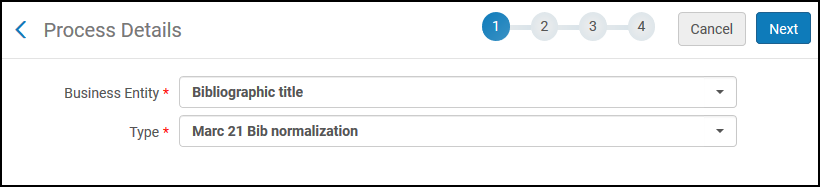 Process Details (Step 1)
 -
-
Specify a name and description for the new process and then select Next.
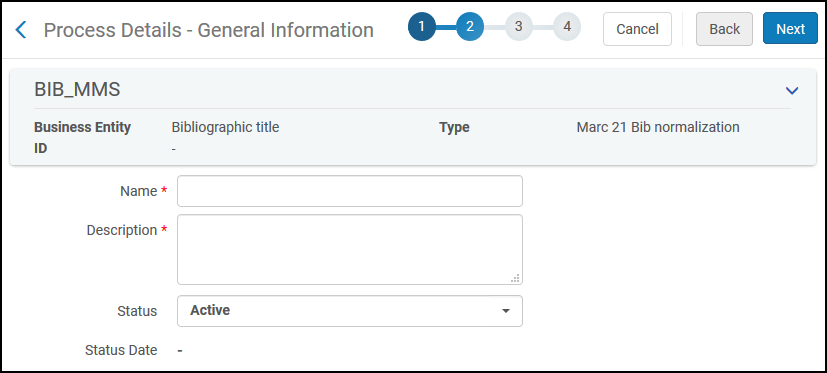 Process Details - General Information (Step 2)
 -
Select Add Tasks.
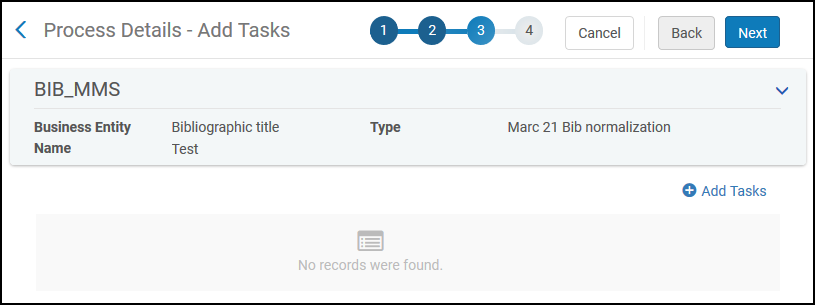 Process Details - Add Tasks (Step 3)
 -
For each normalization rule that you want to include in the MARC 21 Bib normalization process, add a MarcDroolNormalization task.
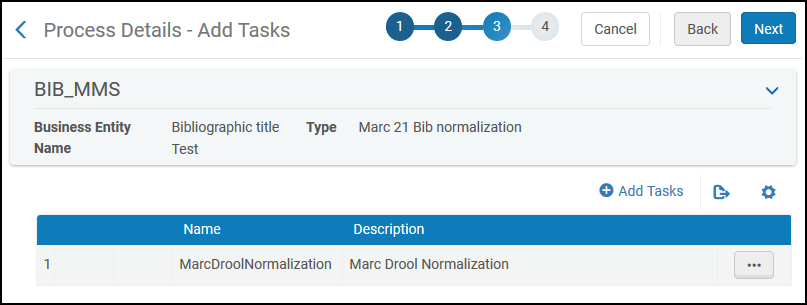 MARC Drool Normalization Task Added
 -
Select Next.
-
For each task added in the previous step, select a normalization rule from the Drools File Key drop-down list.
 Process Details - Task Parameters (Step 4)
 -
Select Save to save your new process.
-
Test you your normalization rules and normalization process (Configuration Menu > Discovery > Loading External Data Sources > Test Normalization Rules). For more information, see Testing MARC21 Normalization Rules and Processes.
-
Create a Discovery import profile for your external MARC data source. For more information, see Importing External MARC21 Records.
Testing MARC21 Normalization Rules and Processes
The MARC21 record type radio button was added to the Testing Normalization of non-Alma Primo VE records page (Configuration Menu > Discovery > Loading External Data Sources > Test Normalization Rules) to support the testing of MARC21 normalization rules and processes.
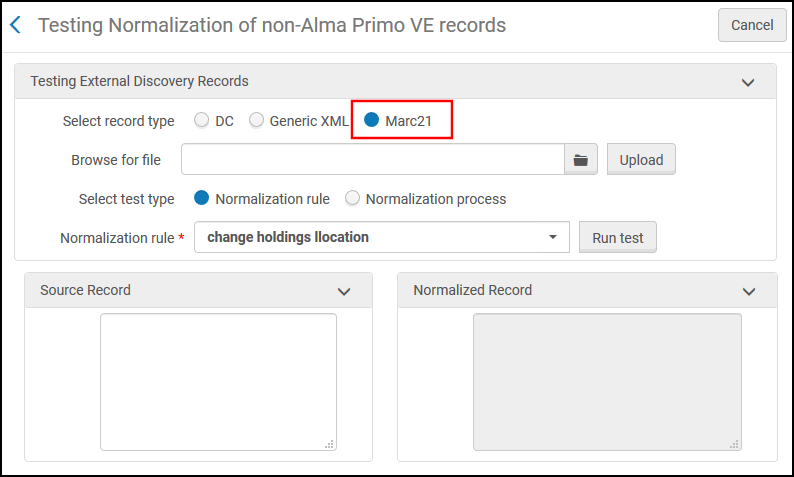
You can also access this page from the Metadata Editor (Configuration Menu > Discovery > Loading External Data Sources > Normalization Rules for External Data Sources) by selecting Save and test using external record.
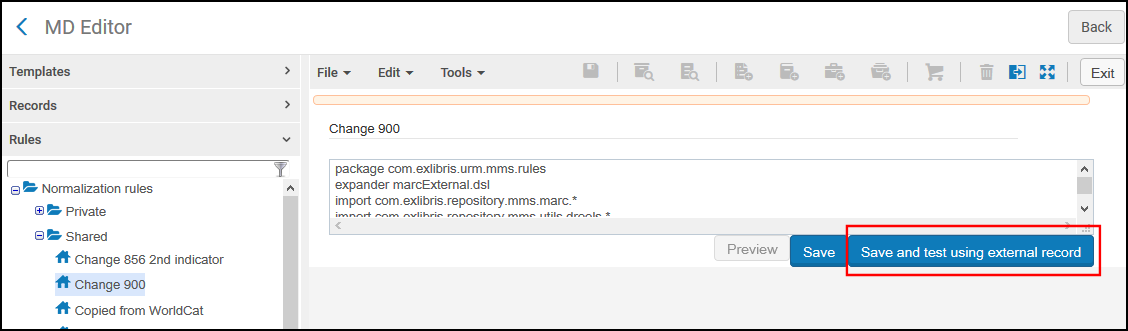
Importing External MARC21 Records
The following changes have been made to the Import Profile Details page (Configuration Menu > Discovery > Loading External Data Sources > Discovery Import Profiles) to allow you to import MARC21 data from external sources:
-
On the Profile Details tab (Step 2):
-
The MARC21 Bibliographic option has been added to the Source Format and Target Format fields.
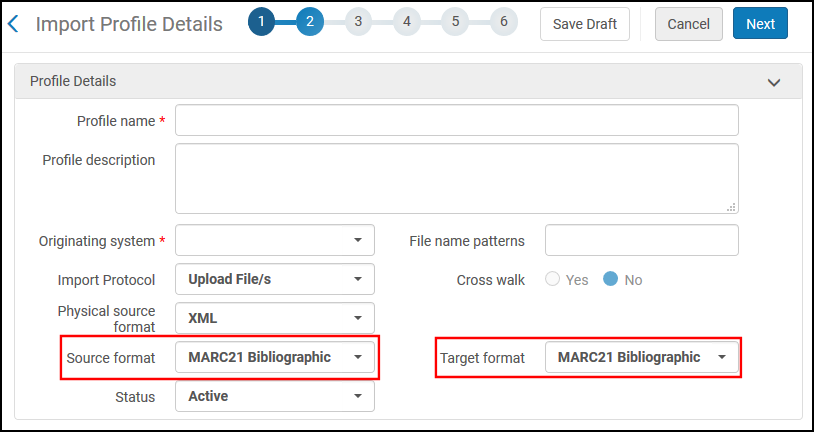 Import Profile Details Page (Step 2 - Profile Details Tab)
 -
The Originating Source field has not changed, but you should specify Other for MARC21 sources.
-
-
On the Delivery tab (Step 4):
-
The following fields were added for the Static URL from Source fields for the resource and thumbnail links to allow you to map information from the MARC21 source:Field,Ind1,Ind2, and Subfield.
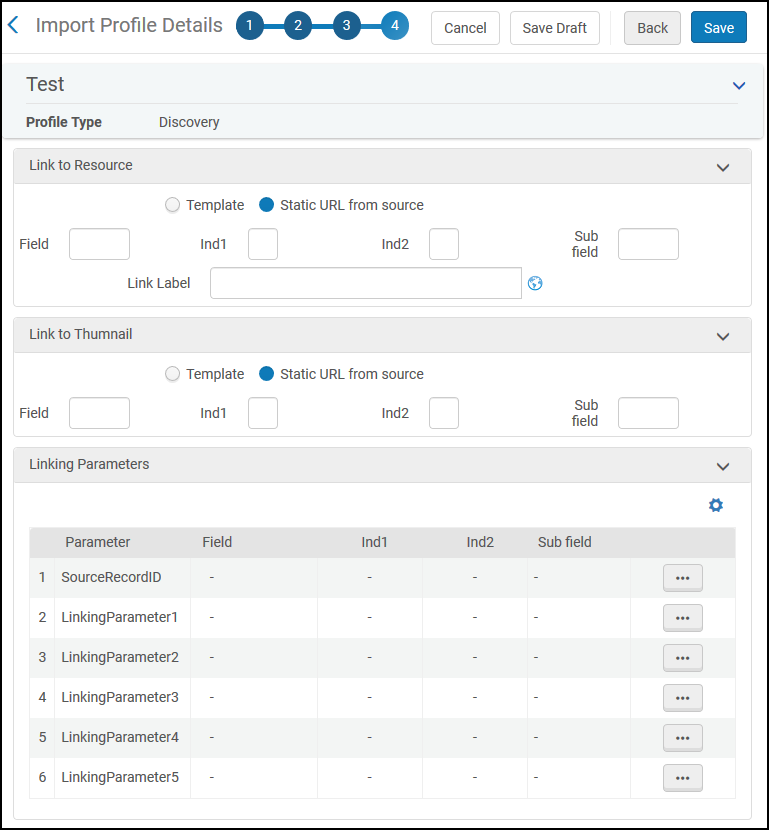 Import Profile Details Page (Step 4 - Delivery Tab)
 -
The Linking Parameters section, has been modified to allow you to map information from the MARC21 source, using the following fields:Field,Ind1,Ind2, and Subfield.
-
For more information on import profiles, see Configuring Import Profiles for Primo VE.
Add Article Information to Journal Purchase Request
December 2018URM-90814 This enhancement improves purchase requests for journals by ensuring that Primo VE sends the following article information to Alma in the Requester note field: Article title, Start page, End page, and Pages. Before approving and ordering the requested item in Alma, a staff member must edit the request and add an Owning Library and Location.
RefWorks Mapping Improvements
December 2018URM-94946 The following changes were made to the Export to RefWorks action to improve the mapping of PNX fields to RIS tags:
-
The secondary authors in the addata/addau PNX field are now mapped to the AU tag instead of the A2 tag (which is no longer mapped).
-
The first author in the addata/au PNX field is now mapped to the A1 tag.
-
Only the numeric portion of the edition in the addata/edition PNX field is mapped to the ET tag.
For a complete list of RefWorks mappings, see Export Mappings for the RefWorks Action.
Search Response Time Improvements
December 2018URM-96447 As always, we keep working on performance improvements. In this release, many optimization improvements were made to the results page. We will continue our efforts to add ongoing performance improvements in future releases.
Indexing of MARC 750
December 2018URM-96675 Primo VE now indexes the MARC 750 a,b, v, x-z subfields to allow the data to be searched by Subject in Primo VE. For more details, see Primo VE Search Section.
Improved Hebrew Search Capabilities with Melingo
December 2018URM-50595 This enhancement utilizes Melingo tools to improve Hebrew search capabilities.
Create Custom Search Scopes for Other Institutions
December 2018URM-89955 Previously for consortia, users were permitted to search for inventory in their home institution and the entire network. This enhancement allows you to configure custom scopes that provide a more granular search of inventory from other institutions, which may include the following granularity:
-
Scopes that include your institution or another institution in the network.
-
Scopes that include a specific library in your institution or another institution in the network.
-
Scopes that include a specific type of metadata (such as images) in the entire network.
To support this functionality, the following changes have been made to the Define a Custom Scope page (see Defining a Local Data Scope for more details):
-
The Scope Population field has been added to the Scope Details section and includes the following options:
-
My Institution – Indicates that the custom scope includes inventory from your institution only. This provides the same functionality as provided previously.
-
Entire Network – Indicates that the custom scope includes inventory from your institution and/or other institutions in your network.
Define a Scope Page -
-
When Entire Network is selected, the following options appear for the Search Index field in the Add a Condition dialog box:
-
Network Inventory > Other institution – Allows you to limit searches to your institution or another institution in the network.
-
Network Inventory > Other Institution Libraries – Allows you to limit searches searches to a specific library at your institution or another institution in the network.
-
Metadata – Allows you to limit searches to specific metadata in the entire network.
Add a Condition Dialog Box - Entire Network OptionYou can define up to three conditions for each custom scope. If you need to support more institutions/libraries, create a custom scope for each institution/library and link them to a search profile.
-
Support Thumbnails from Other Sources - Additional Conditions
December 2018URM-95705 The Define Thumbnail Link page allows you to define templates for additional thumbnail sources, which are based on either a URL in the bibliographic record or a template that contains parameters. This enhancement allows you to specify conditions on the MARC field that holds the value of the linking parameter. For more information, see Configuring Thumbnail Templates for Primo VE.
To support this functionality, the following fields were added to the Define Thumbnail Link page (Configuration Menu > Discovery > Display Configuration > Thumbnail configuration):
-
Use Field- Select one of the following options to indicate whether the MARC field must contain a specific value:
-
Always- No matching string is necessary. The value is always used. Previously, this was the default and only behavior.
-
Matching string- The value of the field must match the string specified in the Field Pattern field.
-
Matching string using a regular expression- The value of the field must match the result of the regular expression specified in the Field Pattern field.
-
-
Field Pattern- If matching is necessary, specify the string that you want to match.
Normalization of Display Fields and Local Display Fields
November 2018URM-83375 This enhancement allows you to create MARC21 normalization rules, which allow you to alter the presentation of the out-of-the-box display fields and any local display fields that you have created in Primo VE. The normalization rules are applied immediately to the records for discovery.
Configuration Options
To support this functionality, the following changes have been made:
-
The name of the Local Fields page has been changed to Display Fields.
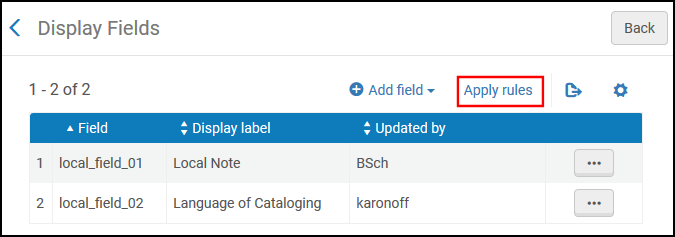 Display Fields Page
 -
The Display Fields page is accessed by selecting Configuration Menu > Discovery > Manage display and local fields.
-
The Apply rules option has been added to the Display Fields page to apply changes to all updated normalization rules.
-
The following changes have been made to the Define a Local Field page:
-
It is now accessed by selecting Add field > Add local field on the Display Fields page.
-
The configuration fields from the previous version of the page have been moved to a new tab called Bibliographic Local Field Mapping.
-
The Normalization Rules (for display) tab has been added to allow you to add normalization rules for the display of local fields. For more information on how to add MARC21 normalization rules for Primo VE, see Configuring Normalization Rules for Display and Local Fields.
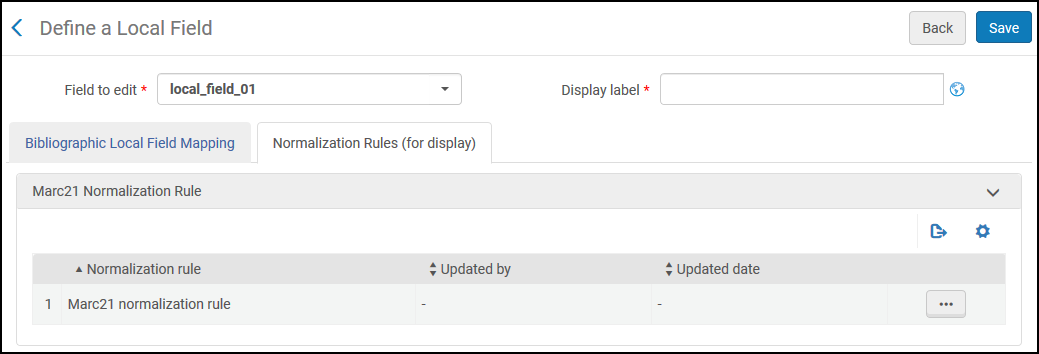 Define a Local Field Page (Modified)
 -
When editing a normalization rule for a local display field, Primo VE provides a normalization template to assist in the creation of the field's normalization rule. You have the option to save your changes (Save), cancel changes to current session (Close), or restore the default template (Restore Default).
 Edit Normalization Rule Dialog Box for Local Display Field
-
-
The Define a Display Field page has been added to allow you to to add normalization rules for display fields (such as Creator and Contributor).
-
This page is accessed by selecting Add field > Add display field on the Display Fields page. For more information on how to add MARC21 normalization rules for Primo VE, see Configuring Normalization Rules for Display and Local Fields.
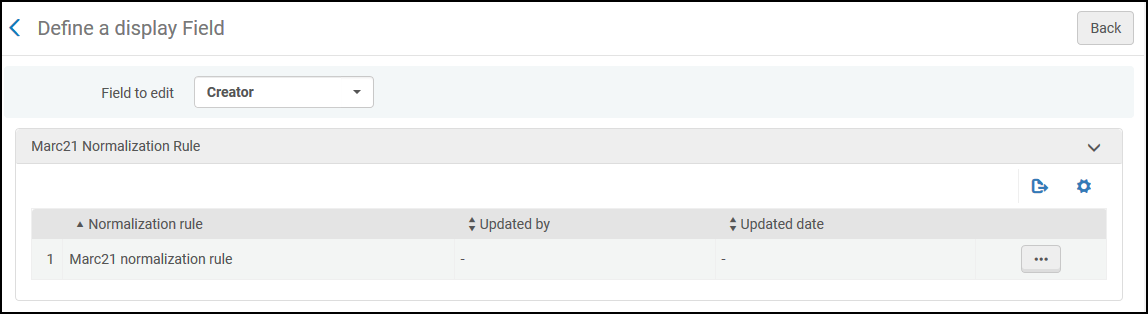 Define a Display Field Page (New)
 -
When editing a normalization rule for an out-of-the-box display field, Primo VE displays the out-of-the-box normalization rule, which can be modified as needed. You have the option to save your changes (Save), cancel changes to current session (Close), or restore the out-of-the-box rule (Restore Default).
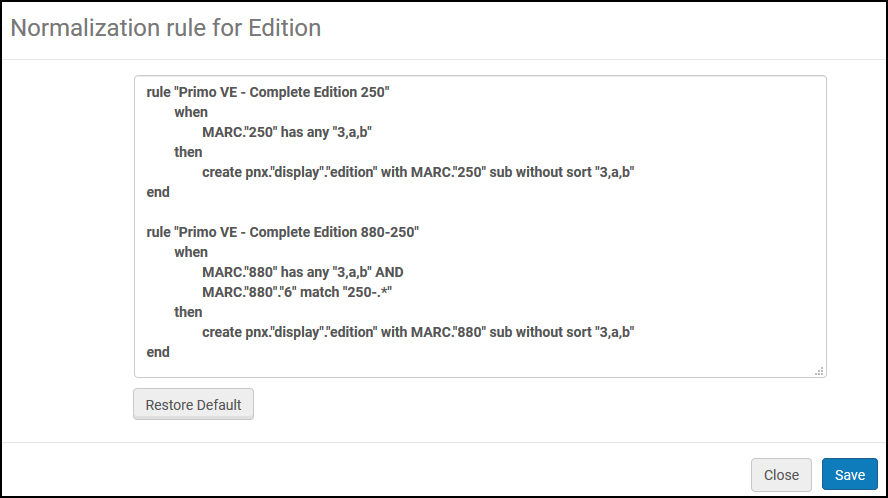 Edit Normalization Rule Dialog Box for Edition Field
-
Browse Databases by Category
November 2018URM-83375 The Database Search page has been enhanced to allow users to display a list of databases by clicking specific categories and subcategories up to three levels.
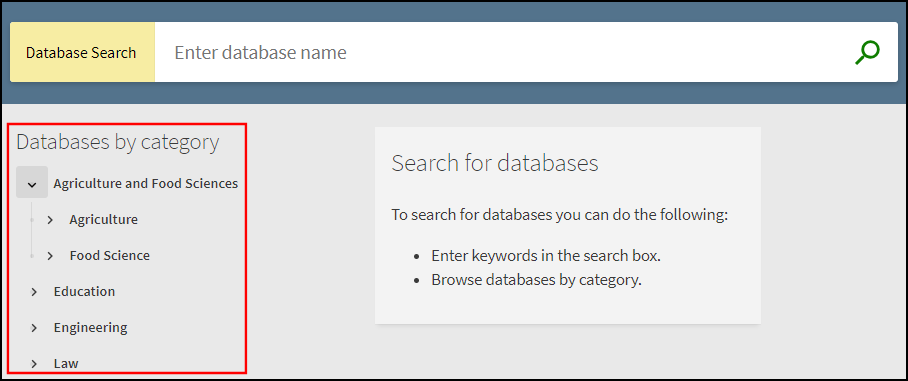
When the Database Search page opens, the categories display the first category level only. Users can select the icon to display the category's next level.
For more information on Database Search, see Configuring Database Search for Primo VE.
Assigning Categories to the Database Records
This features requires you to apply database categories, which can contain up to three category levels, to the bibliographic records of your local databases.
-
Choose a local bibliographic field (for example, select any 6XX or 9XX field for MARC21) in which to store the database categories in your local bibliographic records, and then enter that field in the db_categories_field parameter on the Alma Customer Parameters page (Configuration Menu > Resources > General > Other Settings).
Administrators will need one of the following roles to update the above parameter:
-
Catalog Administrator
-
Repository Administrator
-
General System Administrator
-
-
For each local database, use the Metadata Editor (Resources > Cataloging > Open Metadata Editor) to add the chosen MARC field with the following subfields to assign up to three category levels: $$a (level 1), $$b (level 2), and $$c (level 3). For example:
699 ##$aEducation $bMedical $cFitness
699 ##$aEducation $bHealth
As shown in the example above, a database can belong to more than one category/subcategory.
-
Enable the Creates DB Categories File job (Admin > Monitor Jobs > Scheduled tab) under the Discovery filter to update the record's categories for discovery in Primo VE. This job is scheduled to run daily.
Customizing the Display Labels
The following codes have been added to the Database Search Labels code table (Configuration Menu > Discovery > Display Configuration > Label) to support the new display text on the Database Search page:
| Code | Description |
|---|---|
|
dbcategories.databases |
Search for databases |
|
dbcategories.description |
To search for databases you can do the following: |
|
dbcategories.option1 |
Enter keywords in the search box. |
|
dbcategories.option3 |
Browse databases by category. |
|
dbcategories.results |
databases found for |
|
dbcategories.title |
Databases by category |
Creating Translations for Categories
In addition to the labels that appear on Database Search page, the Database Search Labels code table allows you to translate your categories to other languages.
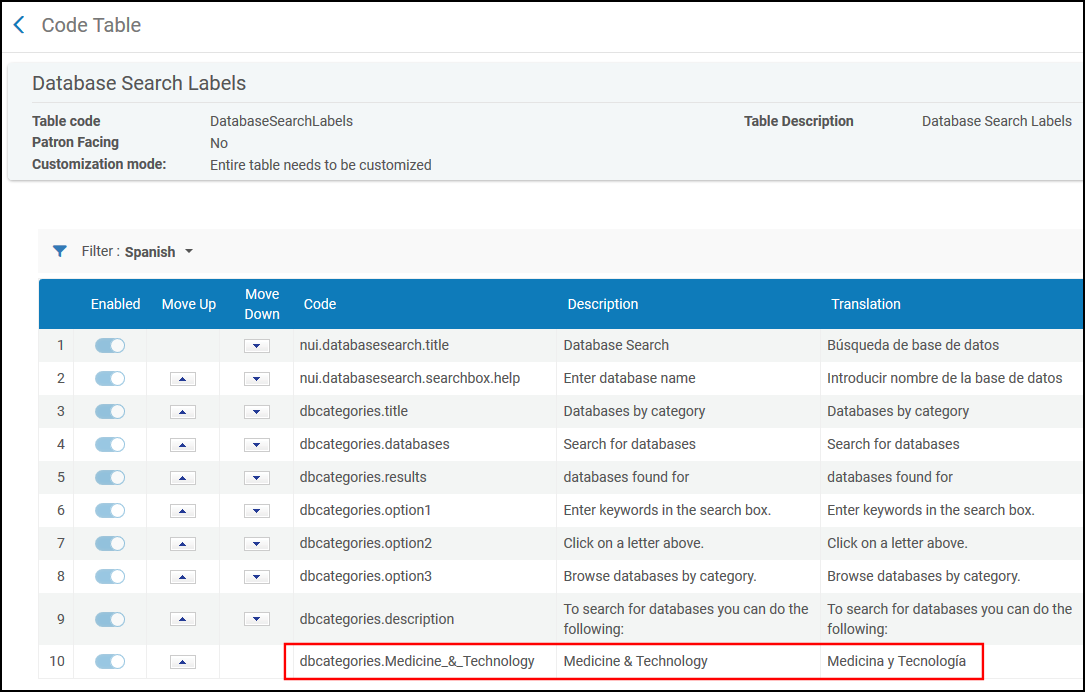
When creating a translation for a category, make sure that the code name is the same as the English translation (which is the default translation) of the category and that all spaces in the category are changed to an underscore (_). For example, if your category is Medicine & Technology, the value of the translation's Code field should be dbcategories.Medicine_&_Technology.
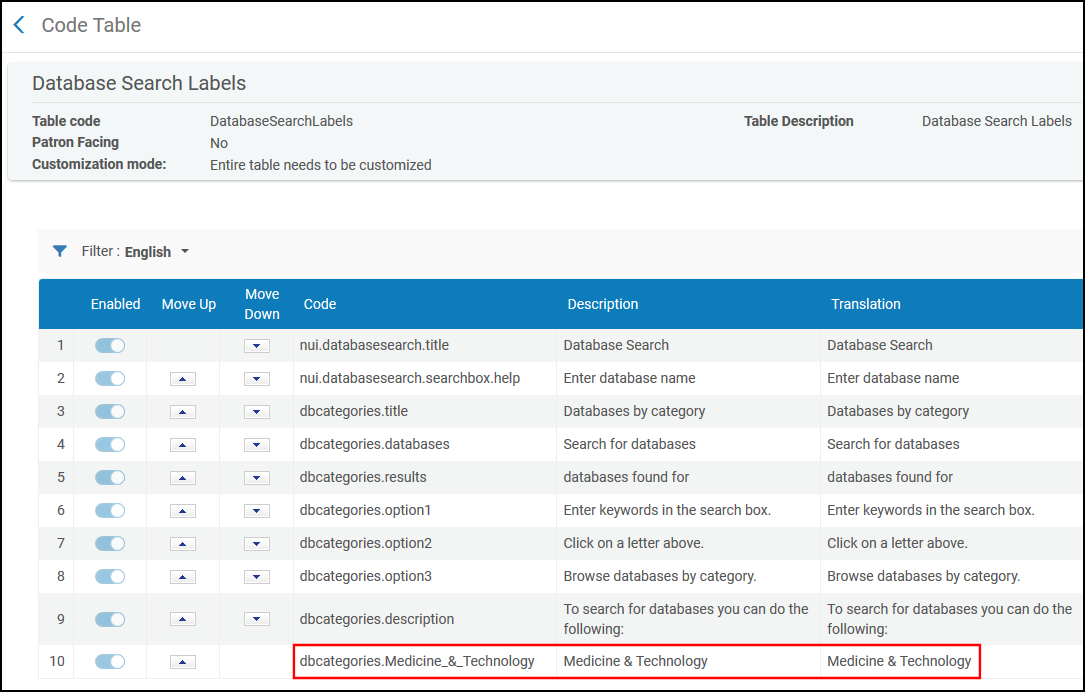
To add a translation for another language (such as Spanish), select Spanish from the Language filter drop-down list and enter the category's translation in the Translation field. The Description field for all languages should contain the default English translation of the category.
Direct Linking from Brief Results
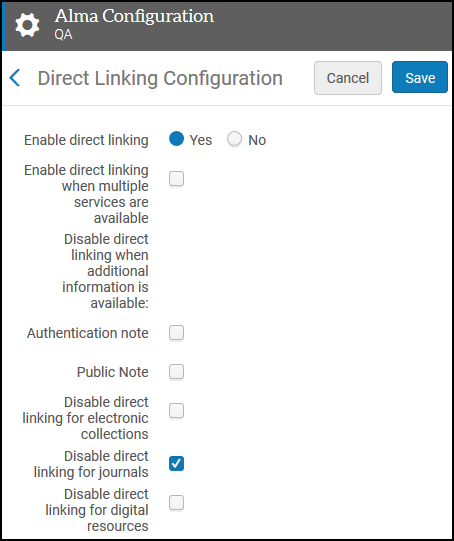
November 2018 This enhancement uses existing Alma configuration to enable direct linking for online records. When direct linking is enabled, users are directed to the full text after selecting the record's availability status in the brief results. Otherwise, the user is directed to the full display of the record, where access to the record's full text is provided in the View It section.
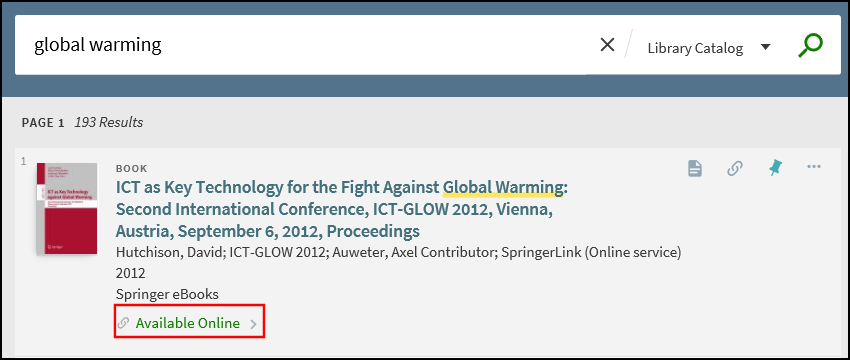
For details on configuring direct linking, see Enabling Direct Linking for Primo VE.
Additional API Support
November 2018URM-83375 Primo VE now supports the following APIs:
-
Primo User JWT – Returns a token that allows you to perform searches for restricted material and to display information for a specific user's My Favorites.
-
Primo Configuration – Returns view, institution, and general configuration information that is associated with the specified view.
-
Primo Translations – Returns the translations for all code labels based on a specified language.
-
Primo Favorites – Returns information from the user's My Favorites. This API requires you to get a token using the Primo User JWT API.
For more details on each API, see Ex Libris Developer Network.
Improved Display of Institutions in My Library Card
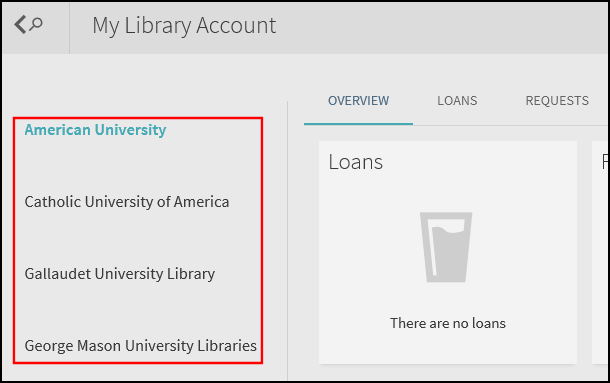
November 2018URM-83375 In multi-institution networks, users are permitted to perform requests for specific institutions. Previously, users had difficulty locating the Location drop-down menu that allows users to display request information per institution in My Library Card. This enhancement allows users to easily switch between institutions to see relevant information by clicking an institution name from the page's left panel.
Boolean Operators for Additional Languages
November 2018URM-83375 For searches in English, the Boolean operators (AND, OR, and NOT) allow users to create more complex search queries in both basic and advanced searches. This enhancement adds the Boolean Operator mapping table, which allows you to configure these operators for other languages. For more information, see Configuring Boolean Operators for Primo VE.

That Boolean operators must be all capital letters.
Support Translations for Local Facet and Display Values
November 2018URM-83375 This enhancement allows you to define and use translations for local facet/display field values. If no translation is provided, Primo VE will display the value provided by the source record.
To support this functionality, the following changes have been made:
-
The Local Fields page (Configuration Menu > Discovery > Display Configuration > Manage Local Fields) has been removed and its functionality is now handled by the Display Fields page (Configuration Menu > Discovery > Display Configuration > Manage Display Fields). To open the Define a Local Field page, you must select Add local field from the Add Field drop-down list:
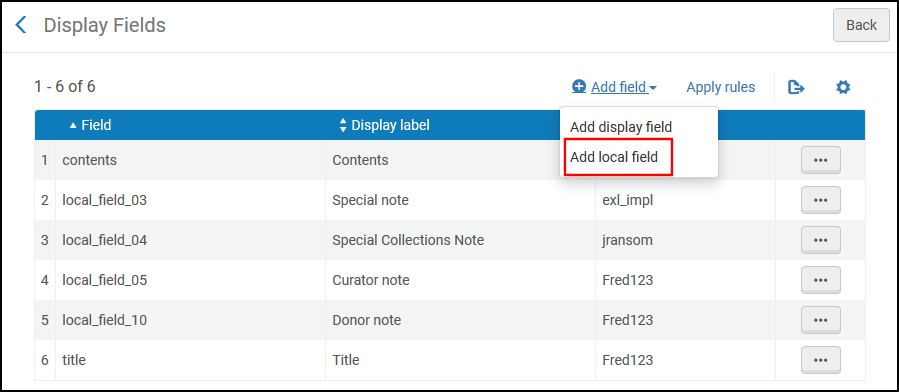 Accessing the Define a Local Field Page
 -
The Use Translations option has been added to the Define a Local Field page (Configuration Menu > Discovery > Display Configuration > Manage Display Fields) to allow you to configure whether a local facet or display field contains translations for the local field's values.
 New Use Translations Option
 -
The Local Field Translate code table has been added to define the values for the local facet and display values. If the Use Translations option is selected for a field and a corresponding value is not defined, Primo VE will display the value supplied in the source record. For each mapping row, use the value of the mapped subfield. For example, if you are mapping the MARC 907 $$a subfield to a local field, you would create a code for each value and modify the Translation field as needed per language:
Mapping:
907 $a 610medicineAndHealthCode:
610medicineAndHealthDescription(English):
Medicine and HealthTranslation(Spanish):
Medicina y Salud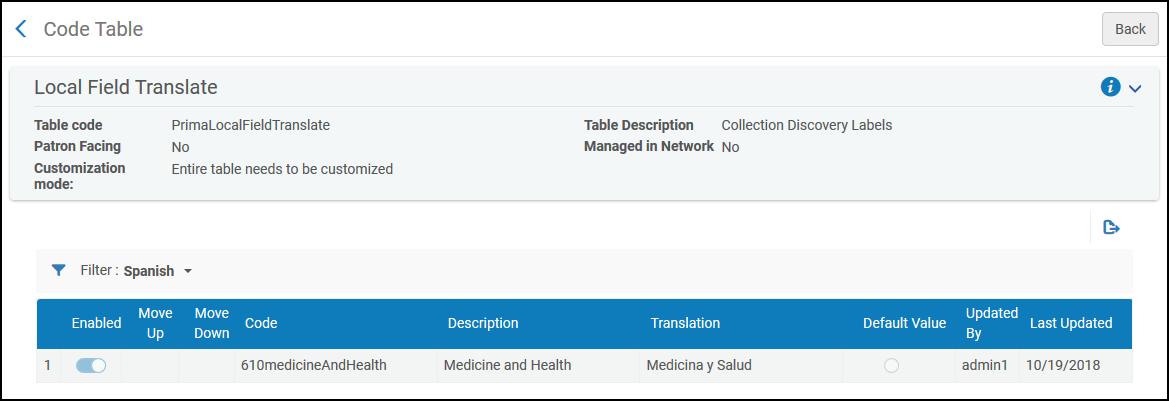 Local Field Translate Code Table
UNIMARC Improvements
November 2018URM-83375 The following issues have been resolved to improve the normalization and display of UNIMARC records in Primo VE:
-
For the UNIMARC 011 field, Primo VE now displays the ISSN label for the $$a subfield in the record's full display.
-
The UNIMARC 205 field has been added to the Brief Record Display.
Japanese Index and Search
November 2018URM-83375 To support Japanese searches, the following areas are now supported:
-
Indexing:
-
1-gram
-
Normalization of special characters (based on mapping)
-
Variant Kanji
-
Hirgana - Katakana
-
Half-width
-
Full width
-
Punctuation marks are removed
-
-
Search:
-
BASIS to tokenize the search query
-
Search for each token as a phrase
-
Normalization (based on mapping)
For example:
ABCD, which composes the words AB & CD, would be indexed as A_B_C_D and searched as “A_B” AND “C_D” (and not ‘char by char’). -
-
Sort:
Ranking is based on Basis tokens:
-
With exact match first
-
According to field weight
-
Newspaper Search Interface
October 2018URM-91826 The Newspaper Search page (which is accessed by clicking the Newspapers link in the main menu) has been added to allow users to search only for newspaper content from a separate index that contains various and more specialized newspaper collections. The results page shares the same configuration as the regular results page and contains the same pagination, navigation, and sort options and facets. For information on how to configure this interface, see Configuring Newspaper Search for Primo VE.
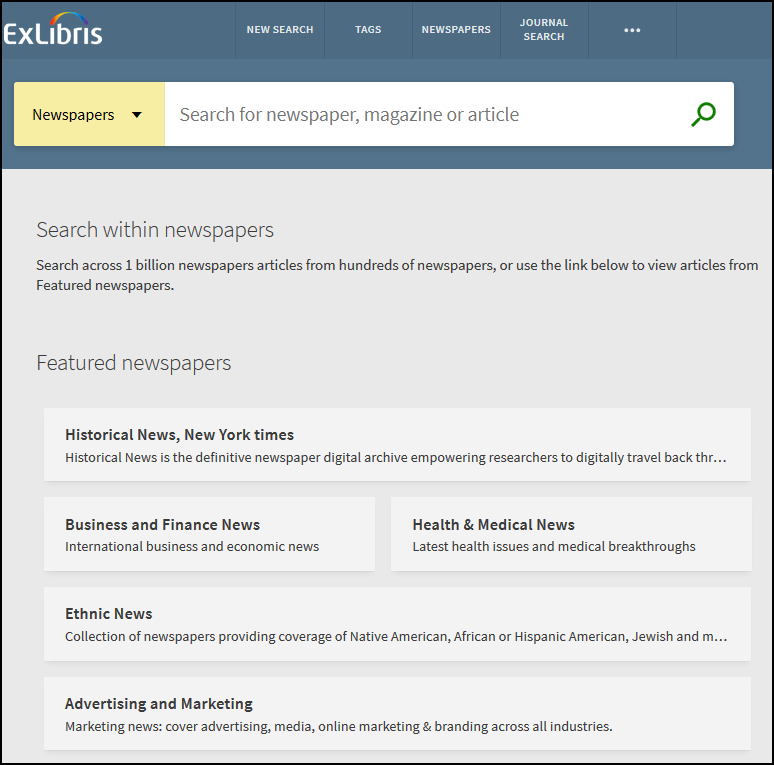
When the Newspaper Search feature is enabled in Alma:
-
Searches using the Primo Central index will no longer return newspaper content, but it may include newspaper content from other indexes in blended searches.
-
Newspaper collections that were not provided by Primo Central previously will require activation in the Primo Central registration system to allow discovery with the new Newspaper Search interface.
Featured Newspapers
When Featured Newspapers functionality is enabled, users can also search from newspapers that you have selected and categorized using either of the following methods:
-
Click a link in the Featured Newspapers section to display all matching results for the selected category, From these results, users can then search within the selected category to narrow the search.
-
Select the Featured Newspapers option in the search box, specify a search string, and then select the category from an additional drop-down list that appears in the search box.
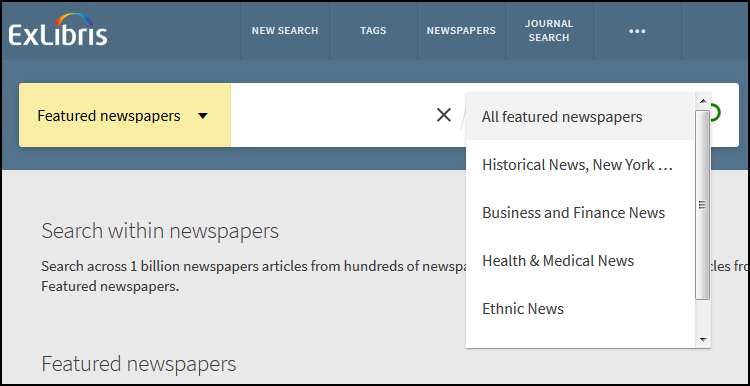 Featured Newspapers Search Option
Newspaper Search Link
When the Newspaper Search feature is enabled, the Newspapers search link appears in the following areas of Primo Central search results to allow users to access matching newspaper content in the Newspaper Search interface:
-
The bottom of Primo Central search results:
Newspapers Search Link -
The top of the Resource Type facet value list in the Tweak my results section:
Newspapers Search from Tweak My Results Section
Apply Actions to Bulk Requests and Loans in My Library Card (NERS 3441)
October 2018URM-91826 This enhancement allows users to select one or more items on the Loans and Requests tabs in My Library Card and perform the following actions: Export BibTex, Export RIS, RefWorks, EndNote, EasyBib, Email, Print, and Save to My Favorites.
From My Library Card, users can also display the item's full details by clicking the item's title on the Loans and Requests tabs in My Library Card.
Improve Facet Display with Text Wrapping
October 2018URM-91826
This UX improvement improves the formatting of long facets by allowing them to wrap to the next line instead of truncating the facets and placing an ellipsis at the end. This change will become the default format for facets in this release since this enhancement originated from community feedback.
This change may impact existing customizations to the facet area.
Add Next/Previous Capability to Full Display
October 2018URM-91826 This enhancement allows users to navigate between items in the search results without returning to the Brief Results page. After performing a search (which includes simple, advanced, journal, database, and newspaper) and displaying an item's full details, users will be able to view the full details of the next or previous item in their search results by clicking the arrows.
In addition, users can step through items saved in My Favorites in the same manner.
Support Indexing of External Full Text
October 2018URM-91826 This enhancement allows you to index full text that is externally held in a file of type PDF, TXT, or HTML for discovery. To use this functionality, you must store the link to the externally-held full text in the local search field. During the indexing of the local fields, Primo VE will perform the following actions on each of the full text records:
-
Remove stop words based on the language.
-
Remove HTML tags.
-
Index up to 10,000 terms.
To support this functionality, the Use full text links for indexing option has been added to the Define a Local Field page (Configuration Menu > Discovery > Display Configuration > Manage Local Fields). It allows you to configure a single local field that contains a link to the externally-held full text. You can assign this option only to one local field.
Support Simple Base URL Format for Services Page
October 2018URM-91826 In order for third-party sources to display Alma services, you had to instruct the sources to send a base URL in the following format for Primo VE:
Where the base URL includes the following elements:
-
Primo_domain– Specify the domain for your Primo server.
-
Alma_institution_code– Specify the institution code defined in Alma.
-
view_code– Specify the code that is defined for your view on the View Configuration page. For example:01MY_INST:MyView.
For example:
This enhancement allows you to use the following format for vendors that do not support the above format, which includes a question mark (?) before the parameters:
For example:
Define Hypertext Links in Display Fields
October 2018URM-91826 This enhancement allows you to provide hypertext linking for any display field, including local display fields. Out of the box, the following hyperlinked display fields are supported: Creator, Contributor, Subject, Series, Related titles, Is part of, and MESH subjects. In addition, the Includes and Related Works fields are defined, but are not enabled.
If the display field contains the $$Q subfield, the system will perform a search using the contents of the subfield instead of the display text when a user clicks the display field's hypertext link. Currently, only Primo Central records contain enhanced linking information. In the next release, you will have the ability to add enhanced linking information for local records.
<creator>Fitzgerald-Jones, Sandra 1938- interviewer $$QFitzgerald-Jones, Sandra</creator>
Configuration Options
To support the definition of hypertext links for display fields, the Hypertext Linking Definitions page as been added. For more information, see Configuring Hypertext Link Definitions for Primo VE.
Support Thumbnails from Other Sources
October 2018URM-91826 For data managed in Alma, Primo VE previously supplied book covers based on the ISBN/ISSN from Syndetics and Google. This enhancement allows you to define additional thumbnails sources, which are based on either a URL in the bibliographic record or a template that contains parameters.
To support this functionality, the Thumbnail Configuration page (Configuration Menu > Discovery > Display Configuration > Thumbnail configuration) has been added to configure additional thumbnail templates.
For information on how to add templates, see Configuring Thumbnail Templates for Primo VE.
Because Primo VE's UI is SSL secure, the thumbnail links should start with https.
Define Default Libraries to Display in Get It
October 2018URM-91826 This enhancement allows you to define a list of default libraries that will appear in the Get It service for a record on the Full Display page. When configured, the following location filtering options are available to users:
-
If the record is found at one or more of the default libraries locations and any other location, the following message appears instead of the Filter icon:
The view is filtered. Unfilter
Filter Message DisplayedSelecting the Unfilter link displays the full list of locations and the Filter icon.
Full List of Locations and the Filter Icon -
If the record is found only at locations other than the default locations, the same message displays above an empty list:
Empty List with Filtered Message -
If the record is found only at one or more of the default libraries locations, the Filter icon appears above the entire list of locations:
Full List with Filter Icon
Configuration Options
The Primo View Mapped Into Alma Libraries page has been added to support the configuration of the default library list. For more information, see Filtering the Library List for Availability in Primo.
To support this functionality, the following display labels were added to the GetIt! Tab1 Labels code table:
| Code | Description |
|---|---|
|
nui.locations.prefilter.unfilter |
Unfilter |
|
nui.locations.prefilter.filtered |
This view is filtered. |
Support for the Differentiation of Author and Contributor Data in Ranking
October 2018URM-91826 This enhancement separates the indexing of the contributors and authors to give authors higher weight when determining the rank of records listed in Primo VE's search results. To support this functionality, the search/creatorcontrib field has been split into the following fields:search/creator and search/contributor.
Support Display of Main Menu Links on the Services Page
October 2018URM-91826 This enhancement allows you to configure and display the Main Menu links on the Primo Services page in the new UI. Previously, this functionality was disabled on the Primo Services page, which displays the details of an item discovered with an external discovery interface (such as Google Scholar).
Configuration Options
The following configuration is necessary to display Menu links on the Services page.
-
Edit your view's customization package on the View Configuration page (Configuration Menu > Discovery > Display Configuration > Configure Views). For more information, see Branding Your View.
-
Add the following stanza to the custom1.css file under the css folder.
prm-topbar .isDeposit, prm-topbar .isServicePage, prm-topbar .isSummonOverAlma {
display: inline;
}
-
Upload and save your changes.
Support for Book Chapter Resource Types
October 2018URM-91826 In June, the ability to filter books and book chapters separately was introduced for Primo Central records. For MARC21 and KORMARC, this enhancement extends this capability to new and saved local records by adding the following mappings for the Book Chapter resource type:
Leader(06-07) = aa
OR
Leader(06-07) = ab AND 008(21) = M
For articles, the mapping will remain as is:
Leader(06-07) = ab AND 008(21) <> L,M,d,w
New Sign-in and User Area Menus
August 2018URM-91826 The sign-in area in the new UI has been improved to allow users to sign in with fewer actions and to access user area options more easily. Previously, users had to select the user/language selector area and then select Sign in. With this enhancement, users are provided with a new Sign in button and a Menu drop-down list.
For guest users, the new Menu drop-down list allows users to change the display language, sign in and access My Library Card, view their search history and saved searches.
After signing in, the Sign in and Menu options are replaced with the user's sign-in name, which serves as the Menu drop-down list and includes additional options relevant to signed-in users:Sign Out,My Loans, and My Requests.
Configuration Options
The following table lists the settings used to configure this functionality.
| Element | Description |
|---|---|
|
User Tile Labels code table |
The following codes were added to support this functionality: eshelf.menu.displayLangNew:Display Language: eshelf.signin.menu:Menu eshelf.menu.searchHistory:Search history eshelf.menu.savedItems:Saved items eshelf.menu.myrequests:My Requests eshelf.menu.myloans:My Loans |
|
User Space Menu Labels |
The following codes were added to support this functionality: nui.menu.librarycard:My Library Card |
|
CSS |
Customers who have customized the previous sign-in area can disable the new sign-in area by adding the following elements to their CSS file in their view's customization package: prm-user-area { display:block!important; } prm-user-area-expandable { display:none!important; } |
Display of Enhanced Holdings Information in Get It
August 2018URM-69617 The following changes have been made to enhance the Get It service and its configuration:
-
Changed the name of the Request Configuration submenu on the Discovery configuration menu to GetIt Configuration.
-
Moved the Display Items option under the Display Configuration submenu to the GetIt Configuration submenu and changed its name to Items Display Configuration.
-
Added the following options to the GetIt Configuration submenu:Holdings Display Labels and Holdings Display Configuration, which are ignored unless you set the uresolver_enable_getit_holding_configuration customer parameter to true(Configuration Menu > Fulfillment > General > Other Settings).
Holdings Display Configuration Option
The new Primo Customized Holding mapping table allows you to map information from the source's holdings record to Primo VE for display in the following fields in the Get It section of the record's full details: Holdings, Supplementary Material, Note, Binding, Source of Acquisition, Ownership of Custodial History, and Indexes. For example, you can map MARC 866 a,z to the Holdings display field.
For each mapping row, you can specify the following information: holdings field, holdings subfield, label for the display field, and the CSS class if you want to apply special formatting.
To enable the system to use the mappings in this table, you must set the uresolver_enable_getit_holding_configuration customer parameter to true(Configuration Menu > Fulfillment > General > Other Settings).
The following example shows the display of the Holdings and Note fields.
Holdings Display Labels Option
The Holdings Display Labels and Order code table has been added to configure the display fields associated with holdings information. This table allows you to perform the following actions:
-
Enable/disable holdings display fields.
-
Specify the order of the holdings display fields.
-
Customize and translate the display labels for each of the holdings display fields.
The following codes were previously hard-coded and are now configurable:SUMMARY_HOLDING,SUPPLEMENTARY_MATERIAL, and PUBLIC_NOTE.
The following codes have been added with this release and are also configurable with the new code table:binding,source_of_acq,ownership, and indexes.
To enable the system to use the settings in this table, you must set the uresolver_enable_getit_holding_configuration customer parameter to true(Configuration Menu > Fulfillment > General > Other Settings).
Use of MARC 856 to Display Electronic Holdings in View It Service
August 2018URM-7011 In order for a record to be considered as an online record, it should have electronic or digital inventory in Alma. Otherwise, the record is considered a print record by default. This enhancement allows you to treat records with an 856 subfield u in the holdings as online records, even if they do not have electronic or digital inventory in Alma.
If this functionality is enabled, these records are handled as follows:
-
In the record's brief display, the Available online status will display.
-
In the record's full display, the link displays in the View it service coming from the holdings 856 subfield u.
-
These 856 u records are now included in the Available online facet.
The online status and delivery will be in addition to any physical availability indication.
Configuration Options
The Display_856_in_the_holdings_as_viewit discovery parameter (Configuration Menu > Discovery > Other > Customer Settings) has been added to configure the treatment of holdings records that have an 856 u field:
-
true – If the holdings record has an 8564 u field and the second indicator is not 2, the View It service will appear and contain a link based on the 856 u field.
-
false – The View It service will not display for the holdings record. This is the default option.
-
IgnoreFirstIndicator – If the holdings record has an 856 u field and the second indicator is not 2, the View It service will appear and contain a link based on the 856 u field.
Support for Additional Citation Styles
August 2018URM-77500 This enhancement adds support for the following citation styles in the Citation action:Harvard and MLA (8th edition).
Open Access Indication and Facet for Primo Central Records
August 2018URM-83338 This enhancement increases the visibility and accessibility of open access articles by flagging them with an Open Access icon and text indication in Primo VE. For more details, see Open Access Indication in Primo VE.
In addition, users can select the new Open Access top-level facet to display only open access records.
Configuration Options
This feature is enabled by default, but you may customize the display labels using the following code tables:
-
Results Tile Labels – defines the labels shown in the results for open access records:
Code Description fulldisplay.constants.open_access.tooltip
Open Access
fulldisplay.constants.open_access_icon
OPEN ACCESS
-
Top Level Facet Labels – defines the top-level facet that displays for open access records:
Code Description facets.facet.tlevel.open_access
Open Access
Link to Access Primo Studio
August 2018URM-83573 This enhancement adds the Go to Primo Studio link to the View Configuration page (Configuration Menu > Discovery > Display Configuration > Configure Views) so that you can interactively customize various aspects of your view and then download the customized package for deployment to your view. For more information on Primo Studio, see Using Primo Studio.
Mapping Table for Mapping External Data to Resource Type
August 2018URM-87995 This enhancement allows the use of the new Dublin Core Type to Discovery Type Mapping mapping table instead of normalization rules to map Dublin Core resource values to the values used in Primo VE.
To provide access to this mapping table, the Dublin Core Type to Discovery Type Mapping link has been added to the Loading External Data Sources submenu on the Discovery Configuration menu.
During normalization of the external records, Primo VE determine the record's resource type by checking the existence of the following fields in order and stopping when a match is found:
-
discovery:resourceType field (set using DC normalization rules)
-
dcterms:type field
-
dc:type field
If processing continues to items 2 and 3, the system compares the value of the item with the entries in the DC Type to Discovery Type code table. If a match is found, the discovery:resourceType field is set to the matching value in the mapping table. If no match is found and the mapping table has a default value, it will be used. Otherwise, the system will use the source's value for the matching item.
Removed Constraint for Showing Links from MARC 856 Fields
August 2018URM-93406 Previously, in order for links from the MARC 856 field in the bibliographic record to be displayed in the Links Section of the record's full display, the first indicator had to be 4 and the second indicator had to be either a 0 or 1. This has been changed to allow the second indicator to be either a 0, 1, or blank.
Decrease Ranking of Book Reviews in Primo Central Search Results
August 2018PRM-XXXXX This enhancement decreases the weight of book reviews to increase the ranking of books in the search results unless users specifically search for a book review.
This will be gradually rolled out.
Controlled Vocabulary Services for Your Local Primo Catalog
July 2018URM-83375 This service was first introduced in the September 2017 release. With this release, we are extending the ability to enhance a user's search query with words and phrases that constitute variations of the entered search terms to your local Primo catalog. To support this functionality for both Primo Central and your local Primo catalog, the Use Controlled Vocabulary Search Expansion field on the Central Index and Proxy Set-Up page (Configuration Menu > Discovery > Other > Central Index and proxy set-up) has been moved to the Discovery Customer Settings page (Configuration Menu > Discovery > Other > Customer Settings). For more information, see Search Expansion with Controlled Vocabulary.
For example, if the user enters heart attack in the query, Primo VE also returns results that include myocardial infarction. If the user is interested only in results that include heart attack, the user can click the link to the right of the recommendation.
Index the OCLC Number
July 2018URM-90510 This enhancement enables users to search for items using OCLC numbers, which are identified with the string OCoLC. Please note that this requires the OCLC number to be included in the MARC21 or UNIMARC source records 035 $a field, and the string OCoLC needs to exist in the value.
For example, if a source record contains the following information:
<datafield tag="035" ind1=" " ind2=" "><subfield code="a">(OCoLC)ocn911045704</subfield></datafield>
Primo VE will index the following OCLC information:
<oclc_nr>(OCoLC)911045704</oclc_nr> <oclc_nr>(OCoLC)ocn911045704</oclc_nr> <oclc_nr>911045704</oclc_nr>
Support for New Display Fields in the Record's Full Details
July 2018URM-89100 This enhancement allows you to display additional information for classic/canonical records (such as music collections) by adding the following display fields, which contain hypertext links that perform an exact search in any field when selected:
-
Related Work– This field uses the following normalization rules:
MARC 700 (only if $$t exists and the second indicator is anything except for 2):- Display $$i first if present.
- Display all remaining 700 subfields except $$x and numeric subfields.
- Link all of 700 strings except $$i and $$f.
Related Work Field in Details Service on Full Display Page -
Includes– This field uses the following normalization rules:
MARC 100/240:Take all subfields of 100 except $$e and numeric
Take 240 with all subfields (except numeric) and add to end of string
$$Q contains the entire string except for $$f (elements are separated by a space)
MARC 700 (only if $$t exists and the second indicator is 2):Display $$i first if present
Display 700 with all remaining subfields except $$x and numeric
$$Q (hypertext portion) includes the entire string except $$f and $$i (elements are separated by a space)
Includes Field in Details Service on Full Display Page
Selecting each of the new display field's hyperlinks performs an exact search on the display text. For example:
Configuration Options
To enable this functionality on the Full Display page, add the Includes and Related Work fields to the Details service. For more details, see Configuring the Details Service.
UNIMARC and CNMARC Display Elements
July 2018URM-89020 This enhancement provides additional support for UNIMARC and CNMARC display elements. For more information, see Mapping to the Display, Facets, and Search Sections in the Primo VE Record.
Relations in UNIMARC
July 2018URM-85520 This enhancement provides support for linking from a record's full display to other related records based on UNIMARC 4XX fields.
Support Save To Zotero
July 2018URM-82471 This enhancement enables Primo VE to save records to Zotero. If Zotero is invoked from the search results, all records are saved to Zotero. If Zotero is invoked from the record's full display, just that record is saved to Zotero.
The Zotero Connector add-on has been updated to include Primo VE values, and should be automatically updated for anyone who already uses it. You can also update Zotero manually by selecting Update Translators in the Advanced pane of the Zotero Connector preferences.
Book Chapters Facet for Primo Central Records
June 2018URM-90354 In the June 2018 release of Primo Central, the Books facet value will be split into two Resource Type facet values:Books and Book Chapters. To support this change, the following code has been added to the Facet Resource Type Labels code table:
| Code | Description |
|---|---|
|
facets.facet.facet_rtype.book_chapters |
Book Chapters |
Increased the Maximum of Number of Local Resource Types
June 2018URM-86831 Per customer request, the number of configurable local resource types has increased from 5 to 20. For more information on local resource types, see Configuring Local Resource Types for Primo VE.
Additional Configurable Labels for View It and Get It Elements
June 2018URM-78022 Primo VE now allows you to customize labels for elements within the Get It and View It sections on the record's full display page. For more information on display labels, see Configuring Display Labels for Primo VE. These labels can be found in the View It Labels code table (Configuration Menu > Discovery > Display Configuration > Label).
Support Discovery of Alma CNMARC Records
June 2018URM-76668 Primo VE now supports discovery for records that are cataloged in Alma in CNMARC format as it does for MARC21, UNIMARC, KORMARC, and Dublin Core. Records that are cataloged in CNMARC will be indexed for searching and/or displayed in Primo VE out of the box and do not require additional data loading or indexing. For mapping information, see Mapping to the Display, Facets, and Search Sections in the Primo VE Record.
Analytics for Primo VE Consortia
June 2018URM-86609 Primo VE now supports Primo Analytics for consortia within the Network Zone (NZ). Each member institution can access and run its own reports on its view's usage, as well as allowing the Network institution to run aggregated reports on network wide usage.
OpenURL Debug Tool
June 2018URM-76969 You can use a debugger tool to analyze the context services that are offered by the OpenURL Link Resolver. This enables you to perform basic troubleshooting. For more information regarding analysis, see Using the OpenURL Link Resolver Debugger Tool.
-
Search for an electronic record with Primo VE.
-
Open the record's full display page.
-
Add the following parameter to the end of the record's full display URL and then press enter:&displayCTO=true.
For example:
https://mylibrary.primo.exlibrisgroup.com/discovery/fulldisplay?docid=alma9926095600521&context=U&vid=MyLibrary:View1&lang=en &displayCTO=true
Display CTO Button Enabled on Full Display Page -
Click Display CTO to display the XML debugger output.
<u:uresolver_content xmlns:u="http://com/exlibris/urm/uresolver/xmlbeans/u"><u:context_object><u:keys><u:key id="rft.stitle">Test</u:key><u:key id="rft.pub">Springer</u:key><u:key id="rft.place">Berlin :</u:key><u:key id="licenseEnable">true</u:key><u:key id="memberProxyServer">http://www.securityninja.co.uk/wp-co...0/04/Burp3.JPG</u:key><u:key id="sfx.sid">primo.exlibrisgroup.com-alma_local</u:key><u:key id="memberProxyIp">192.116.1.1</u:key><u:key id="rft.jtitle">Test</u:key><u:key id="svc.profile">viewit</u:key><u:key id="rft.genre">journal</u:key><u:key id="memberUseProxy">Selective</u:key><u:key id="vid">EXLDEV1_INST:Alma</u:key><u:key id="institution">121</u:key><u:key id="rft.oclcnum">62155677</u:key><u:key xmlns:xsi="http://www.w3.org/2001/XMLSchema-instance"id="req.id"xsi:nil="true"/><u:key id="rft.mms_id">992723390000121</u:key><u:key id="rfr_id">info:sid/primo.exlibrisgroup.com-alma_local</u:key><u:key id="publication_place">Berlin :</u:key><u:key id="rft.object_type">JOURNAL</u:key><u:key id="memberProxyType">EZProxy</u:key><u:key id="rft.publisher">Springer</u:key><u:key id="Related_MMS">99100683500121 Precedes notClosely related to: 992723390000121</u:key><u:key id="rft.pubdate">Began with: Vol. 1, no. 1 (Dec. 1992).</u:key><u:key id="u.ignore_date_coverage">true</u:key><u:key id="rft.title">Test</u:key><u:key id="rft.lccn">2009252997</u:key><u:key id="customer">110</u:key><u:key id="rfr.rfr">primo.exlibrisgroup.com-alma_local</u:key><u:key id="rft.eissn">1863-8260</u:key><u:key id="rft.eissn">1133-0686</u:key></u:keys></u:context_object><u:context_services><u:context_service service_type="GeneralElectronicService"context_service_id="-227945983"><u:keys><u:key id="code">searchGoogle</u:key><u:key id="name">searchGoogle</u:key><u:key id="public_name">Search this title in Google</u:key><u:key id="url">https://www.google.com/#q=Test</u:key><u:key id="service_order">0</u:key></u:keys></u:context_service><u:context_service service_type="getFullTxt"context_service_id="2447395190000121"><u:keys><u:key id="package_name">Springer Link</u:key><u:key id="package_public_name">Springer Journals – Licence Nationale France</u:key><u:key id="package_display_name">Springer Journals – Licence Nationale France</u:key><u:key id="package_internal_name">LICENCE_NATIONALE_FRANCE_SPRINGER_LINK_JOURNALS</u:key><u:key id="interface_name">Springer Link</u:key><u:key id="package_pid">6113607570000121</u:key><u:key id="service_type_description">Full text available via</u:key><u:key id="character_set">iso-8859-1</u:key><u:key id="Is_free">0</u:key><u:key id="request_source">alma_local</u:key><u:key id="portfolio_PID">5312588470000121</u:key><u:key id="cz_link_id">533680000000167257</u:key><u:key id="electronic_material_type">JOURNAL</u:key><u:key id="Availability"/><u:key id="static_url">false</u:key><u:key id="parser_program">Bulk::JKEY</u:key><u:key id="parse_parameters">url=http://www.springerlink.com/openurl....urnal%26issn=&</u:key><u:key id="Authentication_note"/><u:key id="public_note"/><u:key id="proxy_enabled">false</u:key><u:key id="proxy_selected">DEFAULT</u:key><u:key id="related_title">@TITLE (@RelationType)</u:key><u:key id="is_related_service">false</u:key><u:key id="is_closly_related">false</u:key><u:key id="license_exist">false</u:key><u:key id="crossref_enabled">no</u:key></u:keys><u:resolution_url>/view/action/uresolver.do?operation=resolveService&package_service_id=2447395190000121&institutionId=121&customerId=110</u:resolution_url></u:context_service><u:context_service service_type="getFullTxt"context_service_id="2447395180000121"><u:keys><u:key id="package_name">Springer Link</u:key><u:key id="package_public_name">Springer Standard Collection</u:key><u:key id="package_display_name">Springer Standard Collection</u:key><u:key id="package_internal_name">SPRINGER_LINK_JOURNALS_STANDARD</u:key><u:key id="interface_name">Springer Link</u:key><u:key id="package_pid">619664630000121</u:key><u:key id="service_type_description">Full text available via</u:key><u:key id="character_set">iso-8859-1</u:key><u:key id="Is_free">0</u:key><u:key id="request_source">alma_local</u:key><u:key id="portfolio_PID">539725930000121</u:key><u:key id="cz_link_id">531000000000647495</u:key><u:key id="electronic_material_type">JOURNAL</u:key><u:key id="Availability">Available from 1997<br></u:key><u:key id="static_url">true</u:key><u:key id="parser_program">Springer::SPRINGER</u:key><u:key id="parse_parameters">url=https://link.springer.com& url1=https://rd.springer.com& code= & shib= & u_shib=&jkey=11749</u:key><u:key id="Authentication_note"/><u:key id="public_note"/><u:key id="proxy_enabled">false</u:key><u:key id="proxy_selected">DEFAULT</u:key><u:key id="related_title">@TITLE (@RelationType)</u:key><u:key id="is_related_service">false</u:key><u:key id="is_closly_related">false</u:key><u:key id="license_exist">false</u:key><u:key id="crossref_enabled">yes</u:key></u:keys><u:resolution_url>/view/action/uresolver.do?operation=resolveService&package_service_id=2447395180000121&institutionId=121&customerId=110</u:resolution_url></u:context_service><u:context_service service_type="getFullTxt"context_service_id="2447395170000121"><u:keys><u:key id="package_name">Springer Link</u:key><u:key id="package_public_name">Springer Journals – Licence Nationale France</u:key><u:key id="package_display_name">Springer Journals – Licence Nationale France</u:key><u:key id="package_internal_name">LICENCE_NATIONALE_FRANCE_SPRINGER_LINK_JOURNALS</u:key><u:key id="interface_name">Springer Link</u:key><u:key id="package_pid">6113607570000121</u:key><u:key id="service_type_description">Full text available via</u:key><u:key id="character_set">iso-8859-1</u:key><u:key id="Is_free">0</u:key><u:key id="request_source">alma_local</u:key><u:key id="portfolio_PID">5322731160000121</u:key><u:key id="cz_link_id">533680000000166124</u:key><u:key id="electronic_material_type">JOURNAL</u:key><u:key id="Availability">Available from 1986 until 1991<br></u:key><u:key id="static_url">true</u:key><u:key id="parser_program">Bulk::JKEY</u:key><u:key id="parse_parameters">url=http://www.springerlink.com/openurl....jkey=0213-8190</u:key><u:key id="Authentication_note"/><u:key id="public_note"/><u:key id="proxy_enabled">false</u:key><u:key id="proxy_selected">DEFAULT</u:key><u:key id="related_title">Trabajos de estadística / (Precedes)</u:key><u:key id="is_related_service">true</u:key><u:key id="is_closly_related">false</u:key><u:key id="license_exist">false</u:key><u:key id="crossref_enabled">no</u:key></u:keys><u:resolution_url>/view/action/uresolver.do?operation=resolveService&package_service_id=2447395170000121&institutionId=121&customerId=110</u:resolution_url></u:context_service></u:context_services></u:uresolver_content>Example XML Debugger Output
Primo Search REST API
June 2018URM-51107
The Primo REST API Suite provides access to Primo search capabilities and enriched results as used by new Primo interface and enables library developers to extend the search experience and functionalities. The first API in the suite is the the Primo Search API, which allows you to search Primo using the REST API and returns search results metadata, links, facets, and more in its response.
The API Documentation can be found in the Primo Developer Network.
Support for WPM Education E-Payment System
May 2018URM-84869 This enhancement utilizes Alma's integration profile system to allow patrons to pay fines and fees from My Library Card using the WPM Education E-Payment System. When configured, the Pay Fine link appears on the Overview and Fines and Fees tabs in My Library Card.
-
Create an Online Payment integration profile in Alma, which is existing functionality. For more information, see Configuring the WPM Education E-Payment System.
-
Set the new parameter online_payment_link to true in the Discovery Customer Settings mapping table (Configuration Menu > Discovery > Other > Customer Parameters). For more information, see Discovery Customer Settings.
Parameter Key Parameter Module Parameter Value Free Text Description online_payment_link system true Display Online Payment Link -
If needed, modify the display label for the new code fines.payfinelink in the Library Card Labels code table (Configuration Menu > Discovery > Display Configuration > Labels). For more information, see Configuring Display Labels for Primo VE.
Code Description Translation fines.payfinelink Pay Fine Pay Fine
Ongoing Accessibility Improvements
May 2018URM-89295 With this release, we focused on improving product accessibility to make it comply with the standard of WCAG 2.0 AA level. The following types of changes were made for this release:
-
Fixed element focus issues by placing the focus on the last interactive element upon opening and closing objects.
-
In the following cases, we added indications for patrons using screen readers:
Provided indication when users were logged in or out, and provided alerts for incorrect passwords/user names in the Login dialog box.
-
Provided indication on buttons for external links to ensure that users know that links open in a new window (for example, “Online Access, opens in a new window").
-
Provided indication for Expandable/collapsible sections (such as facets in “Tweak my results” and tabs in the Action List panel).
-
Fixed issues with insufficient color contrast for text and aligned the contrast of the foreground and background colors to AA levels for the following elements: buttons, links, and descriptions. These changes occurred in Main menu buttons, Show more link, Save query link, Personalize link, Check holdings link, and so forth.
-
Fixed keyboard behavior for the Actions List panel and allowed navigation using tabs instead of arrows. Each action is now a correctly-labeled button, which provides an indication that it expands/collapses or opens in a new window.
We are continuously working to improve the product's accessibility and adhere to the WCAG accessibility standards.
Defining Local Facets
May 2018 This enhancement allows you to create facets for local fields so that users can filter search results based on the contents of local fields. To support this functionality, the following changes were made:
-
On the Define a Local Field page (Configuration Menu > Discovery > Display Configuration > Manage Local Fields), the following changes were made:
-
The Enable field for facet field was added.
-
The name of the Index fields for search field was changed to Enable field for search.
Define a Local Field Page -
-
In the Brief Record tab on the View Configuration page (), the Add a Local Facet link was added.
Brief Results Tab on View Configuration Page
-
Open the Define a Local Field page (Configuration Menu > Discovery > Display Configuration > Manage Local Fields).
-
Create a local field and make sure that the Enable field for facet field is selected. For more information, see Configuring Local Display and Search Fields for Primo VE.
-
Edit your view and select the Brief Results tab (Configuration Menu > Discovery > Display Configuration > Configure Views). For more information, see Configuring Discovery Views for Primo VE.
-
Click Add a Local Facet.
-
Select your local facet from the drop-down list.
Add Local Facet Dialog Box -
Click Add Facet.
-
Edit the facet to configure its availability in the search profiles. For more information, see Editing a Facet.
Title Search Enhancement
May 2018URM-80813 The title search was changed to treat the ampersand character & and the word and the same in phrase searches. Previously, the character & was parsed out as a special character, which could lead to issues with known item searches—for example, short journal title searches such as Obstetrics & Gynecology.
Support Single Sign Out with Timeout
May 2018URM-83608 The Single sign out upon timeout check box has been added to the User Authentication page (Configuration Menu > Discovery > Authentication > User Authentication), which allows you to send a single sign-out request to the authentication system (CAS and SAML) when Primo times out. If not enabled, the system logs the user out of {{suprima}} and remains open to other campus applications.
Improvements to the Discovery of Alma KORMARC Records
May 2018URM-85440 This improvement is the second stage for supporting records cataloged in Alma in KORMARC format and includes the correct treatment of non-filing characters.
Display Information for Multiple Institutions in My Library Card
Mar 2018URM-73963 When working with a fulfillment network that allows patrons belonging to an institution to get services directly from other institutions in the network, patrons can view each of their accounts by selecting an institution from the drop-down list in My Library Card.
Support Primo VE in Analytics Configuration
Mar 2018URM-86343 The Analytics and Configuration page (Analytics > Analytics Objects > Analytics Objects Lists) has been modified to allow you to schedule {{suprima}} Analytics reports and dashboards to run at specific times and have them emailed to subscribed users. You can also create links to reports and dashboards that can be accessed in {{suprima}} by users with specific roles. For more details, see Primo VE Analytics.
To support this functionality, the following changes have been made:
-
The Primo filter and Add New Primo Analytics Object option have been added to the Analytics Configuration and Subscription page (Analytics > Analytics Objects > Analytics Objects Lists). For more details on adding analytics objects, see Configuring Analytics Objects.
Analytics Objects Lists -
The Primo filter has been added to the Analytics Configuration and Subscription page (Analytics > Analytics > Subscribe to Analytics). For more details, see Subscribing to Scheduled Reports and Databases.
Subscribe to Analytics
Configuration of Chinese Search Method
Mar 2018URM-83594 This enhancement allows customers to configure the way that search strings with Chinese characters are divided into searchable tokens since words are not separated by spaces. To support this functionality, the cjk_segmentation parameter has been added to the Discover Customer Settings mapping table (Configuration Menu > Discovery > Other > Customer Settings). The following search methods are supported:
-
OnegramWithBasis: ("A B C D") OR ("A B" "C D") OR (A B C D)
-
Basis: ("A B C D") OR ("A B" "C D")
-
Onegram: ("A B C D") OR (A B C D)
Configuration of Kanopy and Naxos Linking Templates for PC Collections
Mar 2018SF:00496198URM-83957URM-83975 Kanopy and Naxos are on-demand streaming services that allow institutions to provide access to a large collection of films, documentaries, or music. During the activation of these services, you must also configure the template that Primo Central uses to link users to these streams. To support this functionality, the following parameters have been added to the Discovery Customer Settings mapping table (Configuration Menu > Discovery > Other > Customer Settings).
To configure these templates, you must replace INSTITUTIONID with your site-specific base URL prefix. For example, if the prefix for the University of Testing is unt, your template would look something like the following:
Hypertext Linking for Authors
Mar 2018URM-XXXXX This enhancement changes the way in which the system performs an advanced search for an author after clicking an Author/Creator hypertext link on a record's full display page.
Previously, the system performed a new advanced search using Author/creator is (exact). Because this type of search returns all records that contain the exact phrase in the creator field, users may get more results than expected. For example, if the user clicks the author link for a book written by John Man, records could also be returned for the following authors: John Man Tak and Law John Man. When the author link is clicked now, the system will continue to perform an exact search, but it will also refine the search by the author's name using the Author/Creator facet.
Improved Workflow for the Normalization of External Resources
Feb 2018URM-XXXXX This enhancement improves the workflow of creating normalization process tasks. After clicking Normalization Process Task under Configuration Menu > Discovery > Loading External Data Sources, you will now follow a simpler flow to define the normalization process tasks and group rules together. In addition, this workflow extends to other types of data formats (such as generic XML).
The following changes have been made to the Process List page (Configuration Menu >Discovery > Loading External Data Sources > Normalization Process Task):
-
Added the Discovery BIB Records business entity to categorize and filter processes associated with the normalization of external records for Primo VE.
Normalization Process Tasks -
Changed the name of type Qualified DC Normalization to Discovery DC normalization for DC normalization process tasks.
-
Added the type Discovery generic XML normalization to support generic XML normalization process tasks. For more information, see Loading Records from External Sources (Generic XML Format).
Loading Records from External Sources (Generic XML Format)
Feb 2018URM-82707 This enhancement allows you to import records from external sources into Primo VE for discovery in your local catalog, using a generic XML format. With the use of XML normalization rules and a discovery import profile, the generic XML records can be mapped and normalized into Primo VE's expanded DC schema.
This configuration uses the following workflow, which incorporates existing Alma configurations and modifications needed to import and normalize the generic XML records into Primo VE:
-
Define the XML normalization rules in the MD Editor (Configuration Menu > Discovery > Loading External Data Sources > Normalization Rules for External Data Sources). The Normalization Rules (XML) folder has been added to the Rules section in the MD Editor so that you can map and normalize the external XML records into Primo VE's expanded DC schema for discovery. For more information, see Configuring Normalization Rules for Primo VE.
Rules Section in the MD Editor -
Create an XML normalization process task (Configuration Menu > Discovery > Loading External Data Sources > Normalization Process Task). For more information, see Creating a Normalization Process Task. To support this functionality, the following options have been added to this workflow:
- The Discovery generic XML normalization import type indicates that this normalization process includes XML normalization tasks.Process Details - Step 1
- The Generic XML - Normalization task type indicates that this task contains XML normalization rules.Add Task Dialog Box
- The Discovery generic XML normalization import type indicates that this normalization process includes XML normalization tasks.
- Test your normalization process task and normalization rules (Configuration Menu > Discovery > Loading External Data Sources > Test Normalization Rules). For more information, see Testing Normalization Rules for External Data Sources. To support this functionality, the Generic XML record type option has been added to the Testing Normalization of non-Alma Primo VE Records page.Testing Normalization of Non-Alma Primo VE Records Page
- and Create a Discovery import profile (Configuration Menu > Discovery > Loading External Data Sources > Discovery Import Profiles) for the external data source. For more information, see Configuring Import Profiles for Primo VE. To support this functionality, the following fields have been modified or added to the Import Profile Details page (Step 2 of the import workflow):
Import Profile Details Fields for Generic XML Normalization Field Description Profile Details: Source format (modified)
Select the new Generic XML option to process records that are stored in a generic XML format.
File Splitter Parameters (new section and fields): Root element tag
The XPath to the first tag in the file.
Record elements tag
The XPath to the beginning of a record. A file may contain one or more records.
XPath to the identifier tag
The XPath to the identifier tag of the record. This should be the tag that contains the unique identifier for the record.
XPath to the location of the deleted status
The XPath to the location of the deleted status of the record. Default value for a record is: deleted = false.
Delete record regular expression
This regular expression is applied to the value found under the XPath to the location of the deleted status field. If the regular expression matches the value found, the record is marked as deleted.
Import Profile Details Page (Step 2) -
Run and monitor the import profile.
Create Bibliographic Record Sets Using the Primo VE Index
Feb 2018URM-82712 Previously, sets could be created for records that were stored in Alma only. This enhancement extends this capability to allow staff users to create a set of records that are based on conditions defined in the Primo VE index (such as records of a specific Primo VE resource type). Once a set is created, jobs and processes can be run on the records of that set in Alma. For more information creating sets, see Managing Search Queries and Sets.
-
Open the Manage Sets page (Admin > Manage Jobs and Sets > Manage Sets).
-
Select one of the following set types from the Add Set drop-down list:Logical or Itemized.
-
On the Set Details page, make sure that select the Discovery option for the new Content Origin field.
Set Details Page (Logical Set) -
For the remaining steps, see Managing Search Queries and Sets.
Support the Discovery of Alma KORMARC Records
Feb 2018URM-76665 Primo VE now supports discovery for records that are cataloged in Alma in KORMARC format as it does MARC 21 and Dublin Core. Records that are cataloged in KORMARC will be indexed for searching and/or displayed in Primo VE out of the box and do not require additional data loading or indexing.
Populate the Resource Recommender from Alma Electronic Collections
Feb 2018URM-78725 This enhancement allows you to add Alma electronic collections easily to the Resource Recommender (Suggested Databases type only) by searching for and selecting electronic collections from your repository. For each selection, the system will automatically configure the following fields to create a suggested database recommendation, which can be edited later:
-
Name and Tags - These fields are automatically populated with the selection's database name.
-
Link - This field is automatically populated with the value of the selection's UResolver Electronic collection URL field.
To support this functionality, the Add resources from electronic collections option has been added to the Resource Configuration - Suggested Database page (Configuration Menu > Discovery > Other > Resource Recommender Configuration):
After this option is selected, you can search for and select one or more electronic collections, which are added to the recommendation list. For more details, see Configuring the Resource Recommender Service for Primo VE.
Improvements to the No Results Page
Feb 2018URM-83582 The results page has been enhanced to assist users by providing the following options when no results are returned from a search query:
-
Display the Expand My Results option to allow users find collections to which the library does not have a subscription.
-
Display any locked facets that may prevent users from getting results.
Highlight Expanded Terms in Results
Feb 2018URM-83606 With this release, we now highlight search terms coming from the expansion service (such as controlled vocabulary) in users' search results. For example, the system will highlight the search term ADHD and also its expansion attention deficit hyperactivity disorder.
Ongoing Accessibility Improvements
Feb 2018URM-85813 With this release, we focused on improving product accessibility to make it comply with the standard of WCAG 2.0 AA level. With the consultation of an external accessibility company, we resolved more than 40 issues, which consisted of the following types of changes.
-
WAI-ARIA markup corrections: Removed all of the unnecessary alternate text and unsupported ARIA label attributes that are not announced by the screen reader.
-
Hierarchical page improvements: Ensured that a hierarchical heading structure was used on all pages and that there was consistent navigation throughout the site by using “skip to” links.
-
Element focus corrections: Ensured that the focus was on the last interactive element upon opening and closing an object.
We are continuously working to improve the product's accessibility and adhere to the WCAG accessibility standards.
Peer Reviewed Icons for Articles
Feb 2018URM-83376 This enhancement increases the visibility and accessibility of peer-reviewed articles by replacing the text-only indication with a more visible icon.
Primo VE Search Widget for Alma Staff
Feb 2018URM-79966 This enhancement allows you to add a Primo VE search widget to Alma to allow staff users to search for items using Primo VE's search interface, which uses the default view defined on the View Configuration page (Configuration Menu > Discovery > Display Configuration > Configure Views).
Configuration Options
For Primo VE environments only, select the new Discovery Search option in the Manage Widgets dialog box to add the widget to the main page in Alma. For more information, see Managing Widgets.
Dedup/FRBR Analysis Tool
Jan 2018URM-78696 The Dedup and FRBR Test Utility page (Configuration Menu > Discovery > Other > Dedup and FRBR Test Utility) has been added to allow staff users to perform the following tests on records:
-
Find matching records– This option allows you to specify a record ID and display its matching FRBR and/or Dedup records. For each test, the system will display the FRBR and Dedup keys used to determine whether there were any matching records.
Find Matching Records Tab - No Matching Records Found -
Compare records– This option allows you to compare two records to determine why they do or do not belong to a FRBR and/or Dedup group. For each comparison, the system returns all keys for each record and indicates whether each key matched.
Compare Records Tab - No FRBR Relationship
For more details, see Dedup and FRBR Analysis Tool for Primo VE.
Collection Discovery Enhancements
Jan 2018URM-80982 The following enhancements have been added to Collection Discovery:
-
The collection path now appears in the record's full display. Users can click and link to the relevant hierarchy level in the collection. Multiple collection paths may be displayed if the item belongs to multiple collections. For example:
Collection Path on Full Display Page -
Users are now able to search for collections using Primo VE's search box and then view the collection page by clicking the link in the results.
Searching for Collections in Primo VE -
Users can now add collections to My Favorites by hovering over the image and clicking the collection's Pin icon.
Saving Collections to My Favorites
Support the Discovery of Alma UNIMARC Records
Jan 2018URM-76664 Primo VE now supports discovery for records that are cataloged in Alma in UNIMARC format as it does MARC 21 and Dublin Core. Records that are cataloged in UNIMARC will be indexed for searching and/or displayed in Primo VE out of the box and do not require additional data loading or indexing.
Using External Data Sources in Search Profiles
Jan 2018URM-79647 When records from external data sources are loaded into Primo VE, they are added automatically to the MyInstitution and MyInst_and_CI search profiles since they belong to the institution. In addition, these records are treated as digital records and are added to any search profiles that include Available Digital custom scope conditions. With this enhancement, you can create a scope value for each external data source (Import Profile) and use it in search profiles.
-
On the Search Profiles page (Configuration Menu > Discovery > Search Profiles), select the Custom Local Data Scopes tab.
-
Click Add a Custom Scope or edit an existing custom scope.
-
Click Add a Condition or edit an existing condition.
-
From the Search Index drop-down list, select Inventory>External data source.
Define Condition for Custom Scope -
Select an operator (such as Equals) and then select the name of the external data source from the Value drop-down list.
-
Click Add a Condition.
-
Click Save. You can now add this scope to search profiles.
Delete Records from External Data Sources
Jan 2018URM-80642 The Delete External Data Sources job has been added to the Run a Job page (Admin > Manage Jobs and Sets > Run a Job) to allow staff users to remove records that have been loaded previously from external data sources using a discovery import profile.
Disable Dedup/FRBR at the View Level
Jan 2018URM-54726 This enhancement allows you to disable the display of FRBR and Dedup groups (which are enabled by default) at the view level. Instead, the system will display the individual records in the group. This is useful because it does not require additional data processing and job execution if a library does not want to display FRBR and/or Dedup groups at all in the results.
To support this functionality, the Enable Dedup and Enable FRBR fields have been added to the Brief Results tab on the View Configuration page (Configuration Menu > Discovery > Display Configuration > Configure Views).
Stopping Alerts for Invalid Users
Jan 2018URM-70485 This enhancement prevents alerts for saved searches from going out to expired, purged, and deleted users. If a user's account has expired or has been purged, saved searches will be retained in case it becomes reactivated. For deleted users, the saved searches are removed from the system.
Support for Additional Patron Authentication Profiles
Jan 2018URM-78555 This enhancement allows you to provide up to five different user authentication links (which was previously limited to two links) on the Parallel Login page.
Configuration Options
The following table describes the configuration settings that support this functionality.
| Element | Description |
|---|---|
|
User Authentication page (modified) |
The following fields were added to the Login Labels tab on the User Authentication page (Configuration Menu > Discovery > Authentication > User Authentication) to allow up to five user authentication links on the Parallel Login page:parallel.login.link3-parallel.login.link5 and parallel.login.description3-parallel.login.description5. |
|
User Login Labels code table (modified) |
The following codes have been added to support the display labels associated with the new login links on the Parallel Login page:
|
Search and Ranking Improvements
Jan 2018URM-81418 For author and author/title searches, the weight of the original book has been increased to ensure that it is ranked higher than material about the book. Similarly, when searching for author names, the weight of the material written by the author is increased above the material about the author. The latter is especially useful if the author is well-known and therefore the index contains more material about the author.
Resolved Issues
No resolved issues match your criteria.
-
December 2018URM-96632 This item includes the following UNIMARC improvements:
-
The display of the UNIMARC 215 field did not use punctuation to separate subfield information. The display of the field now includes the following punctuation: $$c is preceded by a colon (:), $$d is preceded by a semicolon (;), and $$e is preceded by a plus sign (+).
-
The links for UNIMARC 4XX fields did not work. This has been fixed.
-
-
December 2018URM-97724 The export mapping for BibTeX incorrectly includes the display/ispartof field in the pages element. This has been fixed.
-
December 2018SF:00504955, 00510822, 00537592URM-86545 The Services page did not retain user sessions unless an Alma tab was open in the browser. This has been fixed.
-
December 2018SF:00587580, 00588377, 00601026, 00611832URM-88162 Labels on the Request and Digitization forms could not be customized. This has been fixed.
-
December 2018SF:00564026, 00585151, 00582380, 00591770, 00600759, 00607565URM-90411 Translations were not shown correctly for View It labels. This has been fixed.
-
December 2018SF:00506750, 00596962URM-90778 The Print send-to action on My Favorites sent a maximum of 10 items at a time. This has been fixed.
-
December 2018SF:00558263, 00573327, 00580034, 00583474, 00597196URM-93274 In some cases, omitting the leading article or prefix in a "Starts with" advanced search returned no results. This has been fixed.
-
December 2018SF:00562980URM-93469 Selecting a bX recommendation link does not display all details for the article, which caused View It links to fail. This has been fixed.
-
December 2018SF:00572951, 00587793, 00612446URM-94025 The showPnx option is not working records that belong to other members in a consortium. This has been fixed.
-
December 2018SF:00573497, 00592588URM-94250 When the publication date has a letter rather than a digit (such as 200u), the letter is omitted. This has been fixed.
-
December 2018SF:00560398, 00570898URM-94692 Physical availability did not display unless "Held at My Library" facet was selected. This has been fixed.
-
December 2018SF:00565059, 00583678URM-94814 Received an error message when trying to modify View It labels. This has been fixed.
-
December 2018SF:00611675URM-96386 Permalinks and links sent to email for newspaper items display the following message: Record cannot be displayed. This has been fixed.
-
December 2018SF:00589812, 00608201URM-96421 During collection discovery, unexpected information displayed in the title. This has been fixed.
-
December 2018SF:00589474URM-96551 Related Title links in the full display returned no records found. This has been fixed.
-
December 2018SF:00546146URM-96591 MARC information enclosed in angle brackets was not displayed correctly in the record's full details. This has been fixed.
-
December 2018SF:00598618URM-97100 For consortia, some portfolios appeared blank in View It. This has been fixed.
-
December 2018SF:00580738URM-97144 For Alma consortia, inventory did display in Get It. This has been fixed.
-
December 2018SF:00593507URM-97760 Display of the item's Public_note did not show all of the note's text in Get It. This has been fixed.
-
December 2018SF:00606694URM-97923 The translation for the Advanced Policy was not displayed in GetIt. This has been fixed.
- November 2018SF: 00510447, 00585684, 00585722, 00565550, 00589525, 00542282, 00551893, 00570917, 00572611URM-86748URM-90441 In some cases, Primo Central records contained links to physical items that were unrelated to the title. This has been fixed.
- November 2018SF: 00507627, 00522383, 00584638URM-86866 Enabling login restrictions is Alma blocked staff from accessing Primo VE. This has been fixed.
- November 2018SF: 00587580, 00588377URM-88162 Display fields on the Request/Digitization forms could not be customized. This has been fixed.
- November 2018SF: 00526046URM-89198 In some cases, the Issued With display constant displayed when it should not have for the record. This has been fixed.
- November 2018SF: 00564026, 00585151, 00582380, 00591770URM-90411 Display labels for View It were not displaying correct translations. This has been fixed.
- November 2018SF: 00539689, 00540358, 00551592, 00561095, 00579216, 00580156, 00591147URM-90813 Exact titles were not given precedence in Journal searches. This has been fixed.
- November 2018SF: 00533492URM-90829 In some cases, license information was not displayed in View It. This has been fixed.
- November 2018SF: 00588015URM-91965 The place of publication can now be added to the brief and full views using View Configuration.
- November 2018SF: 00541649, 00585588URM-92688 Local fields were duplicated on the Configuration Menu > Discovery > Manage Local Fields page. This has been fixed.
- November 2018SF: 00563250, 00570574URM-93497 The values in the Locations facet are not displaying the correct physical location names according to the interface language. This has been fixed.
- November 2018SF: 00563139URM-94033 Language drop-down list in Advanced Search does not display languages based selected interface language. This has been fixed.
- November 2018SF: 00573955URM-94312 The value of the 77X/78X $$9 subfield displayed in the details. These display mappings have been removed.
- November 2018SF: 00511100URM-94712 The Collection path displayed more than once in the record's full display. This has been fixed.
- November 2018SF: 00571319URM-96017 In some cases, search profiles could not be added to a slot. This has been fixed.
- November 2018SF: 00546146URM-96591 In some cases, angle brackets displayed in the record's full display and facets search. This has been fixed.
- November 2018SF: 00587124URM-96687 In some cases, the creation date was calculated incorrectly for facets. This has been fixed.
- November 2018SF: 00590672URM-96840 The filtering of items in Get It did not work for languages other than English. This has been fixed.
- October 2018SF:00517531, 00553286URM-83193 Sticky facets added in FRBR are not retained in the brief results. This has been fixed.
- October 2018SF:00482679, 00492811URM-83397 When there was no full-text available online, the services page returned an incorrect status of available instead of check holdings for physical items. This has been fixed.
- October 2018SF:00491555URM-84216 In some cases, the resource type was overriding the local resource type. This has been fixed.
- October 2018SF:00499436, 00558661URM-85037 In some cases, the holdings information overlapped the notes in the record's full display. This has been fixed.
- October 2018SF:00497356URM-85244 In some cases, the View It links became disabled when any text was highlighted by the user in the record's full display. This has been fixed.
- October 2018SF:00532516URM-87309 In Browse Search, the message regarding suppressed/restricted records did not appear in some cases. This has been fixed.
- October 2018SF:00514651URM-88551 The “Service unavailability reason” did not display in Primo VE. This has been fixed.
- October 2018SF:00497691, 00507093URM-88618 For WorldCat records, the OCLC number was not sent in the ILL request form. This has been fixed.
- October 2018SF:00526129URM-89561 In some cases, searches for the author's name returned different results in the Advanced Search and Basic Search. This has been fixed.
- October 2018SF:00542575URM-90819 When searching for course codes that contained underscores, queries containing partial codes did not return any results. This has been fixed.
- October 2018SF:00563335URM-93216 Hypertext links in Public Notes were not clickable in the record's View It service. This has been fixed.
- October 2018SF:00546130, 00555465, 00585035, 00588809URM-93498 Holdings information did not display for some some interface languages, and when the information displayed, it was not aligned correctly. This has been fixed.
- October 2018SF:00562504URM-93883 Not all external data files were loaded when using the FTP method. This has been fixed.
- October 2018SF:00568587URM-93916 In some cases, URLs were not working on search page. This has been fixed.
- October 2018SF:00573967URM-94538 In some cases, the full institution name did not appear in Resource Sharing. This has been fixed.
- October 2018SF:00564748, 00577553URM-94747 In some cases, the overdue status appeared in My Account even though the short loan was not due yet. This has been fixed.
- October 2018URM-94771 When searching for a single word journal title in Journal Search, the record with the exact title did not get a high score. This has been fixed.
- October 2018SF:00564542URM-96100 In some cases, the facets values had incorrect capitalization and spelling. This has been fixed.
- August 2018SF:00471795URM-81831 In some cases, links in alert emails were not returning expected results. This has been fixed.
- August 2018SF:00485973URM-84248 Search by browse search (subject) hangs after selecting a result. This has been fixed.
- August 2018SF:00499498URM-84657 Some local holdings still appeared after excluding the Held by library facet.
- August 2018SF:00496999URM-85241 Patron's email address was not displaying in My Account > Personal Details. This has been fixed.
- August 2018SF:00562928, 00566214URM-86373 In some cases, facets were not displaying. This has been fixed.
- August 2018SF:00505566URM-86386 Unable to prevent sandbox from sending analytics data, resulting in a production and sandbox data merge. This has been fixed.
- August 2018SF:00511438, 00515086URM-86556 Search for course department name did not work. This has been fixed.
- August 2018SF:00494444URM-86693 Copy ID was not being displayed in brief and full displays. This has been fixed.
- August 2018SF:00500066URM-86858 The APA citation style was not italicizing titles for Books, Journals, and so forth. This has been fixed.
- August 2018SF:00511596, 00517503, 00532204, 00565730URM-87212 Records that were suppressed from discovery in Alma still appeared in Browse search. This has been fixed.
- August 2018SF:00514608, 00514648URM-87269 When items had descriptions, patron physical requests with Home delivery generated the following error message: no items can fulfill submitted request. This has been fixed.
- August 2018SF:00504105URM-87361 In some cases, sending records by email did not show all subjects. This has been fixed.
- August 2018SF:00480484URM-89080 In some cases, incorrect page numbers were displayed in citations. This has been fixed.
- August 2018URM-89446 Changes to the central package are reflected in the member institution's FE only after the member selects the Save button in View Configuration. This has been fixed.
- August 2018URM-89451 Member institutions were forced to have a customization package (even an empty one) in order to inherit the central package. This has been fixed.
- August 2018URM-90218 For consortia, selecting an item returned in Browse searches returned no results when special characters were included in search queries. This has been fixed.
- August 2018URM-90225 For consortia, selecting an item linked to the CZ in Browse Search results returned no results. This has been fixed.
- August 2018URM-92450 For consortia, the Display source record link could not find the DC source record, which was recently added. This has been fixed.
- August 2018URM-93255 Browse Search was not working with UNIMARC records. This has been fixed.
- August 2018URM-83279 After performing an initial search within the Course Reserves scope, selecting an item from Virtual Browse did not display the item's full details if it was not part of the Course Reserves scope. This has been fixed.
- July 2018URM-90605 When Alma was configured to allow patrons to pick up in another institution, requests to other locations failed. This has been fixed.
- July 2018SF:00533082, 00538904URM-90028 Display logic rules were unable to hide digital representations in Primo VE. This has been fixed.
- July 2018SF:00516257, 00520976URM-89075 Only one identifier was being displayed in the Details service on the Full Display page. This has been fixed.
- July 2018SF:00505810URM-86793 In some cases, the Get It service displayed a message that there were no available requests when item-level requests were actually available. This has been fixed.
- July 2018SF:00503962, 00506710, 00513676, 00516017, 00537218URM-86779 The normalization of the publication date display has been changed to the following priority: 260/3 OR 264/3/1 OR 260 OR 264 OR 008.
- July 2018SF:00502396URM-85839 The following code has been added to the Personal Settings Labels code table to support the customization/translation of the Confirm Password label in Personal Settings: nui.contact.confirm_Pasword.
- July 2018SF:00541649URM-82155 When trying to add many separate MARC fields to a single local field, the system returned an unexpected error page. This has been fixed by returning a proper validation message indicating that a maximum of 25 separate MARC fields can be added to a single local field.
- June 2018SF:00472824URM-84291 Digital representations were not sorted correctly in the View It service on the Full Display page. This has been fixed.
- June 2018SF:00499462URM-84642 The initial value of the Creation date facet was not set to the minimum value. This has been fixed.
- June 2018SF:00490795, 00506212URM-85659 Resource Sharing Request form included fields that were not configured to display. This has been fixed.
- June 2018SF:00504517, 00511105URM-86820 The item's material type in the Get It service of the Full Display page displayed the code instead of the material type. This has been fixed.
- June 2018URM-86956 Suppressed records were displayed for consortia. This has been fixed.
- June 2018SF:00516699URM-87675 The "Loanable" terms of use label in the Get It service on the Full Display page was not customizable. This has been fixed.
- May 2018URM-77017 When send to BibTex option was defined as an up-front action in the view's configuration, it did not display in the brief results. This has been fixed.
- May 2018URM-77308 In Did You Mean suggestions, suggestions for misspelled connected words (such as unitedstates) were split into two words and placed in parenthesis. Also, there were cases that a more frequent term should have been suggested. This has been fixed.
- May 2018URM-77988 In some cases, the Advanced Search page displayed an incorrect controlled vocabulary message. This has been fixed.
- May 2018URM-78176 In some cases, the location returned in an email was different from the location that displayed for the record in the full display. This has been fixed.
- May 2018SF:00471795URM-81831 URLs returned in saved search emails did not work correctly. This has been fixed.
- May 2018URM-81942 In some cases, the thumbnails did not display properly in Collection Discovery. This has been fixed.
- May 2018URM-83259 In some cases, Journal Searches incorrectly returned no results. This has been fixed.
- May 2018URM-83276 Journal Search was not opened after clicking the link from the expanded main menu links. This has been fixed.
- May 2018URM-83706 Did You Mean suggestion offer suggestions based on the whole index and therefor it shouldnot be displayed in the journal search. This has been removed.
- May 2018URM-83882 The name of the Data Source Code field on the Task Parameters page of the Delete External Data Sources job has been changed to Data Source.
- May 2018SF:00487239URM-84592 After changing the label for a successful request message in the Request Labels code table, the new message did not display. This has been fixed.
- May 2018URM-84676 Items in Virtual Browse were duplicated. This has been fixed.
- May 2018SF: 00468492, 00492457 00498023, 00498721, 00500507, 00501487, 00505619, 00521959,00533136URM-84908 The Not needed after field on the Request forms defaulted to the current date. This field no longer defaults to a date.
- May 2018SF:00497436URM-85032 In some cases, Journal Search was not finding indexed titles. This has been fixed.
- May 2018URM-86402 The collection's title was missing in the Collections Lobby. This has been fixed.
- May 2018URM-86403 Some elements in the Collection Discovery interface did not display correctly when viewing in CJK. This has been fixed.
- May 2018URM-87084 In some cases, the Institution drop-down list in My Library Card displayed the same institution multiple times. This has been fixed.
- May 2018URM-88120 The Creation Date facet was displayed as expanded even when configured to be collapsed. This has been fixed.
- May 2018SF:00528010URM-88207 Clicking the View the collection link on the results page did not open the collection in Collection Discovery. This has been fixed.
- May 2018SF:00521494URM-88435 While opening the test page in the Discovery import profile, the following message displayed even though the test passed:Input record path field is mandatory before testing. This has been fixed.
- May 2018SF: 00496198, 00528623,00531237URM-89035 In some cases, Kanopy links were not working. This has been fixed.
- Mar 2018URM-81627 In some cases for translated creator names, creator links on the record's full display page did not return results. This has been fixed.
- Mar 2018URM-83604 In some cases when using the citation in the Actions menu, the citations did not include page numbers. This has been fixed.
- Mar 2018SF:00494976URM-83888 Translations for location and library names did not display on the record's availability statements and holdings information. This has been fixed.
- Mar 2018SF:00477634URM-84071 Truncated queries (such as swee* or s wee?) in advanced searches failed after refining by material type or language. This has been fixed.
- Mar 2018SF: 00491580,00515465URM-84220 In some cases, items in a subcollection were not displaying. This has been fixed.
- Mar 2018URM-84735 The Record elements tag field under the File splitter parameters section of generic XML import profiles had the wrong default value instead of being blank. This has been fixed.
- Mar 2018URM-84922 Thumbnails from Syndetics were missing on the Services page. This has been fixed.
- Mar 2018URM-85254 XML Normalization rules that included a not exist condition could not be saved. This has been fixed.
- Feb 2018URM-79457 Users who did not have permission to access resource sharing were unable to back out of the Resource Sharing page after clicking the ILL Request button in the main menu. This has been fixed.
- Feb 2018URM-80198 The Source format field on the Import Profile Details page does not indicate that it is required for Discovery import profiles. This has been fixed.
- Feb 2018URM-82026 After uploading a test file on the Testing Normalization of non-Alma Primo VE records page, the record did not display in the Source Record pane. This has been fixed.
- Feb 2018SF:00480520URM-82138 For cases in which the creator name contained apostrophes, the Author facet had incorrect capitalization and spacing. This has been fixed.
- Feb 2018SF:00476641URM-82275 Users were not receiving notifications for saved search alerts. This has been fixed.
- Feb 2018URM-82595 The Data Source code table (Configuration Menu > Discovery > Display Configuration > Labels > Data Sources) has been added to allow staff users to modify the display label of the data source in the UI.
- Feb 2018SF:00482846URM-83241 In some cases, no results were returned in Journal Search when the query had Chinese characters. This has been fixed.
- Feb 2018SF:00488108URM-83799 The needed by date for requests was being set to a date earlier than the date specified in the Primo VE request. This has been fixed.
- Feb 2018URM-83982 When EBSCO was configured to communicate via HTTPS only, results were not appearing in Primo VE. This has been fixed by using HTTPS to communicate with the EBSCO API.
- Feb 2018SF:00501375URM-85171 In some cases, links coming from Primo Central records were not using the defined proxy prefix. This has been fixed.
- Jan 2018 HFSF:00503577URM-85030 In the sandbox, the link from Alma to Primo VE did not resolve. This has been fixed.
- Jan 2018URM-80916 In some cases, facets were not being removed from the list after being selected. This has been fixed.
- Jan 2018URM-81445 Links to Primo from within the Alma sandbox (for example, Link to View or Display in Discovery) will now use the Primo domain instead of the Alma domain. For example:https://sandbox01-na.primo.exlibrisgroup.com/discovery/search?vid=MY_INST:VIEW
- Jan 2018URM-81992 Private normalization rules were not being displayed in the drop-down list on the Testing Normalization Rules for External Sources page. This has been fixed.
- Jan 2018URM-82365 If a record had two holdings and the last one did not have a call number, the system did not display Virtual Browse. This has been fixed.
- Jan 2018SF:00495676URM-83929 In some cases, the discovery import profile failed during a scheduled execution. This has been fixed.
- Jan 2018URM-84079 Queries that included a wildcard failed for Primo Central searches. This has been fixed.
- Jan 2018URM-84404 ISSNs and ISBNs from the 776 field were not taken into account. This has been fixed.
Next Month Sneak Peek
No next month sneak peaks match your criteria.
- December 2018 Support for any citation style – Allows you to define any citation style with the Citation Style Language (CSL).
- December 2018 Renew selected loans – Allows users to renew loaned items in bulk.
- December 2018 Citation trail links – Display of citation trail links in the brief display of records in the results.
- December 2018 Pre-filter search – Allows users to specify filters prior to performing a basic search.
- November 2018 Support Silent Login.
- November 2018 Inserting Hebrew Core (Melingo).
- November 2018 For consortia, support the creation of search scopes on other institutions/libraries in IZ.
- October 2018 Normalization of Display and Local Fields – Allows you to define normalization rules to adjust the display of out-of-the-box display and local fields.
- October 2018 Translations for local display and facet values – Allows you to define translations for local display and facet values.
- October 2018 Direct Linking from Brief Results – Allows users, based on the configuration of direct linking, to link directly to full text from the Brief Results.
- October 2018 API Enhancements – Provides APIs for translations, configuration, and favorites.
- October 2018 Support for Externally Loaded MARC Records – Allows you to import external MARC records.
- August 2018 Next/Previous Scroll Capability in Full Display – Allows users to navigate between items in the search results without returning to the Brief Results page.
- August 2018 Newspaper Search Interface – allows users to specifically search for newspaper content from a separate index that contains various and more specialized newspaper collections.
- August 2018 Support Thumbnails from Multiple Sources – allows the library to define additional sources for thumbnails to be displayed in Primo VE.
- July 2018 Extend citation action styles to support MLA 8 and Harvard.
- July 2018 Enhance the display of holdings information by making the fields displayed configurable.
- July 2018 Add link from View Configuration to Primo Studio to allow customization of the UI.
- June 2018 Support for Zotero in {{suprima}} result pages.
- June 2018 Extend search expansion with controlled vocabulary to local catalog searches.
- May 2018 Support the Discovery of CNMARC Records - Records that are cataloged in CNMARC will be indexed for searching and/or displayed in Primo VE out of the box and will not require additional data loading or indexing.
- May 2018 Expose the Primo search API – access will be provided to the new Primo REST API Suite, which includes Primo search capabilities and enriched results for Primo VE.
- Mar 2018 Added the ability to define local custom facets based on local fields.
- Mar 2018 Title Search Enhancement - the ampersand character (&) and the word “and” will be treated the same in phrase searches.
- Mar 2018 Support fine payments with the use of the WPM Education E-Payment System.
- Feb 2018 Enhance consortia capabilities, which includes allowing patrons to see and request items in other institutions.
- Feb 2018 Allow staff users to subscribe to Primo VE analytics reports.
- Feb 2018 Configuration to define how Primo VE should treat Chinese character searches (tokenization or character by character).
- Jan 2018 Loading records from external sources as generic XML – Enhance the support for loading external sources into Primo VE for discovery to support XML sources.
- Jan 2018 Populating the Resource Recommender – Allow the library to easily populate the Resource Recommender by selecting Alma Databases to be recommended to patrons.
- Jan 2018 Creating sets based on Primo index – Allow the library to create a set within Alma based on conditions in Primo (such as Primo resource types) and then run a relevant job.
Page tags: article:topicproduct:primocontent:Release_Noteslang:english
