
Update Reports
.columbia-article-topic-category .elm-content-footer,
.columbia-article-topic-category .elm-attachments {
    display:block                   !IMPORTANT;
}
.columbia-article-topic-guide .elm-content-footer,
.columbia-article-topic-guide .elm-attachments {
    display:block                   !IMPORTANT;
}
.elm-skin-container, .elm-content-container, .mt-toggle-container, .mt-toggle mt-summary-toggle .ui-button-icon .mt-toggle-collapse, .mt-toc-content .mt-collapsible-section .mt-hide {
    display: block !important;
}
.columbia-article-topic-guide .elm-meta-article-navigation {
    display:block                   !IMPORTANT;
}
Overview
This section describes the reports that are generated as a result of the KB update procedure. Global report information is included as part of the KnowledgeBase database package. Local report information (updated and deleted local database items, localizations, and other activation information per instance) is added to these global reports during the revision update process.
All report data is stored in the REPORT tables in the global and local instances, and from these tables, SFX makes available two report formats: text (.txt) and HTML (.htm).
Text Reports
The text reports contain detailed information about each database item that is new, updated, or deleted in an SFX database during the update procedure. The text reports are produced in a tab-delimited format. The tab-delimited files can be read using a text editor or can be opened in Microsoft Excel.
For each table in the SFX database, you can produce a report containing information about one of the following:
- New items
- Updated items
- Deleted items
This information is specific to the revision update and the SFX instance in which the update is run. Report contents vary, depending on the amount of customization that took place in the SFX instance.
Viewing Text Reports
To view KB update reports in .txt format, from the KBUpdate section of the Setup and Administration area, click Text Reports. The following window opens:
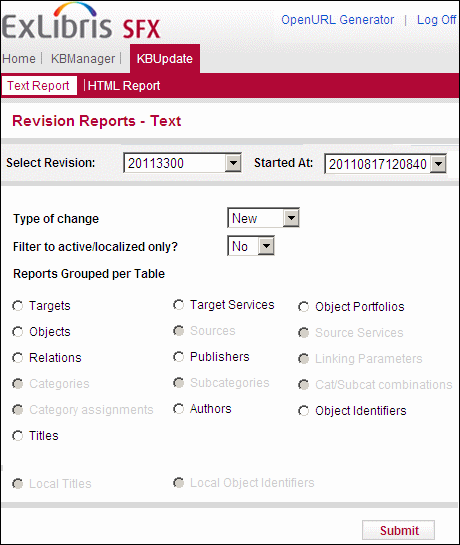
- From this window, select the various filters to determine the content of the report. The filters must be selected in the following order:
- Select Revision – Select the revision for which you want to see a report.
- Started At – Select the date and time that the revision was started.
- Type of Change – Select the type of change to be included in the report:
- New
- Updated
- Deleted
- Filter to active/localized only? – Select Yes to filter the report to contain only items that are active, localized, or local.
- Reports Grouped per Table – Select the types of items to be included in the report. If an item is greyed-out, it means that there are no records for that item.
- Click Submit.
The report is produced as a .txt file. You can either save it or open it with a text editor.

Opening Text Files in Excel
When you select to produce a report in .txt format, it is recommended to save the file and open it in Microsoft Excel.
- Start Excel and select File > Open to open your file.
- Navigate to the directory containing the report. If you cannot see the file, select All files as the file type.
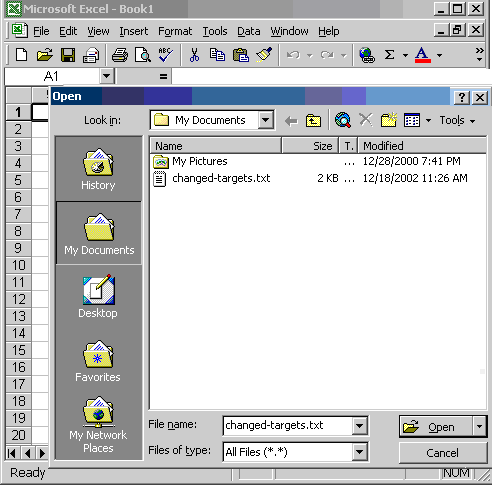
- Select the .txt file. The Text Import Wizard opens.
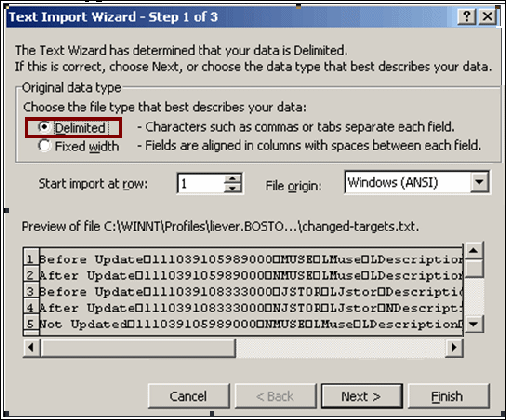
- Select the Delimited file type and click Next.
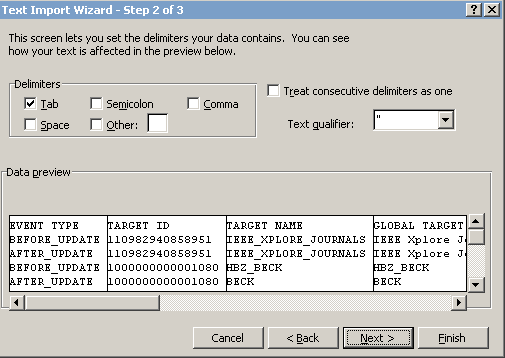
- Select Tab as the delimiter. Click Next.
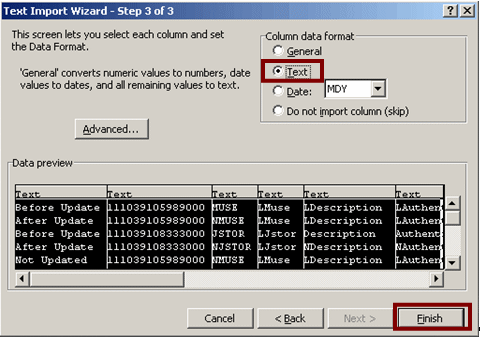
- Select all columns in the Wizard (you can use Ctrl+Shift to select all columns).
- Select text.
- Click Finish.
Format of the Text Reports
The name of each file indicates the type of change being reported (New, Deleted, and Updated) and the name of the table to which the report pertains.
For each table, the fields listed below are included in the files.
Note that the Event Type can be:
- New
- Deleted
- Before Update
- After Update
| Report Item | Fields |
|---|---|
| Targets |
EVENT TYPE TARGET ID TARGET NAME GLOBAL TARGET PUBLIC NAME INTERFACE ID TARGET CHARACTER SET DESCRIPTION GLOBAL THRESHOLD AGGREGATOR ACTIVATION STATUS LOCAL TARGET PUBLIC NAME LOCAL THRESHOLD LOCAL? – (value is Y if the item is locally created and N if it is global.) |
| Target Services |
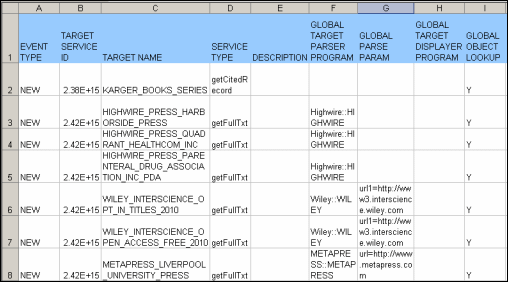
EVENT TYPE TARGET SERVICE ID TARGET NAME SERVICE TYPE DESCRIPTION GLOBAL TARGET PARSER PROGRAM GLOBAL PARSE PARAM GLOBAL TARGET DISPLAYER PROGRAM GLOBAL OBJECT LOOKUP LINKING LEVEL FREE CROSSREF SUPPORTED GLOBAL THRESHOLD AUTOLOADER USED LOGIC UPDATE DATE STATUS ACTIVATION STATUS |
| Target Services |
AUTO ACTIVE SERVICE PUBLIC DESCRIPTION LOCAL TARGET PARSER PROGRAM LOCAL PARSE PARAM LOCAL TARGET DISPLAYER PROGRAM LOCAL OBJECT LOOKUP LOCAL CROSSREF ENABLED LOCAL THRESHOLD LOCAL? – (value is Y if the item is locally created and N if it is global.) |
| Object Portfolios |
EVENT TYPE OP ID TARGET NAME SERVICE TYPE OBJECT ID GLOBAL TARGET PARSER PROGRAM GLOBAL PARSE PARAM DESCRIPTION LINKING LEVEL GLOBAL THRESHOLD VALUE TITLE VALUE ACTIVATION STATUS LOCAL TARGET PARSER PROGRAM LOCAL PARSE PARAM LOCAL THRESHOLD USE PROXY LOCAL? – (value is Y if the item is locally created and N if it is global.) |
| Objects |
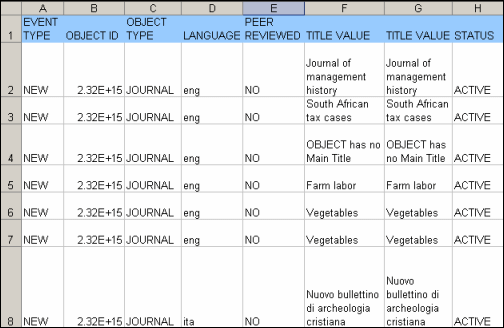
EVENT TYPE OBJECT ID OBJECT TYPE LANGUAGE PEER REVIEWED TITLE VALUE TITLE VALUE STATUS LOCAL? – (value is Y if the item is locally created and N if it is global.) |
| Sources |
EVENT TYPE SOURCE ID SOURCE NAME SOURCE PARSER PROGRAM SHOW AVAILABILITY DESCRIPTION |
| Source Services |
EVENT TYPE SOURCE SERVICE ID SOURCE ID SERVICE TYPE SHOW AVAILABILITY |
| Relations |
EVENT TYPE RELATION ID PRIMARY OBJECT ID SECONDARY OBJECT ID RELATION TYPE |
| Publishers |
EVENT TYPE PUBLISHER NAME DISPLAY PUBLISHER NAME NORMALIZED DATE OF PUBLICATION PLACE OF PUBLICATION DISPLAY PLACE OF PUBLICATION NORMALIZED OBJECT ID TITLE VALUE |
| Linking Parameters |
EVENT TYPE LINKING PARAM ID ITEM TYPE ITEM ID TARGET NAME SERVICE TYPE PARAMETER NAME DESCRIPTION IS OTB VALUE VALUE |
| Authors |
EVENT AUTHOR_ID AUTHOR_SIGNIFICANCE AUTHOR_TYPE AUTHOR_FIRST_NAME AUTHOR_LAST_NAME AUTHOR_FULL_NAME AUTHOR_FIRST_NAME_NORMALIZED AUTHOR_LAST_NAME_NORMALIZED AUTHOR_FULL_NAME_NORMALIZED FULL_NAME_FORMAT COMMENT OBJECT_ID ID TITLE |
| Categories |
EVENT CAT ID CAT NORMALIZED CAT DISPLAY |
| Cat/Subcat Combinations |
EVENT INTERNAL ID CAT ID CAT NORMALIZED SUBCAT ID SUBCAT NORMALIZED |
| Subcategories |
EVENT SUBCAT ID SUBCAT NORMALIZED SUBCAT DISPLAY |
| Category Assignments |
EVENT TYPE CAT ASSIGN INTERNAL ID CAT SUBCAT INTERNAL ID CAT NORMALIZED SUBCAT NORMALIZED OBJECT ID VALUE TITLE VALUE |
| Object Identifiers |
EVENT TYPE OBJECT IDENTIFIER ID OBJECT ID TYPE SUB TYPE STATUS |
| Titles |
EVENT TYPE TITLE ID OBJECT ID TITLE TYPE TITLE SUB TYPE TITLE VALUE NON FILING CHAR TITLE LANGUAGE STATUS |
| Local Titles |
EVENT TYPE TITLE ID OBJECT ID TITLE TYPE TITLE SUB TYPE TITLE VALUE NON FILING CHAR TITLE LANGUAGE STATUS |
| Local Identifiers |
EVENT TYPE OBJECT IDENTIFIER ID OBJECT ID TYPE SUB TYPE STATUS |
Reading New Reports
The New reports contain detailed information about each item that was added to your SFX during the revision update.
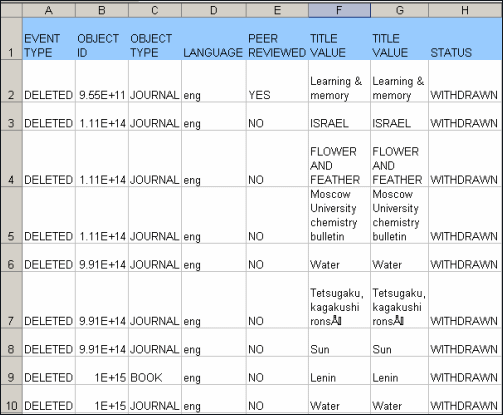
The following is an example of a report of new objects:
The following is an example of a report of new target services:
Reading Updated Reports
The updated reports contain detailed information about each item in your SFX instance in which a change was made during the revision update.
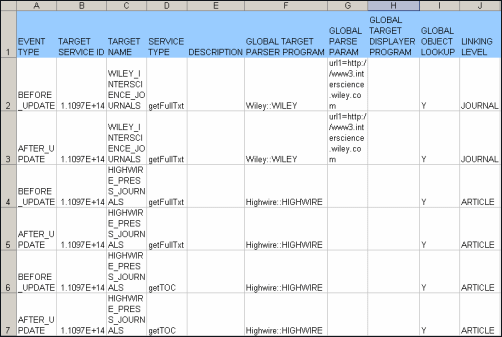
For each item, you can view the state of the item before and after the update.
Reading Deleted Reports
The Deleted reports contain detailed information about those items that were deleted during the revision update.
HTML Reports
The HTML reports offer the option to view all the changes, deletions, or new items that are part of a specific revision update. You can also choose to view only items that are active, local, or localized in the instance. To do this, select Yes from the Filter to active/localized only drop-down list.
If you select Yes, the HTML reports are limited to:
- New active items (for portfolios in which the AutoActive option is in use)
- Active items that were updated or deleted
- Updated or deleted local items
- Updated or deleted localized global items
Viewing HTML Reports
To view KB update reports in HTML format, from the KBUpdate section of the Setup and Administration area, click HTML Reports. The following window opens:
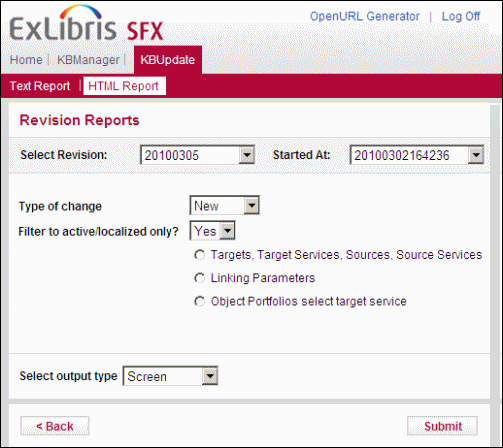
- Select the various filters to determine the content of the report:
- Select Revision – Select the revision for which you want to see a report.
- Started At – Select the date on which the revision was started.
- Type of Change – Select the type of change to be included in the report:
- New
- Updated
- Deleted
- Filter to active/localized only? – Select Yes or No from the drop-down list to view only items that are active, local, or localized in the instance.
- Select the type of information you want included in the reports:
- Targets, target services, sources, source services
- Linking parameters
- Object portfolios – Select object portfolios from the drop-down list. Press and hold the ctrl key to select multiple object portfolios.
- Select output type – Select the format in which you want to receive the report:
- Screen
- Click Submit.
If you selected Yes from the Filter to active/localized only? drop-down list, a table is displayed showing several subsets with which to refine your results.
For example:
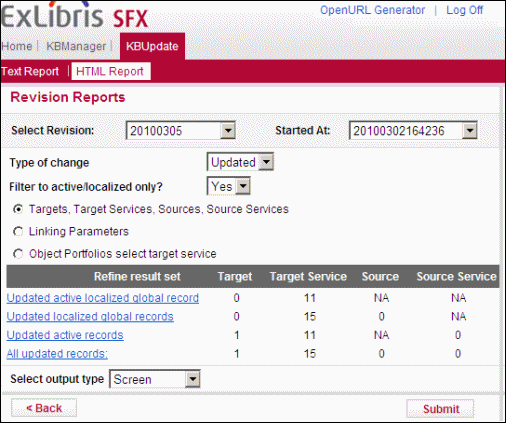
- Select one of the following options:
- Updated active localized global record
- Updated localized global records
- Updated active records
- All updated records
The following is an example of an HTML report:
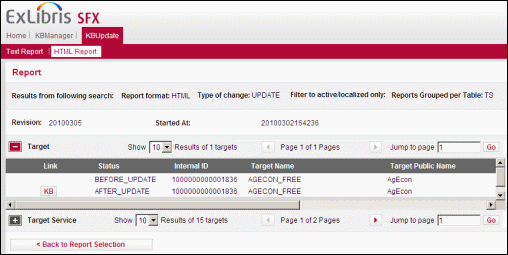
Click  to open the item in KBManager. All the linking parameters of the target service are displayed.
Reports Monitoring Tool
The Server Admin Utility (available via the UNIX file system for the instance) enables you to monitor and clean up the REPORT tables. For more information, refer to the Revision Update section of the SFX System Administration Guide.
