WebBuilder Release Notes May 2024

Release Date: May 6, 2024

Discover Search Passthrough Integration App

Question Answer
How do I add a search bar to a page on my website?
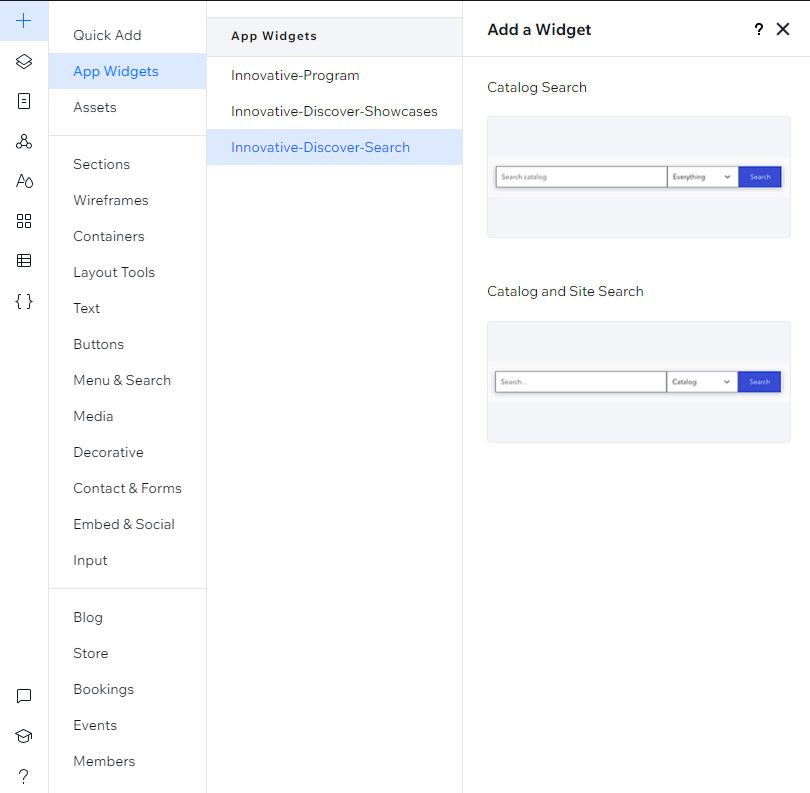
  1. Click the "+" button in the upper left corner of the editor

  2. Click "App Widgets", which is the second from the top option

  3. Click "Innovative-Discover-Search" to open the different search options.

  4. Select which search bar type you want to add by dragging and dropping it or selecting it.

How do I delete the search from a web page?
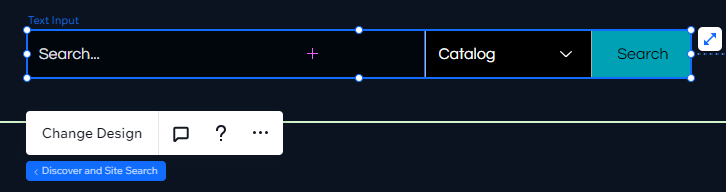
  1. Select the whole search bar so it's highlights in blue like so:

  2. Hit the "Delete" or "Backspace" key on your keyboard.

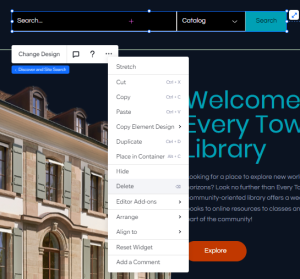
  3. OR select the ellipses icon from the Discover and Site Search action bar. This will open more options including the option to delete:

Do I need to link our Discover catalog to the search bar? The search bars are already connected to your Discover catalog and will pass the search through so the visitor is directed to the results in the Discover catalog.
Can I change placeholder text in the search bar?

Yes!

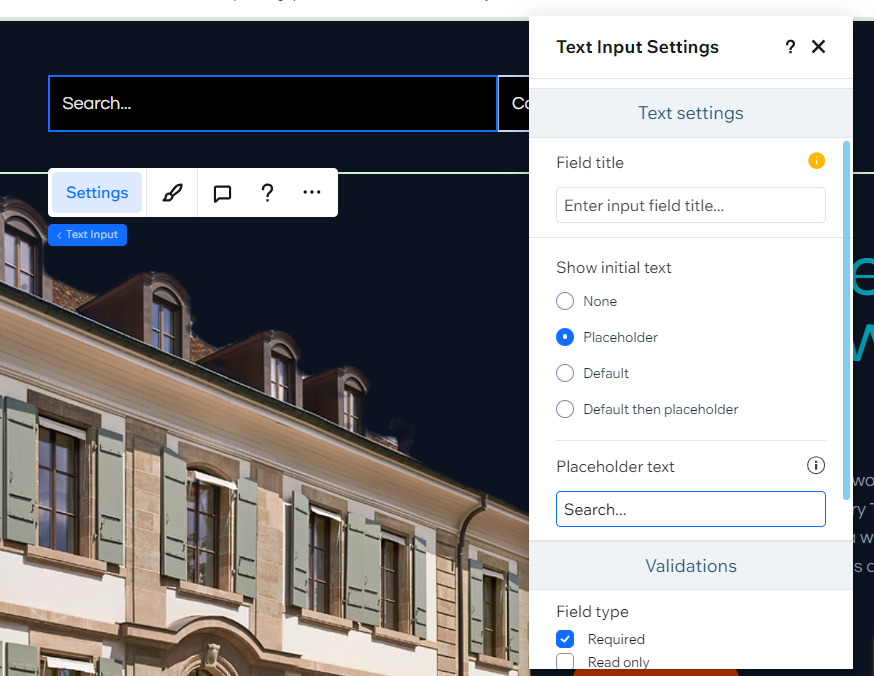
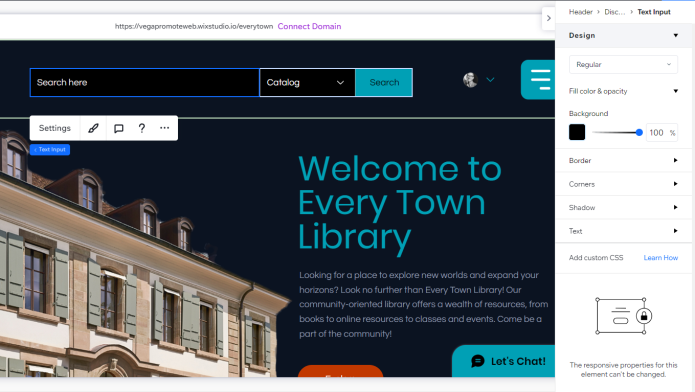
  1. Select the search part of the bar so it's highlighted in blue:

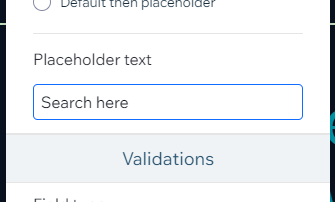
  2. Click "Settings" on the action bar, and scroll down to the "Placeholder text" section. :

  3. Type in what you want the placeholder text to say and close the modal to see the the new text:


Can I change the styling of the search bar, like background color, fonts, font colors, etc?

Yes!

  1. Click on the element in the search bar you want to change styling for.

  2. When you click the element the design inspector panel will open on the right side of the editor. From that design inspector panel you will have options for the different changes you can make to that element.

Discover Showcase Integration App

Question Answer
How do I add a showcase row to a page on my website?
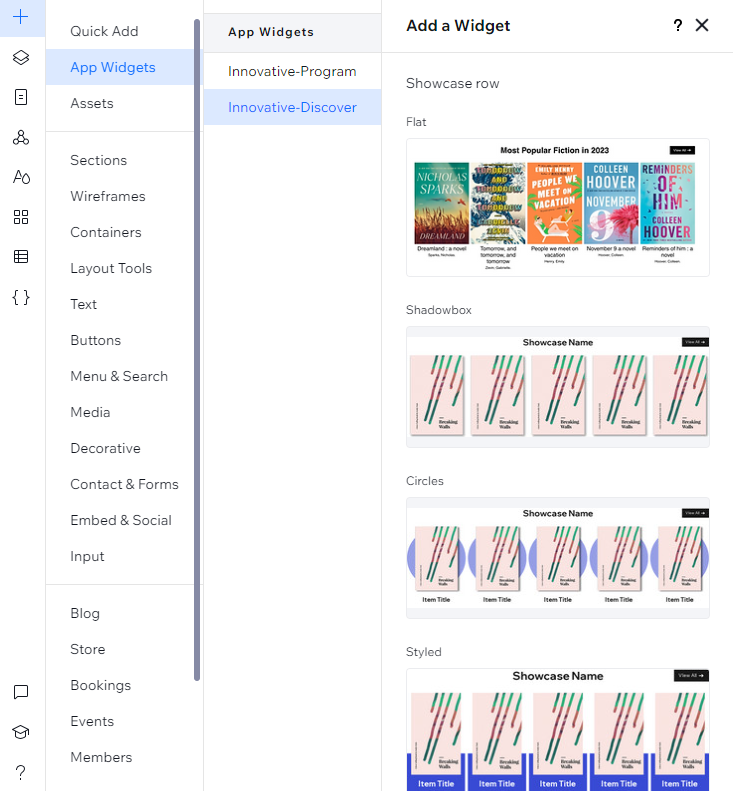
  1. Click the "+" button in the upper left corner of the editor

  2. Click "App Widgets", which is the second from the top option

  3. Click "Innovative-Discover" to open the different showcase row options.

  4. Select one of the design layouts (you can always change the design layout later)

  5. Once you select a design layout you will see it appear in your webpage design.

How do I find showcases to add?
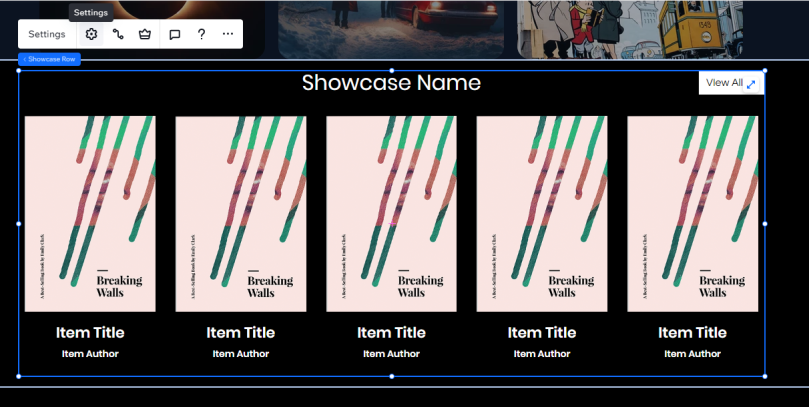
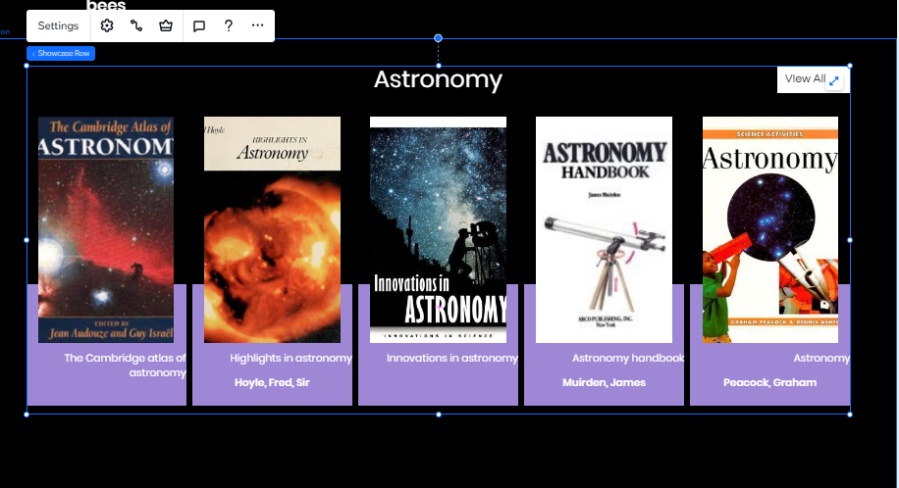
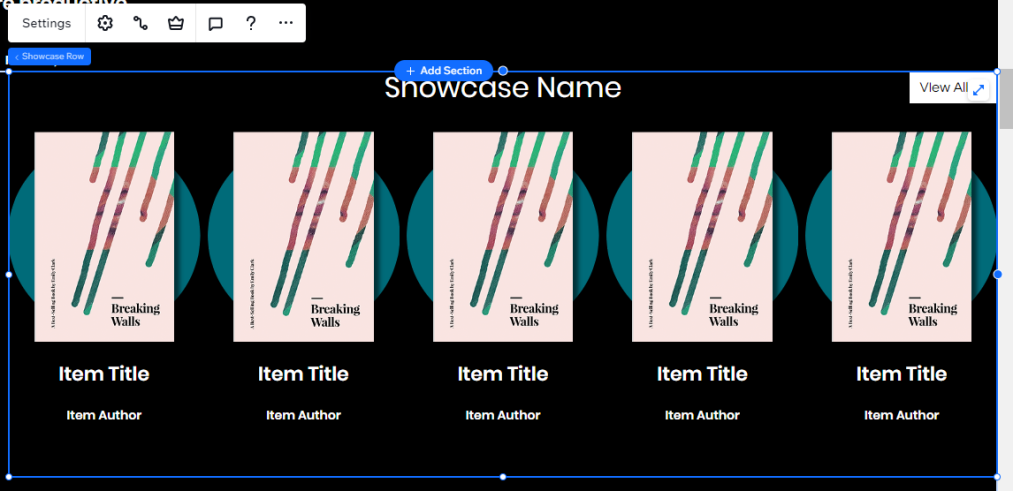
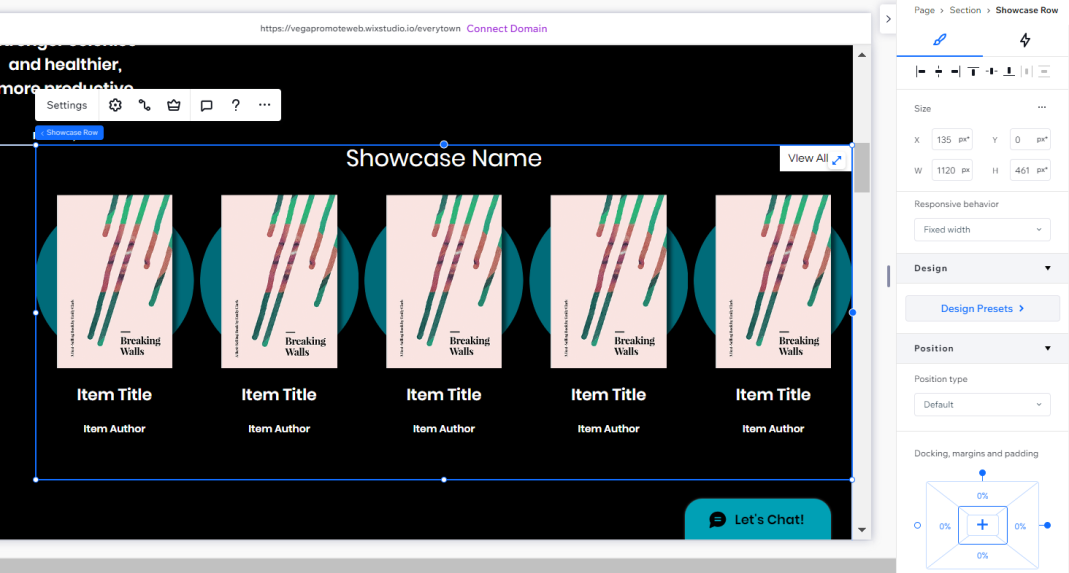
  1. Click the showcase row so it's highlighted by a blue box.

  2. Click the gear icon on the Showcase action bar:

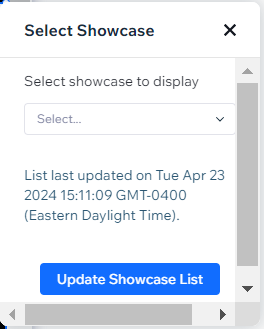
  3. A "Select Showcase" modal will pop up. Click the drop down menu to see the list of Published showcases and choose one to populate the placeholder images/text.

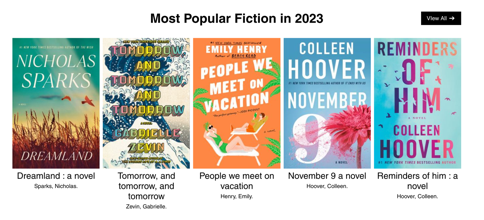
  4. Once you select a showcase, the widget will update with the first five items from the selected showcase. The titles are automatically linked to the items in Discover. The showcase name and the the View All button will be automatically linked to the showcase page in Discover.

How do I delete a showcase from a web page?
  1. Select the whole showcase row so it's highlights in blue like so:

  2. Hit the "Delete" or "Backspace" key on your keyboard.

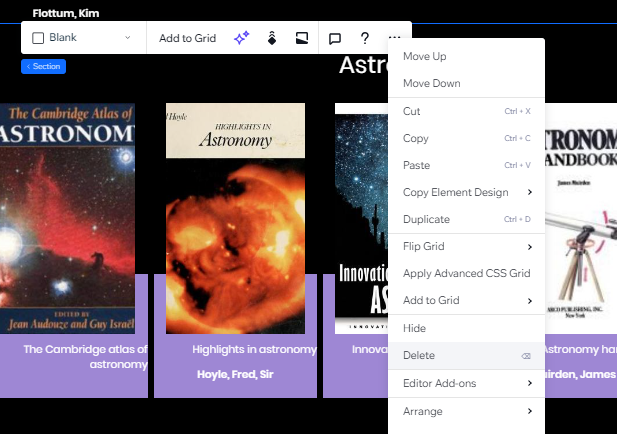
  3. OR select the ellipses icon from the showcase action bar. This will open more options including the option to delete:

Do Titles in the Showcase Update Automatically? Yes. On page load it will update the showcases.
How many titles can I show in a showcase? 5
Do I need to link the titles to Discover? No. The titles are automatically linked to the items in Discover. The showcase name and the "View All" button will be automatically linked to the showcase page in Discover.
Are there different layout options when adding a showcase row to a web page?

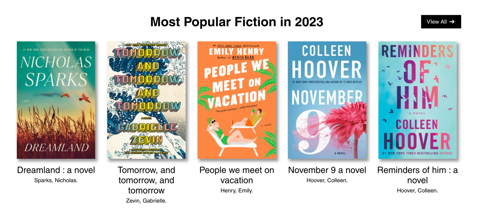
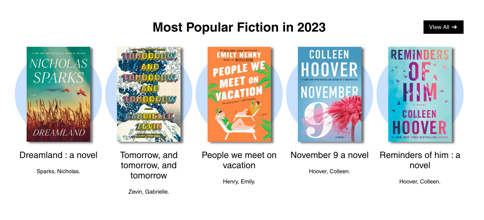
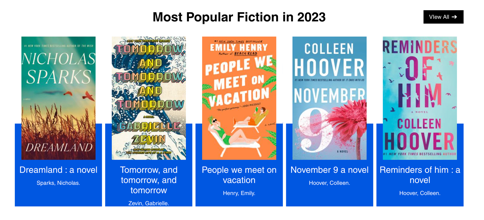
Yes! Showcase Row includes four design options.

Flat:

Shadowbox:

Circles:

Styled:

Can I change the showcase design layout?

Yes! The design preset for the widget can now be changed without deleting the widget and re-adding it.

  1. Make sure the showcase row you want to change the design for is selected and highlighted in blue:

  2. Open the design inspector, which is the panel on the right side of the editor.

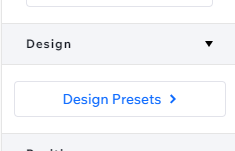
  3. Select "Design Presets" button in the panel. This will show you all the design options to choose from:

  4. Selecting a new design will automatically update the showcase with the new layout.

Can I change the text font, color, size, weight, and alignment for the showcase title, item titles, and authors in the showcase?

Yes!

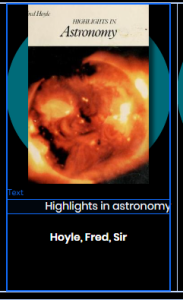
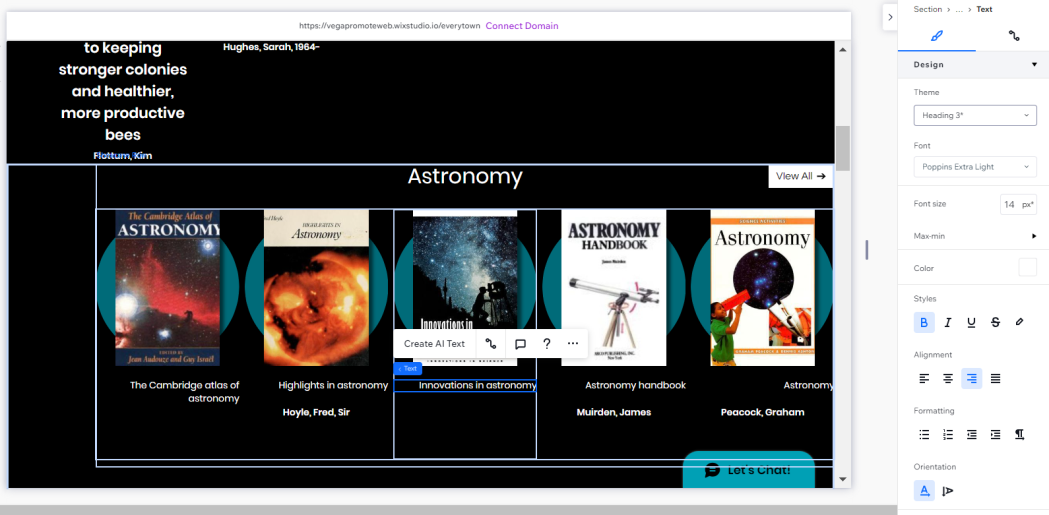
  1. Click the text for one of items:

  2. The design inspector panel on the right side will have all the text configurations for you to choose from

  3. You can also change the showcase title by clicking the title text and using that same design inspector panel to adjust the text font, color, size, weight, and alignment

Can I change the color of the circles for the "Circles" showcase design?

Yes!

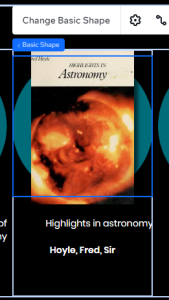
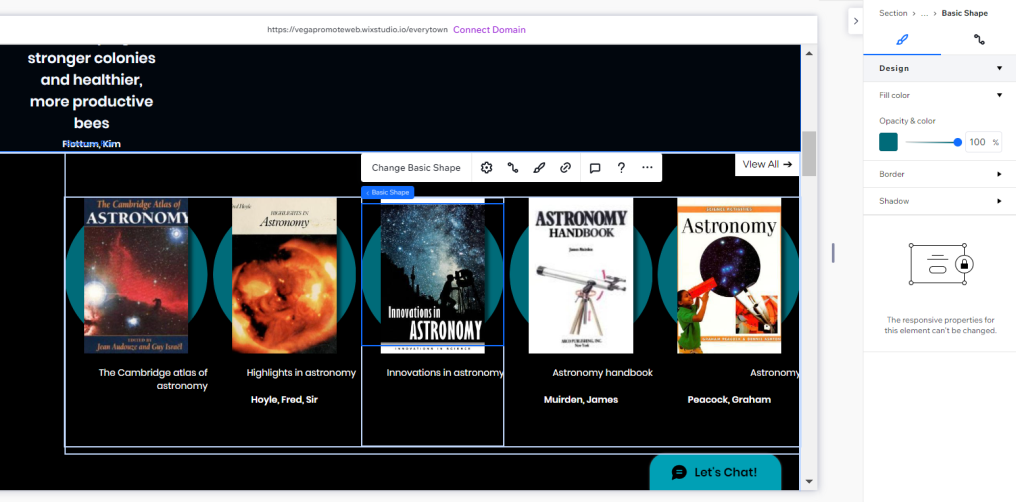
  1. Hover your mouse over the edge of one of the circles until the blue box highlights the shape container and click to select it like so:

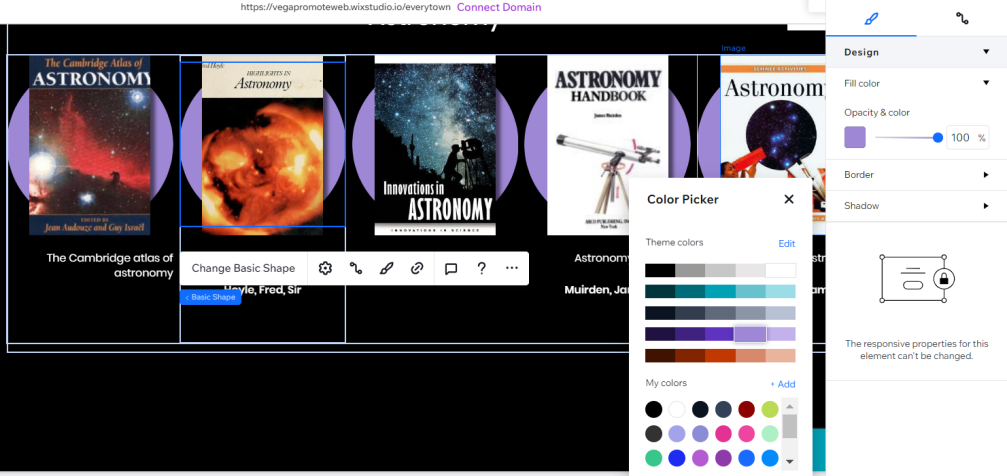
  2. When you select the design inspector panel will display configurations for the shape. You can choose a different color for the circle from this panel by selecting the color and choosing a new color in the color picker modal:

Can I change the color for the "Styled" showcase design?

Yes!

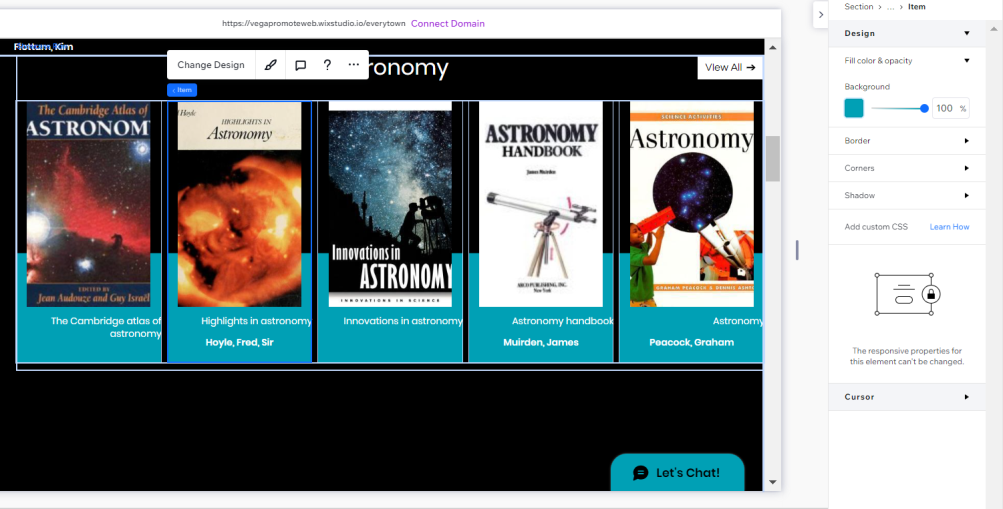
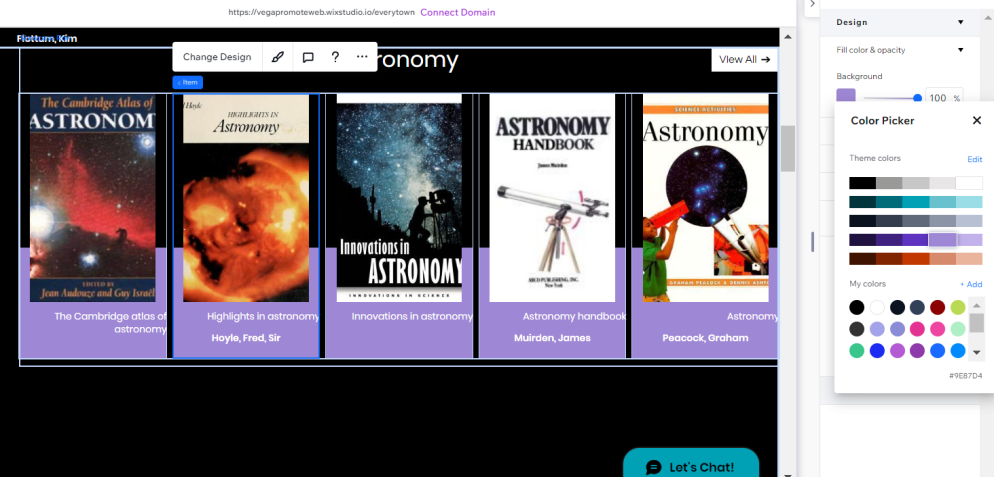
  1. Hover your mouse over the edge of one of the items until the blue box highlights the the whole item container and click to select it like so:

  2. When you select the design inspector panel will display configurations for the item background. You can choose a different color for bottom of the item in this panel by selecting the color and choosing a new color in the color picker modal:

Can I change the design of the "View All" button?

Yes!

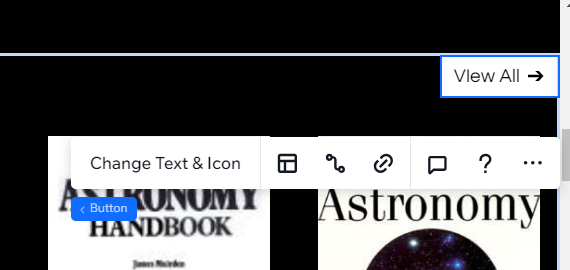
  1. Click the "View All" button so it's highlighted in blue:

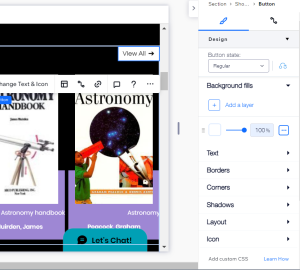
  2. You will see the design inspector panel open on the right side with configurations for the button like color, text, borders, and hover state.

Can I delete the "View All" button?

Yes!

  1. Click the "View All" button so it's highlighted in blue: