
Staff-Mediated Deposits
- Deposit Manager
- Deposit Operator
- Deposit Operator Extended
- General System Administrator
Library staff can create deposits on behalf of patrons. These are known as staff-mediated deposits. With this feature, staff create a brief bibliographic record for the deposit and upload the digital files for it. Note that patrons can create their own deposits using a dedicated Alma interface, subject to staff approval; see Patron Deposits. To add digital content to the repository that is not on behalf of a patron, see Adding a Representation. For more information on deposits, see Deposits.
If a form is associated with the collection, the fields configured in the form appear and not necessarily the fields described below. (For more information about forms, see Working with Forms.)
-
Open the Staff-Mediated Deposit page (Resources > Deposit > Staff-Mediated Deposit).
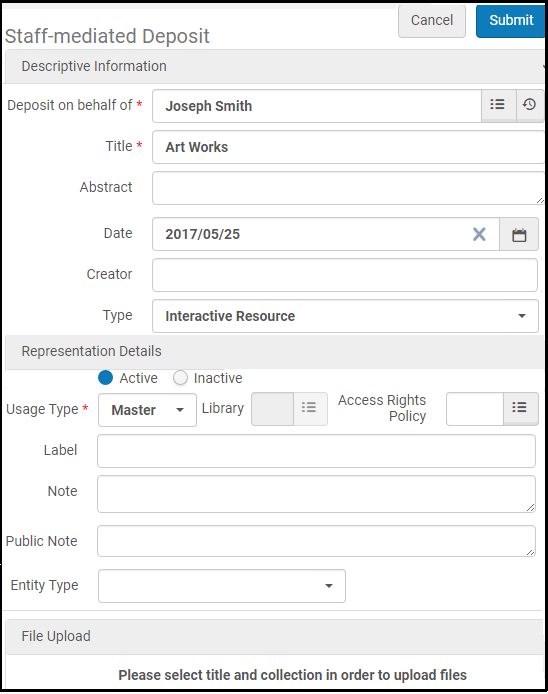
Staff Mediated Deposit - Fill in the fields according to the information in the following table:
Staff Mediated Deposit Field Description Deposit on Behalf of Select or enter the patron's name. Deposit Profile Select a deposit profile for the record. Inactive profiles are marked as (inactive). Library staff can still perform submissions without reactivating an inactive profile, but caution is advised before using inactive profiles. For information on deposit profiles, see Configuring Deposit Profiles. Title Enter the title of the record. Abstract Enter a brief description of the record. Date The date that the record was submitted. Automatically populated with the current date, editable. Creator The creator of the record. Automatically populated with the name of the patron, editable. Type Select the type of the record. Active / Inactive Select Active to make the representation discoverable, or Inactive to hide it from discovery. Usage Type Select the usage type of the representation, either Primary or Derivative. Library The library of the representation (read-only). Access Rights Policy Select the access rights policy for the representation. Automatically populated with the access rights policy assigned to the profile (if any), editable. Label Enter a label for the representation. Note Enter a staff note or the representation. Public Note Enter a public note for the representation. Entity Type Select the entity type and related fields for the representation. File Upload Select the files that you want to include in the representation. -
Select Submit.
Staff-mediated deposits are automatically approved, and their content becomes part of the repository. A bibliographic record is created with the representation information and the files you uploaded. An email is sent to the patron, confirming the deposit.Staff-mediated deposits are auto-approved whether or not this is set in the deposit profile.
Page tags: article:topicproduct:almacontent:Documentationlang:english
