Long Term and Short Term Digital Lending in Primo NDE
- General System Administrator
- Digital Inventory Operator
Digital Lending enables patrons to borrow and view digital resources that are subject to lending restrictions directly from the Primo NDE full record page. Instead of being redirected to an external viewer, patrons can manage digital loan activities, join waitlists, monitor active sessions, and access loaned content from within the NDE experience.
Digital Lending supports both short-term and long-term loan models and helps institutions control access to digital resources by limiting the number of concurrent users according to configured lending policies.
For more information on how to configure long term digital loans see Configuring Long-Term Digital Loans.
For more information on how to configure short term digital loans see Short-Term Digital Lending.
How Digital Lending Works
When a digital resource is configured for Digital Lending, the Digital Versions section displays the current availability status for each digital representation. Depending on availability, patrons can:
-
Start a viewing session.
-
Join a waitlist.
-
Return an item early.
-
View session information and remaining loan time.
Digital Lending status is managed separately for each representation. A record can contain multiple representations with different availability states.
View an Available Digital Resource
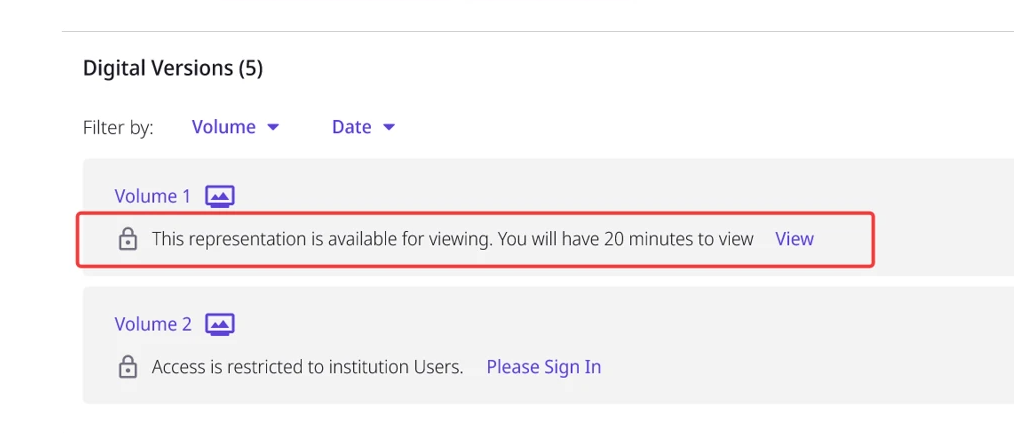
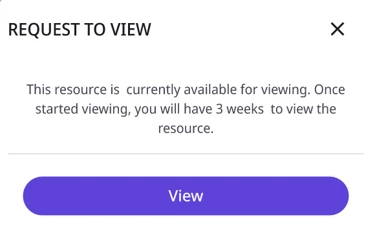
When a Digital Lending resource is available, the Digital Versions section displays a message indicating that the resource is available for viewing. Patrons can select the View to begin a viewing session.
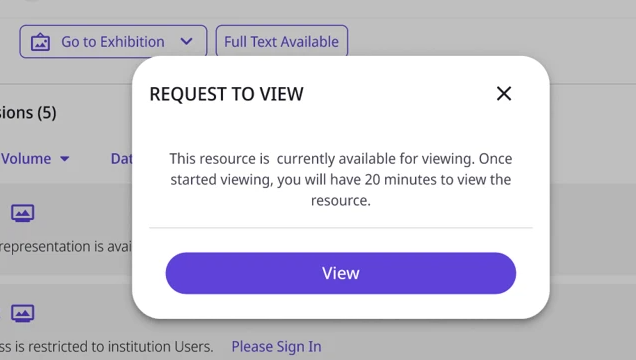
Before the session starts, the system displays a confirmation dialog that includes the loan duration. After confirmation, the resource opens in the embedded viewer and the applicable Digital Lending session or loan begins.
Once a session starts:
-
The embedded viewer opens automatically.
-
A session timer is displayed.
-
The session remains active when the patron refreshes the page or returns to the record.
-
The resource remains available until the loan period expires or the patron ends the session.
Join a Waitlist
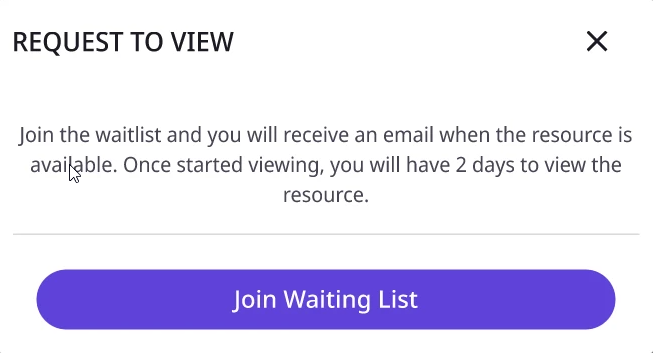
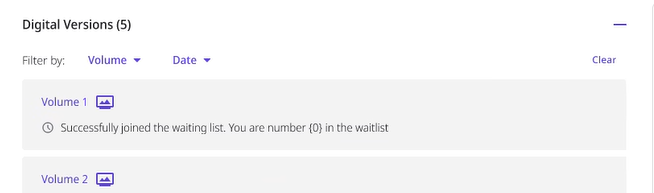
When all available copies are in use, patrons can join a waitlist for the resource. The Digital Versions section displays a waitlist message and a Join Waiting List action.
After joining the waitlist:
-
The user's position in the queue is displayed.
-
The position is refreshed whenever the record is reloaded.
-
-
The patron is notified when the resource becomes available, according to the configured lending workflow.
-
The waitlist status persists across sessions and page refreshes.
Short-Term Digital Loans
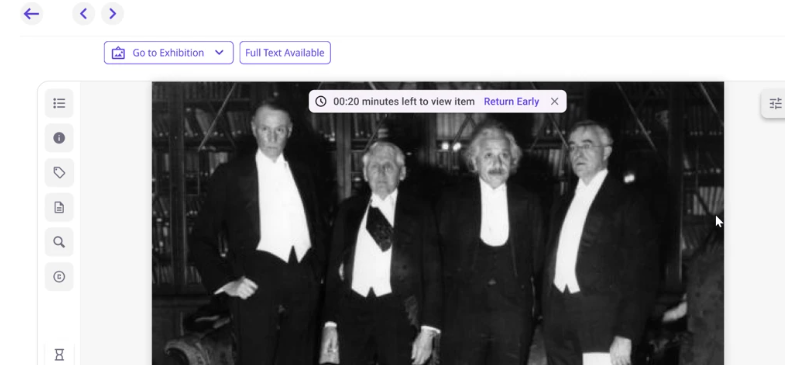
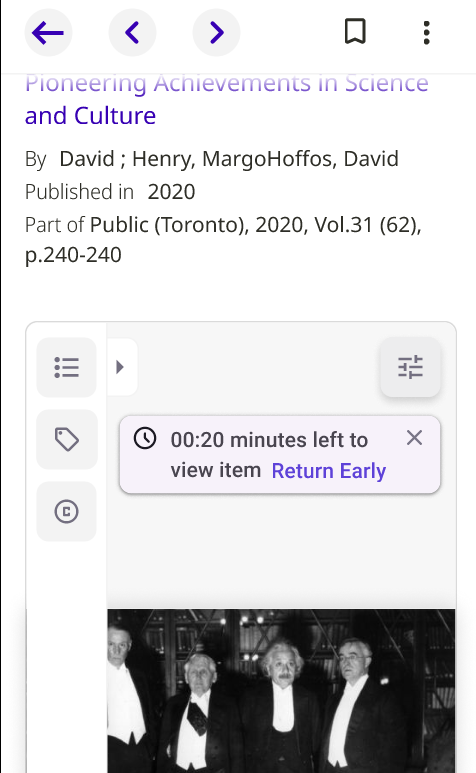
Short-term loans provide access for a limited session period measured in minutes. The loan duration is determined by the configured lending policy.
During an active short-term loan:
-
A countdown timer displays the remaining viewing time.
-
Patrons can end the session early.
-
A warning appears shortly before the session expires.
-
The session automatically ends when the configured viewing period expires
Long-Term Digital Loans
Long-term loans provide access for extended loan periods measured in days or weeks. These loans behave similarly to physical loans and are displayed in the Digital Versions section and on the patron's Requests page.
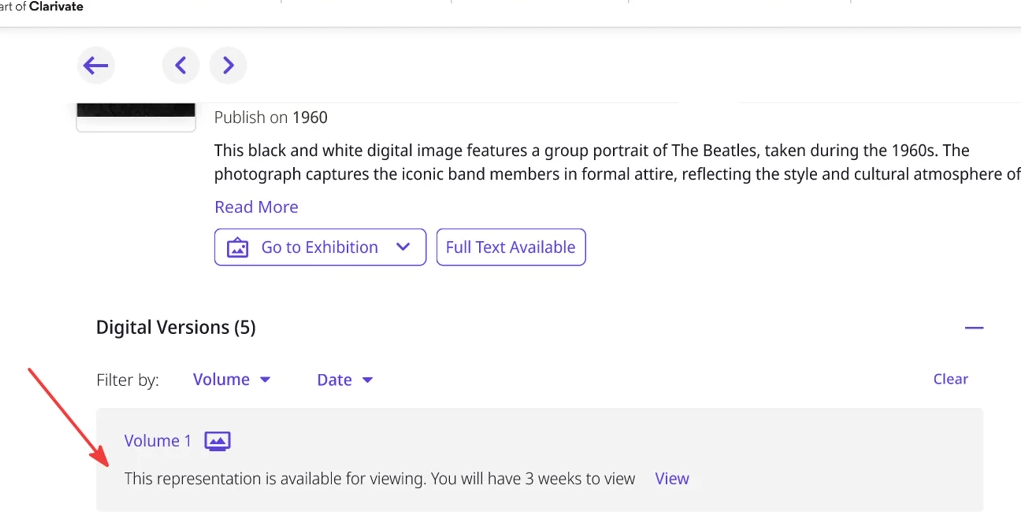
When a long-term loan is available:
-
Patrons select View to access the loaned resource
-
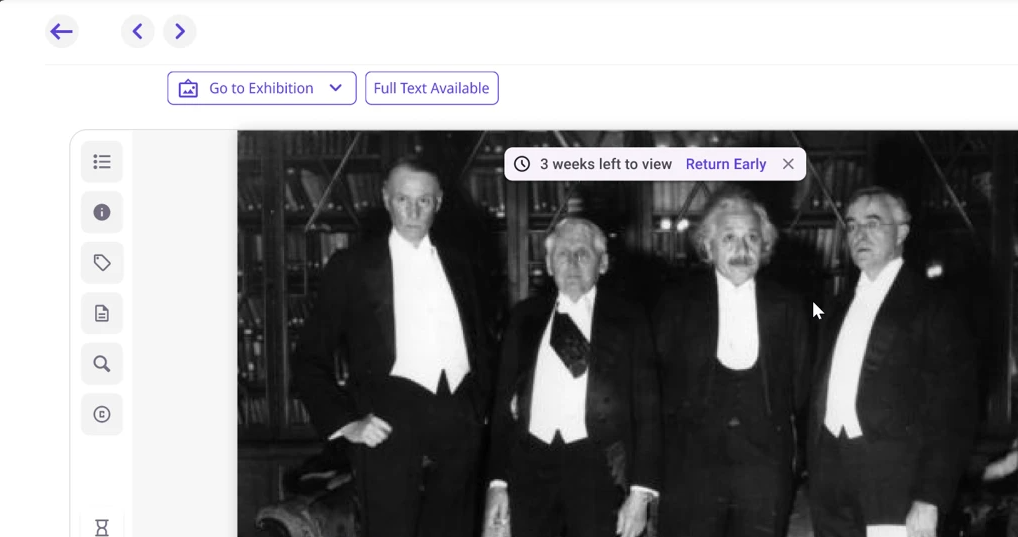
The viewer displays the remaining loan period.
-
Patrons can return the loan before the due date.
-
Loan availability and waitlist behavior continue to operate according to the configured Digital Lending policy.
Return a Digital Loan Early
Patrons can end an active viewing session before the scheduled expiration time. Returning an item early immediately releases the resource so it can become available to other patrons.
To return a loan early:
-
Open the viewer.
-
Select Return Early.
-
Confirm the action.
After the session ends, the resource returns to its appropriate availability state. If the resource is still available, the patron can start a new session.
Session Expiration
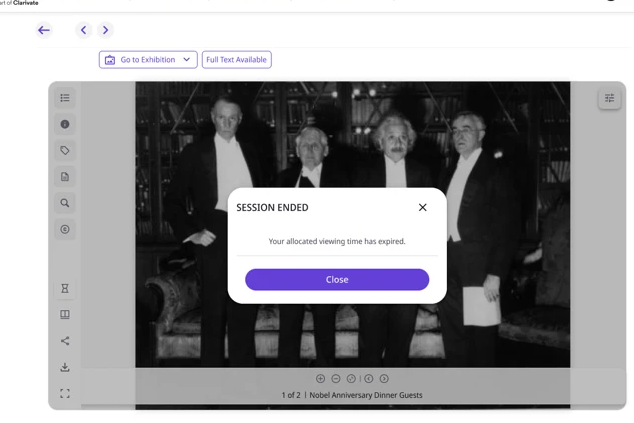
Digital Lending sessions expire automatically when the configured viewing period ends. Before expiration, the system displays a warning message informing the patron that the session is about to end.
When the session expires:
-
The viewer closes or becomes unavailable.
-
A session-ended message is displayed.
-
The resource becomes available for the next eligible patron or waitlisted user.
Renew a Long-Term Digital Loan
If a long-term loan is configured as renewable, patrons can extend the loan from the Requests page. Renewal availability depends on:
-
Whether the loan is configured as renewable.
-
The configured renewal window.
-
The remaining renewal period available to the patron.
When renewal is available, a Renew action appears on the request. After confirmation, the due date and remaining renewal period are updated.
If renewal is unavailable, the request displays information explaining when renewal will become available or whether the renewal limit has been reached.
Reloan Restrictions
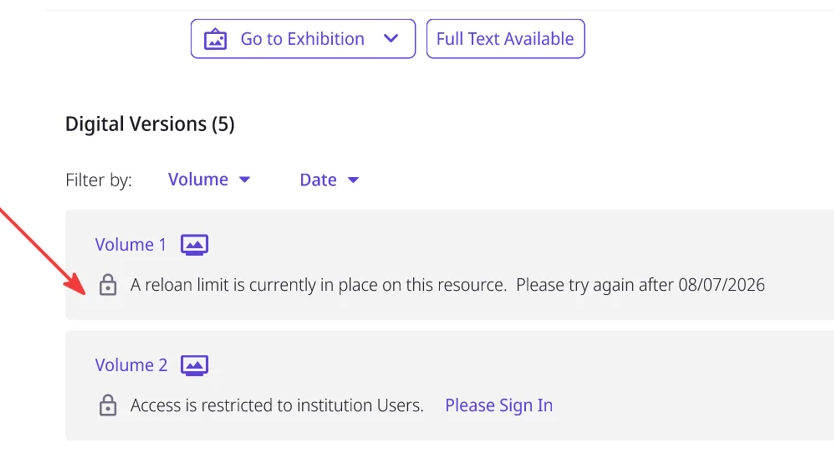
Some Digital Lending policies restrict how frequently a patron can borrow the same resource. When a reloan restriction is active, Primo NDE displays a message indicating when the patron can borrow the resource again. The View action is unavailable until the restriction period ends.
Digital Lending and Back Office Access
Digital Lending resources cannot be viewed directly from Back Office viewers. To access Digital Lending content, users must open the resource through Discovery. An informational message with a link to open the resource in Discovery is provided in the back office.
Additional Considerations
-
Digital Lending behavior is controlled by the lending policy configured for the resource.
-
Waitlist behavior may differ during library closed hours based on institutional configuration.
-
Availability, queue position, and session state are maintained separately for each representation.
-
Direct links to Digital Lending representations are supported. The behavior depends on the resource's current Digital Lending status and access conditions.
