
Metadata Enrichment Workflow
Step 1: Upload Digital Resource
To run metadata enrichment from digital resources, you must add digital representations to a collection.
Step 2: Run Metadata Enrichment
For optimal results, we recommend performing the metadata enrichment process on titles that have already undergone the entity extraction and tagging process. This ensures that the
The pop-up provides easy access to the lists of titles that may still require processing.
Each of these rows is linkable and leads to the set of titles that we recommend addressing before moving to the enrichment phase.
- Go to Specto > Data Management > Manage Collections.
- In the list of collections, find the collection with the titles you want to enrich.
- Select the More Actions button and select the Digital Metadata Assistant option.
- Select the Enrich Metadata button.
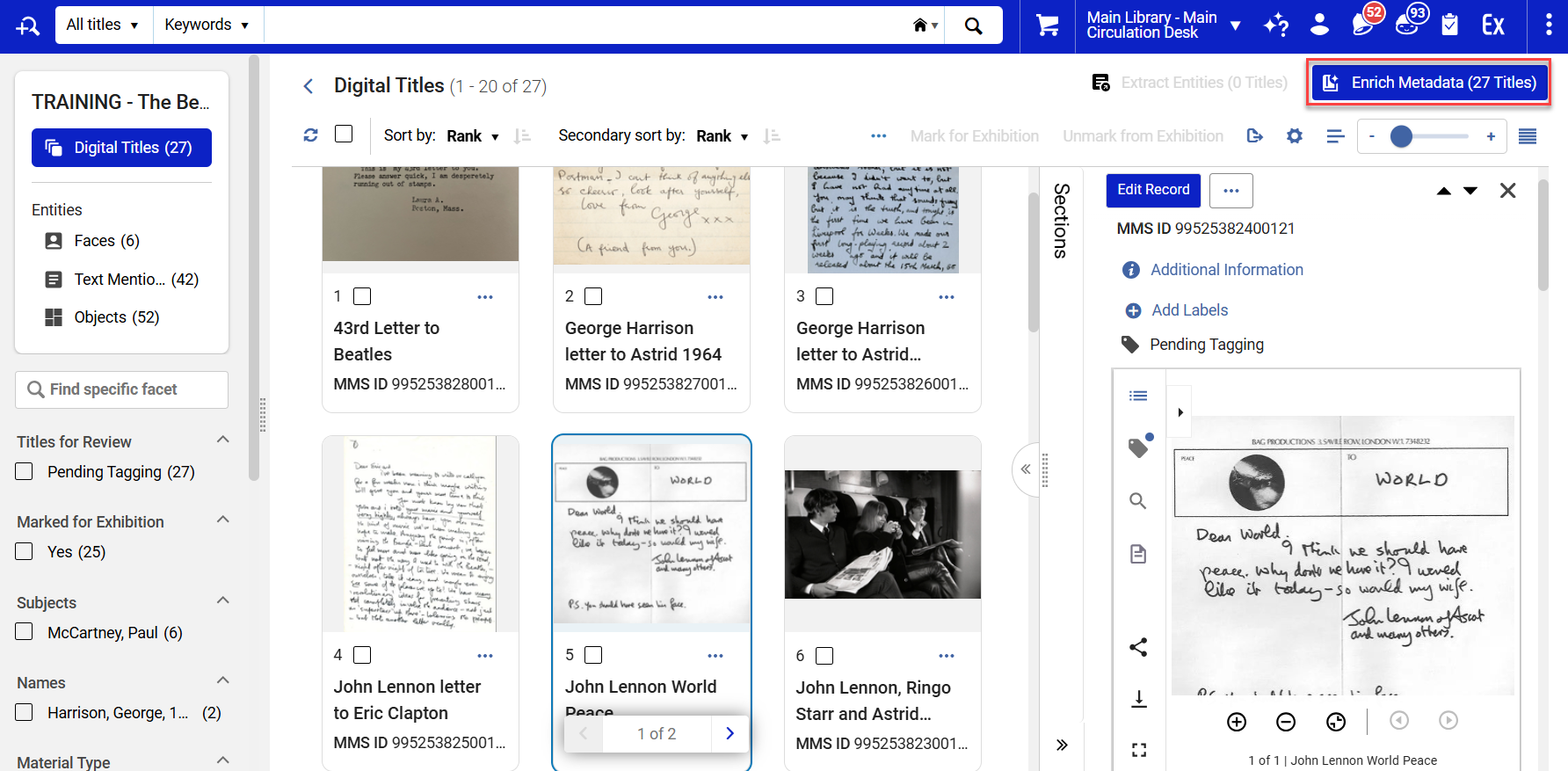
A pop-up appears indicating the number of titles processed.- X titles failed extraction
- X titles pending extraction
- X titles pending tagging
We recommend reviewing the titles that may still require entity extraction or tagging before proceeding to the enrichment stage.
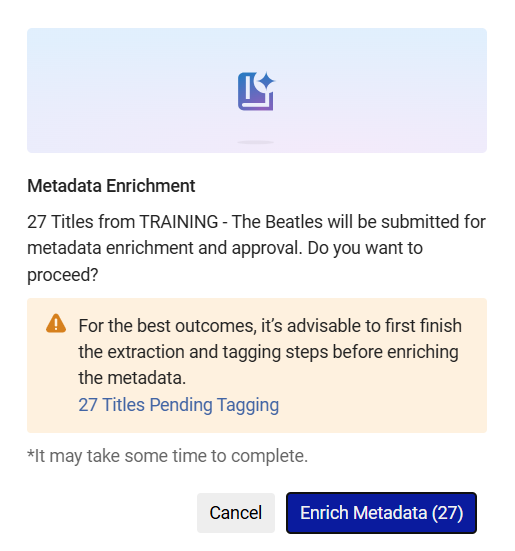
- Once you have reviewed all the titles for pre-processing, you can proceed to Enrich Metadata.
- The AI analyzes the content and existing metadata, generates metadata suggestions, and fills out the bibliographic record fields. This includes the MARC21 347 field including all of its subfields.
When AI metadata enrichment is performed, a field is added with the value: Part of the metadata in this record was created with the help of AI Metadata Assistant. For MARC21, this appears in the 588 field. For DC, this appears under the dcterms:provenance field.
- Once the enrichment process is complete, an informational sidebar appears to notify the user.
The AI-generated fields appear in purple in the records, and the title status changes to Working Copy.
Physical Description Generation for Documents
For document resources, Metadata Enrichment can generate a physical description based on the size of the digital content. During enrichment, Alma Specto calculates the number of pages in the resource and uses this information to create a physical description in the record's cataloging language.
For PDF files, the file count is 1 (one). For image-based document resources, the page count is determined by the number of files associated with the title.
The generated physical description is added to the enriched metadata as follows:
-
MARC 21 records: A 300 field is generated containing the calculated page count.
-
Dublin Core records: The page count is added to the dc:format field.
Authority-Based Subject Enrichment in Different Languages
During enrichment, the AI initially generates subject headings based on Library of Congress Subject Headings (LCSH).
For German language, Alma Specto then searches the Gemeinsame Normdatei (GND) authority file for matching authorized terms and replaces the generated heading with the corresponding GND preferred term. If no matching GND authority record is found, the subject heading is excluded from the enriched record.
When the Subjects Authority Vocabulary customer parameter is configured to use the authority file, Metadata Enrichment validates and converts AI-generated subject headings to GND-authorized terms.
For MARC 21 records, GND-enriched subjects are added using the appropriate GND vocabulary code and authority identifier. The enrichment process also returns subject subdivisions in German, consistent with the selected GND authority vocabulary.
This functionality is available when using both Metadata Enrichment and the Digital Metadata Assistant.
Step 3: Review and Edit Suggested Metadata
- Once enrichment is complete, a notification message appears to inform the user.
- You can view the record information on the right-hand side pane by selecting the title.
- Review each field carefully and check the validity of the data provided. Warnings and errors appear above the resource preview. Check them before approving the generated metadata.
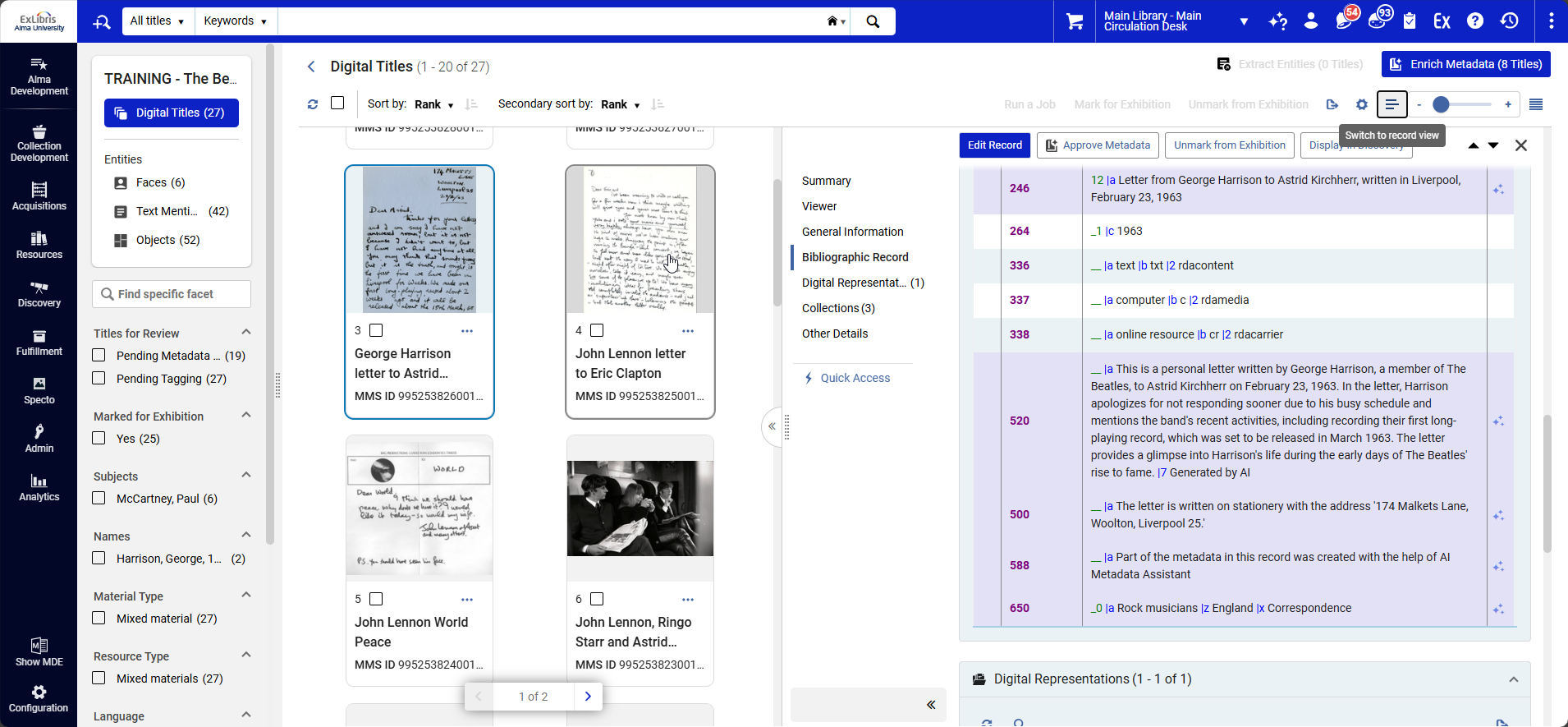
- Edit, accept, or discard the field as needed.
- To accept: Select the Approve Metadata button at the title level.
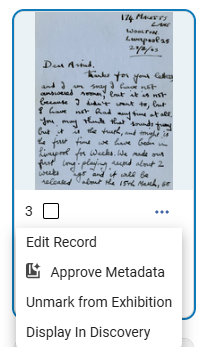
- To edit: Select the Edit Record option to open the record in the Metadata Editor. Edit the fields you wish to change and select the Save Record option under the Save menu.
- To discard selected: Select the Edit Record option to open the record in the Metadata Editor. Select the record field you wish to delete, select Editing Actions, and select the Remove Field option.
- To discard all edits: Select the Edit Record option to open the record in the Metadata Editor. Select the Reload Original Record option and Save.
- To accept: Select the Approve Metadata button at the title level.
A star icon appears next to the title name for all titles with metadata enriched by Digital AI and approved by a cataloger.
To review these titles, set the Advanced Search for Enriched with Digital AI to Yes.
