Format Migration
This page describes how you can migrate a set of files from one format to another, either as a result of a risk identified by the system, or in order to generate an access copy from a primary preservation copy. Alma Specto Preservation provides numerous out-of-box migration paths, covering many known formats both as source and target formats.
The workflow includes a validation step where users can compare the original and new file, both visually and technically. Once users are satisfied with the migration path, they can run the job on all similar files in the repository.
- From the List of Jobs (Admin > Manage Jobs and Sets > Run a Job), select Migrate Format and select Next. The List of Sets page appears.
- Select the set with the files that you want to migrate and select Next. The Task Parameters page appears.
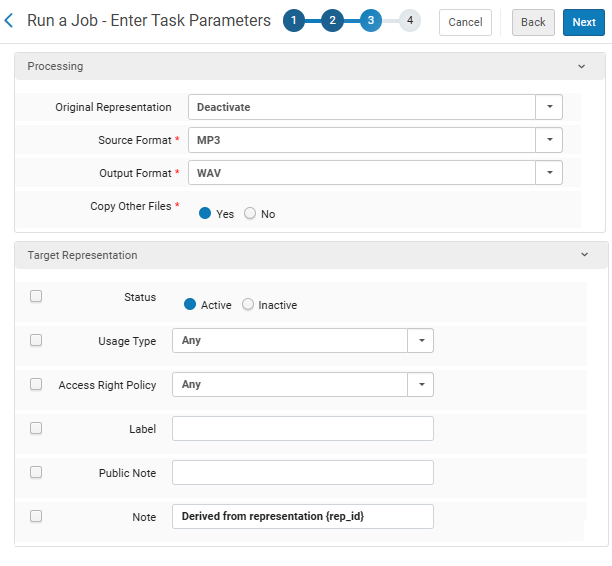 Migrate Formats Job Task Parameters
 - Fill in the fields of this page and select Next:
- Processing
- Original Representation – Select one of the following:
- Deactivate – the original representation will not be discoverable after the migration
- No Change – the original representation retains the existing activation status after the migration
- Source Format – select the original format of the digital files that you want to migrate
- Output Format – select the target format of the digital files that you want to migrate. The options available are determined by the source format you selected.
- Copy Other Files – select (Yes/No) if you want any other files in the original representation that are not being migrated to be included in the new representation
- Original Representation – Select one of the following:
- Target Representation
- Status – select (Active/Inactive) if you want the representation to be discoverable
- Usage Type – select one of the following usage types to assign to the representation:
- Primary – the original copy
- Modified Primary – a version that is changed from the primary but without any data loss
- Derivative – a secondary version, for example, a copy with a lower resolution
- Auxiliary – a representation that is supplementary to the main representation, for example, a table of contents
- Access Right Policy – select an access rights policy to assign to the representation
- Label – enter a label for the representation
- Public Note – enter a note that is visible to patrons
- Note – enter a note that is visible only to staff members. Default note is “Derived from representation <source representation ID>”.
- Processing
The following table describes the available format migration options:
| File Type | Formats |
|---|---|
| Image | GIF, JP2, JPG, TIFF, and many more |
| Audio | MP3. FLAC, WAV, and many more |
| Video |
MP4. FLV, MKV, and many more |
| PDF, PDF/A |
Compare with Original File
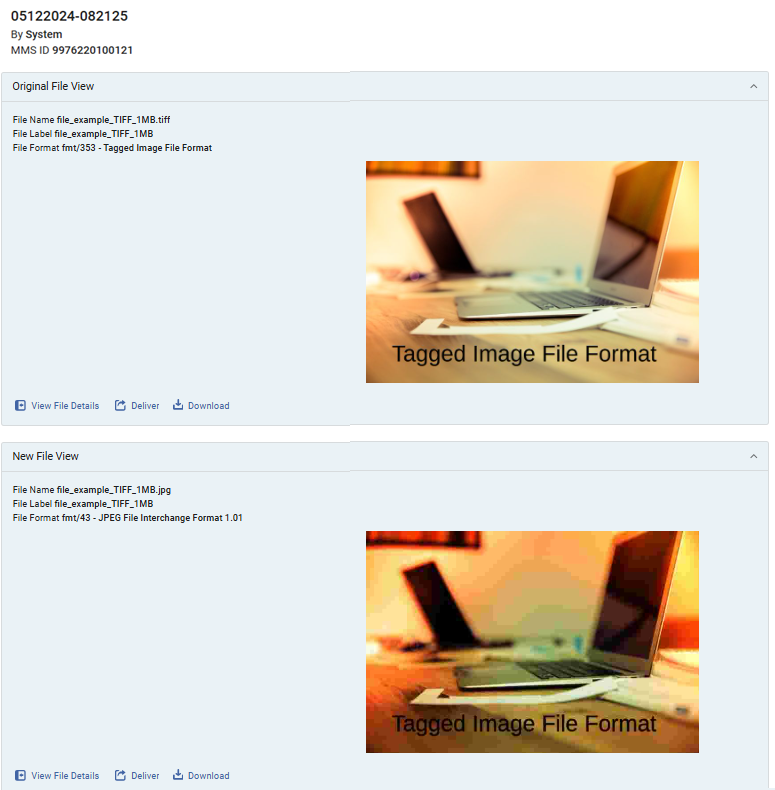
Once files have been migrated to another format, the system provides an action, Compare with Original as a validation step where users can compare the original and new file, both visually and technically. This allows users to migrate a sample set, validate the results, and once satisfied with the result - run the job on all similar files in the repository.
Select this option to see a side-by-side comparison of the original file and the new file for you to compare visually:
In addition, a table displaying a technical comparison between the details of the two files is displayed:
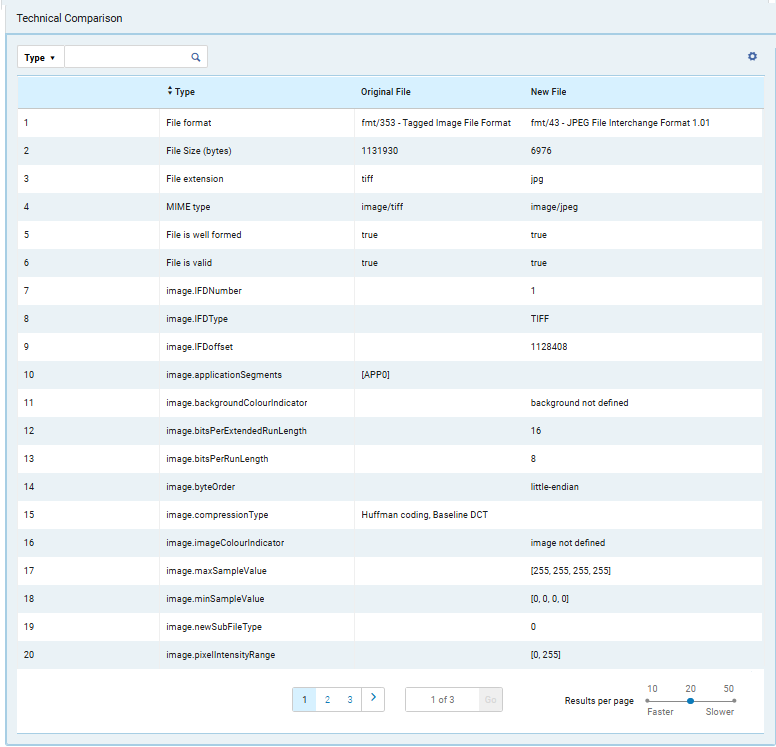
For each file, the View File Details,Deliver, and Download options are available.
Format Migration Options
| File Type | Formats |
|---|---|
| Image | GIF, JP2, JPG, TIFF, and many more |
| Audio | MP3. FLAC, WAV, and many more |
| Video |
MP4. FLV, MKV, and many more |
| PDF, PDF/A |
Page tags: article:topic content:Documentation product:rosetta lang:english
