
Changing Loan Due Dates in Bulk
For items on loan due within a particular date range, change the due date.
For links to all the main fulfillment documentation pages see Fulfillment.
- Fulfillment Administrator
- General System Administrator
Watch the Calendars video.
This section describes how to change the date for all items in a library that are due within the same date range (From/To) with a job that runs on demand. This process is applied to loans for which the status is active and is not recalled. There are no other restrictions for changing the due date based on the status.
The job considers the location of the item at the time of the loan.
If there is an accruing fine for a loan that is overdue, and the due date is changed so that the loan is no longer overdue, the fine will be dismissed. It will not be charged when item is returned. This behavior is determined by the overdue_at_change_due_date parameter. See Configuring Other Settings.
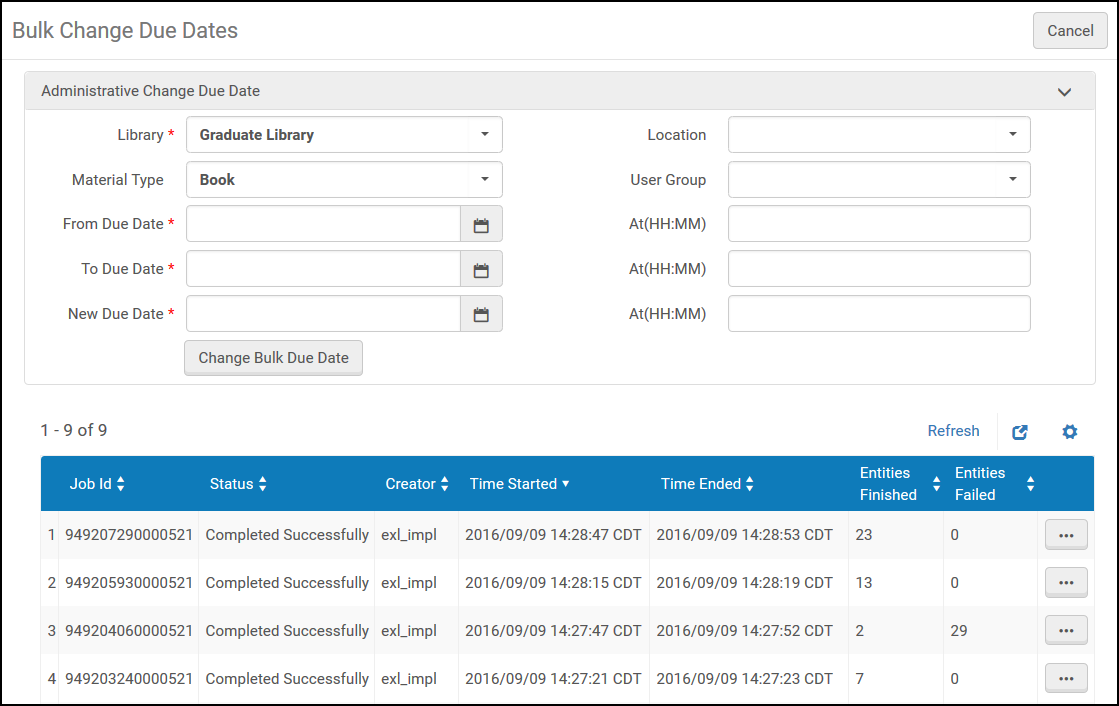
- On the Bulk Change Due Date page (Fulfillment > Advanced Tools > Bulk Change Due Dates), enter the relevant information in the displayed fields, as described in the following table.
Bulk Change Due Date Fields Field Description Library (Required)Select the library whose items' due dates you want to change. Location Select a location (from a list predefined by an administrator; see Configuring Physical Locations) within the specified library. If no location is selected, the job handles all locations for the selected library. If an item's located was changed, Alma uses the location at time of the loan, regardless of whether it was temporary or permanent.Material type Select a type of item within the specified library. If no material type is selected, the job handles all material types. If an item's material type was changed, Alma uses the material type at time of the loan not the current material type.
User group Select a user group for which you want to change the due date. If no user group is selected, the job handles all user group. From due date (Required)Select the beginning date range from the calendar dialog box and optionally, enter a time in the At field. If the corresponding At field is not specified, the time is set to 00:00.To due date (Required)Select the end date range from the calendar dialog box and optionally, enter a time in the At field. If the corresponding At field is not specified, the time is set to 23:59.New due date (Required)Select the new To due date from the calendar dialog box and optionally, enter a time in the At field.
If the corresponding At field is not specified, the time is set to 23:59.
- Select Change Bulk Due Date, and select Confirm in the confirmation dialog box. The list of jobs and their statuses appear in the table on the bottom of the page.The Bulk Change Due Date page displays the columns containing information on the bulk change jobs that have run. The columns are described in the following table:
Bulk Change Due Date Columns Column Description Job ID A numerical identification number of the job Status The status of the job Creator The user who created the job Time Started The date and time on which the job started Time Ended The date and time on which the job ended Entities Finished The number of items in the job for which the due date change completed successfully Entities Failed The number of items in the job for which the due date change failed Select View to view a report of the job. The Job Report page appears, displaying job details.
Job Report Page Select Export to Excel to export the report data to Excel for analysis.
Changing a due date for one user's loans manually creates only a single Loan Status Notice (for Email) or Item Change Due Date Letter (for SMS) for all affected loans. Changing a due date in bulk sends the letter out once per affected loan, meaning that users with multiple loans receive multiple letters. For more information on customizing letters, see Configuring Alma Letters.
A Bulk Change Due Date demand job is one method that can be used when due dates extend beyond the end of a semester and must be shortened to the end of the semester. For more information, see How to Add or Modify an "End of Term" Event For a Fixed Due Date in Alma.
Additional notices may also be applicable, for example, if the due date is shortened because of a patron expiry, resulting in a Shortened Due Date letter.
