Institution Sound Configuration
- General System Administrator
- Fulfillment Administrator (Circulation Desk Scanning Alerts)
Alma provides a centralized configuration page for managing sounds for system notifications and circulation desk blocks (Configuration > General > Sound Configuration). Administrators can configure sounds for the institution from a single location and optionally allow users to customize their own notification sounds.
Control Usage
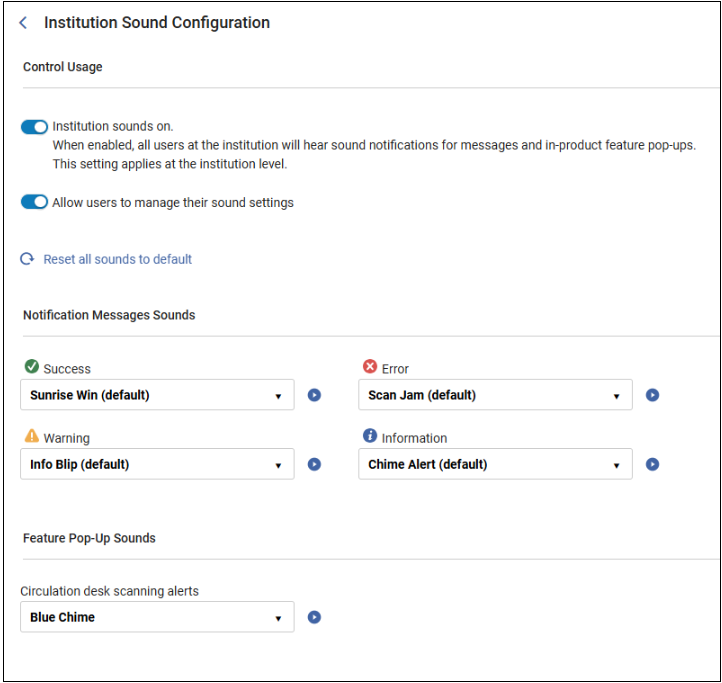
Institution sounds on — When enabled (default), sound is activated for alerts and pop-up notifications across the institution. The general system administrator can configure notification message sounds at the institution level. The fulfillment administrator can configure sounds for circulation desk blocks.
When this option is turned off, both toggles are disabled, and there is no option to configure sounds at the institution or user level.
Allow users to manage their sound settings — When enabled (default), users can manage their sound settings at the user level (UI Preferences > Advanced Sound Settings). See UI Preferences in The Alma User Interface for more information. When disabled, the Advanced Sound Settings option does not appear at the user level.
Reset all sounds to default — This option resets all the sounds to their default. The default at the institution level is the system-defined OTB sounds. Note that this resets the four sound options, while keeping the toggles unchanged.
Notification Message Sounds
You can listen to a preview of each sound by selecting the sound icon next to its alert. To choose a different sound, select the relevant option from the drop-down list, or select No Sound (default).
Feature Pop-Up Sounds
This section controls specific workflows for circulation desk blocks, enabling another level of flexibility for defining sounds. Note that although administrators can update the options to which they have access in this section, only General System Administrators can update the Control Usage or Notification Message Sounds sections at the institution level.
Circulation desk scanning alerts — Select this to sound an alert when a block happens at the circulation desk. This enables staff to rely on a sound alert to flag blocks. To choose a different sound, select the relevant option from the drop-down list, or select No Sound (default). Fulfillment administrators can access this from Configuration > Fulfillment > Sound Configuration.
You can listen to a preview of each sound by selecting the sound icon next to the relevant sound alert. By default, the No Sound option is selected. To choose a different sound, select the relevant radio button.
