Introduction to the New Physical Items Experience
Alma's gradual upgrade to new UI concepts, resulting in faster, simpler searches and streamlined workflows, aims to save time and effort and boost productivity. As part of upgrading the physical items UX, we will be introducing new:
-
Physical items search
-
Items list (of a title/holdings record)
-
Item view and editor
The New Physical Items Search
Aligning with the new approach to loading search results introduced with new title searches, the new search will load gradually, showing information as soon as it is available and adding more details as they become ready, so that a user will not need to wait for all data before they can begin working.
Streamlined Workflows and Capabilities
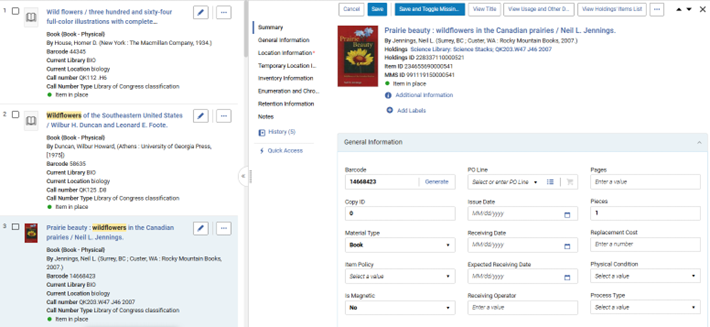
Editing Items in the Search Results
Users with appropriate roles and privileges can edit physical items while remaining in the search context, using the new item editor in a side-by-side or full view. For more information on the new editor, see The New Item View and Editor.
Perform More Actions Directly from the Search Results
The new UX aligns the actions available in the different physical item interfaces – so that users with the privileges to perform an action on an item can now perform it in the search, the items list and the single item view, without having to navigate elsewhere.
Many workflows that previously required navigating away from the search are now accessible directly within it, for example, Duplicate, Relink to Another Bibliographic Record, and Save as Template.
Navigation Actions
Navigation actions were added for easy access to the entities above and around the item:
-
View Title: Opens the full details of the item’s bibliographic record, including the ability to perform actions on the title and its inventory (according to the user’s roles).
-
View Holdings: Opens the full details of the item’s holdings record, including the ability to perform actions on the title and its inventory (according to the user’s roles).
-
View Holdings’ Items List: Opens the items list to show the other items under the same holdings, to assess the completeness of the holdings and easily perform actions in the list context (e.g., binding).
-
View Title’s Items List: Opens the items list to show all items under the same bibliographic record.
-
View Title’s Holdings List: Opens the holdings list to display all holdings under the same bibliographic record, making it easy to review holdings, their items, etc.
The navigation actions open a sliding panel, keeping users in context and allowing them to perform more complex operations as a "side quest" without moving to other areas in Alma, seamlessly returning to the list of items to continue their main work once they are done.
Navigation Links
Alma displays navigation links on the right side of the screen in search results list view, or in the Badges and Icons column of the table view. These links provide quick access to information related to the record, such as orders, linked courses or related records.
Easily Access Important Information
Data required for making informed decisions and assessments of items is easily accessible using actions:
-
View Usage and Other Details: Shows administrative data such as number of loans, last loan date, and linked courses in a sliding panel.
-
View Fulfillment History: Single-click access to the item’s fulfillment history in a sliding panel.
The New UX Views
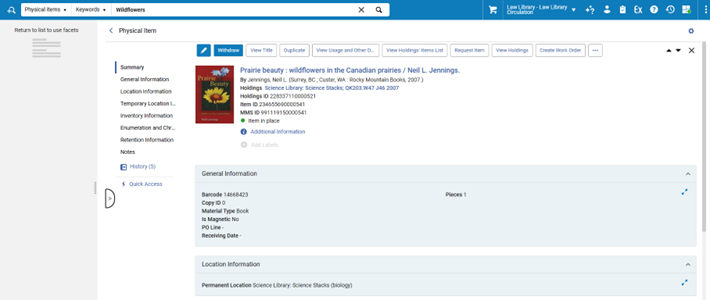
Alma's new UX aims to keep users in context, minimize the need to leave the screen to check information or perform tasks, and improve navigation and efficiency. It therefore offers users a selection of views, allowing each person to choose the one most comfortable for them when completing their tasks. Users can easily switch between different views of the items:
-
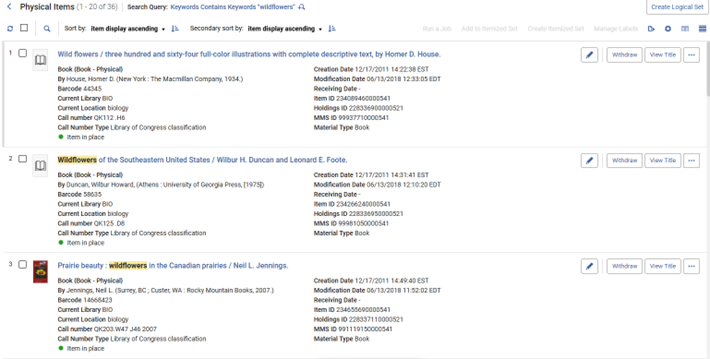
List View: Provides a brief item display for each item.
-
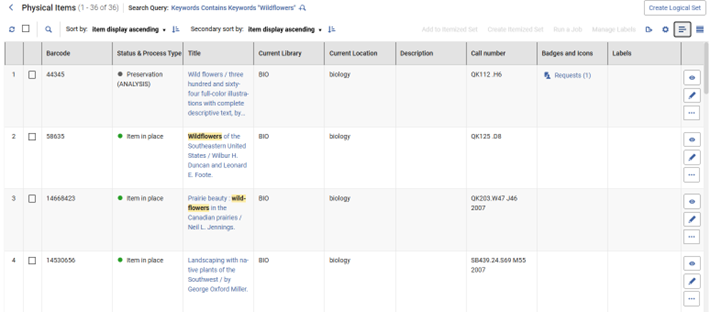
Table View: Displays limited information in a convenient table for easy comparison.
-
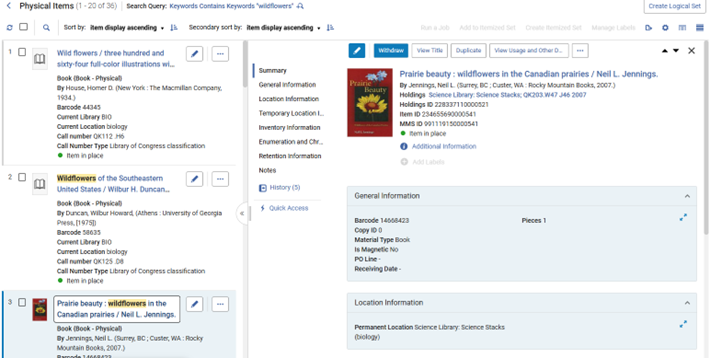
Split View: Shows the items on the left, side by side with the focused item’s full record in view/edit mode.
-
Full Page View: When focusing on an item, it displays the full record only, in view/edit mode side-pane only, offering more space for details.
Facets
The Facets panel is enhanced to help you filter search results to only show those that meet selected conditions. It utilizes Alma’s new, advanced faceting capabilities, including multi-select, excluding values, searching in facets and saving commonly used facet combinations to easily apply in future searches. For more information, see Facets.
The new UX also offers several new facets as well as improvements for existing facets:
Enhanced Facets
-
Location: The location facet is now available at all times, not just after applying a library facet (the library name was added to the location information to distinguish between similar locations across different libraries). It was renamed “Current Location” to distinguish it from the new Permanent Library facet.
-
Library: The Library facet was renamed “Current Library” to distinguish it from the new Permanent Library facet, and now complies with the Library/Location Display configuration to show the library’s name, code, or both.
-
Item Policy: The item policy facet is now available at all times, not only after applying a library facet.
New Facets
-
Status: Easily facet for items that are available or not in place.
-
Received: Easily facet for items that have a receiving date in the past, or those that have not been received.
-
Has Orders: Easily facet for items associated with a purchase order, or where the holdings record is associated with a serial purchase order.
-
Permanent Location: Facet by the location of the holdings record the item belongs to.
-
Permanent Library: Facet by the library of the holdings record the item belongs to.
-
Facet by title metadata:
-
Title Resource Type
-
Title Publication Year
-
Sorting Search Results
The items search results' primary and secondary sorting were enhanced with additional sort options, including the custom Sort Routines configured by the library, which were previously available only for the Items List (for more details, see Configuring Physical Item Sort Routines).
New Out-of-the-Box Sort Options
-
Creation Date
-
Modification Date
Configuration and Personalization
The customization of the Physical Items Search and the Items List are separate, as users may be performing different workflows in the context of a specific title’s / holdings’ items list and a general search. The Sections customization set in the Physical Items Search is used as the default item editor and view settings, determining how the item will appear when accessing the editor from other Alma pages (e.g. Receiving Workbench, Manage Patron Services).
The new item interfaces can be configured at both the user and institution levels. For more information on user-level customizations, see Customizing the Display in Alma.
Administrators can establish institutional defaults, eliminating the need for individual users to configure their display with data relevant to the entire institution – for example, if the institution uses a specific type of call number, an admin can set it to appear by default in the list & table views. Users can, in turn, adjust these preferences to their specific needs, enhancing efficiency and usability.
The available configurations include:
-
Sections: Reorder or hide sections in the full item record to prioritize the most commonly edited information.
-
Actions: Reorder or hide actions for quick access to primary actions with a single click, and easy access to other commonly used actions.
-
Records: Customize which fields from the items are displayed in the list view and where, ensuring easy access to essential information for your tasks.
The fields in the first column are displayed in split-view; the fields in the second column are hidden if the list view is narrow
-
Facets: Reorder or hide facets to ensure relevant tools for your work are readily accessible.
-
Table: Customize which available item fields are displayed as table columns in the table view to make working with the table more efficient.
Advanced Search
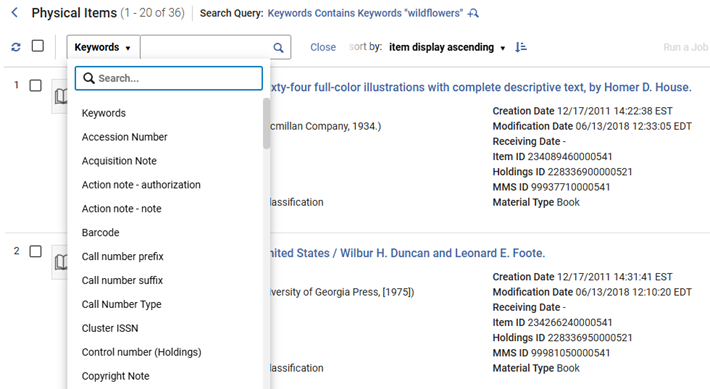
The new advanced search supports a more powerful, refined search, including multiple search criteria and criteria groups that enable the operator to determine the "AND"/"OR" boolean condition for each group. For more information, see The New Advanced Search.
Secondary Search
Easily refine your search results using the secondary search box – this search supports all item search indexes available in the simple items search.
Labels
In the new Search UX, institutions can add local labels relevant to their local records. These labels can be used for searching, faceting, and viewing search results. Labels can be added and removed for a single record, or as a bulk action on selected records. For more information, see Repository Search Labels.
To maintain control over the number of labels added, only users with Manager or Administrator roles, as well as Physical Inventory Operators (who most commonly work with items), can add or remove item labels. However, all users can view and search using these labels.
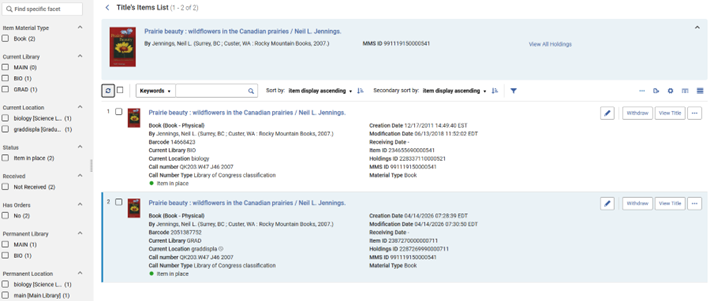
The New Items List
The new items list will be based on the new items search to take advantage of its capabilities, such as inline and side-by-side editing, labels, primary and secondary sorting, etc.
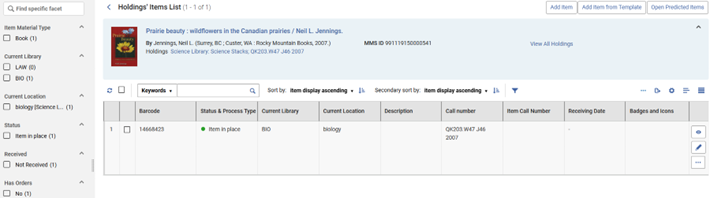
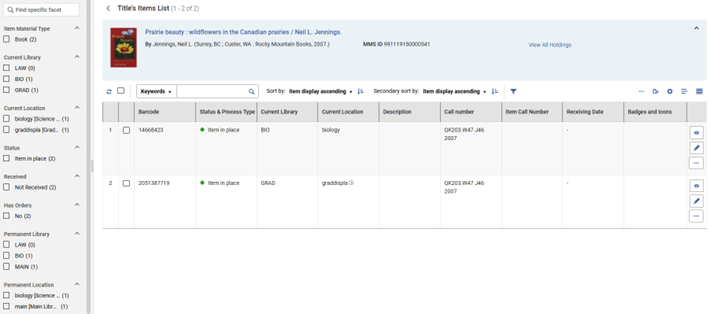
There are several differences when in the context of an items' list, required by the differences in the displayed population and relevant workflows.
-
The list provides clear context for the title/holdings record you’re viewing, with easy navigation to their full details and the ability to perform actions on them.
-
Sorting by rank is not available because there’s no search query to rank by.
-
The “create set” action is removed, and for a holdings’ items list, replaced by actions at the list level, such as adding a new item under the holdings record
-
The holdings’ items list offers additional bulk actions on selected items, such as binding, opening predicted items and more.
-
The list can be filtered by Year, Volume and Description
While the UI of the physical items search and items list is similar, customizations and user preferences will be maintained separately, as main actions, relevant information to display and useful facets may differ in these contexts. This means that any configuration done to the sections, views or facets in the context of the items list will not affect the item display elsewhere in the system. To customize the appearance of the item view & editor, set the Sections customization in the Physical Items Search, which is used as the default setting when accessing the editor from other Alma pages (e.g. Receiving Workbench, Manage Patron Services).
The Holdings’ items list:
Title’s items list:
The New Item View and Editor
The new items UX introduces a new and improved way to view and edit item information.
Configurable Display
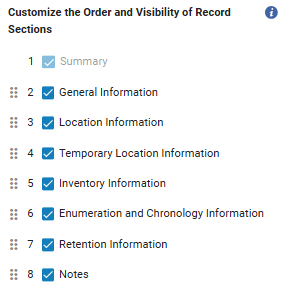
Item information is organized into sections for improved usability (for example, the Description field now appears with the Enumeration and Chronology fields that impact its content).
It is possible to configure the order in which these sections appear based on the user’s needs. For example, an operator who mostly views or updates the Enumeration and Chronology Information or the Retention Information sections can place them at the top of the editor for easy access.
Quick Access Module
The quick access module, accessible from the middle menu or via the period key on the keyboard, allows users to easily navigate item information and the editor, move to a specific section or field, and perform actions. For more information, see Quick Access Module.
Viewing Item Information
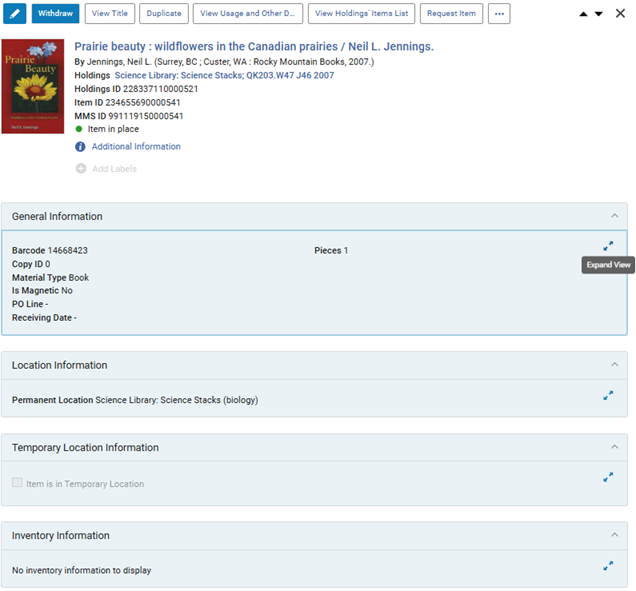
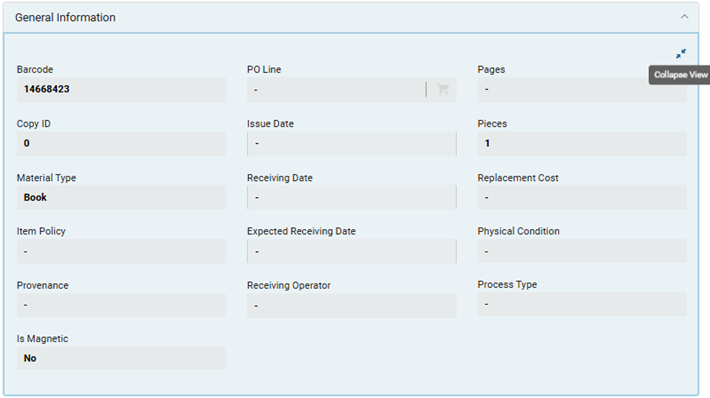
The new item view displays the item’s details in a condensed and easy-to-understand format that can be expanded as needed.
Condensed view:
Expanding the General Information section:
Editing An Item
The new editor enables side-by-side or full-view editing of items in the new search and new items list, and will be available in a sliding panel in other workflows (for example, the receiving workbench).
In the new editor, all item fields are available together, with no need to switch between tabs or perform “Save and Edit” for newly added items to update certain fields.
Operators can scroll between all fields, navigate to a specific section using the middle menu, or use the Quick Access module to navigate to a specific field.
Significant Changes to Note from the Previous User Experience
All Item Information Editable Directly at Item Creation
When a new item is created, the operator no longer needs to click Save and Edit to access all item fields, such as notes, enumeration or chronology – all sections of the editor are available together, and operators can scroll between them or navigate using the sections menu or quick access functionality.
Editor Drop-Down Changes
-
The content of the Material Type and Item Policy drop-downs is sorted according to the admin's configured sorting, letting admins set the order in which values are displayed to operators.
-
On the Physical Condition drop-down, the default value no longer appears when the item has no condition defined, as this was misleading and could cause errors when saving an item.
Items List Navigation
Actions that require the holdings’ context, such as “Add Item”, “Bind Items” and “Open Predicted Items”, are only available in the Holdings’ Items List.
-
New navigation options allow for easy access to the items list as the holdings and title levels.
-
When viewing the items list, the item list that opens is always at the requested level:
-
In the titles search — users are now consistently navigated to the Title’s Items List and can easily navigate to a holdings' items list from an item, using the new "View Holdings' items list" action. Before, navigating to the items list from a title search opened the Title’s Items List when multiple holdings existed, and the Holdings Items List when a single holdings existed. This caused confusion and issues in some scenarios (e.g., when moving an item to a new location or creating additional holdings).
-
In the Holdings search — users are consistently navigated to the Holdings’ Items List and can easily navigate to the titles from an item, using the new "View Title’s items list" action.
-
In the items search or list — clear, dedicated navigation actions were added to "View Title’s items list" and "View Holdings’ items list".
-
Export
Exporting the search results or the items list to Excel is unified in the new user interface, so the resulting files are similar regardless of the workflow used, and the user doesn’t need to remember where to export what.
All the data available for export in the classic UX is still included in the new UX export, but there are some changes in column names, column order, formatting, and other aspects.
Libraries using scripts or processes that use these exported files need to review the new file format and make any necessary adjustments to ensure compatibility.
