
Introducción a la aplicación Alma Mobile 2
Alma Móvil brinda la portabilidad de las funciones de Alma que se alinean con sus flujos de trabajo cuando se usa teléfonos móviles y tabletas.
Alma Mobile 2 proporciona la portabilidad de las funciones de Alma que se alinean con sus flujos de trabajo cuando usa teléfonos móviles y tabletas. For example, Alma Mobile 2 enables you to process Pick Up from Shelf (Fulfillment > Resource Requests > Pick from Shelf) requests directly from your mobile device. Las secciones de abajo proporcionan la siguiente información para ayudarle a comenzar:
- Supported Operating Systems
- Supported Devices
- Supported Barcode Symbologies
- Getting Started and Logging In
- Working with Settings
- Logging Out of Alma
Descargar la aplicación Alma Móvil de:
- Google Play
- Apple App Store
The licensing information for the Alma Mobile 2 app can be found at Alma Mobile EULA and Alma Mobile App.
Sistemas operativos soportados
Alma Móvil soporta los siguientes sistemas operativos en dispositivos:
- Android
- iOS (11 o posterior)
Dispositivos soportados
Alma Móvil soporta los siguientes dispositivos móviles:
- iPhones
- iPads
- Teléfonos móviles con Android
- Tabletas con Android
- Lectores de mano con Bluetooth
Supported Barcode Symbologies
Se soportan las simbologías de los códigos de barras del sistema operativo identificadas abajo cuando se usa la cámara del dispositivo móvil para leer los códigos de barras. Si se está usando un lector con bluetooth conectado a su dispositivo móvil para leer los códigos de barras, se necesitará verificar cuáles simbologías de códigos de barras están soportadas para ese lector.
Para dispositivos que usan el sistema operativo Android, se soportan las siguientes simbologías de códigos de barras cuando se usa la cámara del dispositivo:
- QR_CODE
- DATA_MATRIX
- UPC_E
- UPC_A
- EAN_8
- EAN_13
- CODE_128
- CODE_39 (see the note below)
- CODE_93
- CODABAR
- ITF
- RSS14
- RSS_EXPANDED
Para dispositivos que usan el sistema operativo iOS, se soportan las siguientes simbologías de códigos de barras cuando se usa la cámara del dispositivo:
- QR_CODE
- DATA_MATRIX
- UPC_E
- UPC_A
- EAN_8
- EAN_13
- CODE_128
- CODE_39 (see the note below)
- ITF
For sites with barcodes that use extended ASCII characters (such as >, the greater than symbol) that require Extended Code 39 symbology support, it is recommended that you use a bluetooth-enabled scanner connected to your mobile device that supports that symbology.
Getting Started and Logging In
Para comenzar:
- En la Apple App Store o en Google Play, descargar la aplicación Alma Móvil.
- Ubicar el icono de Alma Móvil en su dispositivo móvil e iniciar la aplicación.
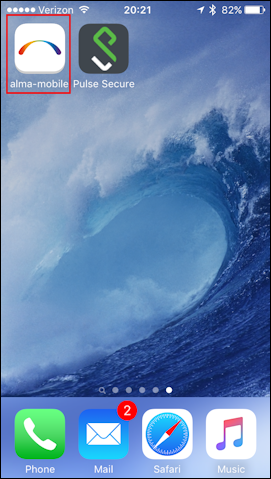
Icono de Alma Móvil Aparece la página Comenzar.These pages appear in the language identified as the default language in the mobile device's language setting when the language is one that is supported by Alma. Se necesita usar por separado las configuraciones de Alma Móvil para identificar el idioma que usará cuando trabaje con Alma en su dispositivo móvil. See Working with Settings for more information.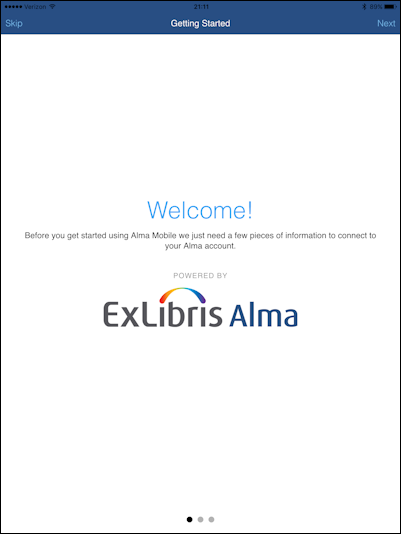
Página Comenzar 1 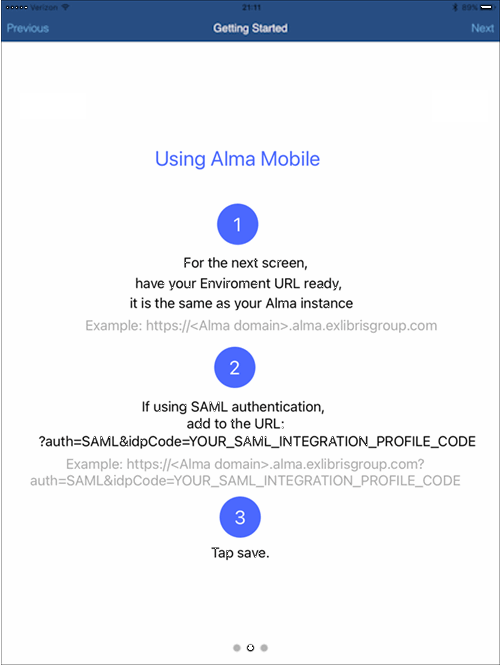 Página Comenzar 2
Página Comenzando - Tap Start app. The URL / Authentication configuration page appears.La página aparecerá en inglés.
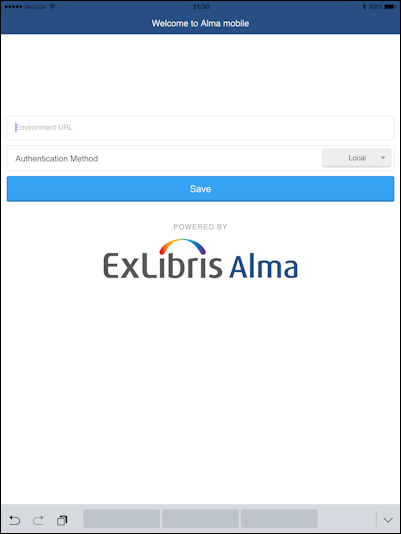
Página de URL / Autenticación -
Ingrese la URL específica de su institución. Por ejemplo:
https://caccl-laccd.alma.exlibrisgroup.com
Si no tiene una URL específica de la institución, ingrese la URL de su institución como se describe en las páginas de Introducción. This is your Alma instance as in the following generic format where mng is replaced with mobile:- Producción:
https://
- Sandbox:
https://<hostname>
For example, ap01 with institution code 852ALMA_INST, the full link is:https://sandbox01-ap.alma.exlibrisgroup.com?institution=852ALMA_INST
If using SAML, modify the Alma URL to include ?auth=SAML&idpCode=SAML_PROFILE where SAML_PROFILE is the name of your SAML integration profile as defined in Alma at Configuration > General > Integration Profiles.
If using CAS, modify the Alma URL to include ?auth=CAS&idpCode=CAS_PROFILE where CAS_PROFILE is the name of your CAS integration profile as defined in Alma at Configuration > General > Integration Profiles.
If using social login, modify the Alma URL to include ?auth=social. Una vez conectado, Alma Mobile presenta las opciones de inicio de sesión social disponibles.
If using Alma local authentication, modify the Alma URL to include ?auth=local.
- Producción:
-
Tap Save. Aparece la página de inicio de sesión de Alma.Esta página de inicio de sesión aparecerá en inglés.
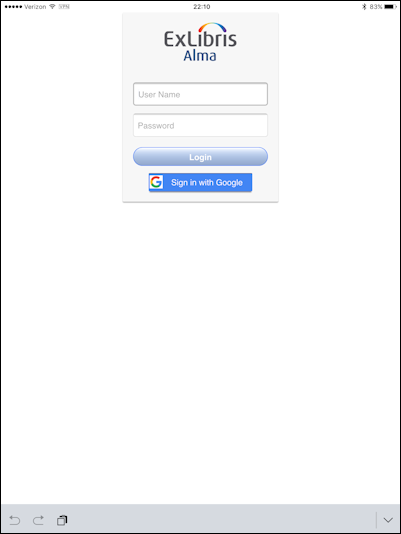
Inicio de sesión en Alma -
Introducir su nombre de usuario y contraseña para iniciar sesión en Alma. Aparecen las opciones de Alma Móvil.
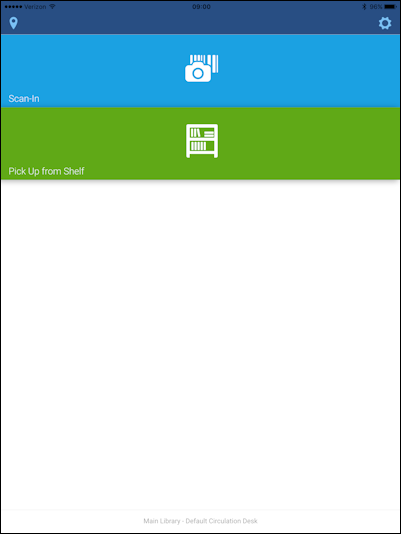
Opciones de Alma Móvil
Trabajo con configuraciones
- Idiomas
- Enlaces externos
- Tocar el icono del engrane para abrir el panel de Configuración.
-
Tap Languages to display and/or select the preferred language option for the Alma Mobile user interface. La lista ordenada de opciones de configuración del idioma se actualizará con el tiempo y a medida que más idiomas sean soportados por Alma.
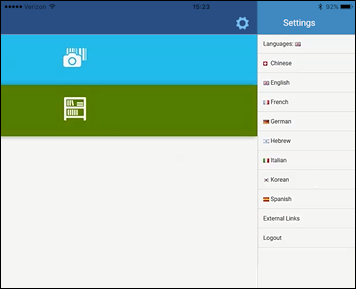
Configuraciones del idioma para la interfaz del usuario. -
Tap External Links to conveniently switch from Alma Mobile to one of the following external links:
- Ideas Ex Libris
- Facebook de Ex Libris
- Twitter de Ex Libris
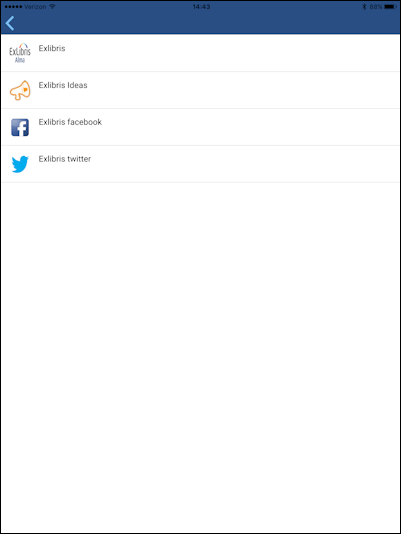
Enlaces externos - Tocar el icono del engranaje para abrir el panel de Configuración.
Logging Out of Alma Mobile
- Tocar el icono del engrane para abrir el panel de Configuración.
-
Tap the Logout action.
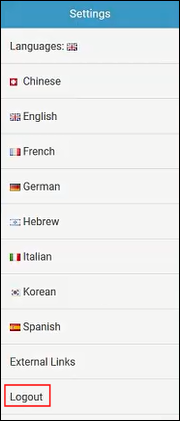
Acción de cerrar sesión Aparece una confirmación de su cierre de sesión.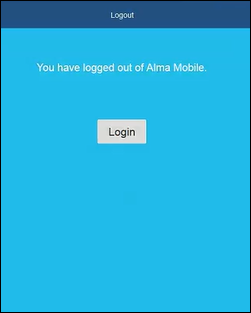
Confirmación del cierre de sesión Tapping the Login button will take you back to the Login page (see Getting Started and Logging In).
Page tags: article:topic product:alma content:Documentation lang:english alma mobile introduction alma mobile
