
予測パターン
- 冊子目録オペレーター
- 冊子目録オペレーター(拡張)(削除操作に必要)
Alma supports prediction patterns to enable you to more easily manage serials.予測パターンのサポートにより、予測テンプレートに基づいて、受領日より前に定期刊行アイテムを作成できます。
This capability uses the 853-855 holdings record fields for the predicted item information such as enumeration, chronology, date, and so forth. Alma provides many predictive pattern templates from which you can select to enter the 853-855 field information.
For holdings that have a predictable pattern, the On order until <date> information is displayed in the Primo Get It tab.
予測されたアイテムを作成したら、取得したアイテムリストを使用して表示し、領収書を管理できます。逐次刊行物の冊子資料の取得と請求の処理に関する詳細については、新しい冊子資料を受領するにはの手順を参照してください。
予測されるアイテムに関連付けられているすべての注文明細には、請求猶予期間を含める必要があります。
For more information about prediction pattern support for managing serials, see Presentations and Documents - Serials.
予測パターンの内容と所蔵レコードの作成
- Locate a holdings record (that is connected to a physical subscription order type) to which you want to add the predictive pattern information.MDエディタで開きます。The order provides the vendor Subscription interval information that is used in combination with the Next Predicted's Item Information to calculate the expected arrival date.
- Select Editing Actions> Expand from Template, select a relevant predictive pattern template that fits your requirements, and select OK.The dialog offers the following options:
- Override- Replaces any existing-matching fields of the record with the template fields.
- Add missing- The fields of the template will supplement only the template's fields missing in the record.
- Add all- Adds all the template's fields to the record, keeping the existing record's fields, even if matched.不要なフィールドは手動で削除する必要があることに注意してください。
この手順で使用されるジャーナルは四半期ごとの出版物であるため、逐次刊行物予測の四半期ごとの月のテンプレートが選択されます。
四半期ごとの刊行 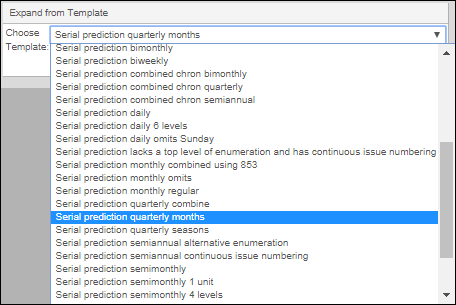
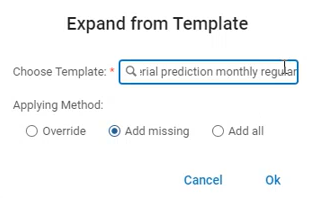 テンプレート予測パターンオプションから展開システムは、853フィールド(または選択したテンプレートによっては854/855フィールド)とテンプレートの説明が含まれる590フィールドを所蔵レコードに追加します。
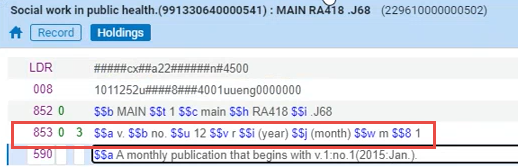 オプションで、853/854/855フィールドを手動で入力できます。See http://www.loc.gov/marc/holdings/hd853855.html for more information.予測パターンテンプレートを複製および編集して、独自の予測パターンテンプレートを作成することもできます。See To create/customize prediction pattern holdings templates.予測パターンとシリアルの詳細については、以下を参照してください。
- Serials - Prediction patterns guide and examples.docx
- Serials How To Documents
- Select the icon in the 853 (or 854/855) row to open the form with the next predicted item's information.You can also press F3 or select the
 icon to open the form when the 853 (or 854/855) is the active row, or you can select Record Actions> Next predicted item's information.853/854/855フィールドに手動で入力した場合、アイコンは表示されません。この場合、F3を押してフォームを開きます。
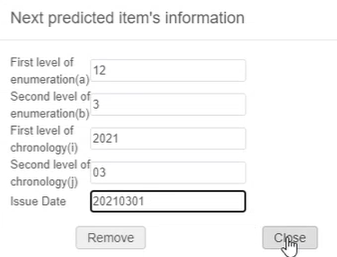
- 次の予測アイテムに必要な変更を行い、[閉じる]を選択します。このフォームのエントリ(一覧表、年表、および発行日)により、次の予測アイテムから始まる予測パターンの始まりが決まります。発行日は、予測パターンの最初の逐次刊行物の日付です。Select Remove to clear the form.
- Select Record Actions> Open predicted item to view the pattern that Alma created for this holdings record.The predicted pattern that is created includes the expected arrival date(see the figure below).The predicted issue's Expected Arrival Date is generated from (1) the Subscription interval in the vendor information portion of the PO line AND (2) the Issue Date of the expected issue.The Subscription Interval value should be the best estimate of the number of days, relative to the date of publication, that the issue arrives in house.各予測サイクルは1年間です。1年以上予測アイテムを作成する場合は、[予測アイテムを開く]ステップを繰り返します。
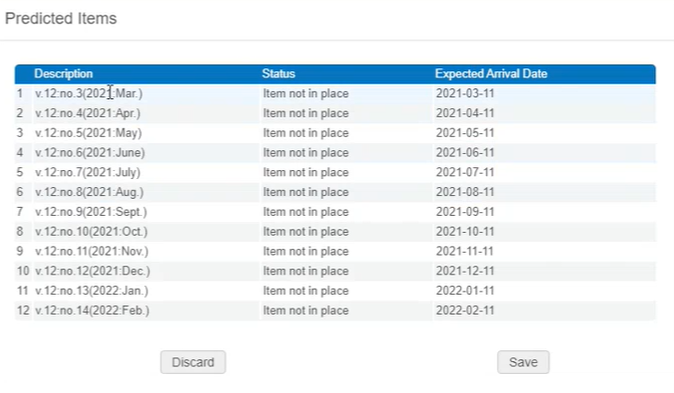 作成された予測アイテム
[予測アイテム]テーブルの2番目の列挙レベルの言語は、フィールド008のpos.22-24で定義されている言語です。この値には、所蔵レコードの言語が含まれます。In the below example, this value is German, and the predicted items are generated in German.
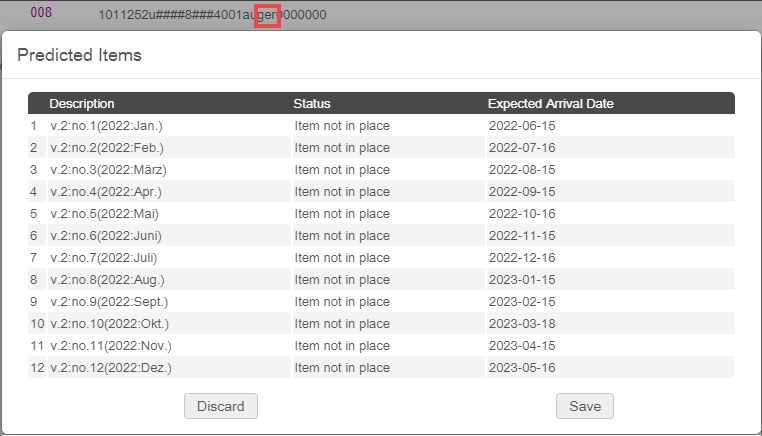
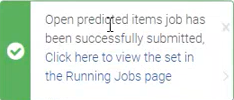
- [保存]を選択して作成された予測アイテムを保存するか、予測アイテムを保存しない場合は[破棄]を選択します。This closes the Predicted Items form.Note: If the number of predicted items to be created is larger than 50, then the item creation is conducted as a Open Predicted Items job that runs in the background, allowing you to work on your other tasks while the items are being created.Click the link in the notification message to view the job.If you would like the Open Predicted Items job to be triggered not at 50 items, but at a higher or lower number of items, contact Customer Support.
- 変更が完了したら[レコードを保存]アイコンを選択します。
Now you can view the materials you created in the Acquisitions > Received Items List where you can manage their receipt.逐次刊行物の冊子資料の取得と請求の処理に関する詳細については、新しい冊子資料を受領するにはの手順を参照してください。
予測パターン所蔵テンプレートの作成/カスタマイズ
- MDエディターを開きます。
- Select the Templatestab in the Navigation pane, and expand the Shared folder.
- Select one of the prediction pattern templates provided by Ex Libris that is similar to the one you want to create , right-click and select Duplicate.テンプレートのプロパティダイアログボックスが表示されます。
- 必要に応じて、[名前]や[説明]などのテンプレートプロパティを変更し、[保存]を選択します。システムはカスタマイズ可能なテンプレートの複製を作成します。
- コピーしたテンプレートを選択し、[編集]選択します。テンプレートの詳細がMDエディタの右側の画面に表示されます。
- 要件に合わせてテンプレートをカスタマイズし、変更を保存します。
- MDエディタで、予測アイテムを作成した所蔵を含む書誌レコードを開きます。
- Select View Related Data> View Inventory).作成した予測アイテムは、この連続所蔵レコードの書誌レコードのMDエディタ([関連データを表示する]> [目録の表示])の[所蔵]タブに表示されるアイテムの総数を増分します。
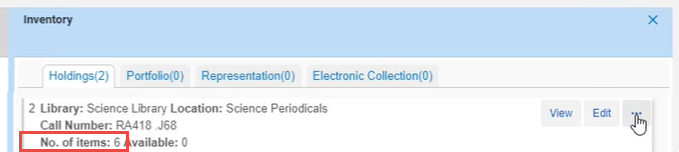 書誌レコード所蔵のアイテム数の増加
- [アイテムの表示]を選択します。サイクルの予測アイテムは、受領日なしで作成されました(まだ受領されていないため)。While viewing the details of the List of Items page,Open Predicted Items can be used to create another cycle of predicted items.別のサイクルを作成するには、以下の次の手順を参照してください。For more information about the List of Items page, see Working with the List of Items.
- 予測されたアイテムの1つについて、[アクション>編集]を選択して[冊子エディタ]ページを開きます。[受領予定日]は予測パターンによって設定されていることに注意してください。
オープン予測アイテムを使用して追加の予測アイテムの作成
- 検索を使用して、予測アイテムの追加サイクルを作成するレコードの検索条件を入力し、[アイテム]リンクを選択します。Depending on your workflow and the number of holdings records, you can also select Holdings to open the List of Holdings page (see Working with the List of Holdings), and then select View items. from the row actions.[予測アイテムを開く]オプションを含む[アイテムのリスト]ページが表示されます。For more information about the List of Items page, see Working with the List of Items.
- [予測アイテムを開く]を選択します。新しい[予測アイテムのリスト]が表示されます。[ツール]オプションを使用すると、Excel形式でリストを表示/保存できることに注意してください。
- [アイテムの保存]を選択して予測アイテムを保存し、リストを閉じます。
- [戻る]を選択して、検索結果ページに戻ります。
予測アイテムを受領
- As with receiving materials, you must be at your library's acquisitions desk; see Receiving Physical Material.
- An item that was created from a prediction pattern, but not yet received by the institution, is not reflected in the 86X field.The 866 field is created automatically in the Holdings record only upon receiving of the item.For details, see Presentations and Documents - Serials.
- It is not possible to scan and receive multiple items using a scanner.It is possible to receive multiple items at once if you enter the barcodes manually.
- The Alma Open Predicted Items process creates items from the year 1900 and newer.
- [新規資料の受領]ページを開き([受入 > 受領と請求 > 受領])、[継続]タブを選択します。See Receiving Physical Material for additional information regarding receiving continuous orders for physical materials and processing claims.
- [新規資料の受領]ページをフィルタ処理して、受領する予測アイテムを含む注文明細を見つけます。
- 受領したい予測項目(複数可)を含む特定の注文明細については[アイテム管理]の行アクションを選択します。[受領アイテムリスト]ページが表示されます。アイテムを受領し管理するときに、[受領日]列を確認することで、到着済みアイテムと到着待ちアイテムを確認できます。
- Use the Sort routine,Receiving status, and Location options in the PO Line Items section to organize and locate the predicted item(s) to be received.
- [ソートルーチン]のドロップダウンリストから[受領日]を選択します。
- [受領ステータス]で[未受領]を選択します。
- [配架場所]に特定の場所/図書館を選択します。
- 特定の予測アイテムの[受領]行アクションを選択するか、複数の行のチェックボックスを選択し、[保存して受領]を選択して複数のアイテムを保存および受領します。バーコード付きのアイテムを受け取る場合、チェックボックスを選択してバーコードをスキャンします。See the section Scanning Items for more information about scanning barcodes.
- すべての予測アイテムの受領が完了するまで、上記の受領手順を繰り返します。
- 変更が完了したら[レコードを保存]アイコンを選択します。
