
Sending Notifications to End-Users
Overview
This overview provides information on the various end-user notification options.
The main framework in which notifications can be sent is the Notification Center, an App Manager component that enables institutions to send alerts to their end-users. These alerts are delivered as push notifications to the native iOS/Android apps and as app alerts on the web app/portal. Additional options for sending notifications are BCC Notifications and the Send Alerts/Push Notifications API.

For an introduction to sending push notifications, watch the Engaging students with push notifications video (1:23).
Alerts Sent Via the Notification Center
The Notification Center in App Manager (Notifications) enables app administrators to send push notifications to one or more end-users. Targeted information can be sent to specific end-users by creating a notification group. End-users may automatically be subscribed to notification groups based on their app roles or they may be able to select which notifications they receive by subscribing to or unsubscribing from notification groups. See Working with the Notification Center.
End-users receive push notifications on their devices if they are logged in at the time the alert is sent. Tapping a notification takes them to the Alerts page of the app, which is essentially an inbox for push notifications. New and unread alerts are highlighted at the beginning of the list of alerts. When the end-user taps a notification in the list, the full contents of the notification is displayed.
End-users can select multiple Alerts in the mobile app in order to Mark as Read or Delete them in bulk. This functionality is accessed by tapping the "Edit" button on the top left of the mobile screen or simply using the checkboxes that appear next to the notifications. End-users may manually select several alerts, select all alerts by using the "Select all" option, and deselect all alerts by using the "Clear"/"Unselect All" option. After selecting the desired alerts and selecting the desired action, users are asked if they are sure they want to perform the action. Once the alerts are deleted/marked as read, a small feedback message appears. End-users can delete notifications they have viewed using the Delete icons. If they do not delete a notification, it remains in their Alerts list until its expiration date arrives.
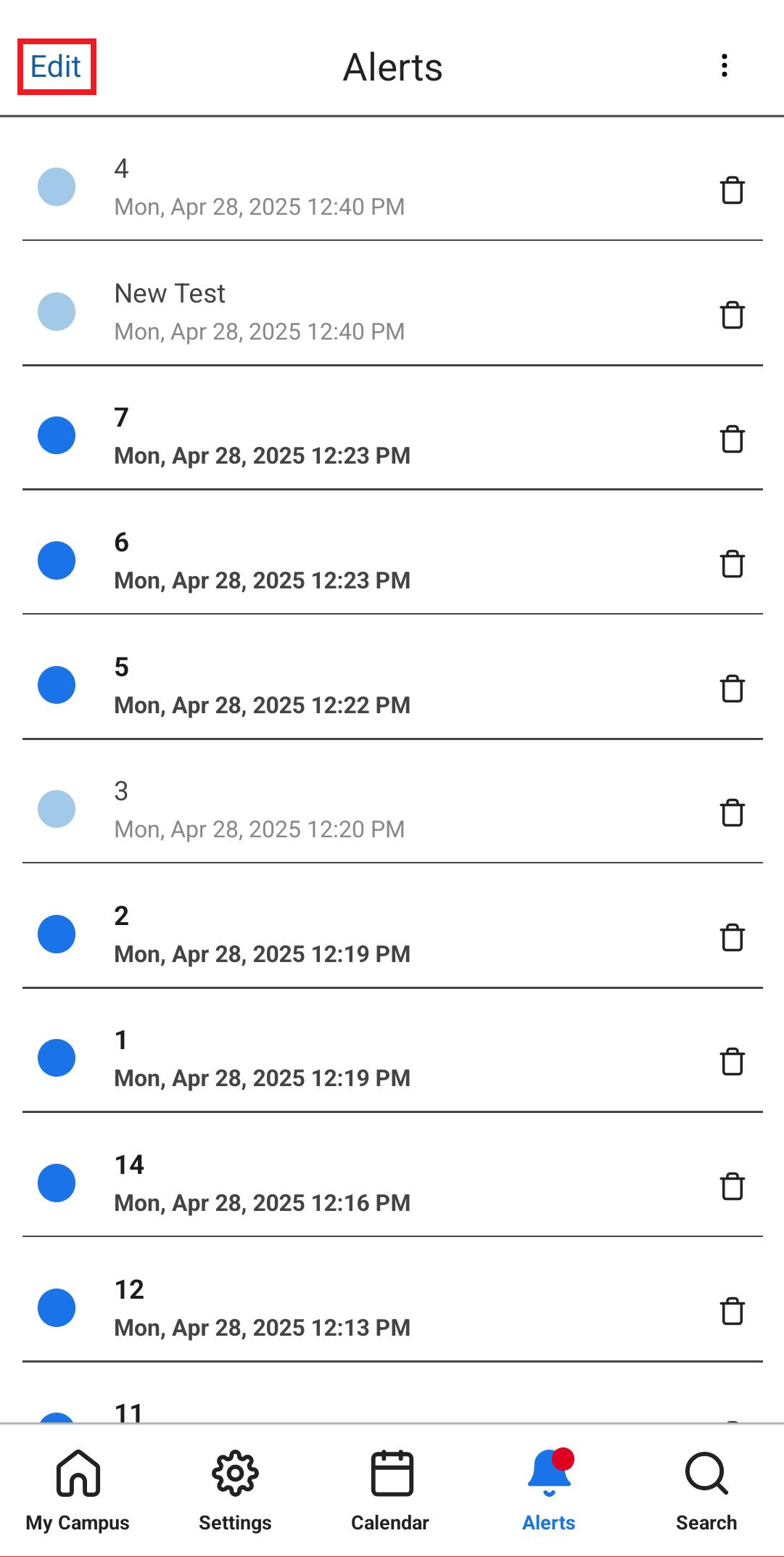
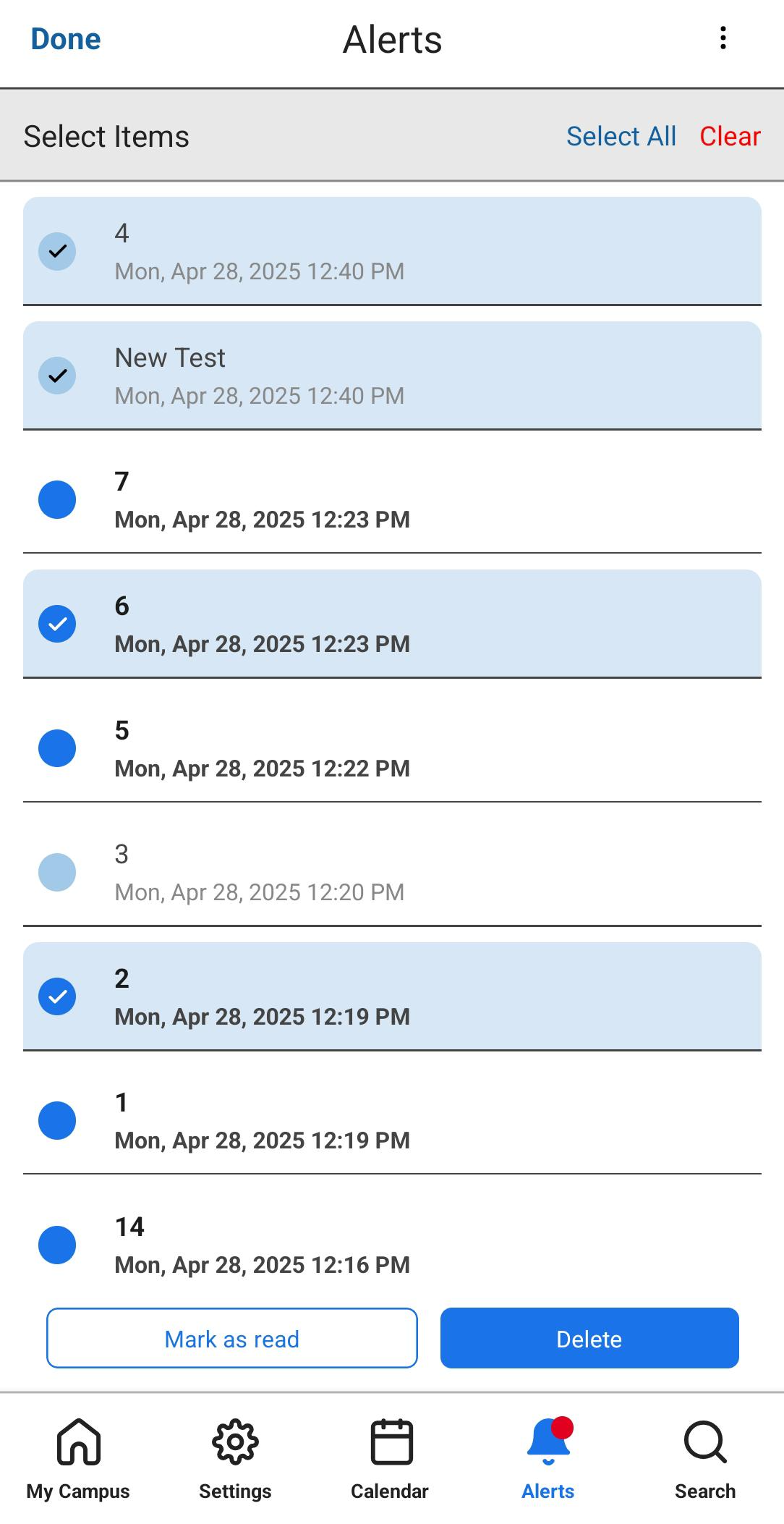
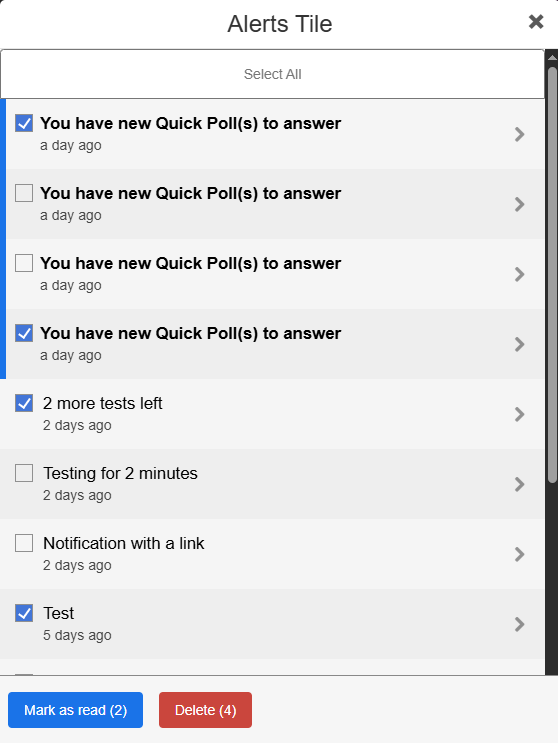
Notifications can be accessed at any point by selecting Alerts icon from the bottom navigation bar on mobile, or the Alerts tile in the web app. When unread notifications exist, the Alerts icon in the app appears with a red dot (as in the illustration above), while the Alerts tile shows the number of unread notifications and changes color.
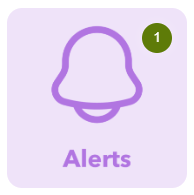
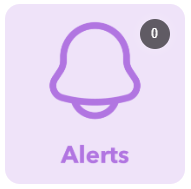
Alerts tile with and without unread alerts
BCC Notifications
Another useful way to send notifications to users is the BCC method. Once this feature is set up, it is simply a matter of sending an email containing the notification to the appropriate alerts email address by inserting that address into the BCC field. The contents of the email are then converted into a notification and sent to users' Apple or Android mobile devices, where they display on the lock screen.
Setting Up BCC Notifications
To enable one or more BCC sender email addresses, raise a support case to request this. The system sends the notifications to added recipients if they are campusM users (i.e. they have logged into campusM), and there is no additional setup required. Once you are notified via the support case, it will be possible for your institution to use those user email addresses in BCC alerts.
The email address to which you need to send the desired alert depends on the server your environment is on. If you are unsure which server your environment is on, you can check the address of App Manager you use:
| Region | App Manager address | BCC Alerts Address |
|---|---|---|
| EMEA | https://appmanager-eu.campusm.exlibrisgroup.com/ | alerts@ombiel.com |
| NA | https://appmanager-na.campusm.exlibrisgroup.com/ | alerts-na@ombiel.com |
| APAC | https://appmanager-ap.campusm.exlibrisgroup.com/ | alerts-ap@ombiel.com |
Send Alerts/Push Notifications API
Institutions can also use the Send Alerts/Push Notifications API to send alerts to their users. The API can be used to send alerts to an individual user, multiple users, or a notification group. For more information, see Send Alerts Push Notifications.
