
Working with Creative Studio
This page describes how to use the Creative Studio and its main components.
For more information about campusM and static services, see the campusM Overview.
Overview
campusM Creative Studio enables you to create and configure static services for your end-user applications. Creative Studio's rich but simple user interface enables you to design content and information pages on various topics in minutes. You use a simple drag-and-drop interface and out-of-the-box templates to ensure that creating, designing, editing, and publishing pages is intuitive and speedy.
After making changes to a service, the end-user sees the changes if he or she logs out and in to the app or switches profiles. You can force these changes to appear immediately to end-users by publishing the app. See Publishing Apps.
- See Working with Static Content and the Content Menu for an alternate method of configuring static services.
- Before configuring a service, you may want to configure the profile and app default configurations for services. Any service property not defined for a specific service inherits its value from the profile default. Any service property not defined for a profile inherits its value from the app default. See Configuring Default Service Properties and Managing Profile Defaults for Services.
The WYSIWYG interface enables non-technical content creators to manage relevant and permitted materials. Advanced features, such as CSS, code injections, and more, ensure that technical-capable staff is able to use the environment to its full extent.
- While more advanced features like direct HTML and CSS editing and code injections are generally supported, Creative Studio was designed to create static pages, and we cannot guarantee full functionality for interactive components created by these means.
- If your institution requires a more interactive experience, we recommend using AEK instead, as it provides a more powerful tool that is designed for interactive functionality.
- Ex Libris Support is not responsible for creating or troubleshooting code (HTML, CSS, JavaScript, etc.) created by customers.
- If the relevant code compiles and functions as expected in other (non-campusM) platforms, or there is another reason to believe that campusM code is the source of the issue, please contact the support team.
Accessing Creative Studio
You can access Creative Studio from the App Manager homepage (Creative Studio). Additionally, you can access Creative Studio directly at the URL:https://<App Manager URL>/creative-studio.
Creative Studio User Interface
The Creative Studio user interface is divided into several areas, as shown in the screenshot below.
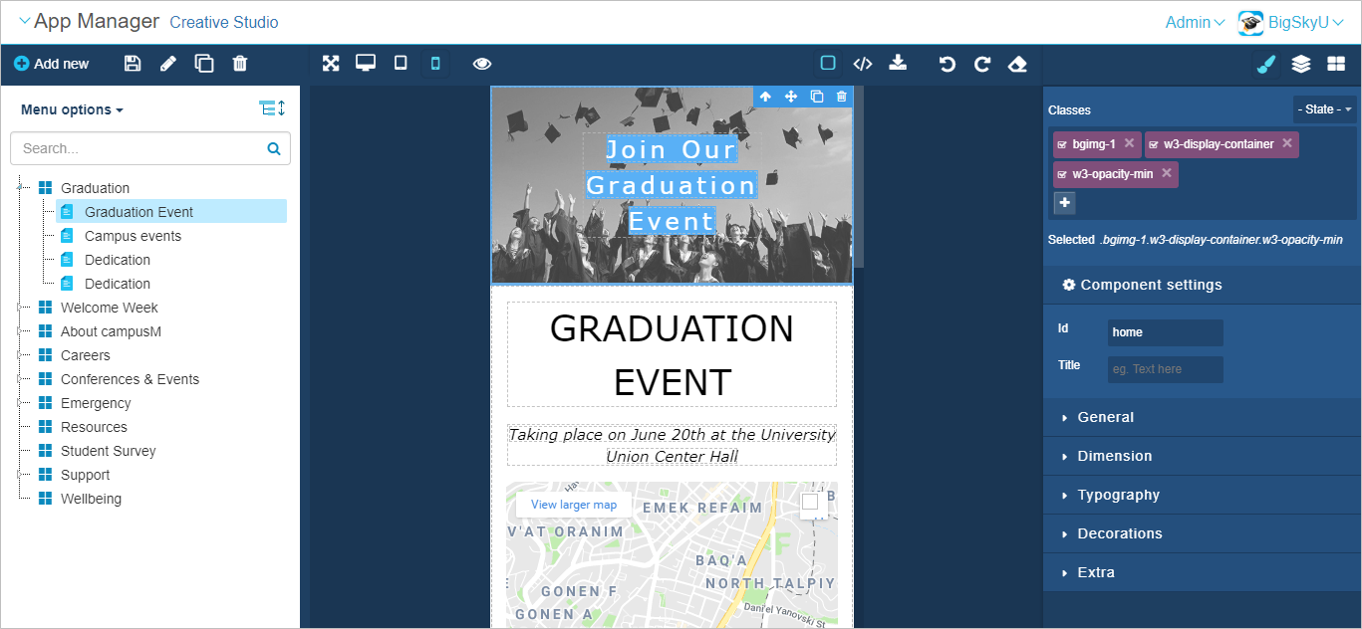
The main areas are as follows (from left to right):
- Content Menu: Navigate and search available content pages, create new pages (including pages, redirect, sub-menus), save, edit properties, and so on. See Navigating Creative Studio (Content Menu).
- Content editing area: The main area of the user interface, where users can design content page in-screen, preview page content on various devices, and export and import the HTML/CSS content.For more information, see Creating Content Pages.
- Settings and Components: Edit the settings of individual components and elements within the page, traverse the page hierarchy, and drag-and-drop additional components into the page. See Adding Page Components,Organizing Elements Using the Elements Tree, and Editing and Configuring Page Elements.
Page tags: article:topiccontent:Documentationproduct:campusmlang:englishcommunity:training_materialscampusM Creative Studio
