
General Page Editing Actions
This page describes how to edit a page in the Creative Studio, including all available menu options.
The following general actions appear when editing a page.
Page Menu
The following options appear above the content menu.
| Save |

|
Save the page and make it available for new logged-in end-users. To make the page available to all end-users, publish the content from App Settings.
You can also save the page as a template. Select the name and description for the template. The template is saved and now available when creating new pages (you can edit the template's name and description, or delete the template at a later time; see Creating a Page from a Template). |
| Edit Properties |

|
Change the page name and description, and/or set the page hidden or viewable. |
| Duplicate |

|
Duplicate a page. This is useful when creating a set of hidden institution template pages and duplicating them for specific purposes. |
| Delete |

|
Delete a page. When you delete a content page, the Page ID displays in the analytics platform instead of its name. However, deleting a page still removes its display name from campusM. |
Display and Preview Menu
The following display and preview options are available.
| Full Screen |

|
Change the display to full screen. This removes the content menu, leaving more screen space for page editing. |
| Laptop |

|
Change the display to laptop layout to view page responsiveness. |
| Tablet |

|
Change the display to tablet layout to view page responsiveness. |
| Phone |

|
Change the display to phone layout to view page responsiveness. This is the default view. |
| Preview |

|
Change the display to preview mode. This removes all editing options and displays the page in a virtual phone, tablet, or laptop layout. |
For more information, see How to Preview a Page.
Editing Menu
The following edit options are available:
| Show/Hide Borders |

|
Display or hide element borders. Showing the borders can be useful to understand the page structure and layout. |
| Show HTML/CSS |

|
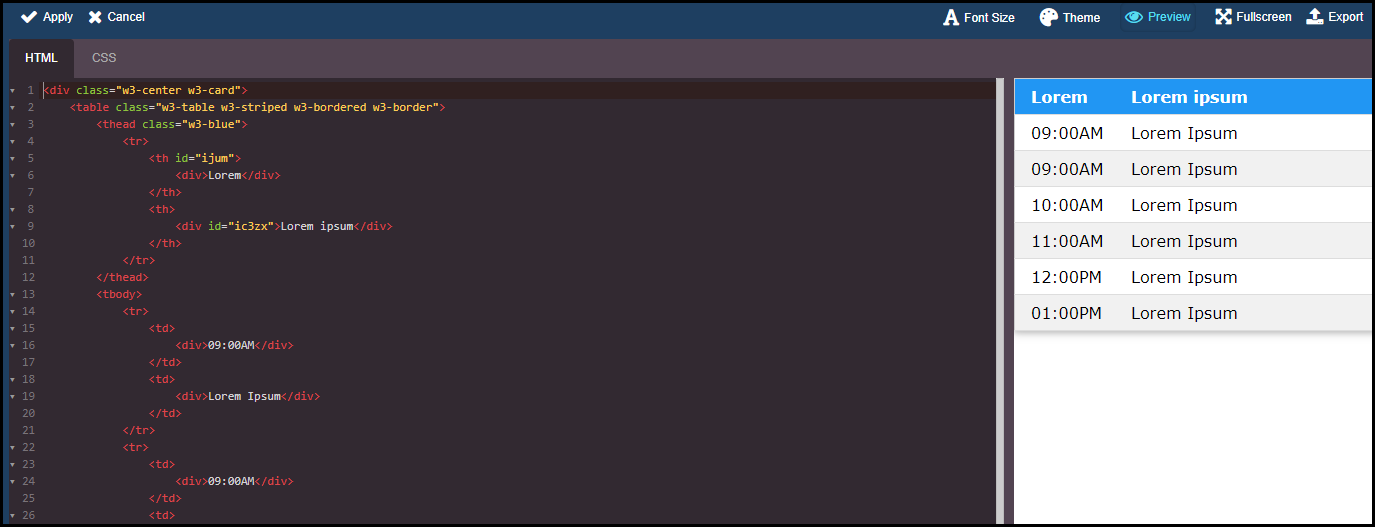
Display the page HTML and CSS, enabling you to directly change the markup. A WYSIWYG preview appears on the right.
Use the options on the top right to change the font size in the editor, change how the editor appears (Theme), hide/display the WYSIWYG pane, enable/disable full screen mode, or download the HTML/CSS in a zip file (Export). |
| Import HTML |

|
Upload a page in HTML format.
For more information, see Creative Studio: How to Import HTML to a Page or a Component. |
| Undo |

|
Undo the last page editing action (excluding styling changes). |
| Redo |

|
Redo the last page editing action (excluding styling changes). |
| Clear |

|
Clear the entire page contents. |
Page tags: article:topiccontent:Documentationproduct:campusmlang:englishcommunity:training_materialscampusM Creative Studio
