
Attendance Transaction Viewer
Overview
The Attendance Transaction Viewer allows you to query and view check-in transitions made on your environment. This can be used to help troubleshoot student queries and support user testing for campusM Attendance deployments.
Note that the Attendance Transaction Viewer displays all transaction fields captured by campusM Attendance and therefore should be deployed only to users with the relevant roles to aid with troubleshooting and administration.
User Experience
The following section describes information relating to the user experience for the Attendance Transaction Viewer.
User Activities
Support staff and app administrators can view and query campusM Attendance check-in transactions in real time through the app.
User Workflow
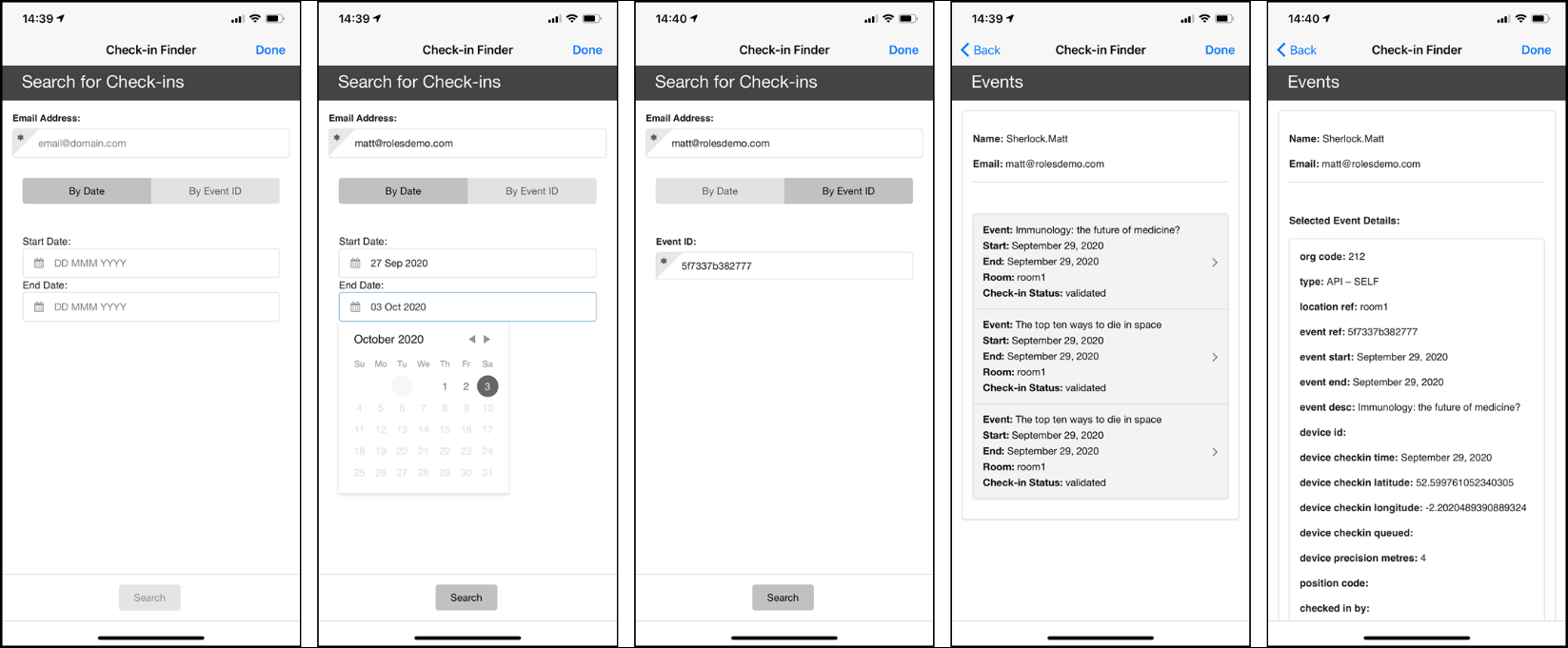
The user completes the fields to query attendance check-in transactions an email address and either a date range (no greater than 7 days) or a specific event ID.
A clickable summary list of transactions that meet the perimeters of the query are then displayed. Clicking an item in the list displays the detailed transaction.
Authentication
There is no need for additional user authentication.
Offline Support
No offline support is provided. User must be online to see Attendance Transactions.
Screenshots
The following is an overview of the Attendance Transaction Viewer user interface for a reference when configuring it:
Technical Overview
The following section describes technical information for the Attendance Transaction Viewer.
Prerequisites
The following prerequisite is required for the Attendance Transaction Viewer integration:
- Attendance must be enabled within the environment
Configuration
The following section describes configurations for the Attendance Transaction Viewer.
Configuring the Attendance Transaction Viewer
To configure the Attendance Transaction Viewer, select Attendance > Transaction Viewer Configuration from the Main Menu.
| Configuration Option | Description | Mandatory | Data Type | Default | Example |
|---|---|---|---|---|---|
| Manage Integration | |||||
| Enable Product Integration | Select to enable the product integration on the user's campusM app. | No | Checkbox | Unselected | |
| Screen Title | The title that appears in the top header of the service | No | String | Attendance Transaction Viewer | |
| Look and Feel | |||||
| Primary Theme Color | Select a color for the main elements on the page | No | Color Picker | #444444 | |
| Secondary Theme Color | Select a color for the secondary elements on the page | No | Color Picker | #6f8ea4 | |
| Text / Labels | Enter replacement text for the default titles and labels | No | String | ||
| Date Format (long) | Select how dates should be shown in the screens You can enter any ISO-standard date format here. For more information on LL, LLL and LLL, see 'Locale aware formats' at https://momentjs.com/docs/#/parsing/string-format/. | String | LL | ||
| Primary Theme Color | Select a color for the main elements on the page | No | Color Picker | #444444 | |
| Import/Export Configuration | |||||
| Import | Create a JSON file with all of the product integration configurations. | No | Create a JSON file with all of the product integration configurations. | ||
| Export | Use this option in order to load configurations from a JSON of an exported product integration. | No | |||
Page tags: article:topiccontent:Documentationproduct:campusmlang:english
