
Administration Overview
This guide describes the tasks available for administering Leganto. It is intended for users who administer Leganto at their institution.
Both Alma and Leganto must already be installed at your institution. All administration tasks described in this guide are performed in Alma and require a valid Alma login. To perform a task, your Alma user must have the permissions specified in the corresponding section.
Administration tasks include:
- Configuring Leganto Integration Profiles – Configuring integrations between Leganto and external systems
- Configuring Learning Tools Interoperability (LTI) – Configuring authentication between Leganto and your course management systems.
- Configuring Course Loading (Alma) – Importing courses from a course management system.
- Configuring Importing Course Enrollment Jobs - Configuring jobs that associate students with courses or remove the association between students and courses.
- Integrating with the UK's Digital Content Store (DCS) – Integrating with the Digital Content Store (DCS), a workflow tool for librarians in UK higher education institutions that supports the sourcing and clearance of digitization requests for course packs and lists. This feature is relevant to UK customers only.
- Configuring Leganto UI Elements – Changing the look, feel, and functionality of the Leganto user interface.
- Configuring List Ownership – Configuring list owners and collaborators.
- Leganto Course Rollover - Configuring course rollover behavior.
- Appendix A: Field Mapping from Primo PNX to Leganto Items – Describing the mapping between Primo PNX fields and Leganto item elements when adding an item from Primo.
- Appendix B: Repository Fields Used to Overwrite Item Fields – Describing the item fields that are replaced by repository information when this option is configured after a resource locate.
- Appendix C: Field Mapping from Summon to Leganto Items – Describing the mapping between Summon fields and Leganto item elements when adding an item from Summon.
Leganto and Alma share the same database, including user and list information. Therefore, many management tasks that you perform in Leganto are performed in Alma.
For example, to create a Leganto user, you must create the user in Alma and assign the appropriate roles, such as Instructor, Leganto Course Operator, or Patron. Alma can automatically assign the Instructor role to instructors who are assigned to courses imported through the course loading integration profile or who log in from the CMS. However, the users must already exist in Alma.
For more info, see the following Alma documentation pages and sections:
-
See Adding Users, User Management, and Circulation Desk Operations for information about user blocks, loan management, and other user management tasks. You must have the relevant user roles to perform activities in these areas of Alma.
-
For more information about roles, see User Roles – Descriptions and Accessible Components.
-
To learn about managing courses, lists, and items, see Courses and Reading Lists Workflow, Managing Courses, Managing Reading Lists, and Managing Citations.
Lists created in Leganto appear in Alma. Lists with an assigned owner appear to that owner and, when published, can be found in Leganto. Changes made to a list in either interface are immediately reflected in the other interface. A user may need to refresh the screen to see the changes.
Introduction to Leganto
Leganto is an online solution for creating, fulfilling, and viewing course lists for instructors, librarians, and students.
Instructors and librarians can collaborate to create and process lists for students. Instructors and librarians can collect items, while instructors can request that librarians hold, acquire, license, or digitize items. Students can view and access the items associated with their courses.
Leganto's Key Features
Leganto provides the following key features:
-
Create and organize lists - Instructors can create or copy lists and optionally divide them into sections by chronology or item type. Lists can be associated with courses.
-
Add items from multiple sources - Items can be added from the library or from other scholarly sources, online bookstores, and websites.
-
Add citations with Cite It! -Leganto provides a browser toolbar widget called Cite It! that instructors can install in a supported browser. While browsing a web page, an instructor can use Cite It! to add the item from the web page to Leganto. Cite It! has been tested on hundreds of sites. The full list of tested sites is available in the Leganto user interface.
-
Import items from reference management systems - Instructors can import items in RIS, BibTeX, or reference file format from reference management solutions such as EndNote Fusion. When enabled, instructors can also upload citations in Microsoft Word or Excel format and send them directly to the library for processing.
-
View and manage item information - Instructors can view information about each item, including its availability and status, other lists that contain the item, and the number of users who have commented on, viewed, or liked the item. Instructors can search, sort, and refresh items.
-
Get recommendations for related content - When enabled, instructors can view recommendations for related articles that they may want to add to their lists.
-
Add tags, notes, and requests - Instructors can add public tags or notes for students, as well as private tags, notes, or requests for librarians.
-
Collaborate on lists - Instructors can collaborate with peers to enrich reading lists and keep them up to date.
-
Publish lists. - After instructors finish editing a list and the library finishes fulfilling its items, the list can be published and made visible to students or the general public.
-
Manage lists, sections, and items - Instructors can edit, copy, delete, export, and print lists, sections, and items. Instructors can also bookmark lists for easy access later.
-
Integrate Leganto with a course management system - An administrator can configure authentication between Leganto and the institution's course management system (CMS) using Learning Tools Interoperability (LTI) integration profiles. Links can be created in the CMS to allow students to log in to Leganto directly from the CMS and access a course, list, section, or item.
-
Provide guest access - Shareable links can provide guest access to a course, list, section, item, or the Leganto Find Lists page.
-
Support multiple logins - Leganto supports multiple logins.
Leganto Terminology
A course can be associated with multiple lists. A list does not have to be associated with a course, and a list can be associated with multiple courses. When a list is associated with multiple courses, the number of participants is the total number of participants in all associated courses.
A list can contain multiple sections. Sections divide a list into logical or chronological groups, such as course weeks or mandatory and supplementary material.
Leganto imports list information from a course management system (CMS), such as Moodle or Blackboard. A CMS may also be called a virtual learning environment (VLE), learning management system (LMS), or another term, depending on the system and institution.
A section can contain multiple items. Items represent books, book chapters, journal articles, videos, or other materials that an instructor wants to include as resources for students. Each item is described by multiple metadata fields.
Leganto Users
Instructors are users with the Instructor role in Alma. When users who access Leganto from a CMS are identified as instructors, the Instructor role is automatically added to these users when this option is enabled. see Configuring When the Instructor Role is Automatically Added to a User.
An instructor who accesses Leganto from a CMS for a specific course is automatically added as an instructor for that course. The Instructor role is also automatically added to students who are made collaborators on lists.
Librarians are Alma users who have a role other than Patron, Trial Participant, and/or Instructor. To access some additional features in Leganto, a librarian must have at least one of the following roles:
-
Course Reserves Manager
-
Course Reserves Operator
-
Fulfillment Services Manager
-
Fulfillment Services Operator
Students are users who have the Patron role and no other role.
Course students are students who access Leganto from a CMS for a specific course and/or reading list. Alma retains their association with the course.
Guests are users who access Leganto while not logged in, typically through a shareable link.
List Owners and Collaborators
The creator of a list is the list's first owner. A list owner can add other users as additional owners or collaborators.
List collaborators can perform all the tasks that owners can, with the following exceptions:
-
They cannot add other users as owners or collaborators.
-
They cannot delete the list.
If a new collaborator does not already have the Instructor role, the role is automatically assigned to them.
The creator of a reading list does not have any additional privileges compared to other owners of the list.
Reading List, Citation, and Publication Statuses
When an instructor creates a new reading list, its initial status is Being Prepared. That is also the status of all new citations unless you configure otherwise (see Configuring Default Statuses for Citations/Reading Lists). After an instructor sends the list to the library for processing, the list and the citations on it are assigned the status Ready for Processing.
A librarian can trigger different workflows in Alma to handle citation requests, for example, clear copyrights, acquire a physical copy, photocopy, copy or scan a physical copy or parts of it, or subscribe to an electronic version.
A reading list has a reading list status(additional statuses can be defined; see Configuring Reading List Statuses):
- Being Prepared– The initial status when an instructor creates a list and is preparing it. The librarian will not process the list at this stage.
- Ready for Processing– The instructor sent the reading list, or any citation on the list, to the library for processing.
- Being Processed– A librarian began working on the citations in the reading list.
- Complete– The librarian finished preparing the reading list. Typically, you change this when all the citations are also marked as complete.
- Rolled Over– A reading list rolled over by an instructor (if the instructor (or library) selects this as the initial status of these types of reading lists).
- Inactive– The reading list is no longer relevant.
- Declined– The library was unable to fulfill the reading list.
A citation has one of the following predefined statuses (additional statuses can be defined; see Configuring Additional Reading List Citation Statuses):
- Being Prepared– The initial status.
- Ready for Processing– The instructor sent the citation (or the entire list) to the library for processing.
- In Process– A librarian began working on a citation.
- Complete– The librarian finished preparing the citation and it is ready. Materials for complete citations are visible to students if the list is also published.
- Inactive– The citation is no longer relevant.
- Declined– The library was unable to fulfill the request. Declined citations are not visible to students.
For a reading list and its citation materials to be visible to students in Leganto, the reading list publication status must make the list visible. Instructors and librarians can publish a list in Leganto. Librarians can also publish a list in Alma; see Editing a Reading List. A publication status is one of the following:
- All Students Restricted(PUBLIC) – All students can view the list as a syllabus, but only course students can access the course materials.
- Course Students(RESTRICTED) – Course students (only) can view the list and access the course materials (electronic citations and uploaded files).
- Anyone Restricted(OPEN_TO_WORLD) – Anyone with a shareable link can view the list as a syllabus, but only course students can access the course materials.
- All Students Full(REGISTERED) – All students can view the list and access the uploaded or electronic citations.
- Anyone Full(FULL) – Anyone with a shareable link can view the list and access the course materials.
- Anyone Restricted, All Students Full(PARTIAL) – Anyone with a shareable link can view the list as a syllabus; all students can access the course materials.
- Draft(DRAFT) – The list is not visible to students.
- Archived(ARCHIVED) – Not visible in Leganto, cannot be found by searching in Leganto, and is not rolled over by a course rollover, but continue to appear in Analytics. The list becomes unassigned. You can unarchive the list on the Reading List Tasks List page (see Editing a Reading List).
- Published(in filter on Reading List Tasks List page, only) –Published matches all reading lists that are not Draft,Archived, or Deleted.
- Active(in filter on Reading List Tasks List page, only) –Active matches all reading lists that are not Archived or Deleted.
- Deleted(DELETED; in filter on Reading List Tasks List page, only) – A deleted, but not purged, list. A deleted list is not visible in Leganto, cannot be found by searching, is not rolled over by a course rollover, and does not appear in Analytics.
Lists can be locked so that instructors cannot change them in Leganto; see Editing a Reading List.
Reports and Analytics
Creating Links to Leganto
You can provide shareable links to Leganto elements (reading lists, sections, citations, and so forth), so that students or guests view that element when accessing Leganto. Certain URL parameters are available to customize this view or Leganto functionality.
- You can find and copy links to courses, reading lists, sections, and citations within Leganto.
- Users who have not logged in have access to Leganto as guests (see Pre-Administration Tasks, below). Guests can only view lists published with an Anyone status. Similarly, when searching for lists on the Find Lists page, guests can only see results for lists published with an Anyone status.
- To provide links to logged in users from a CMS using LTI, see Direct Access to Reading List, Section, or Citation from a CMS.
| Type | Opens | Link |
|---|---|---|
| Course | List of reading lists page, with course's reading lists at top of list. | <url>/leganto/readinglist/lists?courseCode=<course code>&institute=<inst> |
| Reading List | Reading list page The link format changed in August 2018 to support reading list rollover. If you have links from before this, you must update them to the current format. |
<url>/leganto/public/<inst>/lists/<list id> |
| Section | Reading list page, with section expanded and all other sections collapsed | <url>/leganto/public/<inst>/lists/<list id>#section_<section id> |
| Citation | Citation page | <url>/leganto/public/<inst>/citation/<citation id> |
| Find Lists | Find Lists page To open the page with a certain search query pre-entered, user the parameter ?search=<search query>. See also Enabling SSO When Accessing Find Lists Shareable Link. |
<url>/leganto/public/<inst>/searchlists |
| Notifications | Notifications page | <url>/readinglist/notifications?institute=<inst> |
Use the parameter ?auth=<authentication type> to redirect a guest to the correct login page if he or she clicks Log In. The authentication types are local(standard login screen),SAML, and CAS.
For more help with this subject, contact Ex Libris customer support.
Pre-Administration Tasks
- Ex Libris works with you to configure your system before you start to use it, including migrating legacy data (users, courses, readings lists, and/or citations) from any existing course management system. If you would like to migrate legacy data at a later time, contact Ex Libris support for assistance.
- For information on working with Leganto in a sandbox environment, see Alma Sandbox Environments.
- You must define courses in Alma before they can be used in Leganto. See Adding a Course and Configuring Course Loading. When enabled, instructors can create missing courses when they access Leganto from a CMS.
- As noted above, you must create all Leganto users in Alma with the correct roles:
- Users with the role Instructor or Leganto Course Operator have access to all (non-librarian only) Leganto features.
- For an instructor to view reading lists associated with a course or to associate a reading list to a course, the user must be associated with the course or a collaborator or owner of the reading list. Existing owners can add the user as an owner or collaborator of a reading list. See Adding a Course and Configuring Reading List Ownership. An instructor accessing Leganto from the CMS is given the Instructor role if he/she does not already have it (when enabled; see Configuring When the Instructor Role is Automatically Added to a User). In addition, this user is added as an instructor to the relevant course.
- A course operator can view and edit all reading lists.
- Users with the role Patron(and no higher role, such as Instructor or Course Reserves Operator) have access to Leganto as a student. When accessing Leganto from a CMS, the user is associated with the reading lists associated to the course in the CMS.
- Users who are not logged in have access as a guest. The leganto_guest user cannot be deleted. Use the force_login parameter (Leganto configuration menu > General > Settings) to cancel the guest account and force any user to login to Leganto. For more information, see Force Log In. The guest user label can now be translated. To do this, you must add a label in Configuration Menu > Leganto > General > Labels. The value can be changed in the leganto:guest code.
- Users with Course Reserves Operator/Manager or Fulfillment Services Operator/Manager(or General System Administrator) have access to Leganto as a librarian, which enables a few additional features such as creating reading list templates and setting statuses directly in Leganto.
- Users with the role Instructor or Leganto Course Operator have access to all (non-librarian only) Leganto features.
- Internal users can access Leganto via the LTI by setting the allow_internal_users parameter to true(Configuration Menu > Leganto > LTI > Settings).
- For more information about availability, see the Citation Availability workflow.
- Leganto enables off-campus users to log in to Leganto through a proxy server. To enable this feature on the Configuration menu > Leganto > General > Settings page, the following settings must be configured:
- Set the proxy_url parameter to include a URL. Every link in Leganto, including open access resources and other URLs entered by lecturers, are then prefixed with the value entered in this parameter. So, for instance, if the proxy URL format is:https://www.myproxy.com?url=, then a link to cnn.com will redirect to https://www.myproxy.com?url=http://www.cnn.com.
- When the Proxy_for_off_campus_only parameter is set to true, the prefix is only added for students off campus. When the parameter is set to false, the prefix is added for all students.
The proxy_url parameter applies only to external URLs. Resources added from the library’s discovery system are proxied separately according to the library’s discovery configuration.
Additional Information about the Leganto Experience
For information about browser requirements, see Browser and OS Requirements in the Alma documentation.
Recommended Maximum Items
For optimal performance, we recommend reading lists contain a maximum of 100 items. Longer lists are supported, but to improve the user experience and reduce load times, lists with 100 items are automatically collapsed in the Leganto UI.
When adding resources using Cite It!, users with a large number of lists in My lists may experience a delay before the available lists load.
File Storage
Instructors (or librarians) may upload files as citations. These files are stored using an Amazon S3 repository. When the citation is deleted, the file is deleted from Amazon S3, as well.
When a citation with an uploaded file is duplicated, the duplicate citations share the same Amazon file Key. When the last citation with that key is deleted, the file is removed from the S3 repository. Similarly, when a citation with an uploaded file is copied to Collection, the Collection item shares the same Amazon file key. Again, when the last item or citation that points to this file is deleted, the file is deleted from the S3 repository, as well.
Leganto Cookies
Leganto uses Alma cookies (see here for general information about Ex Libris cookies), including the following:
- JSESSIONID– Controls your user session, enabling Leganto to authenticate you as you work in Leganto.
- auth– The authentication method to verify JSESSIONID.
- institute– The institution to verify for JSESSIONID.
These cookies are removed at the end of your browser session.
Leganto Session Timeout
If Leganto has not been used for 60 minutes, a user's session automatically times out. This amount of time is pre-configured by Ex Libris.
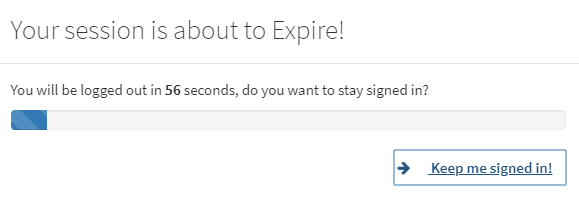
One minute before a Leganto session times out, a warning message appears on the screen. The user can cancel the timeout or log out. If the user does not select either option, the session times out after one minute.
After a session timeout, Leganto refreshes to the relevant login page with a timeout message.
For institutions that use single sign-on (SSO): After Leganto refreshes to the Leganto login page, Leganto checks the SSO server (for example, the SAML IDP or the CAS server) to see whether your login credentials are still valid. If they are, Leganto refreshes back to the Leganto home page and starts a new session.
Force Login
You can require a login for pages that are accessed as a guest. The parameter,Force_login, is found on the Configuration Menu > Leganto > General > Settings page and is true/false. When set to true, guest users' access to Leganto is blocked. Any link that previously allowed guest access then presents a login page.
Page tags: article:topiccontent:Documentationproduct:legantolang:english
