
List Reports
-
With the May 2019 release of Primo, BIRT reports have been deprecated for Primo Cloud customers and have been removed from the Back Office. It is recommended that you migrate to Primo Analytics. For more information, see Overview of Primo Analytics.
-
BIRT reports are not supported in Primo VE. For more information regarding Primo VE Analytics, see Overview of Primo VE Analytics.
List reports display on the left side of the Primo Reports page (see Primo Reports Page). These reports display information about your Primo configuration. These reports are generated from Oracle tables (such as RT_PIPE_CONFIGURATION,C_N_MAPPING_SET,C_I_INTITUTIONS, and so forth).
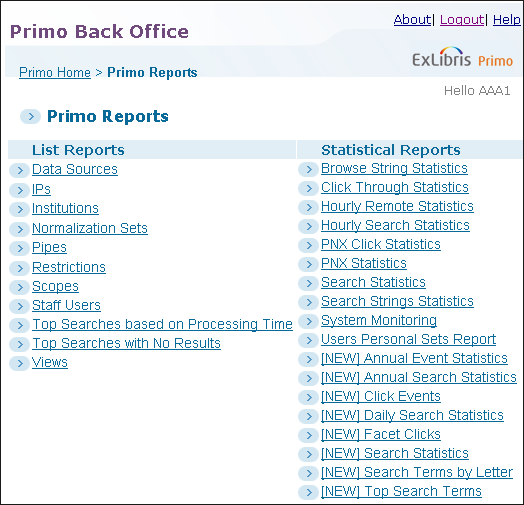
The information that appears in the BIRT Report Viewer is updated when you change the configuration settings via the Back Office configuration wizards. The following table describes the List reports:
| Report Name | Description |
|---|---|
|
Lists all code tables per sub system. |
|
|
Lists the sources of data in the system. |
|
|
Lists the system parameters. |
|
|
Lists the IP addresses and names of the machines in the system. |
|
|
Lists the system institutions. |
|
|
Lists the mapping tables by sub system. Includes information on the level of the table and whether or not it is enabled. |
|
|
Lists the Normalization sets used by the system. |
|
|
Lists the pipes used to publish system data. Includes the harvesting and normalized types and when the pipe was last run. |
|
|
Lists the processes and when they were last run. |
|
|
Lists the search restrictions. Includes the user group, and if the restrictions apply to users that are on or off campus. |
|
|
Lists the search scopes including search and delivery restrictions. |
|
|
Lists the registered system users, their roles, and contact information. |
|
|
Lists the search string, number of searches, average number of results, and average response time of the top searches based on processing time. |
|
|
Lists the search string, number of searches, and average response time of the top searches with no results. |
|
|
Lists the pre-configured system screen views and whether they are currently deployed. |
Code Table Reports
This report lists all of the code tables per subsystem and displays information on the level of the table and whether it is enabled or disabled.
-
On the Back Office’s home page, click Primo Reports.
The Primo Reports page opens. -
Click Code Tables to display the Code Table report.
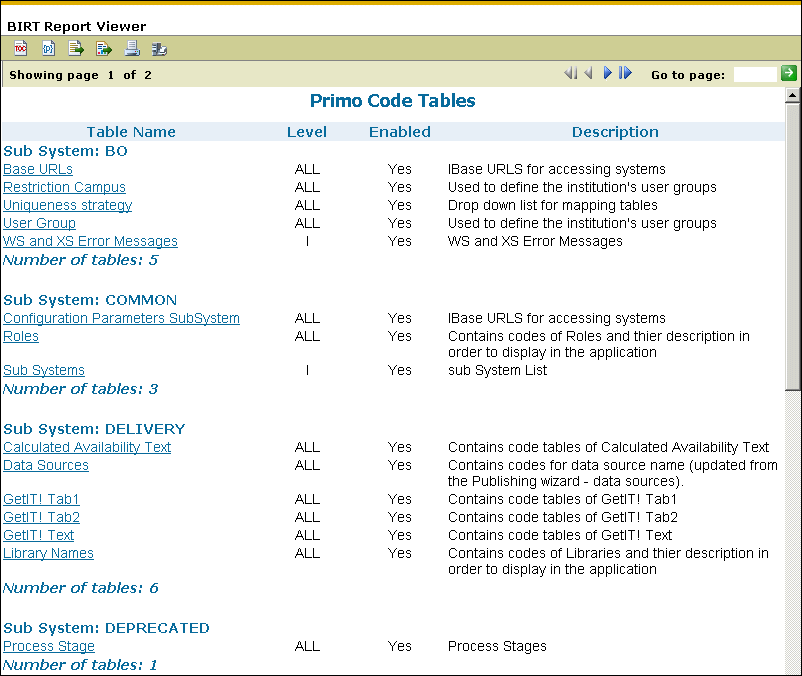 BIRT Code Tables Page
 -
Select a code table link in the report to display information for a specific code table.
For example, click Data Sources under the Delivery subsystem to display the Data Sources code table.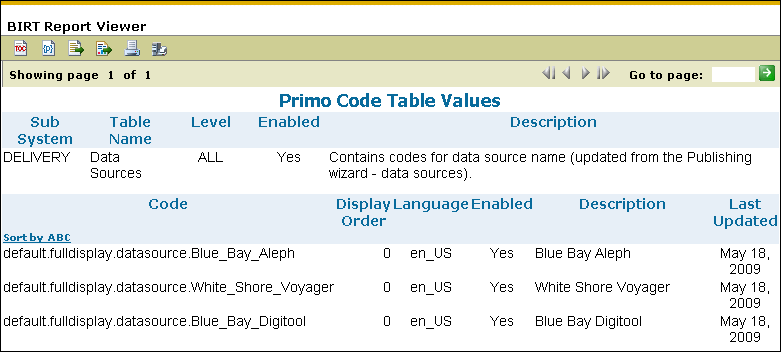 Data Sources Code Table
Data Sources Report
This report lists all of the sources of data defined in the system. For more information on configuring data sources, see Configuring Data Sources.
-
On the Back Office’s home page, click Primo Reports.
The Primo Reports page opens. -
Click Data Sources.
The Parameter dialog box opens. -
Select a specific institution or All Institutions from the drop-down list and then click OK. For institution-level staff users, your institution will be selected for you.
The Data Sources report opens.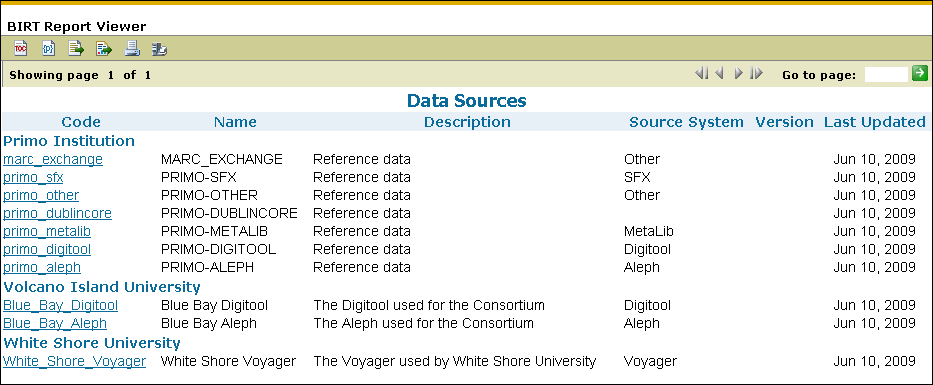 BIRT Data Sources Page
 -
Select a data source in the report to display more information (such as pipe details) for the data source. For example, click Blue_Bay_Digitool under the Volcano Island University institution to display the Data Sources Details page.
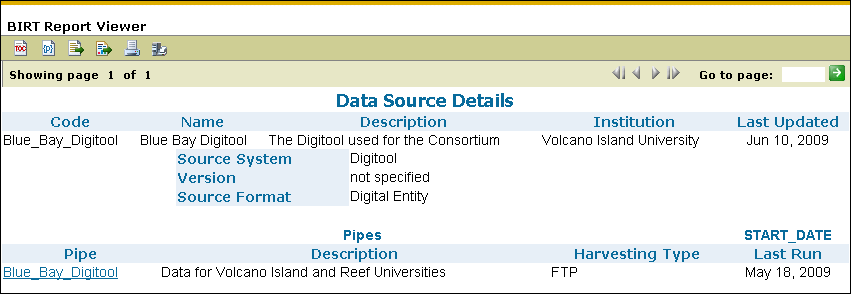 Data Source Details Page
 -
To display more information on a data source's pipes, click a link under the Pipe column of the report.
General Parameters Report
This report lists all of the system parameters defined in the system.
-
On the Back Office’s home page, click Primo Reports.
The Primo Reports page opens. -
Click General Parameters to display the General Parameters page.
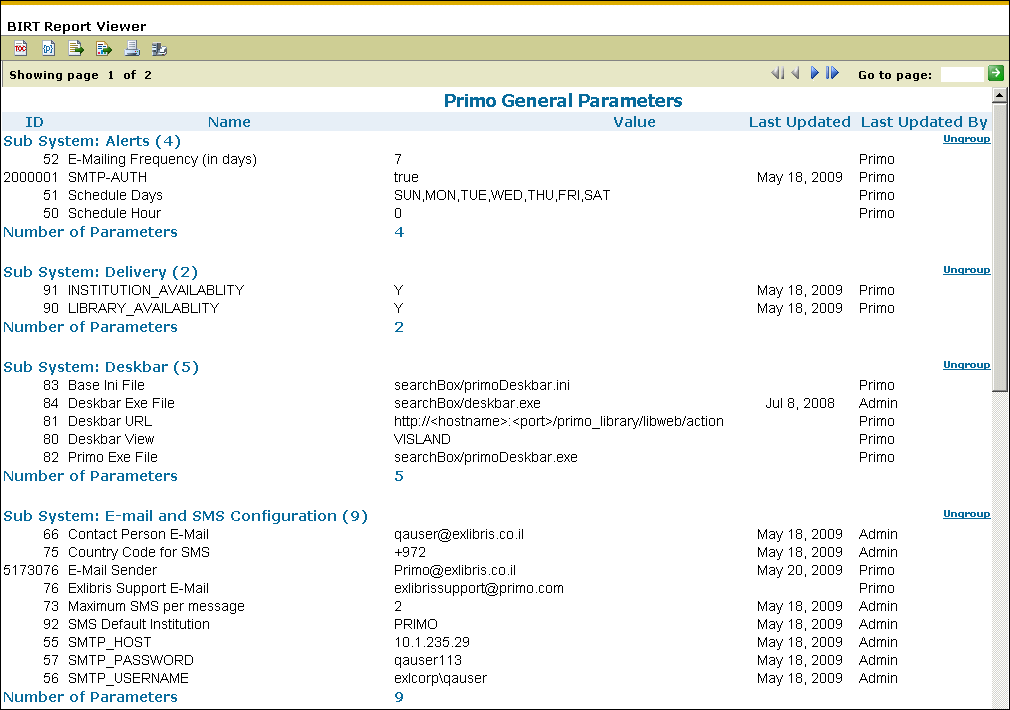 BIRT General Parameters Page
IPs Report
This report lists the IP addresses and names of the machines in the system.
-
On the Back Office’s home page, click Primo Reports.
The Primo Reports page opens. -
Click IPs.
The Parameter dialog box opens. -
Select a specific institution or All Institutions from the drop-down list and then click OK. For institution-level staff users, your institution will be selected for you.
The IPs report opens.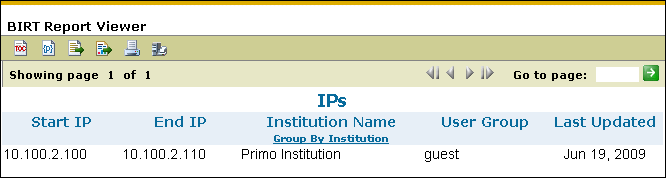 BIRT IPs Page
Institutions Report
This report lists all of the institutions defined in the system.
-
On the Back Office’s home page, click Primo Reports.
The Primo Reports page opens. -
Click Institutions to display the Institutions report.
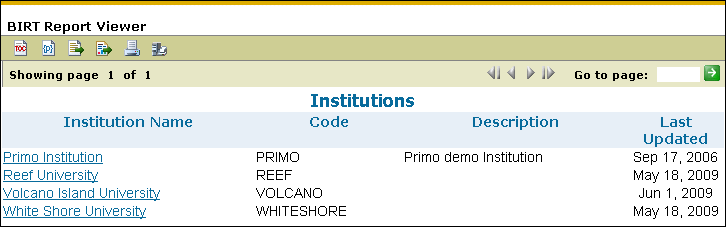 BIRT Institutions Page
 -
Click an institution link in the report to display information for a specific institution. For example, click Primo Institution to display the Institution Details page.
 Institution Details Page
Mapping Tables Report
This report lists all of the mapping tables defined in the system.
-
On the Back Office’s home page, click Primo Reports.
The Primo Reports page opens. -
Click Mapping Tables to display the Mapping Tables report.
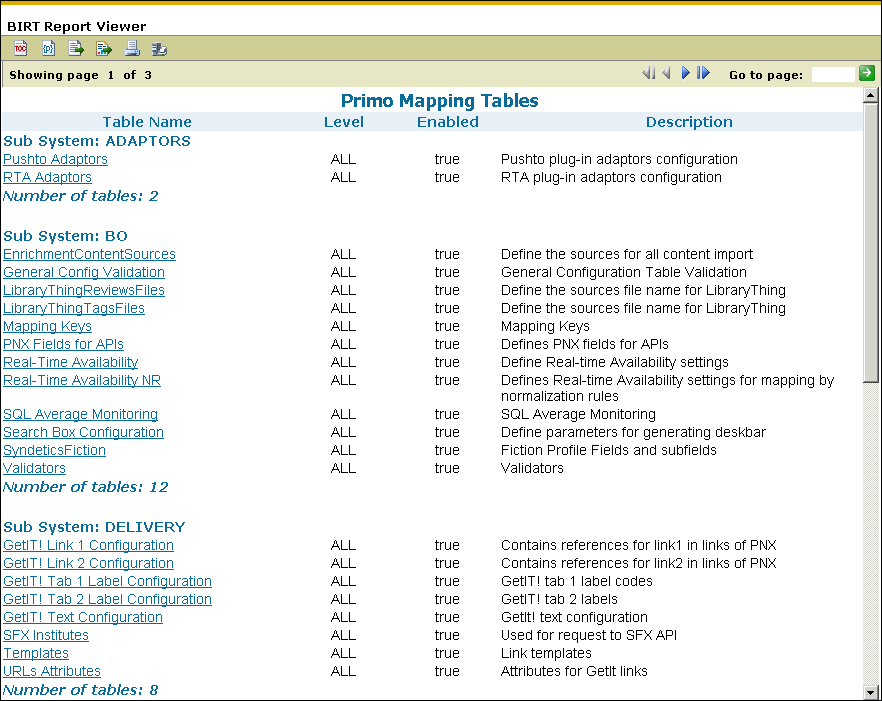 BIRT Mapping Tables Page
 -
Select a mapping table link in the report to display information for a specific mapping table. For example, click RTA Adaptors under the Adaptors subsystem to display the Mapping Table Values page.
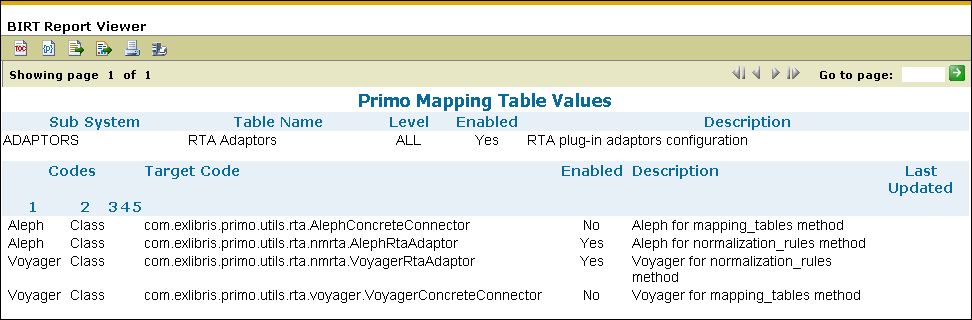 Mapping Table Values Page
Normalization Sets Report
This report lists all of the normalization sets used in the system.
-
On the Back Office’s home page, click Primo Reports.
The Primo Reports page opens. -
Click Normalization Sets.
The Parameter dialog box opens. -
Select a specific institution or All Institutions from the drop-down list and then click OK. For institution-level staff users, your institution will be selected for you.
The Normalization Sets report opens.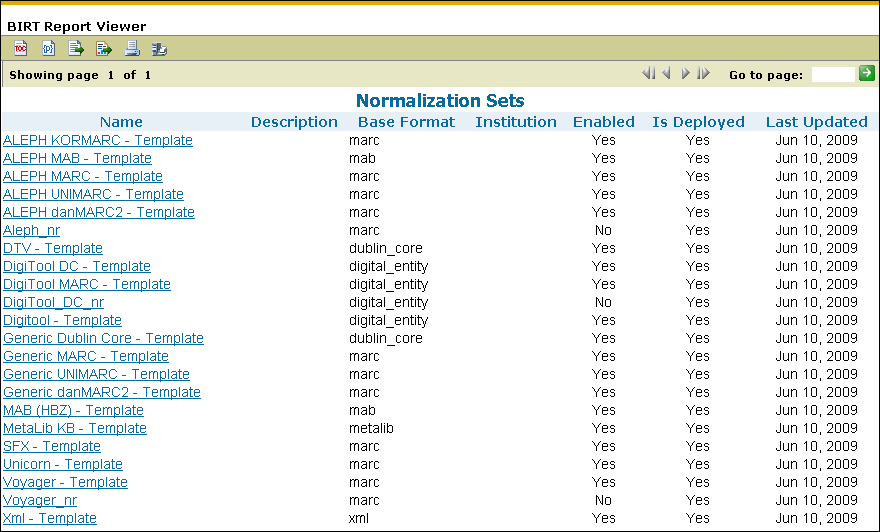 BIRT Normalization Sets Page
 -
Click a normalization set link in the report to display detailed information for a normalization set. For example, click ALEPH MARC - Template to display the Normalization Set Details page.
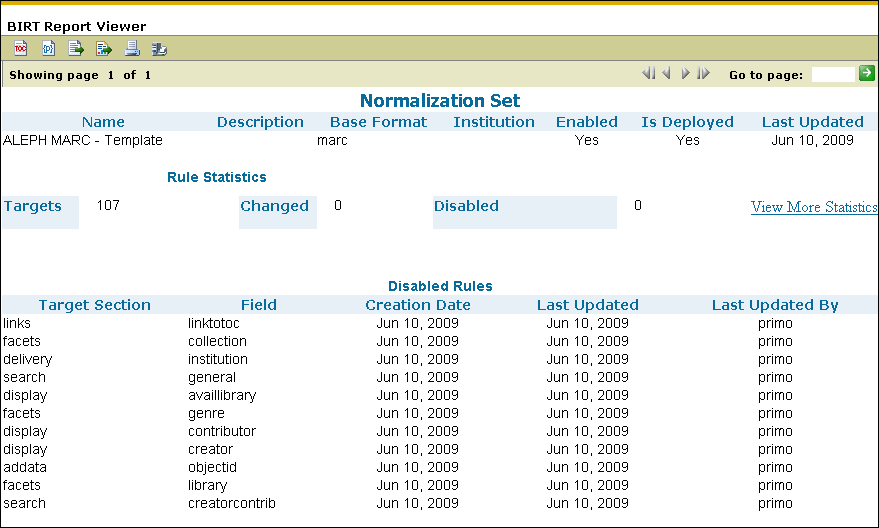 Normalization Set Details Page
 -
Click the View More Statistics link in the report to display graphical statistics for the normalization set.
 Normalization Set Statistics
Pipes Report
This report lists the pipes that are used to publish system data, including the harvesting and normalized types and the date of the pipe's last run.
-
On the Back Office’s home page, click Primo Reports.
The Primo Reports page opens. -
Click Pipes.
The Parameter dialog box opens. -
Select a specific institution or All Institutions from the drop-down list and then click OK. For institution-level staff users, your institution will be selected for you.
The Pipes report opens.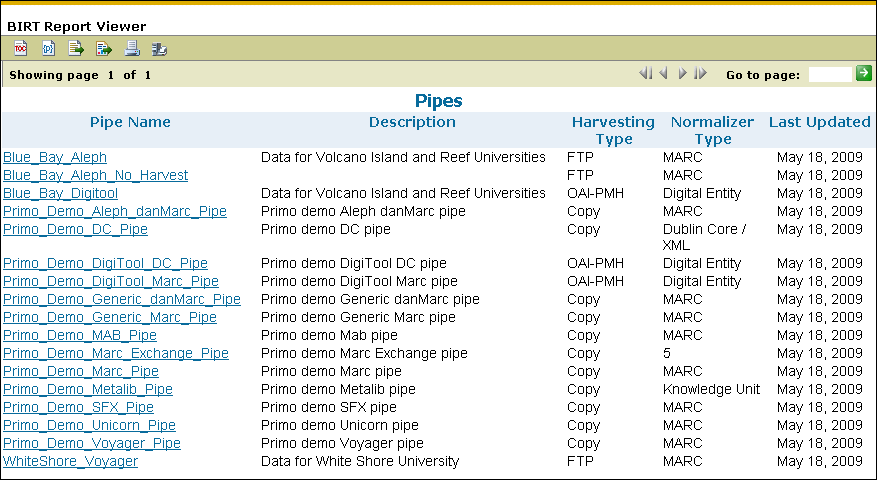 BIRT Pipes Page
 -
Click a pipe link in the report to display information for a specific pipe. For example, click Blue_Bay_Aleph to display the Pipes Details page.
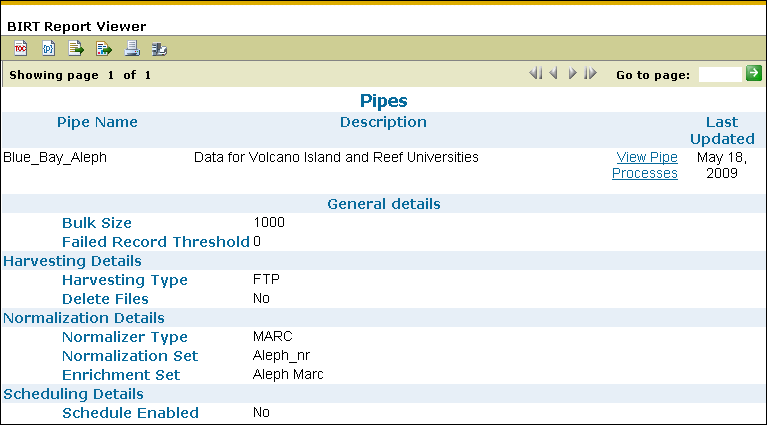 Pipes Details Page
 -
Click the View Pipe Processes link to display information on the pipe's processes.
Processes Report
This report lists the processes and the last time they were run.
-
On the Back Office’s home page, click Primo Reports.
The Primo Reports page opens. -
Click Processes to display the Processes report.
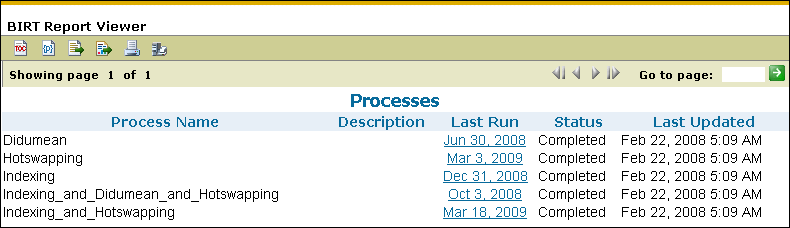 BIRT Processes Page
 -
Click a date link in the Last Run column to display information for a specific process.
For example, click Indexing_and_Didumean_and_Hotswapping to display the Process Runs page.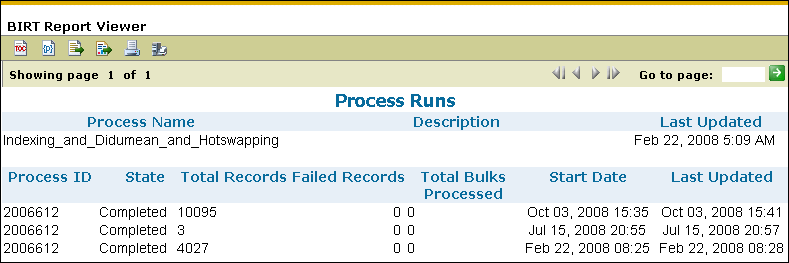 Process Runs Page
Restrictions Report
This report lists the search restrictions, which includes the user group, and whether restrictions apply to users that are on or off campus.
-
On the Back Office’s home page, click Primo Reports.
The Primo Reports page opens. -
Click Restrictions.
The Parameter dialog box opens. -
Select a specific institution or All Institutions from the drop-down list and then click OK. For institution-level staff users, your institution will be selected for you.
The Restrictions report opens.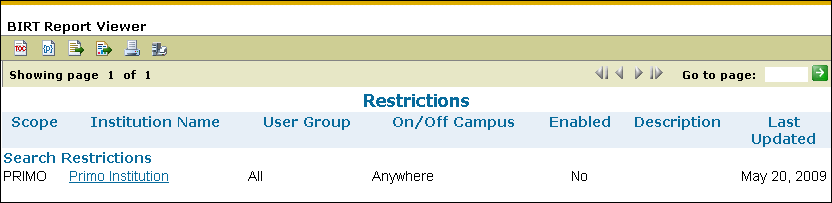 BIRT Restrictions PageIf you want to display more details on the institution, click an institution link in the Institution Name column.
Scopes Report
This report lists the search scopes and displays the search and delivery restrictions.
-
On the Back Office’s home page, click Primo Reports.
The Primo Reports page opens. -
Click Scopes.
The Parameter dialog box opens. -
Select a specific institution or All Institutions from the drop-down list and then click OK. For institution-level staff users, your institution will be selected for you.
The Scopes report opens.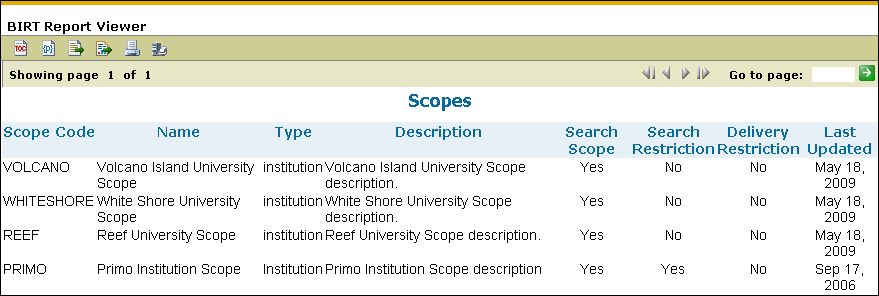 BIRT Scopes Page
Staff Users Report
This report lists all of the registered staff users and displays their roles and contact information.
-
On the Back Office’s home page, click Primo Reports.
The Primo Reports page opens. -
Click Staff Users.
The Parameter dialog box opens. -
Select a specific institution or All Institutions from the drop-down list and then click OK. For institution-level staff users, your institution will be selected for you.
The Staff Users report opens.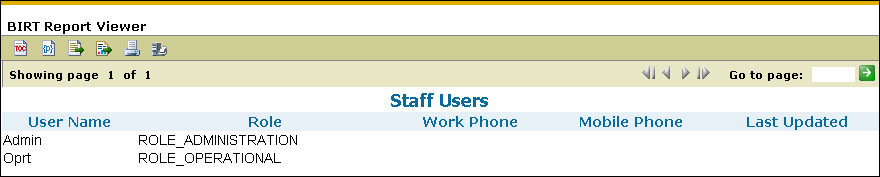 BIRT Staff Users Page
Top Searches Based on Processing Time Report
This report lists the search string, the number of searches, the average number of results, and the average response time of the top searches, based on processing time.
-
On the Back Office’s home page, click Primo Reports.
The Primo Reports page opens. -
Click Top Searches Based on Processing Time.
The Parameter dialog box opens. -
Select a specific institution or All Institutions from the drop-down list and then click OK. For institution-level staff users, your institution will be selected for you.
The Top Primo Searches report opens.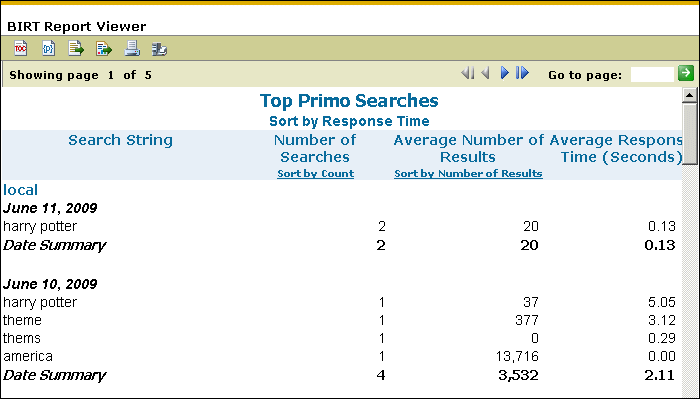 BIRT Top Searches Based on Processing Time Page
By default, the report is sorted by the average response time. To change the order in which the search strings are sorted, you can click the following links:
-
Sort by Count– sorts the search strings by the number of times the search string was used in a query.
-
Sort by Number of Results– sorts the search strings by the average number of results that were returned from a query.
-
Sort by Response Time– sorts the search strings by the average response time in seconds per query.
-
Top Searches with No Results Report
This report lists the search string, the number of searches, and the average response time of the top searches that did not return results.
-
On the Back Office’s home page, click Primo Reports.
The Primo Reports page opens. -
Click Top Searches with No Results.
The Parameter dialog box opens. -
Select a specific institution or All Institutions from the drop-down list and then click OK. For institution-level staff users, your institution will be selected for you.
The Top Primo Searches with No Results report opens.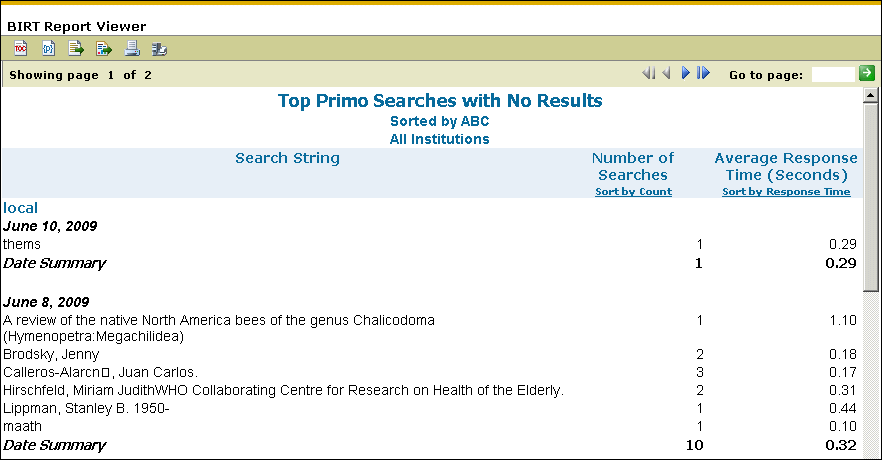 BIRT Top Searches with No Results Page
By default, the report is sorted alphabetically by the search string. To change the order in which the search strings are sorted, you can click the following links:
-
Sort by Count– Sorts the search strings by the number of times the search string was used in a query.
-
Sort by ABC– Sorts the search strings alphabetically by the search strings that are used in queries.
-
Sort by Response Time– Sorts the search strings by the average response time in seconds per query.
-
Views Report
This report lists the pre-configured system screen views and whether they are currently deployed.
-
On the Back Office’s home page, click Primo Reports.
The Primo Reports page opens. -
Click Views.
The Parameter dialog box opens. -
Select a specific institution or All Institutions from the drop-down list and then click OK. For institution-level staff users, your institution will be selected for you.
The Views report opens.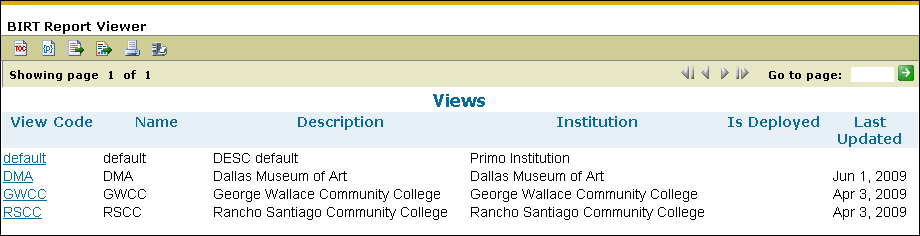 BIRT Views Page
 -
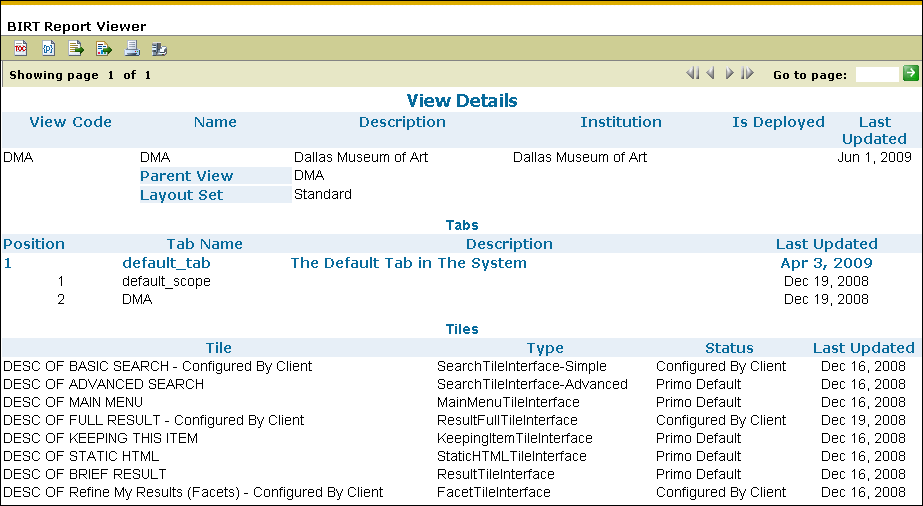
Click a view link in the View column to display information for a specific view. For example, click DMA to open the View Details page.
 View Details Page
Page tags: article:topicProd:Primocontype:documBack Office GuidePrimo Reportsproduct:primocontent:Documentationlang:english
