
Collection Tool
Collection Tool Overview
The Collection tool allows you to compare the titles available in different packages or sets of packages. This allows you to determine the level of overlap in the packages to which you subscribe, or check whether your holdings are incomplete. With this information, you can fine-tune your subscriptions to meet your institution’s needs. To start the Collection tool, from the KBTools section of the Data Management area, click Collection Tool. The following window opens:
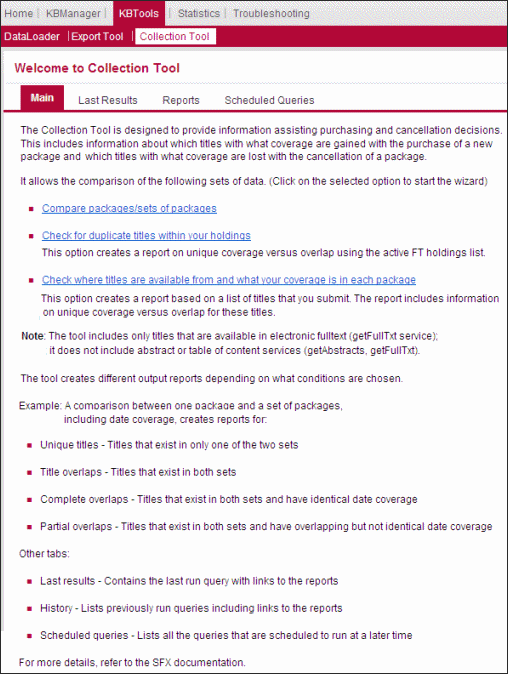
Main
In the Main tab, select one of the following options:
Compare Packages/Sets of Packages
This option allows the comparison of either individual packages or sets of packages and produces various reports, such as reports on unique titles, partial overlaps, and full overlaps.
- From the Main tab, click Compare packages/sets of packages. The following dialog box opens.
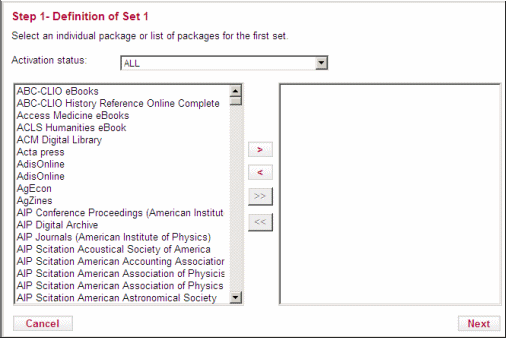
- Select an activation status:
- ALL – Displays all packages
- ACTIVE – Displays active packages
- INACTIVE – Displays inactive packages
- Select an institute. To view packages available to all institutes, select DEFAULT.
- Select a package from the selection box on the left. Use the Ctrl key to select multiple packages.
- Select one of the following options:
- To move the selected packages to the selection box on the right, click the red right arrow button.
- To move all packages to the selection box on the right, click the right double arrows.
- Click Next. The following dialog box opens:
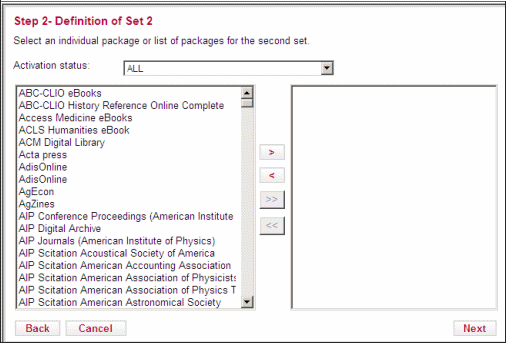
- Select an individual package or several packages for the second set as described in steps 2-6.
- Click Next. The following dialog box opens:
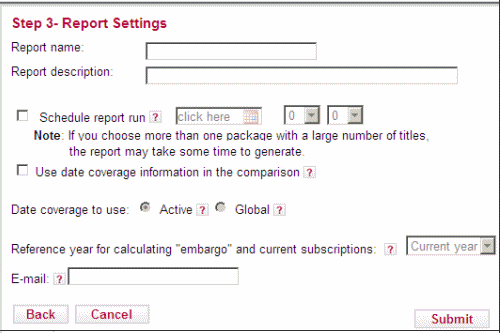
- Enter a name and description for the report.
- To have the system generate the report at a later time, select Schedule report runand enter a date and time.
- To have the system take the coverage date into account when comparing packages, select Use date coverage information in the comparison. If this option is not selected, only the title is used in the comparison.
- Select the date coverage to use:
- Active – Compares titles using local date coverage if it is defined. If local coverage is not defined, the global date coverage is used.
- Global – Compares titles using the global date coverage. Locally defined date coverages are ignored.
- Select the reference year for calculating embargo and current subscriptions. The reference year chosen affects how moving wall and embargo coverages are translated into date coverage (in format YYYY), which influences overlap reports.
- Select a group/institute activation calculation algorithm:
- Inheritance – Includes packages available to the consortium with which the institute is affiliated.
- Explicit – Includes only packages to which the institute itself subscribes in the comparison.
- To enter an e-mail address to which to send the report, select E-Mail. Separate addresses with a semicolon.
- Click Submit. Reports are available in the Reports tab after they are generated.
The report files created by the Collection tool are stored in the SFX instance in the following location:
|
exlibris/sfx_ver/sfx4_1/<instance>/export/collection_tool/ |
Each set of reports is stored in a separate directory.
Check for Duplicate Titles Within Your Holdings
This option creates a report on duplicates and overlaps within the currently active full-text holdings in the KnowledgeBase.
- In the Main tab, clickCheck For Duplicate Titles Within Your Holdings. The following dialog box opens:
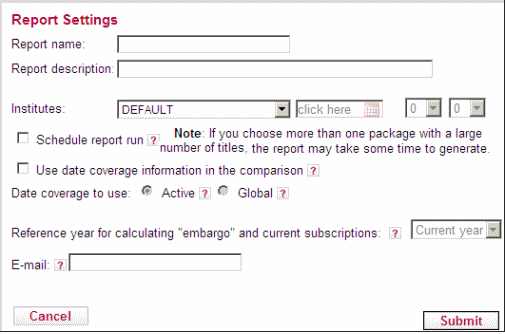
- Fill in the fields as described in steps 9-16 in the previous procedure.
- Click Submit. Reports are available in the Reports tab after they are generated.
Check Where Titles Are Available From and What Your Coverage Is in Each Package
This option creates a report based on a list of titles that the library uploads. It creates a report similar to the one created by the second option, but based on the title list rather than on the library’s complete holdings.
- In the Main tab, click Check where titles are available from and what your coverage is in each package. The following dialog box opens.
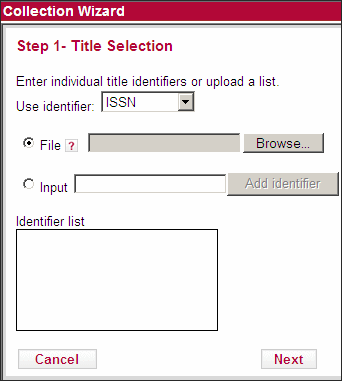
- Select an identifier with which to filter the objects in the package you selected. Only the objects that meet this criterion are used in the comparison.
- Do one of the following:
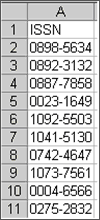
- Select File to import a list of identifiers from a file.
- Select Input to manually enter an identifier. The identifiers are displayed in the Identifier List box. To remove the identifier, click Remove.
- Click Next. The following dialog box opens:
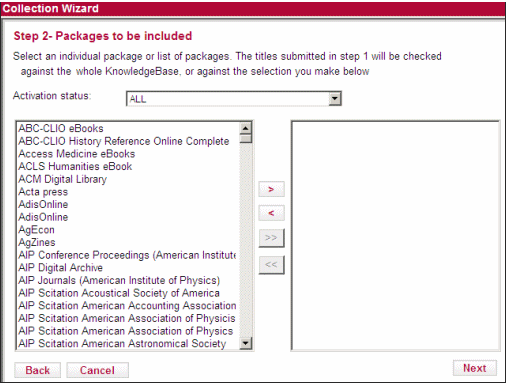
- Fill in the information as described in steps 2-6 in the first procedure. The following dialog box opens:

- Fill in the information as described in steps 9-16 in the first procedure.
- Click Submit. Reports are available in the Reports tab after they are generated.
Last Results
To view the previously generated report, click the Last Results tab. The following window opens, showing a summary report:
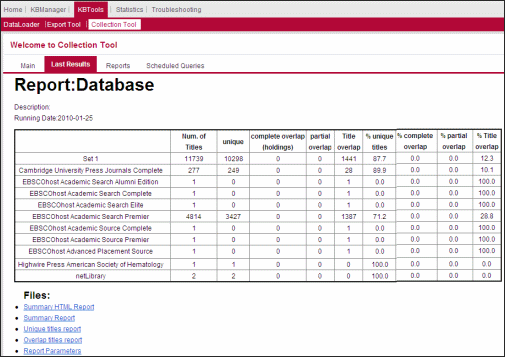
See Reports for detailed information concerning the different report options.
Reports
To view a list of all the reports, click the Reports tab. The following window opens:

To display the list of report options available for a report, click the name of a report. To remove a report from the list, select the check box next to a report and click Remove.
Use Date Coverage Information in the Comparison Reports
If you selected Use date coverage information in the comparison in the Report Settings page, the following report options are available:
The Summary Report table displays the packages and sets of packages in the left column and the statistics concerning overlap in the other columns.
- Num. of Titles – The number of titles in the package or group of packages
- Unique – The number of titles that exist only in one of the two sets
- Complete Overlap – The number of titles existing in both sets that have identical date coverage
- Partial Overlap – The number of titles that exist in both sets but do not have identical date coverage
- Title Overlap – The number of titles that exist in both sets. This column is used when date coverage is not used in the calculation, when no date coverage exists in the SFX KB or when the date coverage does not overlap at all.
Additionally, the summary report contains percentage information that is calculated by dividing the unique or overlap count by the total number of titles.
Compare Packages/Sets of Packages Reports
The following reports are available when selecting Compare packages/sets of packages:
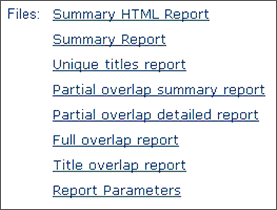
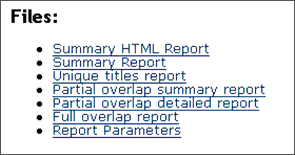
- Summary HTML Report – A summary report in HTML format
- Summary Report – A summary report in text format
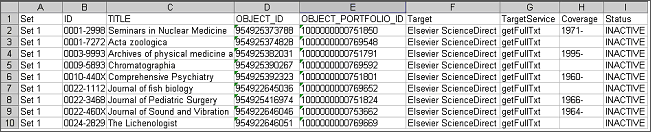
- Unique Titles Report– A report of the unique titles:
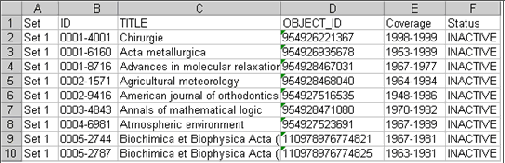
- Partial Overlap Summary Report – A summary report of partial overlaps:
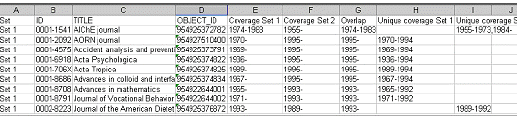
- Partial Overlap Detailed Report – A detailed report of partial overlaps:

- Full Overlap Report – A report of full overlaps:

- Title Overlap Report – A report of title overlaps that do not have coverage overlaps
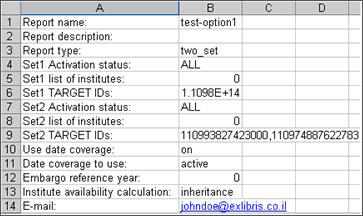
- Report Parameters – A report of the parameters used to run the report:
Check for Duplicate Titles Within Your Holdings Reports
The following reports are available when selecting Check for duplicate titles within your holdings:

The following report is unique to this option:
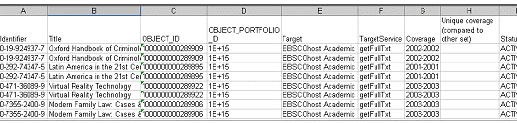
- Overlap Titles Report– A report of title overlaps, whether coverage overlaps or not:
Check Where Titles are Available From and What Your Coverage is in Each Package
The following reports are available when selecting Check where titles are available from and what your coverage is in each package:
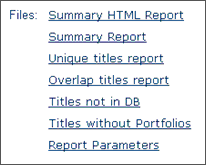
The following reports are unique to this option:
- Titles Not in DB– A report of titles not in the database:

- Titles Without Portfolios – A report of titles that are not include in any selected portfolio:
Scheduled Queries
To view a list of the scheduled reports, click the Scheduled Queries tab. The following window opens:
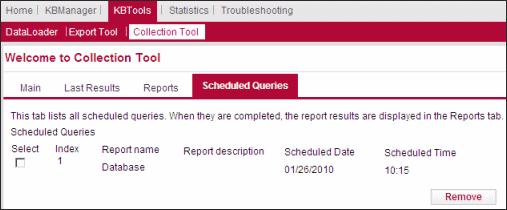
Scheduled queries are automatically removed from the list when the report is generated. To remove a scheduled query from the list, select the check box next to it and click Remove. If a scheduled report is removed from this list, the report is not generated.
The super user may use the at command in all cases. For other users, permission to use at is determined by the files /etc/at.allow and /etc/at.deny, according to the following rules:
- If the file /etc/at.allow exists, only user names mentioned in it are allowed to use at.
- If /etc/at.allow does not exist, /etc/at.deny is checked. Any user name not mentioned in it is allowed to use at.
- If /etc/at.deny is empty, all users are allowed use these commands. This is the default configuration.
- If neither file exists, only the super user is allowed to use at.
