
Task Manager
This section describes the SFX Task Manager feature that allows you to schedule maintenance tasks in SFX.
- Before you can use Task Manager for the first time, you must migrate your existing cron jobs. for more information, see Migrating Existing Cron Jobs to Task Manager.
- Customers using the Task Manager are recommended to not use the ServerAdmin Utility for setting up or looking at a list of scheduled tasks. It is still possible to use the ServerAdmin Utility, but some features, such as enabling/disabling scheduled tasks, are not supported via the ServerAdmin Utility. Disabled tasks do not appear in the list of scheduled tasks in the ServerAdminUtility.
Working with Task Manager
You access Task Manager from the SFX Admin Center main menu (Setup & Administration > Administration > Task Manager). The List of Scheduled Tasks is displayed:
- Access to the Task Manager is by default enabled for the default Administrator user only. For more information on user permissions in SFXAdmin, refer to the User Administration section of the SFX Advanced User Guide.
- If you see jobs without names in the Task Manager, verify that the crontab of the corresponding job does not have a double slash (//) in the command.
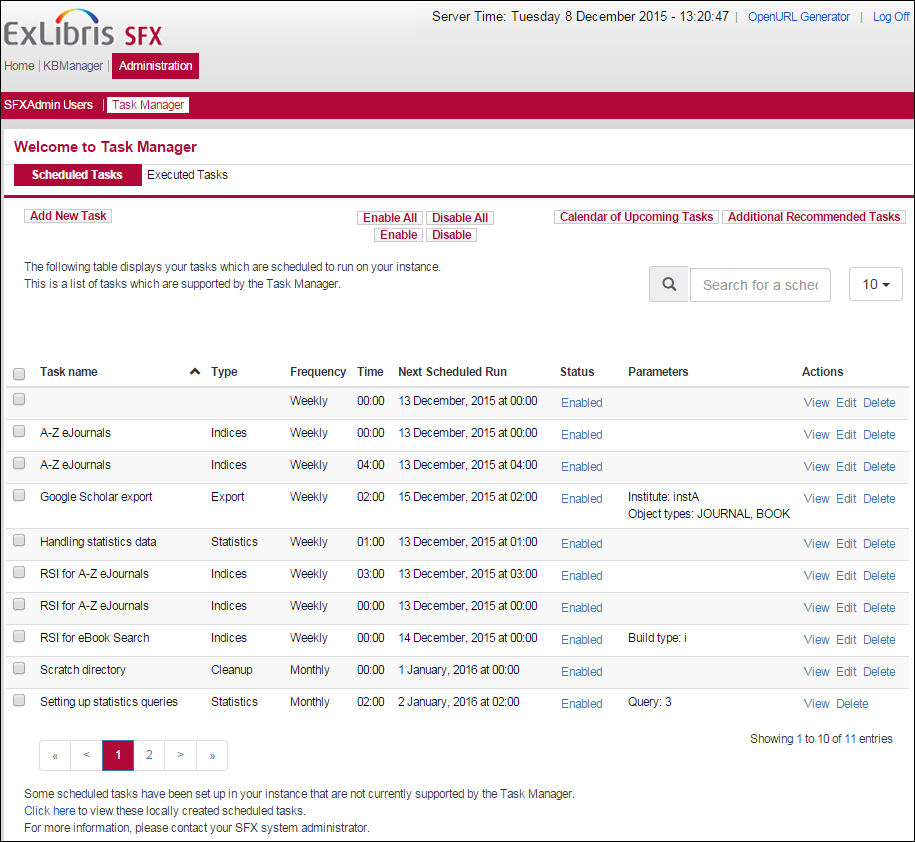
The List of Scheduled Tasks displays a list of tasks with information, such as the type of task, the scheduling parameters of the task, and whether it is enabled or disabled. Some additional parameters are displayed in the Parameters column.
The list is sorted by default according to the Type column – descending. You can change the sorting by clicking the column once for descending and a second time for ascending. Sort is possible on all columns except for Actions, Time, and Parameters.
The following tasks can be scheduled with the Task manager:
Adding Scheduled Tasks
You can add scheduled tasks to the List of Scheduled Tasks.
- Click the Add New Task button. The following is displayed:
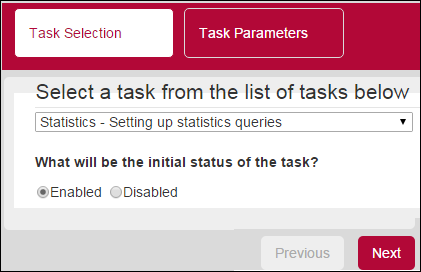
- Select the task that you want to schedule from the drop-down list.
- Indicate whether you want the scheduled task to be initially enabled or disabled.
- Click Next. The next page displays the task parameters for the task you selected, for example:

- Select the task parameters and click Finish.
The task is added to the List of Scheduled Tasks.
Enabling/Disabling Scheduled Tasks
You can enable/disable scheduled tasks from the List of Scheduled Tasks. When a task is enabled, it runs at the scheduled day and time. When a task is disabled, it does not run, but remains on the List of Scheduled Tasks.
There are several methods for enabling/disabling a scheduled task from the List of Scheduled Tasks:
- Select the link in the Status column of the scheduled task (either Enabled or Disabled). The link changes to indicate the new status.
- Select the check box of the scheduled tasks that you want to enable/disable and click the Enable or Disable button. The status of the selected scheduled tasks changes to indicate the new status.
- Click the Enable All or Disable All button to enable/disable all of the scheduled tasks in the list.
Viewing and Editing Scheduled Tasks
You can view and edit scheduled tasks.
- For a scheduled task, click View or Edit. The following, for example, is displayed when clicking edit:

- Edit the fields and click Submit.
The scheduled task with the new parameters are displayed in the List of Scheduled Tasks.
Viewing Executed Tasks
To view a history of executed tasks, click the Executed Tasks tab. The following, for example, is displayed:
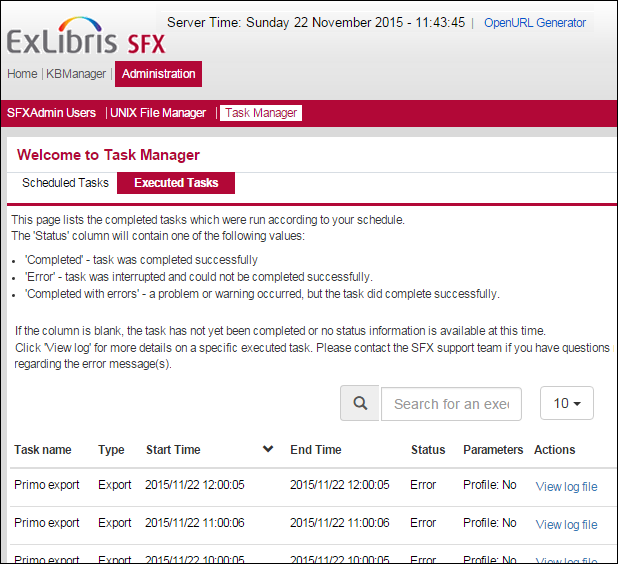
The following statuses are displayed:
- Completed – the task was completed successfully
- Error – the task was interrupted and could not be completed successfully
- Completed with errors – a problem or warning occurred, but the task did complete successfully
Click the View Log File link to view the log of the task for more information. Contact the SFX support team if you have questions regarding the error messages.
Calendar of Upcoming Tasks
To view a list of tasks scheduled in your instance for the next 7 days, click the Calendar of Upcoming Tasks button. The following, for example, is displayed:
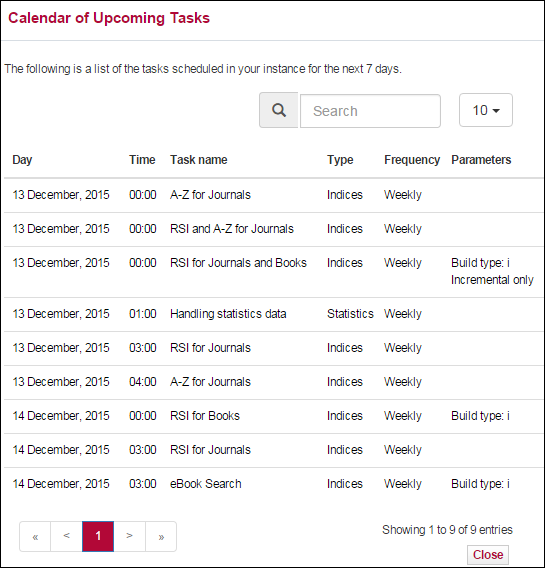
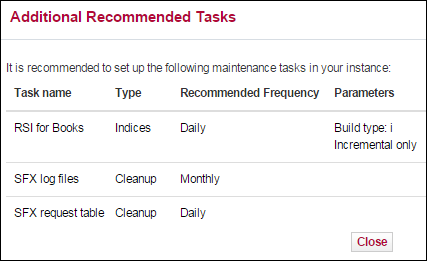
Additional Recommended Tasks
If you have not scheduled all recommended tasks, the Additional Recommended Tasks button is displayed. To display the Additional Recommended Tasks, click the Additional Recommended Tasks button. The following, for example, is displayed:
Unsupported Tasks
Locally created scheduled tasks are not supported by Task Manager. If you have locally created scheduled tasks, the following note is displayed at the bottom of the List of Scheduled Tasks:
|
Some scheduled tasks have been set up in your instance that are not currently supported by the Task Manager. Click here to view these locally created scheduled tasks. For more information, please contact your SFX system administrator. |
Click the link to display a list of locally created scheduled tasks, for example:

Centralized Management of Maintenance Tasks
If you have tasks that are managed by the centralized management of maintenance tasks functionality, a lock icon  is displayed for the task instead of a check box. The task is read-only and cannot be edited, deleted, enabled, or disabled. Additionally, the time the task is run is not displayed, since this is configured by the central management and the task is not displayed in the Add New Task drop-down list.
To determine if centralized management of maintenance tasks (or the RSI/A-Z index build for multiple instances) is in use, SFX uses the following settings in the sfxglb41 instance:
|
configuration file config/central_management.config__ : Section "centralized_management" active "1" EndSection
config/rsi_ebook_setup.config_ Section "index_build" <instance> <instance> EndSection |
Migrating Existing Cron Jobs to Task Manager
Before you can use Task Manager for the first time, you must migrate your existing cron jobs. Before you perform the migration, the following page is displayed:
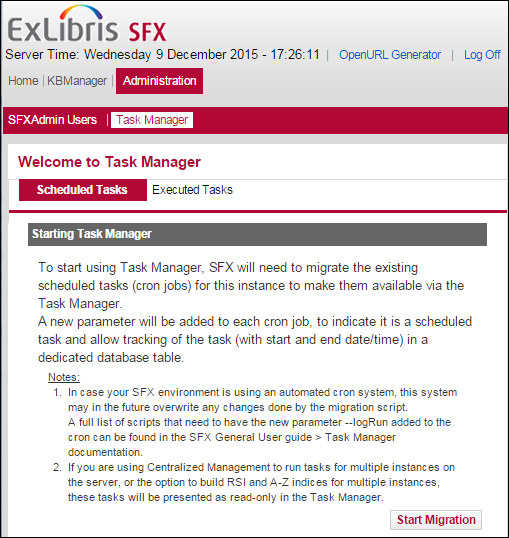
To perform the migration, click Start Migration.
If no read-only tasks from Centralized Management of Maintenance task feature are displayed after migration, this may be due to file permission settings in the config/central_management.config__ file.
To fix this, log on as the sfxglb41 instance user and type the following:
|
cn chmod 0640 central_management.config__ |
The following cron jobs are added to the new parameter (--logRun) as part of the migration:
- admin/kbtools/primo_export.cron
- admin/kbtools/marc_enhancement.cron
- admin/kbtools/export.cron
- admin/kbtools/elsevier_sd_autoloader.cron
- admin/rsi_tools/rsi_index_builder.cron
- admin/aztools/az_index_builder.cron
- admin/aztools/solr_index_builder.cron
- admin/stats/online2offline.cron
- admin/stats/offline2file.cron
- admin/stats/clear_sfx_request.cron
- admin/aztools/run_az_and_rsi.cron
- admin/aztools/run_rsi_az_for_all_instances.cron
- admin/database/clean_tracking/clean_tracking_table.cron
- admin/database/oai_repository/clear_oai_repository.cron
