
Printing Spine Labels from Review Files
In Sierra 6.7 and newer, if spine labels are configured with print templates, a new Print Spine Labels option (File | Print Spine Labels) is available when viewing review files. The new option uses print templates, similar to printing from queues. The spine label template supports customization for font, layout, spacing, and label type.
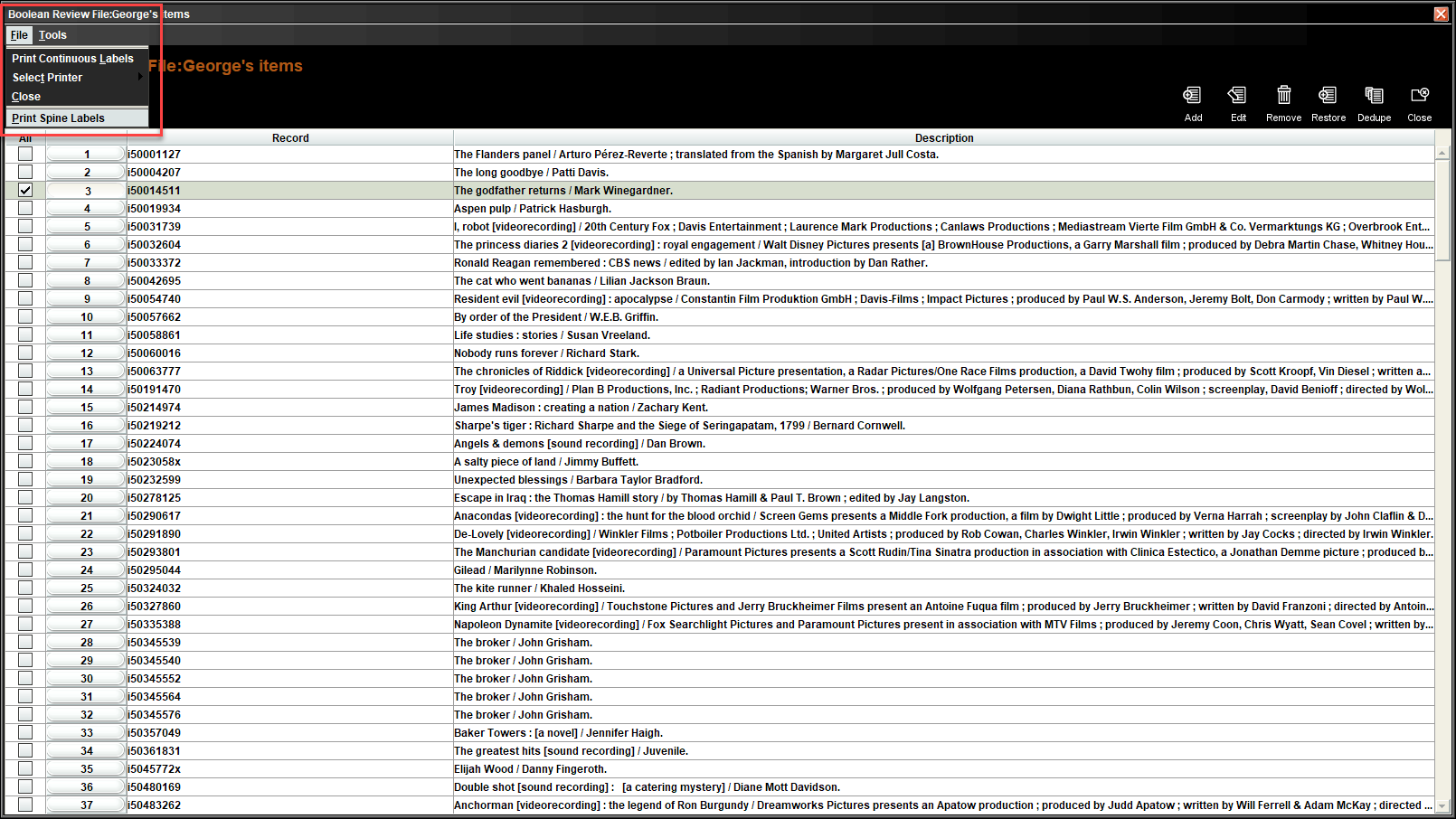
Printing Spine Labels directly from Review Files
To print Spine Labels from review files:
-
From your Sierra home page, select Create Lists under FUNCTION.
The Create Lists screen displays.
-
Open a review file you want to print Spine Labels from.
Spine labels must be configured with print templates.
-
In the opened review file, select File | Print Spine Labels.
The Print setup popup displays.
-
Choose All to print spine labels for all records in the review file.
OR
Choose Selected to print spine labels for only the selected records.
-
Select Print.
The print dialog displays.
-
Select Print.
The spine labels are printed.
Adding Spine Labels to Review Files
In addition, you can save and print spine labels in a later session by adding the spine label to a review file. You can do that in two ways:
-
Adding Spine Labels to Review Files from the Record Summary Panel
-
Adding Spine Labels to Review Files from View Spine Label Queues window
Adding Spine Labels to Review Files from the Record Summary Panel
To add the record's spine label to a review file from the Summary panel:
-
From the record's Summary panel, select Tools | Add Item to Review File.
The Choose a Review File popup displays.
-
Select the desired review file in the dropdown.
-
Select Add.
The spine label has been added to the review file.
Adding Spine Labels to Review Files from View Spine Label Queues window
To add the record's spine label to a review file from the View Spine Label Queues window:
-
From the record screen, select Tools | View Spine Label Queues.
The View Spine Label window displays.
-
Choose a Spine Label queue.
-
Select Add to Review File.
The Choose a Review File popup displays.
-
Select the desired review file in the dropdown.
-
Select Add.
The spine label has been added to the review file.
