
Group Call Numbers for statistical reports in Sierra client
The Group Call Numbers for Statistical Reports is available in Sierra 6.6 and later.
You can edit SCAT (Statistical Categories) tables and configure call-number-based statistical reporting directly within the Sierra client.
The Group Call Numbers option in Sierra Client is accessible under Administration | Group Call Numbers and supports multiple SCAT tables, allowing you to add, edit, delete, sort, view, print, and manage SCAT table metadata. Group Call Numbers functionality supports both Dewey and LC call number formats (alphanumeric ranges). The system supports up to nine SCAT tables with up to 9,999 categories each.
To refresh the contents of the SCAT table you are viewing, select Refresh in the toolbar.
Viewing table entries
To view a table entry in a SCAT table:
-
Under Function, select Group Call Numbers.
The Group Call Numbers screen displays.
-
Under SCAT Table, select the desired table.
-
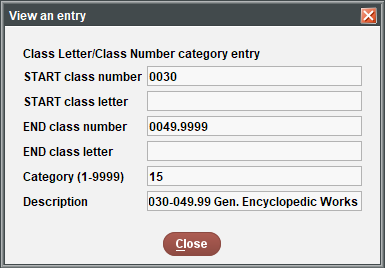
Select an entry you want to view from the main screen, select View.
The View an entry popup displays.
Adding categories to a SCAT table
You can add both free text call number categories and class letter/class number categories to a SCAT table.
Adding a free text call number category to a SCAT table
To add a free text call number category to a SCAT table:
-
Under Function, select Group Call Numbers.
The Group Call Numbers screen displays.
-
Under SCAT Table, select the desired table.
-
Select Add.
A popup displays asking you want to enter free text call number categories.
The free text SCAT options are for entire sections only, and cannot be used in conjunction with non-free text lines in a single scat section. That is, you cannot enter both free text and LC entries into the same SCAT table due to the potential overlap among the ranges.
-
Select YES.
A popup displays asking you to choose the grouping method.
-
Select the grouping method.
Available methods are:
-
Range – the system runs the report based on the range specified. For example, if the range specified is "fiction a" through "fiction z", the report would include: fiction aa, fiction borg, fiction you, fiction z. However, the report would not include: fic, fiction, fiction zz.
-
Match – the system runs the report based on a match of the starting and ending text strings provided. For example, if the starting text range specified is "fic as" and the ending text range is "youth", "FIC ASIMOV YOUTH" falls in the category, while "FIC AUDRY ADULT" will not fall into the category, because "AUDRY" does not match "fic as" and "ADULT" does not match "youth."
The Add new entry popup displays.
-
-
Populate the required fields:
-
START text range
-
END text range
-
Category (1-9999)
-
Description
-
-
Select OK.
The category is added to the SCAT table.
Adding a class letter/class number type category to a SCAT table
To add a class letter/class number category to a SCAT table:
-
Under Function, select Group Call Numbers.
The Group Call Numbers screen displays.
-
Under SCAT Table, select the desired table.
-
Select Add.
A popup displays asking you want to enter free text call number categories.
-
Select NO.
The Add new entry popup displays.
-
Populate the required fields:
-
START class number
-
START class letter
-
END class number
-
END class letter
-
Category (1-9999)
-
Description
-
-
Select OK.
The category is added to the SCAT table.
Editing a SCAT table entry
To edit a SCAT table entry:
-
Under Function, select Group Call Numbers.
The Group Call Numbers screen displays.
-
Under SCAT Table, select the desired table.
-
Select the desired table entry.
-
Select Edit.
The Edit an entry popup displays.
-
Edit the desired information.
-
Select OK.
The edited entry is saved.
Deleting a SCAT table entry
To delete a SCAT table entry:
-
Under Function, select Group Call Numbers.
The Group Call Numbers screen displays.
-
Under SCAT Table, select the desired table.
-
Select the desired table entry.
-
Select Delete.
The Delete an entry popup displays.
-
Select OK.
The entry is deleted.
Changing the SCAT section info
To change the SCAT section info for the whole table:
-
Under Function, select Group Call Numbers.
The Group Call Numbers screen displays.
-
Under SCAT Table, select the desired table.
-
Select Change.
The Change Section popup displays.
-
Enter the desired ranges type for each language you want to change.
You can add Dewey, Library of Congress, and free-form alphanumeric range.
The available languages depend on the languages installed on your system. -
Under Change index tags, enter the desired index tag.
-
Select OK.
The section is saved.
Printing SCAT tables
To print a SCAT table:
-
Under Function, select Group Call Numbers.
The Group Call Numbers screen displays.
-
Under SCAT Table, select the desired table.
-
Select Print.
The table is now printed.
