
The Search Results page displays resources that match your search criteria. Use the Search Results page to evaluate the relevance of resources for your needs. You can perform the following tasks:
-
Search for resources
-
Refine search criteria
-
Save search criteria
-
Access Resource pages
-
Request resources
-
Check available editions and formats
-
Check related resources, persons, and topics
-
Sort the search results
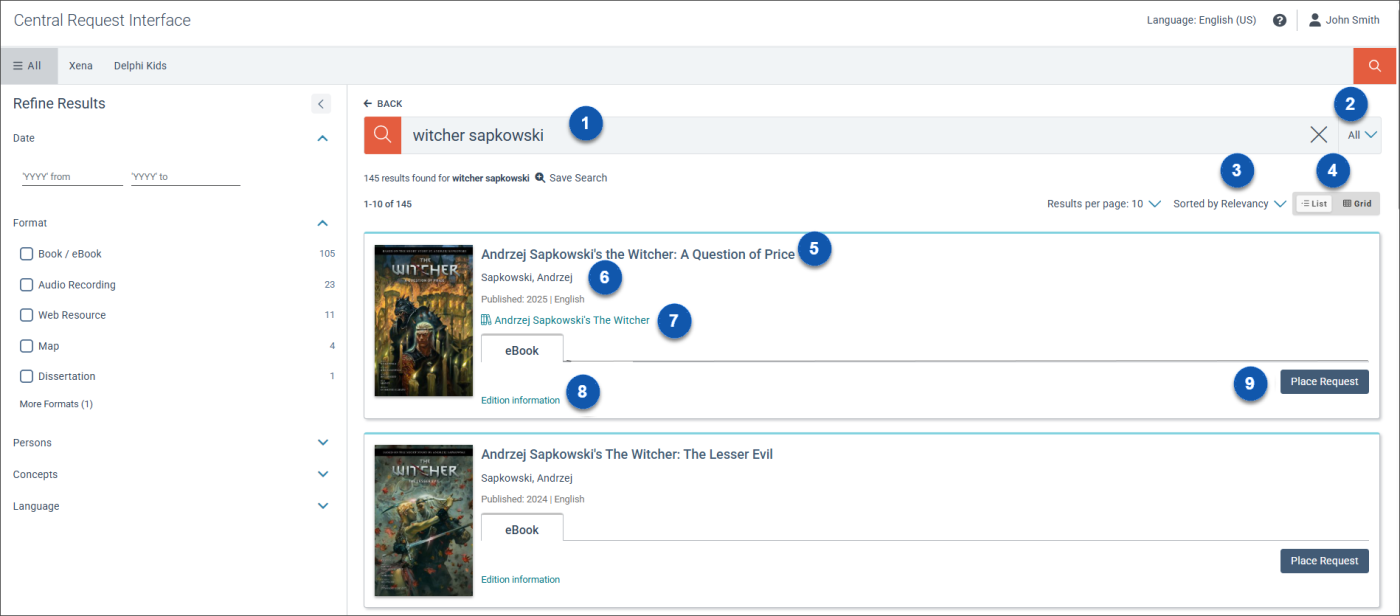
The following image shows the Search Results page.

|
Enter search terms. |

|
Include everything or limit your search to author, series, concept, or title. |

|
Sort the search results by relevancy (default), date: newest, date: oldest, title: A-Z, title: Z-A, author: A-Z, author: Z-A, or new materials. See Sort search results. |

|
Switch between list view and grid view. |

|
Select a title to go to the Resource page. |

|
Years published and language of the work. |

|
Search the series. |

|
Check which editions are available. |

|
Place a request for the resource across available institutions. |
To use the Search Results page
- Enter search terms in the box, and either press Enter or select Search
 .
.
